Every “chat with PDF” tutorial online assumes Python, LangChain, a vector database, and a backend. The JavaScript ones assume React, Next.js, and Pinecone. Nobody builds it in a plain HTML file that works when you double-click it.
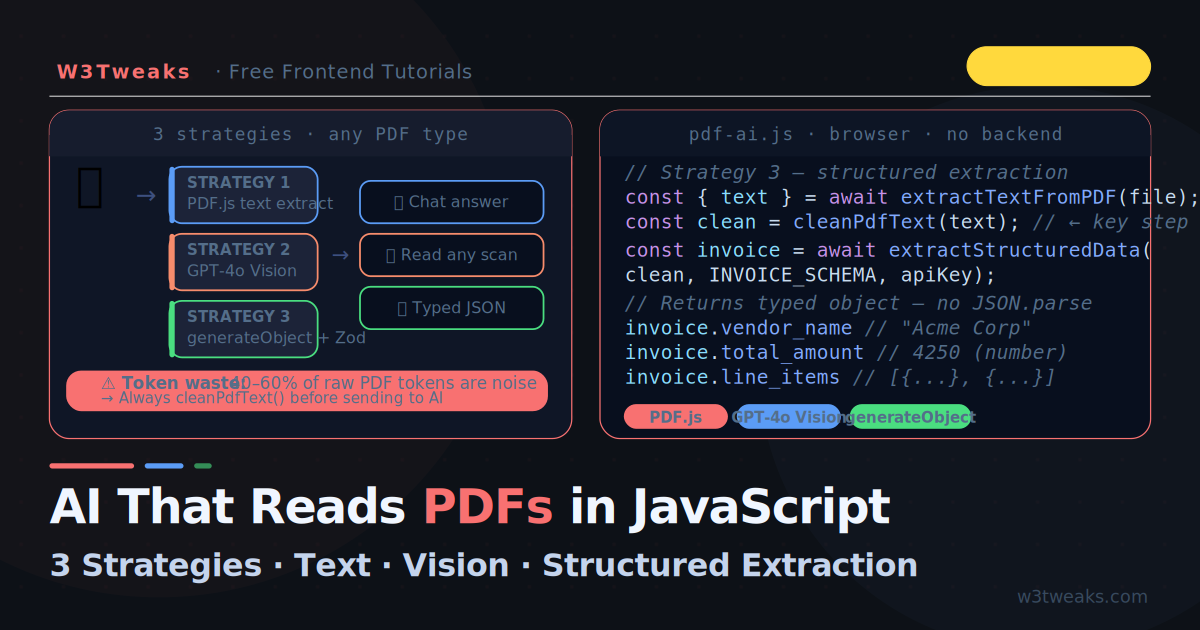
This tutorial does exactly that — and covers something every competitor misses entirely: not all PDFs are the same, and the right extraction strategy depends completely on what kind of PDF you have. The three strategies below handle every case:
- Strategy 1 — PDF.js Text Extraction: for any PDF where you can select text. Fast, free, no extra API calls.
- Strategy 2 — GPT-4o Vision (or free Tesseract.js OCR): for scanned documents, image PDFs, or complex layouts where text extraction fails.
- Strategy 3 — Structured JSON Extraction: for invoices, resumes, contracts, forms — where you want typed fields back, not a chat answer.
All three run in the browser. No Python. No LangChain. No Pinecone. No server. We also cover three things every other tutorial skips: the PDF.js worker setup gotchas that produce silent hangs, the honest “your API key is in the browser” conversation with three real production options, and the free Tesseract.js OCR fallback for cases where Vision costs are prohibitive.
For large documents (50+ pages) you will want to combine this with the RAG approach from the Build a RAG App in the Browser tutorial — that article covers chunking and vector search in detail. This one focuses on extraction strategies and structured output, which that article does not cover.
Live Demo
Drag and drop any PDF. Tab 1 extracts text and lets you chat. Tab 2 extracts structured fields as typed JSON. Tab 3 shows all three strategy patterns.
The PDF Problem Nobody Talks About: Token Waste
Before choosing a strategy, understand why raw PDF extraction often gives bad AI results.
A typical 10-page PDF text extraction looks like this:
                    ANNUAL REPORT 2025
Q4 Highlights
──────────────────────────────────────────
Revenue: $4.2M    Growth: +18%    Margin: 34%
                        2
──────────────────────────────────────────
Page 2 of 24                    CONFIDENTIAL
Every page separator, header, footer, page number, and repeated watermark gets sent to the AI. Studies show 40–60% of tokens in a raw PDF extraction are noise — layout artifacts the AI has to parse around rather than actual content.
The fix is a text cleaning step between extraction and API call:
function cleanPdfText(rawText) {
  return rawText
    // Collapse 3+ consecutive whitespace/newlines into two
    .replace(/\n{3,}/g, '\n\n')
    // Remove lines that are only dashes, underscores, or equals signs
    .replace(/^[-_=]{3,}\s*$/gm, '')
    // Remove lone page numbers ("2", "Page 2", "- 2 -")
    .replace(/^[\s-]*(?:page\s+)?\d{1,3}[\s-]*$/gim, '')
    // Remove "CONFIDENTIAL", "DRAFT", repeated watermarks
    .replace(/^(?:confidential|draft|proprietary|internal only)\s*$/gim, '')
    // Trim each line
    .split('\n').map(l => l.trim()).join('\n')
    // Final whitespace cleanup
    .trim();
}
A 10-page PDF that extracted to 8,000 tokens typically becomes 4,500–5,500 clean tokens after this step — nearly halving your API cost with no loss in answer quality.
Step 1 — Extract Text with PDF.js (And Avoid the Worker Gotchas)
PDF.js is the open-source PDF renderer used by Firefox. It runs in the browser, parses PDF binary, and gives you the text content of every page with no server and no install:
<!-- Load PDF.js from CDN — no npm, no bundler -->
<script src="https://cdnjs.cloudflare.com/ajax/libs/pdf.js/3.11.174/pdf.min.js"></script>
<script>
  // Point the worker at the CDN too — see worker gotchas below
  pdfjsLib.GlobalWorkerOptions.workerSrc =
    'https://cdnjs.cloudflare.com/ajax/libs/pdf.js/3.11.174/pdf.worker.min.js';
</script>
The three PDF.js worker gotchas every tutorial skips
These produce the most frustrating “PDF.js doesn’t work” Stack Overflow threads. Worth understanding before you waste an evening:
Gotcha 1 — Version mismatch between main and worker (silent hang). The library script and the worker script must be the same version. PDF.js 3.11.174 main with 3.4.120 worker doesn’t error — it just hangs forever on getDocument(). Always pin both to the same version string:
<!-- Bad — main script and worker pinned to different versions -->
<script src="https://.../pdf.js/3.11.174/pdf.min.js"></script>
<script>pdfjsLib.GlobalWorkerOptions.workerSrc = 'https://.../pdf.js/3.4.120/pdf.worker.min.js';</script>

<!-- Good — both pinned to the same version -->
<script src="https://cdnjs.cloudflare.com/ajax/libs/pdf.js/3.11.174/pdf.min.js"></script>
<script>
  pdfjsLib.GlobalWorkerOptions.workerSrc =
    'https://cdnjs.cloudflare.com/ajax/libs/pdf.js/3.11.174/pdf.worker.min.js';
</script>
Gotcha 2 — CORS errors when loading the worker from another origin. If you host the worker on a different domain from your page (or use a CDN with strict CORS), the browser refuses to instantiate it and you get SecurityError: Failed to construct 'Worker'. The fix: serve the worker from the same origin, or use the recommended cdnjs.cloudflare.com / unpkg.com which set permissive CORS headers:
// If you self-host, put pdf.worker.min.js at /vendor/pdf.worker.min.js
pdfjsLib.GlobalWorkerOptions.workerSrc = '/vendor/pdf.worker.min.js';

// If you use a CDN, use one that explicitly sets Access-Control-Allow-Origin: *
// cdnjs and unpkg both work. jsDelivr also works.
Gotcha 3 — The “fake worker” warning when workerSrc is unset. If you forget the workerSrc line, PDF.js falls back to a “fake worker” that runs in the main thread. The console warns Setting up fake worker. Extraction still works, but the entire page freezes during PDF parsing — a 50-page PDF can lock the UI for several seconds. Always set workerSrc in production.
Extract all text from an uploaded PDF file
async function extractTextFromPDF(file) {
  // Convert File to ArrayBuffer — PDF.js needs binary data
  const arrayBuffer = await file.arrayBuffer();

  // Load the PDF document
  const pdf = await pdfjsLib.getDocument({ data: arrayBuffer }).promise;

  const pages = [];

  for (let i = 1; i <= pdf.numPages; i++) {
    const page    = await pdf.getPage(i);
    const content = await page.getTextContent();

    // Join text items — each item is a positioned text fragment
    const pageText = content.items
      .map(item => item.str)
      .join(' ');

    pages.push({ page: i, text: pageText });
  }

  return {
    numPages:  pdf.numPages,
    pages,
    fullText:  pages.map(p => p.text).join('\n\n'),
  };
}

// Usage — triggered by a file input or drag-and-drop
async function handlePDF(file) {
  const { fullText, numPages } = await extractTextFromPDF(file);

  // Clean before sending to AI
  const cleanText = cleanPdfText(fullText);

  console.log(`Extracted ${numPages} pages, ${cleanText.length} characters after cleaning`);
  return cleanText;
}
Setting up drag-and-drop
<div id="dropZone">Drop your PDF here or click to upload</div>
<input type="file" id="fileInput" accept=".pdf" style="display:none">

<script>
const zone  = document.getElementById('dropZone');
const input = document.getElementById('fileInput');

// Click to browse
zone.addEventListener('click', () => input.click());

// Drag over
zone.addEventListener('dragover', e => {
  e.preventDefault();
  zone.classList.add('drag-over');
});
zone.addEventListener('dragleave', () => zone.classList.remove('drag-over'));

// Drop handler
zone.addEventListener('drop', async e => {
  e.preventDefault();
  zone.classList.remove('drag-over');
  const file = e.dataTransfer.files[0];
  if (file?.type === 'application/pdf') await processPDF(file);
});

// Browse handler
input.addEventListener('change', async () => {
  const file = input.files[0];
  if (file) await processPDF(file);
});
</script>
Step 2 — Strategy 1: Chat With a Text PDF
Once you have clean text, pass it to the OpenAI API as context. This is the fastest, cheapest approach for any PDF where text can be selected:
const API_KEY  = 'your-openai-key';
let   pdfText  = '';           // set by handlePDF()
const messages = [];           // conversation history

async function chatWithPDF(question, outputEl) {
  if (!pdfText) throw new Error('No PDF loaded');

  // Inject document context as a system message
  // Keep it concise — only the first time, not every turn
  if (messages.length === 0) {
    messages.push({
      role:    'system',
      content: `You are a helpful assistant that answers questions based ONLY on the following document.
If the answer is not in the document, say so clearly — do not guess.

DOCUMENT:
${pdfText}`,
    });
  }

  messages.push({ role: 'user', content: question });

  const res = await fetch('https://api.openai.com/v1/chat/completions', {
    method:  'POST',
    headers: {
      'Content-Type':  'application/json',
      'Authorization': `Bearer ${API_KEY}`
    },
    body: JSON.stringify({
      model:    'gpt-4o-mini',
      stream:   true,
      messages,
    })
  });

  // Stream the answer
  const reader  = res.body.getReader();
  const decoder = new TextDecoder();
  let   reply   = '';

  for await (const chunk of readStream(reader, decoder)) {
    reply += chunk;
    outputEl.textContent += chunk;
  }

  messages.push({ role: 'assistant', content: reply });
}

async function* readStream(reader, decoder) {
  while (true) {
    const { done, value } = await reader.read();
    if (done) break;
    for (const line of decoder.decode(value).split('\n').filter(l => l.startsWith('data: '))) {
      const raw = line.slice(6).trim();
      if (raw === '[DONE]') return;
      try { yield JSON.parse(raw).choices[0]?.delta?.content ?? ''; } catch {}
    }
  }
}
For a deeper look at the streaming pattern (including the cursor effect and edge cases), see Build a ChatGPT-Style Streaming Text Effect in JavaScript.
When to use Strategy 1:
- The PDF has selectable text (most reports, articles, e-books)
- Documents up to ~40 pages (fits in gpt-4o-mini’s 128K context window)
- You want the cheapest, fastest solution
Step 3 — Strategy 2: Vision for Scanned PDFs
Strategy 1 fails completely on scanned PDFs — documents that are images of text rather than actual text. PDF.js will extract nothing (or garbage). Two solutions: GPT-4o Vision (paid but high quality) or Tesseract.js (free, runs entirely in the browser).
Option A — GPT-4o Vision (paid, high quality)
/**
 * Render a PDF page as a base64 PNG using an offscreen canvas
 */
async function renderPageAsImage(pdf, pageNumber, scale = 1.5) {
  const page    = await pdf.getPage(pageNumber);
  const viewport = page.getViewport({ scale });

  // Draw to an offscreen canvas
  const canvas  = document.createElement('canvas');
  canvas.width  = viewport.width;
  canvas.height = viewport.height;
  const ctx     = canvas.getContext('2d');

  await page.render({ canvasContext: ctx, viewport }).promise;

  // Return as base64 data URL
  return canvas.toDataURL('image/png').split(',')[1]; // strip "data:image/png;base64,"
}

/**
 * Send one or more PDF page images to GPT-4o Vision
 */
async function chatWithScannedPDF(file, question, apiKey) {
  const arrayBuffer = await file.arrayBuffer();
  const pdf         = await pdfjsLib.getDocument({ data: arrayBuffer }).promise;

  // For scanned PDFs: render first 5 pages as images
  // For large docs: render only the pages most likely to contain the answer
  const maxPages  = Math.min(pdf.numPages, 5);
  const images    = [];

  for (let i = 1; i <= maxPages; i++) {
    const base64 = await renderPageAsImage(pdf, i);
    images.push(base64);
  }

  // Build the content array — interleave text and images
  const content = [
    { type: 'text', text: `You are reading a scanned PDF document. Answer this question based only on what you can see in the pages: ${question}` },
    ...images.map((img) => ({
      type: 'image_url',
      image_url: {
        url:    `data:image/png;base64,${img}`,
        detail: 'auto'   // 'low' saves tokens, 'high' reads small text better
      }
    }))
  ];

  const res = await fetch('https://api.openai.com/v1/chat/completions', {
    method:  'POST',
    headers: {
      'Content-Type':  'application/json',
      'Authorization': `Bearer ${apiKey}`
    },
    body: JSON.stringify({
      model:    'gpt-4o',        // gpt-4o-mini also supports vision
      messages: [{ role: 'user', content }],
    })
  });

  const data = await res.json();
  return data.choices[0].message.content;
}
Option B — Tesseract.js (free, browser-only OCR)
GPT-4o Vision costs ~$0.02 per page at detail: 'high'. A 20-page scanned report runs about $0.40. For bulk processing, hobby projects, or privacy-sensitive workflows, Tesseract.js runs OCR entirely in the browser using WebAssembly — zero API calls, zero cost, zero data leaving the device.
<script src="https://cdn.jsdelivr.net/npm/tesseract.js@5/dist/tesseract.min.js"></script>/**
* OCR a single PDF page via Tesseract.js — entirely in the browser
*/
async function ocrPageWithTesseract(pdf, pageNumber, scale = 2.0) {
const page = await pdf.getPage(pageNumber);
const viewport = page.getViewport({ scale });
// Render to canvas first — Tesseract needs an image, not a PDF
const canvas = document.createElement('canvas');
canvas.width = viewport.width;
canvas.height = viewport.height;
const ctx = canvas.getContext('2d');
await page.render({ canvasContext: ctx, viewport }).promise;
// Run OCR on the rendered canvas
const result = await Tesseract.recognize(canvas, 'eng', {
// logger: m => console.log(m) // uncomment for progress events
});
return result.data.text;
}
/**
* OCR an entire scanned PDF locally — then send text to chat API
*/
async function ocrAndChatWithPDF(file, question, apiKey) {
const arrayBuffer = await file.arrayBuffer();
const pdf = await pdfjsLib.getDocument({ data: arrayBuffer }).promise;
// OCR each page (slow — ~3-8 seconds per page on average hardware)
const pageTexts = [];
for (let i = 1; i <= pdf.numPages; i++) {
const text = await ocrPageWithTesseract(pdf, i);
pageTexts.push(text);
}
// Now you have plain text — feed it to Strategy 1
const cleaned = cleanPdfText(pageTexts.join('\n\n'));
return cleaned; // pass to chatWithPDF() or extractStructuredData()
}Tesseract.js trade-offs vs Vision:
| Tesseract.js | GPT-4o Vision | |
|---|---|---|
| Cost per page | Free | ~$0.02 |
| Speed per page | 3–8 seconds (CPU) | 2–5 seconds (network) |
| Accuracy on clean scans | 95–99% | 99%+ |
| Accuracy on poor scans, handwriting, exotic layouts | 70–85% | 95%+ |
| Multi-language support | 100+ languages built-in | All major languages |
| Privacy | Stays on device | Sent to OpenAI |
| Setup | 1 CDN script | API key + network |
The pragmatic combo: use Tesseract.js as a first pass, then send the OCR text to the chat API. You pay text-rate ($0.0002/page) instead of vision-rate ($0.02/page) and keep the original document local. For documents where Tesseract accuracy isn’t enough, fall back to Vision page-by-page.
When to use Strategy 2:
- The PDF is a scan or photo of a document
- The PDF contains charts, diagrams, or tables that lose meaning as text
- PDF.js extracts garbled text or nothing at all
- Cost-sensitive workflows → start with Tesseract.js, escalate to Vision if accuracy is insufficient
Auto-detect which strategy to use
Try PDF.js extraction first. If it returns fewer than 50 characters per page, fall back to Vision or Tesseract automatically — that threshold reliably catches scanned PDFs.
async function smartExtract(file, apiKey, opts = { ocrEngine: 'tesseract' }) {
  const { pages, fullText } = await extractTextFromPDF(file);
  const avgCharsPerPage = fullText.length / pages.length;

  if (avgCharsPerPage < 50) {
    console.log('Low text density — switching to OCR strategy');
    const pdf = await pdfjsLib.getDocument({ data: await file.arrayBuffer() }).promise;
    if (opts.ocrEngine === 'vision') {
      return { strategy: 'vision', pdf };
    }
    // Default: free Tesseract.js
    const ocrText = await ocrAndChatWithPDF(file);
    return { strategy: 'tesseract', text: cleanPdfText(ocrText) };
  }

  return { strategy: 'text', text: cleanPdfText(fullText) };
}
Step 4 — Strategy 3: Structured Data Extraction
This is what no other tutorial covers: extracting structured, typed fields from a PDF into a JavaScript object — not answering a chat question, but filling in a form.
Perfect for:
- Invoices → extract vendor, amount, date, line items
- Resumes → extract name, skills, experience
- Contracts → extract parties, dates, clauses
- Medical forms → extract patient info, diagnoses
/**
 * Extract structured fields from a PDF using a Zod-like schema
 */
async function extractStructuredData(pdfText, schema, apiKey) {
  // Build field descriptions from the schema
  const fieldDescriptions = Object.entries(schema)
    .map(([key, def]) => `- ${key}: ${def.type}${def.description ? ` — ${def.description}` : ''}${def.required ? ' (REQUIRED)' : ' (optional, null if not found)'}`)
    .join('\n');

  const res = await fetch('https://api.openai.com/v1/chat/completions', {
    method:  'POST',
    headers: {
      'Content-Type':  'application/json',
      'Authorization': `Bearer ${apiKey}`
    },
    body: JSON.stringify({
      model:    'gpt-4o-mini',
      messages: [
        {
          role:    'system',
          content: `You are a data extraction engine. Extract the following fields from the document and return ONLY valid JSON. For missing optional fields, use null. Do not add explanation or markdown.

Fields to extract:
${fieldDescriptions}`,
        },
        {
          role:    'user',
          content: `Extract fields from this document:\n\n${pdfText}`,
        }
      ],
      response_format: { type: 'json_object' },  // guarantee JSON output
    })
  });

  const data   = await res.json();
  const raw    = data.choices[0].message.content;
  return JSON.parse(raw);
}
Define schemas for different document types:
// Invoice schema
const INVOICE_SCHEMA = {
  vendor_name:    { type: 'string',  required: true,  description: 'Company or person issuing the invoice' },
  invoice_number: { type: 'string',  required: true,  description: 'Invoice ID or reference number' },
  invoice_date:   { type: 'string',  required: true,  description: 'Invoice date in YYYY-MM-DD format' },
  due_date:       { type: 'string',  required: false, description: 'Payment due date' },
  total_amount:   { type: 'number',  required: true,  description: 'Total amount due as a number without currency symbol' },
  currency:       { type: 'string',  required: false, description: 'Currency code e.g. USD, GBP, EUR' },
  line_items:     { type: 'array',   required: false, description: 'Array of {description, quantity, unit_price, total}' },
};

// Resume schema
const RESUME_SCHEMA = {
  full_name:     { type: 'string', required: true  },
  email:         { type: 'string', required: false },
  phone:         { type: 'string', required: false },
  location:      { type: 'string', required: false },
  current_title: { type: 'string', required: false, description: 'Most recent job title' },
  skills:        { type: 'array',  required: false, description: 'Array of skill strings' },
  years_exp:     { type: 'number', required: false, description: 'Total years of experience as a number' },
  education:     { type: 'array',  required: false, description: 'Array of {degree, institution, year}' },
};

// Contract schema
const CONTRACT_SCHEMA = {
  parties:       { type: 'array',  required: true,  description: 'Array of party names in the contract' },
  effective_date:{ type: 'string', required: false, description: 'Contract start date' },
  expiry_date:   { type: 'string', required: false, description: 'Contract end date or renewal date' },
  contract_type: { type: 'string', required: false, description: 'Type e.g. NDA, Service Agreement, Employment' },
  key_terms:     { type: 'array',  required: false, description: 'Array of key obligation strings' },
  governing_law: { type: 'string', required: false, description: 'Jurisdiction governing the contract' },
};

// Usage
const pdfText = await handlePDF(uploadedFile);
const invoice = await extractStructuredData(pdfText, INVOICE_SCHEMA, API_KEY);

console.log(invoice.vendor_name);    // "Acme Corp Ltd"
console.log(invoice.total_amount);   // 4250 (number, not string!)
console.log(invoice.line_items);     // [{description: "Web Design", quantity: 1, ...}]
For a more rigorous schema-validation approach using Zod and the OpenAI SDK, see OpenAI Function Calling in JavaScript — the same parameters pattern works for structured extraction.
Step 5 — Choosing the Right Strategy
A practical decision guide:
START HERE
│
├─ Can you select text in the PDF when you open it in a viewer?
│   ├─ YES → use Strategy 1 (PDF.js text extraction)
│   │         Fastest, cheapest, works offline
│   │
│   └─ NO (scanned / image PDF) → use Strategy 2
│       ├─ Want it free + private? → Tesseract.js OCR
│       └─ Want best accuracy?       → GPT-4o Vision
│
├─ Do you need specific fields back (not a chat answer)?
│   └─ YES → use Strategy 3 (structured extraction)
│             Works with either text or OCR output as input
│
├─ Is the PDF longer than ~40 pages?
│   └─ YES → use RAG chunking (see the RAG tutorial)
│             Combine with Strategy 1 or 3 for the extracted text
│
└─ Complex layout? Tables, multi-column, footnotes?
└─ Try Strategy 1 first → if text is garbled, fall back to Strategy 2| Strategy 1 (Text) | Strategy 2A (Vision) | Strategy 2B (Tesseract) | Strategy 3 (Structured) | |
|---|---|---|---|---|
| PDF type | Text-based | Any (scanned/image) | Any (scanned/image) | Any |
| Setup | PDF.js only | PDF.js + Vision API | PDF.js + Tesseract.js | PDF.js + JSON schema |
| Cost per page | ~$0.0002 | ~$0.01–0.02 | Free | ~$0.0003 |
| Speed | Fast | Slow (render + upload) | Slow (3–8s CPU) | Fast |
| Privacy | Text sent to API | Images sent to API | Stays in browser | Text sent to API |
| Output | Free-form text | Free-form text | Plain text | Typed JSON object |
| Large PDFs | Use RAG instead | Max ~10 pages | Slow but no page cap | Use RAG + extract |
Step 6 — Handling Large PDFs (Token Limits)
gpt-4o-mini has a 128K context window — roughly 96,000 words. A 100-page PDF can easily exceed this. Four solutions:
Option 1 — Page-range selection — let users specify which pages to query:
async function extractPageRange(file, fromPage, toPage) {
  const pdf   = await pdfjsLib.getDocument({ data: await file.arrayBuffer() }).promise;
  const pages = [];
  for (let i = fromPage; i <= Math.min(toPage, pdf.numPages); i++) {
    const page    = await pdf.getPage(i);
    const content = await page.getTextContent();
    pages.push(content.items.map(item => item.str).join(' '));
  }
  return cleanPdfText(pages.join('\n\n'));
}
Option 2 — Smart truncation — send only as many pages as fit in the context:
function fitToContextWindow(text, maxTokens = 90000) {
  // Rough estimate: 1 token ≈ 4 characters
  const maxChars = maxTokens * 4;
  if (text.length <= maxChars) return text;

  // Take the first half and last quarter — preserves intro and conclusion
  const firstPart = text.slice(0, maxChars * 0.6);
  const lastPart  = text.slice(-maxChars * 0.3);
  return `${firstPart}\n\n[...document truncated for length...]\n\n${lastPart}`;
}
Option 3 — RAG chunking — the proper solution for very large documents. See the Browser RAG tutorial which covers chunking, embedding, and cosine similarity retrieval in full.
Option 4 — Map-reduce summarisation — summarise each section independently, then summarise the summaries:
async function summariseLargeDoc(pages, apiKey) {
  // Batch into groups of 10 pages
  const batches  = [];
  for (let i = 0; i < pages.length; i += 10) batches.push(pages.slice(i, i + 10));

  // Summarise each batch
  const summaries = await Promise.all(batches.map(async (batch, i) => {
    const { text } = await chatOnce(
      `Summarise pages ${i*10+1}–${(i+1)*10}: ${cleanPdfText(batch.join('\n'))}`,
      apiKey
    );
    return text;
  }));

  // Final summary of summaries
  const { text: final } = await chatOnce(
    `Summarise this document based on these section summaries:\n\n${summaries.join('\n\n')}`,
    apiKey
  );
  return final;
}
Step 7 — The “API Key in the Browser” Conversation
Every browser-based AI tutorial dances around this. Let’s be direct: if you put an OpenAI API key in client-side JavaScript, anyone who opens DevTools can copy it and bill your account. That’s not a theoretical risk — it happens within hours of public deployment.
Three honest options, depending on what you’re building:
Option 1 — Demo / personal-use disclaimer
For a tutorial demo, a personal tool you run locally, or a localhost-only utility — the key in client JS is fine. Don’t deploy it publicly. The demo at the top of this page uses this pattern: the user pastes their own key into a prompt, it’s stored in localStorage, and never leaves their browser.
// Acceptable for demos and personal tools — DO NOT use in production apps
const API_KEY = localStorage.getItem('openaiKey')
  ?? prompt('Enter your OpenAI API key:');
if (API_KEY) localStorage.setItem('openaiKey', API_KEY);
State this clearly in your UI: “Enter your own OpenAI API key — it stays in your browser, nothing is sent to our servers.” That’s an honest BYO-key pattern users understand.
Don’t have an OpenAI key but want to test the demo? OpenAI’s API requires a payment method, but the minimum top-up is $5 and a full PDF round-trip on
gpt-4o-minicosts roughly $0.0001. Set a $1 monthly cap in the API dashboard and you’ll never spend it. For truly free testing, the demo’sfetchcall is OpenAI-compatible — swap the URL to a Groq endpoint (free tier, no credit card) with a Groq model name, or tohttp://localhost:11434/v1/chat/completionsto use a local Ollama model. The code path is identical; you change two strings.
Option 2 — Serverless proxy (10-line Cloudflare Worker)
For a production app where you want the AI features but don’t want to hand out your key, put a thin proxy in front of OpenAI. A Cloudflare Worker, Vercel Function, or Netlify Function does this in 10 lines:
// worker.js — Cloudflare Worker proxy
export default {
  async fetch(request, env) {
    // OPTIONAL: rate-limit by IP, auth check, prompt filtering
    const body = await request.json();

    const upstream = await fetch('https://api.openai.com/v1/chat/completions', {
      method:  'POST',
      headers: {
        'Content-Type':  'application/json',
        'Authorization': `Bearer ${env.OPENAI_API_KEY}`,  // ← key in env, not in browser
      },
      body: JSON.stringify(body),
    });

    // Forward the response (streaming-safe)
    return new Response(upstream.body, {
      headers: { 'Content-Type': 'text/event-stream' },
    });
  },
};
Your browser code calls /api/chat (your worker URL) instead of https://api.openai.com/.... The key never leaves the server. Add rate limiting, prompt filtering, or auth checks in the worker for safety.
Option 3 — BYO-key UX (the W3Tweaks pattern)
For a public demo where you want anyone to be able to try it without you paying for their usage, use the bring-your-own-key pattern. The user pastes their own OpenAI key, it lives in their localStorage, every API call goes from their browser directly to OpenAI. No proxy, no server, no cost to you, no risk to them. All three live demos on this site use this pattern.
The disclosure that matters: “This tool calls OpenAI directly from your browser using your API key. We never see your key or your prompts. The cost of each call comes from your OpenAI account.” Be explicit about it and users will trust the UX.
The wrong answer that every “ChatGPT clone tutorial” makes is to hard-code an OpenAI key in browser JS and deploy it publicly. Don’t do this. It’s leaked within hours and your account is drained.
Complete Single-File PDF AI
A self-contained HTML file with drag-and-drop, strategy auto-detection, chat, and structured extraction — copy-paste and open in Chrome:
<!DOCTYPE html>
<html lang="en">
<head>
  <meta charset="UTF-8">
  <title>AI PDF Reader — W3Tweaks</title>
  <script src="https://cdnjs.cloudflare.com/ajax/libs/pdf.js/3.11.174/pdf.min.js"></script>
  <style>
    /* ... (see demo for full styles) ... */
  </style>
</head>
<body>

<div id="dropZone">Drop a PDF here or click to browse</div>
<input type="file" id="fileInput" accept=".pdf">
<div id="pdfInfo"></div>

<div id="tabs">
  <button onclick="tab('chat')">Chat</button>
  <button onclick="tab('extract')">Extract Fields</button>
</div>

<div id="chatUI">
  <div id="messages"></div>
  <input id="question" placeholder="Ask about your PDF…">
  <button onclick="askPDF()">Ask</button>
</div>

<div id="extractUI" style="display:none">
  <select id="schemaSelect">
    <option value="invoice">Invoice</option>
    <option value="resume">Resume / CV</option>
    <option value="contract">Contract</option>
  </select>
  <button onclick="extractFields()">Extract Fields</button>
  <pre id="extractResult"></pre>
</div>

<script>
// ALWAYS pin worker version to match the main script version
pdfjsLib.GlobalWorkerOptions.workerSrc =
  'https://cdnjs.cloudflare.com/ajax/libs/pdf.js/3.11.174/pdf.worker.min.js';

// BYO-key pattern — user-supplied OpenAI key, stored in localStorage
const API_KEY  = localStorage.getItem('pdfAiKey') || prompt('Enter OpenAI API key:');
if (API_KEY) localStorage.setItem('pdfAiKey', API_KEY);

let pdfText = '';
const convHistory = [];

// ... PDF loading, chat, and extraction functions from above ...
</script>
</body>
</html>
Key Takeaways
- Three strategies cover every PDF type: text extraction with PDF.js, GPT-4o Vision or free Tesseract.js OCR for scanned documents, and structured field extraction with a JSON schema
- Token waste is the hidden cost of PDF AI — always clean extracted text before sending; raw PDFs waste 40–60% of your context on layout artifacts
- Auto-detect the right strategy by checking average characters per page — below 50 chars/page means scanned PDF, escalate to OCR
- Tesseract.js is the free OCR option — runs entirely in the browser, no API cost, ~95% accuracy on clean scans
- Structured extraction with
response_format: { type: 'json_object' }guarantees parseable JSON — no regex, no JSON.parse try/catch needed for well-formed responses - Strategy 3 is entirely unserved by competitors — it transforms invoices, resumes, contracts, and forms into typed JavaScript objects in one API call
- PDF.js worker setup has three silent failure modes — version mismatch (silent hang), CORS errors (no worker), missing
workerSrc(UI freeze). Always pin worker and main script to the same version - An OpenAI API key in browser JS is leaked within hours if deployed publicly — use BYO-key, a serverless proxy, or keep it on localhost
- For PDFs over ~40 pages, combine text extraction with the RAG chunking pattern from the Browser RAG tutorial
- Vision API costs ~50× more per page than text extraction — only use it when Tesseract accuracy isn’t enough or PDF.js returns less than 50 characters per page
FAQ
Do I need a backend server to read PDFs with AI in JavaScript?
No. All three strategies in this tutorial run entirely in the browser. PDF.js is a browser library that parses PDF binary locally — no server call. You only call the OpenAI API for the AI part, which is a direct HTTPS fetch from the browser. The only thing you might want server-side is a production app that hides your API key — use a simple proxy endpoint for that, as described in Step 7 and the chatbot widget tutorial.
What is the difference between Strategy 1 and Strategy 2?
Strategy 1 uses PDF.js to extract text from a digital PDF, then sends that text to the chat API. It is fast, cheap ($0.0002 per page), and works for any PDF where you can select text in a viewer. Strategy 2 handles scanned documents — either via GPT-4o Vision ($0.02/page, high accuracy) or Tesseract.js (free, runs in-browser, ~95% accuracy on clean scans). Use Strategy 1 first; fall back to Tesseract.js for cost-sensitive workflows, or Vision when accuracy is critical.
Why is my PDF.js hanging on getDocument() with no error?
Version mismatch between the main pdf.js script and the worker pdf.worker.js. They must be the same version string — pdf.js 3.11.174 with pdf.worker.js 3.4.120 doesn’t error, it just hangs forever. Pin both to the same version in your script tags. Also make sure you set pdfjsLib.GlobalWorkerOptions.workerSrc — without it, PDF.js falls back to a “fake worker” that runs in the main thread and freezes the UI on large PDFs.
How do I OCR a scanned PDF without paying for GPT-4o Vision?
Use Tesseract.js — a WebAssembly port of the Tesseract OCR engine that runs entirely in the browser. Add <script src="https://cdn.jsdelivr.net/npm/tesseract.js@5/dist/tesseract.min.js"></script>, render each PDF page to a canvas with PDF.js, then pass the canvas to Tesseract.recognize(canvas, 'eng'). The text comes back in result.data.text. It’s slower than Vision (3–8 seconds per page) but free, private, and works offline. See Step 3 Option B for the complete pattern.
How do I handle password-protected PDFs?
PDF.js can decrypt password-protected PDFs if you provide the password: pdfjsLib.getDocument({ data: arrayBuffer, password: 'yourpassword' }). If you do not know the password, PDF.js will throw a PasswordException — catch it and prompt the user. There is no way to extract text from a PDF without knowing the password.
Why does PDF.js extract garbled text from some PDFs?
Garbled text usually means one of two things: the PDF uses a custom embedded font where the character codes do not map to standard Unicode (common in older academic papers), or the PDF is a scanned image where the “text” is just pixels. In either case, the fix is Strategy 2 — either Vision or Tesseract.js — both of which read pixel-level text correctly.
Can I extract tables from PDFs accurately?
Tables are the hardest PDF content to extract. PDF.js returns table cells as individual positioned text items — the row and column structure is lost. For tables in text PDFs, send the raw extracted text and ask the AI to reconstruct the table structure in its answer. For tables in scanned PDFs, Strategy 2 (Vision) works well because Vision models understand visual table layout. For critical table data, add "reconstruct any tables as JSON arrays" to your system prompt.
Is it safe to put my OpenAI API key in browser JavaScript?
No, not for any publicly-deployed app. Anyone who opens DevTools can copy the key and bill your account — and bots scrape new public sites within hours looking for exposed keys. Three safe options: (1) demo/personal-use only, never deployed publicly; (2) put a thin serverless proxy in front of OpenAI so the key lives in env vars on the server; (3) use the BYO-key pattern where users paste their own key into your UI and it stays in their browser. Step 7 covers all three with code.
How many pages can I send to the AI at once?
gpt-4o-mini has a 128K token context window — roughly 96,000 words, or around 400–600 pages of typical document text after cleaning. In practice, quality drops on very long contexts because the AI’s attention spreads thin. For documents over 40 pages, use the map-reduce summarisation or RAG chunking approach from the RAG tutorial for reliable answers on specific questions.