Every AI tutorial starts the same way: “First, get your API key…” Then comes the credit card, the rate limits, the usage bills, and the knowledge that everything you send is stored on someone else’s server.
Ollama changes this completely. It lets you download and run powerful AI models — Llama 3, Mistral, Gemma, Phi-3, Qwen — directly on your own machine. The models run locally, calls are instant, and nothing ever leaves your computer. The official Ollama site hosts the installers and model library; this guide focuses on the JavaScript integration patterns.
Best of all: Ollama exposes a simple REST API. You call it with fetch exactly like the OpenAI API. If you know one, you know both. If you haven’t worked with fetch-based AI calls before, start with our guide on calling the OpenAI API from vanilla JavaScript — the request/response shape in this article mirrors that one closely. For a polished end-to-end product you can drop on any site, swap out the OpenAI endpoint in our chatbot widget guide for an Ollama call using the patterns below.
Live Demo
Requires Ollama running locally (ollama serve). Tab 3 lets you explore the raw API.
What Is Ollama?
Ollama is an open-source tool that manages AI model downloads, GPU acceleration, and a local HTTP server — all in one. Think of it as “Docker, but for AI models.”
Once installed, it runs a server at http://localhost:11434 that accepts API requests. Your JavaScript code sends prompts to localhost instead of api.openai.com, and gets responses back in the same streaming format.
Why use Ollama over cloud APIs?
| Ollama (Local) | Cloud APIs | |
|---|---|---|
| Cost | Free forever | Pay per token |
| Privacy | Data stays on your machine | Sent to provider servers |
| Internet | Works offline | Requires connection |
| Speed | Depends on your GPU/CPU | Network latency adds up |
| Rate limits | None | Yes |
| Model variety | 100+ open-source models | Limited to provider’s models |
Step 1 — Install Ollama
macOS / Linux:
curl -fsSL https://ollama.com/install.sh | shWindows: Download the installer from ollama.com and run it.
After installation, Ollama starts automatically as a background service. Verify it is running:
ollama --version
# ollama version 0.6.x
Step 2 — Pull Your First Model
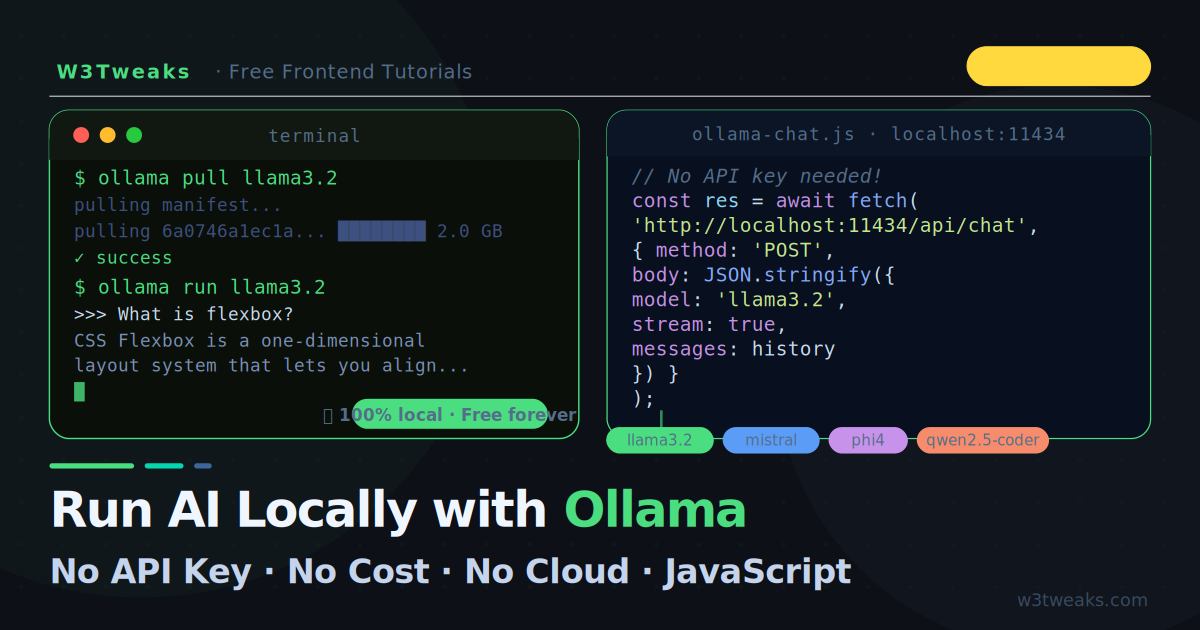
Models are downloaded with a single command. Start with llama3.2 — it is fast, capable, and only 2GB:
# Pull Llama 3.2 (3B parameters — fast, ~2GB)
ollama pull llama3.2

# Or the smaller version (1B — very fast, ~700MB)
ollama pull llama3.2:1b

# List all downloaded models
ollama list
Other great models to try:
ollama pull mistral        # Excellent reasoning, 4GB
ollama pull gemma3         # Google's model, fast responses
ollama pull phi4           # Microsoft's small but smart model, 9GB
ollama pull qwen2.5-coder  # Specialised for code generation
ollama pull llava          # Vision model — can describe images
Step 3 — Test It From the Terminal
Before writing any JavaScript, confirm Ollama works:
ollama run llama3.2
# Opens an interactive chat in your terminal
Or with a one-shot prompt:
ollama run llama3.2 "Explain CSS flexbox in one paragraph"Step 4 — Your First JavaScript Call
Ollama’s API is at http://localhost:11434. The main endpoint is /api/chat. Call it with fetch just like any other API:
const response = await fetch('http://localhost:11434/api/chat', {
  method: 'POST',
  headers: { 'Content-Type': 'application/json' },
  body: JSON.stringify({
    model:    'llama3.2',
    stream:   false,           // Wait for full response
    messages: [
      { role: 'user', content: 'What is CSS flexbox?' }
    ]
  })
});

const data = await response.json();
console.log(data.message.content);
That is the entire call. No API key header. No authentication. The response shape:
{
  "model":   "llama3.2",
  "message": {
    "role":    "assistant",
    "content": "CSS Flexbox is a one-dimensional layout system..."
  },
  "done": true,
  "total_duration":   1234567890,
  "prompt_eval_count": 15,
  "eval_count":        85
}
Step 5 — Streaming Responses
Set stream: true and read the response body as a ReadableStream. Each chunk is a JSON object with a message.content delta — the same pattern as the OpenAI streaming API. If the token-by-token rendering loop is new to you, Build a ChatGPT-style streaming text effect with JavaScript walks through the UI side in depth — the same renderer plugs into Ollama responses without any changes.
async function streamOllama(prompt, model = 'llama3.2', outputEl) {
  const res = await fetch('http://localhost:11434/api/chat', {
    method: 'POST',
    headers: { 'Content-Type': 'application/json' },
    body: JSON.stringify({
      model,
      stream:   true,
      messages: [{ role: 'user', content: prompt }]
    })
  });

  if (!res.ok) throw new Error(`Ollama error: ${res.status}`);

  const reader  = res.body.getReader();
  const decoder = new TextDecoder();

  while (true) {
    const { done, value } = await reader.read();
    if (done) break;

    // Each chunk is a complete JSON object on its own line
    const lines = decoder.decode(value).split('\n').filter(Boolean);

    for (const line of lines) {
      try {
        const chunk = JSON.parse(line);

        // Append the token
        if (chunk.message?.content) {
          outputEl.textContent += chunk.message.content;
        }

        // chunk.done === true signals end of stream
        if (chunk.done) {
          console.log(`Done. Generated ${chunk.eval_count} tokens.`);
        }
      } catch {
        // Skip malformed lines
      }
    }
  }
}

// Usage
const output = document.getElementById('output');
await streamOllama('Explain the CSS box model step by step.', 'llama3.2', output);
Key difference from OpenAI: Ollama sends each chunk as a complete, self-contained JSON object on its own line. OpenAI sends
data: {...}\n\nwith thedata:prefix. Strip the prefix logic for Ollama and it just works.
Step 6 — Multi-Turn Conversations
Send the full conversation history with every request, same as the OpenAI pattern:
const conversation = [];

async function chat(userMessage, outputEl) {
  // Add user turn
  conversation.push({ role: 'user', content: userMessage });

  const res = await fetch('http://localhost:11434/api/chat', {
    method: 'POST',
    headers: { 'Content-Type': 'application/json' },
    body: JSON.stringify({
      model:    'llama3.2',
      stream:   true,
      messages: conversation
    })
  });

  const reader  = res.body.getReader();
  const decoder = new TextDecoder();
  let   reply   = '';

  while (true) {
    const { done, value } = await reader.read();
    if (done) break;

    for (const line of decoder.decode(value).split('\n').filter(Boolean)) {
      try {
        const chunk = JSON.parse(line);
        const token = chunk.message?.content ?? '';
        reply += token;
        outputEl.textContent += token;
      } catch {}
    }
  }

  // Add assistant turn to history
  conversation.push({ role: 'assistant', content: reply });
}
Step 7 — Switch Models at Runtime
One of Ollama’s best features: swap any model in or out by changing the model field. No re-authentication, no new API client:
const MODELS = {
  fast:   'llama3.2:1b',   // Tiny, near-instant responses
  smart:  'llama3.2',       // Balanced speed and quality
  code:   'qwen2.5-coder',  // Specialised for code
  reason: 'phi4',           // Deep reasoning tasks
};

async function askModel(modelKey, prompt) {
  const model = MODELS[modelKey];

  const res = await fetch('http://localhost:11434/api/chat', {
    method: 'POST',
    headers: { 'Content-Type': 'application/json' },
    body: JSON.stringify({
      model,
      stream:   false,
      messages: [{ role: 'user', content: prompt }]
    })
  });

  const data = await res.json();
  return data.message.content;
}

// Usage — switch between models based on task
const codeResult   = await askModel('code',   'Write a CSS grid layout with 3 columns');
const reasonResult = await askModel('reason', 'Explain the trade-offs between SQL and NoSQL');
Step 8 — System Prompts
Give the model a persona or set its behaviour with a system message:
async function askWithPersona(prompt) {
  const res = await fetch('http://localhost:11434/api/chat', {
    method: 'POST',
    headers: { 'Content-Type': 'application/json' },
    body: JSON.stringify({
      model: 'llama3.2',
      messages: [
        {
          role:    'system',
          content: 'You are a concise frontend development tutor for W3Tweaks. Answer questions about CSS, JavaScript, and HTML only. Keep answers under 100 words and always include a code example.'
        },
        {
          role:    'user',
          content: prompt
        }
      ]
    })
  });

  const data = await res.json();
  return data.message.content;
}
Step 9 — Using the OpenAI-Compatible API
Ollama also exposes an OpenAI-compatible endpoint at /v1/chat/completions. This means you can swap Ollama for OpenAI (or vice versa) by changing a single URL — zero other code changes:
// OpenAI
const BASE = 'https://api.openai.com/v1';
const HEADERS = {
  'Content-Type': 'application/json',
  'Authorization': `Bearer ${API_KEY}`
};

// Ollama (OpenAI-compatible) — just change these two
const BASE = 'http://localhost:11434/v1';
const HEADERS = { 'Content-Type': 'application/json' };
// No auth header needed

// The actual fetch call is identical for both
const res = await fetch(`${BASE}/chat/completions`, {
  method:  'POST',
  headers: HEADERS,
  body: JSON.stringify({
    model:    'llama3.2',   // or 'gpt-4o-mini' for OpenAI
    stream:   true,
    messages: [{ role: 'user', content: prompt }]
  })
});
This is the recommended pattern for any production code — build against Ollama locally for free, deploy against OpenAI when needed.
Step 10 — List Available Models via API
Fetch which models are installed programmatically:
async function getLocalModels() {
  const res  = await fetch('http://localhost:11434/api/tags');
  const data = await res.json();

  return data.models.map(m => ({
    name:     m.name,
    size:     (m.size / 1e9).toFixed(1) + ' GB',
    modified: new Date(m.modified_at).toLocaleDateString()
  }));
}

const models = await getLocalModels();
console.table(models);
// ┌──────────────────┬──────────┬────────────┐
// │ name             │ size     │ modified   │
// ├──────────────────┼──────────┼────────────┤
// │ llama3.2:latest  │ 2.0 GB   │ 5/22/2026  │
// │ mistral:latest   │ 4.1 GB   │ 5/22/2026  │
// └──────────────────┴──────────┴────────────┘
CORS — Calling Ollama from the Browser
By default Ollama only accepts requests from localhost. If your HTML file is served from a different origin (like http://127.0.0.1:5500 in VS Code Live Server), you need to enable CORS:
# macOS / Linux — set the environment variable before starting Ollama
OLLAMA_ORIGINS="*" ollama serve

# Or set it permanently
export OLLAMA_ORIGINS="*"
For VS Code Live Server specifically, add this before the fetch call:
// Check if Ollama is reachable
async function checkOllama() {
  try {
    const res = await fetch('http://localhost:11434/api/tags');
    return res.ok;
  } catch {
    return false;
  }
}

const running = await checkOllama();
if (!running) {
  console.error('Ollama not running. Start it with: ollama serve');
}
Complete Chat UI Example
A minimal, self-contained chat page:
<!DOCTYPE html>
<html lang="en">
<head>
  <meta charset="UTF-8">
  <title>Local AI Chat — Ollama + JavaScript</title>
  <style>
    body { font-family:system-ui;background:#0d1117;color:#c4d4ed;max-width:680px;margin:40px auto;padding:0 20px }
    select,textarea,button { font-family:inherit;font-size:14px }
    #models { background:#161c2d;border:1px solid rgba(255,255,255,.1);border-radius:8px;padding:8px 12px;color:#f0f6ff;margin-bottom:16px;width:100% }
    #messages { background:#111827;border:1px solid rgba(255,255,255,.07);border-radius:10px;padding:16px;min-height:300px;max-height:480px;overflow-y:auto;margin-bottom:14px;display:flex;flex-direction:column;gap:12px }
    .msg { padding:10px 14px;border-radius:9px;line-height:1.7;white-space:pre-wrap }
    .msg.user { background:rgba(91,156,246,.15);border:1px solid rgba(91,156,246,.25);color:#dce8ff;align-self:flex-end;max-width:80% }
    .msg.ai   { background:#1c2338;border:1px solid rgba(255,255,255,.07);color:#c4d4ed;max-width:90% }
    #input-row { display:flex;gap:10px }
    #prompt { flex:1;background:#161c2d;border:1px solid rgba(255,255,255,.1);border-radius:9px;padding:11px 14px;color:#f0f6ff;resize:none;outline:none }
    #send { background:linear-gradient(135deg,#5b9cf6,#06d6b0);border:none;border-radius:9px;padding:0 22px;color:#fff;font-weight:700;cursor:pointer }
    #send:disabled { opacity:.4;cursor:not-allowed }
    .cursor { display:inline-block;width:2px;height:1em;background:#5b9cf6;vertical-align:text-bottom;animation:blink .7s step-end infinite }
    @keyframes blink { 0%,100%{opacity:1}50%{opacity:0} }
  </style>
</head>
<body>
  <h2 style="color:#f0f6ff;margin-bottom:16px">🤖 Local AI Chat (Ollama)</h2>
  <select id="models"><option value="">Loading models…</option></select>
  <div id="messages"></div>
  <div id="input-row">
    <textarea id="prompt" rows="2" placeholder="Ask anything… (Enter to send)"></textarea>
    <button id="send" onclick="send()">Send</button>
  </div>

<script>
const history = [];
let busy = false;

// Load installed models
async function loadModels() {
  try {
    const res  = await fetch('http://localhost:11434/api/tags');
    const data = await res.json();
    const sel  = document.getElementById('models');
    sel.innerHTML = data.models.map(m =>
      `<option value="${m.name}">${m.name} (${(m.size/1e9).toFixed(1)} GB)</option>`
    ).join('');
  } catch {
    document.getElementById('models').innerHTML =
      '<option>❌ Ollama not running — start with: ollama serve</option>';
  }
}

async function send() {
  const prompt = document.getElementById('prompt').value.trim();
  const model  = document.getElementById('models').value;
  if (!prompt || busy || !model) return;

  busy = true;
  document.getElementById('send').disabled = true;
  document.getElementById('prompt').value = '';

  // User bubble
  addBubble(prompt, 'user');
  history.push({ role: 'user', content: prompt });

  // AI bubble with cursor
  const aiBubble = addBubble('', 'ai');
  const cursor   = document.createElement('span');
  cursor.className = 'cursor';
  aiBubble.appendChild(cursor);

  let reply = '';

  try {
    const res = await fetch('http://localhost:11434/api/chat', {
      method: 'POST',
      headers: { 'Content-Type': 'application/json' },
      body: JSON.stringify({ model, stream: true, messages: history })
    });

    const reader  = res.body.getReader();
    const decoder = new TextDecoder();

    while (true) {
      const { done, value } = await reader.read();
      if (done) break;
      for (const line of decoder.decode(value).split('\n').filter(Boolean)) {
        try {
          const chunk = JSON.parse(line);
          const token = chunk.message?.content ?? '';
          reply += token;
          cursor.insertAdjacentText('beforebegin', token);
          document.getElementById('messages').scrollTop = 9999;
        } catch {}
      }
    }
  } catch (err) {
    cursor.insertAdjacentText('beforebegin', `⚠ ${err.message}`);
  }

  cursor.remove();
  history.push({ role: 'assistant', content: reply });
  busy = false;
  document.getElementById('send').disabled = false;
  document.getElementById('prompt').focus();
}

function addBubble(text, role) {
  const msgs = document.getElementById('messages');
  const div  = document.createElement('div');
  div.className = `msg ${role}`;
  div.textContent = text;
  msgs.appendChild(div);
  msgs.scrollTop = 9999;
  return div;
}

document.getElementById('prompt').addEventListener('keydown', e => {
  if (e.key === 'Enter' && !e.shiftKey) { e.preventDefault(); send(); }
});

loadModels();
</script>
</body>
</html>
Model Recommendations by Task
| Task | Best Model | Why |
|---|---|---|
| General chat | llama3.2 | Fast, well-rounded |
| Code generation | qwen2.5-coder | Trained specifically on code |
| Deep reasoning | phi4 | Punches above its weight |
| Speed priority | llama3.2:1b | Near-instant on any hardware |
| Long documents | mistral | Handles large context well |
| Image description | llava | Multimodal, accepts images |
Key Takeaways
- Ollama runs powerful LLMs locally — free forever, no API key, no data leaves your machine
- The API lives at
http://localhost:11434and is called with plainfetch— no new concepts - Streaming works identically to OpenAI — read the
ReadableStream, parse each JSON line, appendmessage.content - The OpenAI-compatible endpoint
/v1/chat/completionslets you switch between Ollama and OpenAI by changing one URL - Pull models once with
ollama pull model-name— they are cached and reused - Enable CORS with
OLLAMA_ORIGINS="*"when calling from a browser served by a dev server - Use
qwen2.5-coderfor code tasks,llama3.2for general use,phi4for complex reasoning
FAQ
What is Ollama and why use it instead of OpenAI?
Ollama is a desktop app that downloads open-source AI models (Llama, Mistral, Gemma, Qwen, Phi, etc.) and runs them entirely on your own machine. It exposes a simple REST API on localhost:11434 so any language with fetch can call it. Use Ollama instead of OpenAI when you need privacy (the data never leaves your machine), zero ongoing cost (no per-token billing), offline use (no internet required after the model downloads), or low-latency local responses for prototyping.
Is Ollama really free and unlimited?
Yes — Ollama itself is open source (MIT licensed), and the models it runs are open-weight models you download once and use forever. No API key, no rate limits, no usage tracking. Costs you’d pay: electricity to run your computer, disk space for the models (typically 2-40GB each), and the up-front time to download them.
What hardware do I need to run Ollama?
The minimum useful setup: an M1 Mac or 16GB RAM PC for the 3-7 billion parameter models (Llama 3.2, Mistral 7B). Bigger models (Llama 3.1 70B) want 64GB+ RAM or a dedicated GPU. Quantized models (the q4 variants Ollama defaults to) compress the model so it runs in much less RAM. A modern laptop running llama3.2 feels instant for most chat tasks.
Can I use Ollama in production?
Yes for internal tools, prototypes, and self-hosted SaaS. Not yet at the scale of OpenAI for high-concurrency public apps unless you’re willing to manage GPU servers. The sweet spot: side projects, dev tools, privacy-sensitive enterprise apps, and replacing OpenAI calls during local development to avoid burning API credits while debugging.
How does Ollama compare to OpenAI in code quality?
For most prompts the quality gap has narrowed dramatically. qwen2.5-coder and llama3.2 produce solid working code for everyday tasks (CSS components, JavaScript utilities, API integrations). For complex reasoning, multi-step refactors, or cutting-edge features the latest commercial models (Claude Sonnet, GPT-4o) still lead by a meaningful margin. See our Copilot vs Claude vs ChatGPT comparison for the full benchmark methodology and apply it to whichever Ollama model you’re considering.
Can I call Ollama from a deployed website?
No — Ollama runs on localhost, so only code running on the user’s own machine can reach it. For a deployed website to use Ollama, the user must have it installed and running locally. This is fine for developer tools (where every user is a developer with Ollama installed) and demos that ask users to install it first. For a public consumer app, you’d need to deploy Ollama on a server you control and route requests through your backend.