TL;DR
requestAnimationFrame (rAF) syncs your callback to the display’s refresh rate — smoother than setInterval, which fires on an arbitrary timer:
function loop(timestamp) {
  const delta = (timestamp - lastTime) / 1000;  // seconds
  lastTime = timestamp;

  position += SPEED * delta;   // 300px/s on any display
  render();

  rafId = requestAnimationFrame(loop);
}
rafId = requestAnimationFrame(loop);
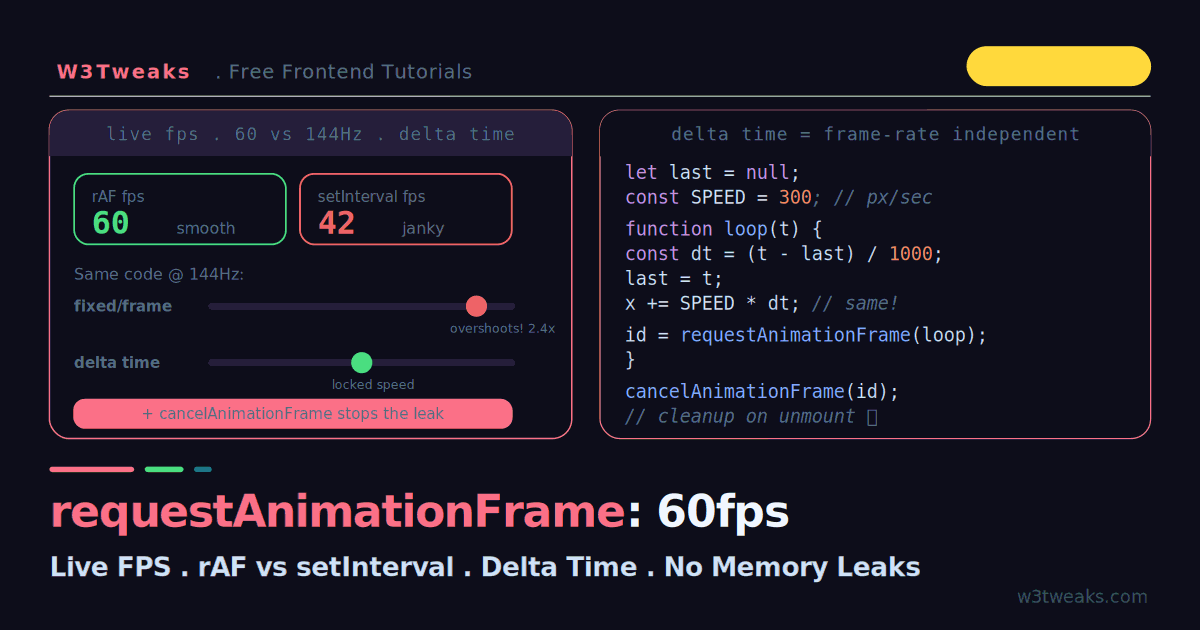
Watch out: the #1 rAF bug in production — moving by a fixed amount per frame (position += 5) runs 2.4× faster on 144Hz and 4× faster on 240Hz gaming monitors. Fix it with delta time (multiply speed-per-second by elapsed seconds). And every rAF needs a cancelAnimationFrame(id) on cleanup or the loop leaks memory + burns CPU after the component that owns it is gone.
Frame budget: 16.67ms at 60Hz, 6.94ms at 144Hz, 4.17ms at 240Hz. Keep your JS work under ~10ms to leave room for style, layout, and paint.
→ Try it in the live demo — race rAF against setInterval with live FPS meters, drag the refresh rate up to 144Hz and watch fixed-per-frame overshoot while delta time stays locked, then see the memory leak counter climb after “unmount.” Deep dive below for WAAPI vs rAF decisions, the React hook, Chrome DevTools workflow, Long Animation Frames API for INP debugging, and prefers-reduced-motion.
Why do some JavaScript animations feel buttery smooth while others stutter? Why does your animation run at the right speed on your monitor but race ahead on a friend’s 144Hz gaming display? And why does it keep burning CPU after the component that started it is gone? All three answers come down to one API and how you use it: requestAnimationFrame.
requestAnimationFrame (rAF) asks the browser to run your callback right before the next repaint — synced to the display’s refresh rate instead of an arbitrary timer. That sync is what makes it smoother than setInterval. But rAF alone does not guarantee correct animation: because a 144Hz screen calls your callback more than twice as often as a 60Hz screen, moving an element by a fixed amount per frame makes it move at different speeds on different displays. This guide runs everything live — rAF versus setInterval with real FPS counters, the high-refresh-rate speed bug and its delta-time fix, frame-rate capping, and the cancelAnimationFrame cleanup that stops memory leaks.
This is the final tutorial in our JavaScript internals series. The frame-timing here connects directly to where rAF sits in the event loop (it runs before paint, after microtasks), and the rAF-throttle pattern first appeared in our debounce vs throttle guide.
Live Demo
Tab 1: run rAF vs setInterval side by side with live FPS meters. Tab 2: drag the refresh-rate slider and watch fixed-per-frame drift ahead while delta time stays locked. Tab 3: see the cancelAnimationFrame memory leak and its fix.
The Core Loop
requestAnimationFrame is one-shot: it schedules a single callback for the next repaint. To animate continuously, the callback calls requestAnimationFrame again — a self-referential loop:
function loop(timestamp) {
  // 1. update animation state
  // 2. render the frame

  requestAnimationFrame(loop);   // schedule the next frame
}

requestAnimationFrame(loop);     // kick it off
The timestamp argument is the single most important part — it is a high-resolution DOMHighResTimeStamp marking the start of the current frame. Ignore it and your animation breaks on high-refresh-rate screens, as we will see.
Why Not setInterval?
The old way used a fixed timer aimed at roughly 60fps:
// ❌ The old way — fixed 16ms timer
setInterval(() => {
  box.style.left = (position += 5) + 'px';
}, 16);   // 1000ms / 60fps ≈ 16.67ms
This has four problems, all visible in the demo’s first tab:
1. Not synced to the display. The browser repaints at its own rate (~16.67ms for 60Hz). If your timer fires between repaints, the visual change is wasted until the next paint — dropped frames and jank.
2. Timing is inaccurate. setInterval(fn, 16) does not fire after exactly 16ms. The callback waits in the macrotask queue and runs only after the current work clears — the real gap might be 16, 25, or 40ms depending on load.
3. It runs in background tabs. setInterval keeps firing when the tab is hidden, draining CPU and battery. rAF pauses automatically.
4. No adaptive throttling. On a slow device that cannot hit 60fps, setInterval keeps trying anyway, making jank worse. rAF drops to a rate the device can sustain.
rAF fixes all four: it runs right before paint, passes an accurate timestamp, pauses in hidden tabs, and adapts to the device.
// ✅ The right way — synced to the display
function loop(timestamp) {
  box.style.left = (position += 5) + 'px';
  requestAnimationFrame(loop);
}
requestAnimationFrame(loop);
The Bug Nobody Demos: Fixed-Per-Frame Breaks on 144Hz
Look closely at that last snippet — position += 5 moves the box 5px every frame. Here is the trap: a 60Hz screen fires ~60 frames per second, so the box moves 300px/second. A 144Hz screen fires ~144 frames per second, so the same code moves 720px/second — more than twice as fast. The animation’s speed depends on the user’s hardware.
// ❌ Moves 5px PER FRAME — speed depends on refresh rate
function loop() {
  position += 5;              // 60Hz → 300px/s, 144Hz → 720px/s
  box.style.left = position + 'px';
  requestAnimationFrame(loop);
}
The demo’s second tab shows this directly: two balls, one using fixed-per-frame and one using delta time, at a simulated 144Hz. The fixed-per-frame ball races ahead and overshoots.
The Frame Budget Across Common Refresh Rates
High-refresh-rate monitors are default for tier-1 developer audiences — Windows gaming machines ship 144Hz/165Hz, Apple’s ProMotion is 120Hz on iPhone/iPad and 120Hz on the 14”/16” MacBook Pro, and 240Hz esports panels are increasingly common. Your JavaScript has to finish before the next frame or the browser drops it:
| Refresh rate | Frame interval | JS budget (rule of thumb) | Common on |
|---|---|---|---|
| 60Hz | 16.67ms | ≤10ms | Standard laptops, older monitors |
| 75Hz | 13.33ms | ≤8ms | Budget desktop monitors |
| 90Hz | 11.11ms | ≤7ms | Meta Quest, some Android tablets |
| 120Hz | 8.33ms | ≤5ms | Apple ProMotion (iPhone/iPad/MBP), Pixel/Galaxy flagships |
| 144Hz | 6.94ms | ≤4ms | Windows gaming laptops + monitors |
| 165Hz | 6.06ms | ≤4ms | Common esports monitors |
| 240Hz | 4.17ms | ≤2.5ms | Enthusiast/competitive gaming |
The rule-of-thumb budget leaves ~40% of the frame for style, layout, paint, and compositing. On a 240Hz panel that’s a 2.5ms JS budget — you cannot afford a single unbatched DOM mutation. This is why the delta-time fix isn’t optional in 2026.
The Fix: Delta Time
Instead of moving by a fixed amount per frame, move by an amount per unit of time, using the elapsed time between frames. That elapsed time is the delta:
// ✅ Frame-rate-independent — same speed on every display
let lastTime = null;
const SPEED = 300;   // pixels PER SECOND, not per frame

function loop(timestamp) {
  if (lastTime === null) lastTime = timestamp;   // first frame: no jump
  const delta = (timestamp - lastTime) / 1000;   // seconds since last frame
  lastTime = timestamp;

  position += SPEED * delta;   // 300px/s on 60Hz, 144Hz, anything
  box.style.left = position + 'px';

  if (position < 500) requestAnimationFrame(loop);
}

requestAnimationFrame(loop);
Now the math is identical regardless of refresh rate: at 60Hz, delta ≈ 0.0167s and the box moves 5px per frame; at 144Hz, delta ≈ 0.0069s and it moves ~2px per frame — but 60 × 5 = 144 × 2.08 = 300px every second either way. Same speed everywhere.
Handle the first frame. On the very first call there is no previous timestamp, so initialise lastTime to the current timestamp (giving a delta of 0) rather than letting a huge delta jolt the animation forward.
Capping the Frame Rate
Sometimes you want a fixed rate — to save battery, or to keep a retro game at a deliberate 30fps. rAF has no built-in cap, so you gate the work behind an elapsed-time check while still letting rAF drive the loop:
const TARGET_FPS = 30;
const FRAME_MS   = 1000 / TARGET_FPS;   // 33.33ms
let lastRender   = 0;

function loop(timestamp) {
  requestAnimationFrame(loop);   // always keep the loop alive

  const elapsed = timestamp - lastRender;
  if (elapsed < FRAME_MS) return;   // too soon — skip this frame

  // Align to the grid so drift does not accumulate
  lastRender = timestamp - (elapsed % FRAME_MS);

  render();   // runs at most 30 times per second
}
requestAnimationFrame(loop);
The demo’s controls let you toggle between 30fps, 60fps, and uncapped so you can watch the FPS meter respond.
The Memory Leak: Forgetting cancelAnimationFrame
Every requestAnimationFrame returns an ID. If you start a loop and the component that owns it goes away — a React unmount, a route change, a closed modal — the loop keeps running forever unless you cancel it. It references stale DOM, burns CPU on dead nodes, and leaks memory.
// ❌ Leaks — the loop outlives the component
function startAnimation() {
  function loop() {
    updateChart();
    requestAnimationFrame(loop);   // never stops
  }
  requestAnimationFrame(loop);
}
// ✅ Store the ID and cancel it on cleanup
let rafId = null;
function startAnimation() {
function loop() {
updateChart();
rafId = requestAnimationFrame(loop);
}
rafId = requestAnimationFrame(loop);
}
function stopAnimation() {
if (rafId !== null) {
cancelAnimationFrame(rafId);
rafId = null;
}
}The demo’s third tab makes the leak visible: start several loops without cleanup and watch a live counter of running loops climb after you “unmount” — then do it the right way and watch it stay at zero.
The React useAnimationFrame Hook
The canonical framework integration for rAF is a custom hook that stores the callback in a useRef (avoiding the stale-closure trap) and the frame ID in another ref, with the cleanup in useEffect:
import { useRef, useEffect, useCallback } from 'react';

// Custom hook: run a callback every frame with a delta-time argument
export function useAnimationFrame(callback) {
  const callbackRef = useRef(callback);
  const rafIdRef    = useRef(null);
  const lastTimeRef = useRef(null);

  // Keep the callback ref current without restarting the loop
  useEffect(() => { callbackRef.current = callback; }, [callback]);

  useEffect(() => {
    function loop(timestamp) {
      if (lastTimeRef.current === null) lastTimeRef.current = timestamp;
      const delta = (timestamp - lastTimeRef.current) / 1000;
      lastTimeRef.current = timestamp;

      callbackRef.current(delta, timestamp);

      rafIdRef.current = requestAnimationFrame(loop);
    }

    rafIdRef.current = requestAnimationFrame(loop);

    return () => {
      if (rafIdRef.current !== null) cancelAnimationFrame(rafIdRef.current);
    };
  }, []);   // empty deps — the loop starts once and cancels on unmount
}

// Usage
function BouncingBall() {
  const [x, setX] = useState(0);
  useAnimationFrame((delta) => {
    setX(prev => (prev + 300 * delta) % 500);   // 300px/s
  });
  return <div style={{ transform: `translateX(${x}px)` }} />;
}
The stale-closure trap. If you put callback in the useEffect dependency array directly, the loop stops and restarts every render — janky and defeats the purpose. The ref-swap pattern (callbackRef.current = callback) keeps the latest callback available inside a stable loop.
Vue’s Composition API uses the same shape with onMounted/onUnmounted:
import { onMounted, onUnmounted } from 'vue';

let rafId;
onMounted(() => {
  const loop = (t) => { /* ... */ rafId = requestAnimationFrame(loop); };
  rafId = requestAnimationFrame(loop);
});
onUnmounted(() => cancelAnimationFrame(rafId));
Svelte 5’s onMount returns a cleanup:
import { onMount } from 'svelte';

onMount(() => {
  let rafId;
  const loop = (t) => { /* ... */ rafId = requestAnimationFrame(loop); };
  rafId = requestAnimationFrame(loop);

  return () => cancelAnimationFrame(rafId);   // runs on component destroy
});
When Not to Use rAF: Web Animations API (WAAPI)
For animating CSS properties on DOM elements — transforms, opacity, filters — the Web Animations API (element.animate()) is almost always the better choice. WAAPI runs on the browser’s compositor thread, meaning it keeps animating even when your main thread is blocked. rAF cannot do this; a heavy JS handler will freeze an rAF-driven fade mid-tween.
// ✅ WAAPI — 4 lines, runs on the compositor
element.animate(
  [{ opacity: 0 }, { opacity: 1 }],
  { duration: 500, easing: 'ease-out' }
);
// The rAF equivalent — 20 lines, main thread only
let start = null;
function fade(t) {
if (start === null) start = t;
const progress = Math.min(1, (t - start) / 500);
element.style.opacity = progress;
if (progress < 1) requestAnimationFrame(fade);
}
requestAnimationFrame(fade);Reach for rAF when you need:
- Canvas 2D or WebGL rendering (Three.js, Babylon.js, PixiJS all wrap rAF; react-three-fiber wires the loop into React’s reconciler so scene updates coexist with component state)
- Physics simulation, custom easing you can’t express in keyframes, or reading DOM state per frame
- A
<video>synced overlay (userequestVideoFrameCallback— the video-specific cousin of rAF that fires per decoded frame). Video CDNs like Mux, Cloudinary, Cloudflare Stream, and Bunny.net Stream pair naturally with this API for HUDs and captioning UIs. - A game loop coordinating input, state, and render — Phaser and PlayCanvas engines are built on it
Reach for WAAPI when you need: fades, slides, scale/rotate transitions, and anything you’d write as @keyframes. Design tools like Figma, Framer, Rive, and Spline drive their editor canvas from a single rAF loop, but the small UI transitions inside their inspector panels use WAAPI — the same split you should adopt.
For scroll-driven effects that used to require rAF, look at scroll-driven animations (animation-timeline: scroll() — Chrome 115+, Firefox behind flag) — they run on the compositor too and eliminate the rAF-plus-scroll-listener pattern entirely.
Only Animate When Visible — rAF + IntersectionObserver
Animating an off-screen chart wastes CPU and battery. Wrap the loop in an IntersectionObserver so it pauses the moment the element scrolls out of view:
let isVisible = false;

const observer = new IntersectionObserver(([entry]) => {
  isVisible = entry.isIntersecting;
});
observer.observe(chartElement);

function loop(timestamp) {
  requestAnimationFrame(loop);
  if (!isVisible) return;   // element off-screen — skip render

  updateChart(timestamp);
}
requestAnimationFrame(loop);
The rAF loop still ticks (cheap — a function call and a schedule), but no work happens while the target is invisible. On a dashboard with a dozen charts, this alone can cut mobile battery drain in half. Chrome on macOS logs the difference in Activity Monitor’s Energy Impact column.
Respect prefers-reduced-motion
Motion is a WCAG 2.2 AA accessibility concern — some users experience nausea, vertigo, or migraines from animation. Every rAF-driven animation should gate on the user’s preference:
const reduceMotion = matchMedia('(prefers-reduced-motion: reduce)');

function startLoop() {
  if (reduceMotion.matches) {
    // Skip the animation — render the final state immediately
    element.style.transform = 'translateX(500px)';
    return;
  }
  requestAnimationFrame(loop);
}

// React to changes at runtime (user toggles the setting)
reduceMotion.addEventListener('change', () => {
  if (reduceMotion.matches) cancelAnimationFrame(rafId);
});
This is table stakes for enterprise buyers — most tier-1 accessibility policies require it, and any accessibility audit tool (axe DevTools, Pa11y, Lighthouse) will flag its absence.
Where rAF Sits in the Event Loop
Understanding when rAF fires explains why it is smooth. In each iteration of the event loop, rAF callbacks run as part of the render step — after all microtasks (Promise callbacks) have drained, and right before the browser paints. That placement is deliberate: your visual update lands in the very next paint, with no wasted intermediate render. It also means a slow rAF callback delays the paint — Chrome logs a [Violation] requestAnimationFrame handler took N ms warning when a single callback exceeds 50ms, a signal you have blown the frame budget.
For DOM animations, mutating transform and opacity is best — both are GPU-accelerated and skip layout entirely.
Debugging rAF Cost — Chrome DevTools + Long Animation Frames API
The Chrome DevTools Performance Panel
Open DevTools → Performance → click Record, interact for 3 seconds, stop. Three parts of the trace matter for rAF debugging:
- The Frames row (top). Each frame is a rectangle colored by health — green (≤16.67ms, on-target), yellow (16-33ms, minor jank), red (>33ms, a dropped frame). Click any frame to jump to its flame chart.
- The Main thread flame chart. Look for purple (“Recalculate Style”) and green (“Paint”) bars — if your rAF callback bar (yellow) is followed by a long purple bar, your animation is triggering layout and you should switch from
top/lefttotransform. - The Long Task and Long Animation Frame markers. Any task above 50ms shows up as a red-triangle “Long task” flag; Chrome 123+ shows Long Animation Frame markers that correlate directly with INP (Interaction to Next Paint) — the Core Web Vital that a slow rAF loop can wreck.
Measuring in Production — Long Animation Frames API
The LoAF API (Chrome/Edge 123+) exposes long frames as PerformanceObserver entries you can ship to your monitoring backend:
const observer = new PerformanceObserver((list) => {
  for (const entry of list.getEntries()) {
    // entry.duration, entry.scripts, entry.blockingDuration
    reportLongFrame({
      duration: entry.duration,
      renderStart: entry.renderStart,
      styleAndLayoutStart: entry.styleAndLayoutStart,
    });
  }
});
observer.observe({ type: 'long-animation-frame', buffered: true });
Production teams pipe these entries into Datadog RUM, Sentry Performance, New Relic Browser, or Grafana Faro so a regression on a 144Hz customer’s machine surfaces before the support tickets do. Synthetic and real-user monitoring tools — SpeedCurve, DebugBear, Calibre, Vercel Speed Insights — flag INP regressions attributable to long animation frames in their per-metric attribution views. Session replay platforms — LogRocket, FullStory, PostHog, Hotjar — record the actual frame-rate the user saw, which is often the only way to reproduce a jank report from a customer running Chrome on a low-end Windows laptop.
For pre-production validation, Playwright’s tracing viewer records frame timing, and BrowserStack and Cypress Cloud let you verify a 144Hz-safe delta-time loop against real Windows gaming hardware from CI.
Fallback: longtask for Older Browsers
Where LoAF isn’t shipped, the older longtask observer catches tasks over 50ms — most of your rAF-cost regressions surface here too:
new PerformanceObserver((list) => {
  for (const entry of list.getEntries()) report(entry);
}).observe({ type: 'longtask', buffered: true });
Off the Main Thread — Web Workers + OffscreenCanvas
For gaming, creative tools, and data visualisation with heavy per-frame compute, run the render loop in a Web Worker using OffscreenCanvas. The AnimationFrameProvider interface exists in workers too, so requestAnimationFrame works inside a worker script:
// main.js
const offscreen = canvas.transferControlToOffscreen();
const worker = new Worker('render-worker.js', { type: 'module' });
worker.postMessage({ canvas: offscreen }, [offscreen]);
// render-worker.js
onmessage = ({ data: { canvas } }) => {
const ctx = canvas.getContext('2d');
let x = 0;
function loop(timestamp) {
x = (x + 3) % canvas.width;
ctx.clearRect(0, 0, canvas.width, canvas.height);
ctx.fillRect(x, canvas.height / 2, 20, 20);
requestAnimationFrame(loop); // yes — rAF works in workers
}
requestAnimationFrame(loop);
};The main thread stays completely free — scroll, input, and other React state work as if the animation weren’t there. Chrome/Edge 69+, Firefox 105+, Safari 16.4+. This is the pattern Figma uses for its editor canvas and how creative tools like Rive and Jitter keep the timeline scrubber responsive during playback.
Edge runtimes are the odd one out here: on Cloudflare Workers, Vercel Edge Functions, and Fly.io Machines, there’s no paint step and no requestAnimationFrame — use setImmediate (Node compat), queueMicrotask, or setTimeout(fn, 0) for equivalent scheduling.
When to Reach for an Animation Library
For production timelines, complex easing, tweens, sequencing, and correct cleanup on route changes, hand-rolled rAF loops routinely get the details wrong. Established libraries handle scheduling, easing, cancellation, and cross-browser quirks:
- GSAP (with the Business license for commercial teams) — the industry standard for scroll-triggered and timeline-driven animation
- Motion (Motion One) — smaller footprint, WAAPI-under-the-hood for compositor performance
- Framer Motion — React-first, uses rAF for gesture animations and WAAPI where possible
- Anime.js, Popmotion — lighter alternatives for specific cases
- Rive and LottieFiles — designer-authored motion with compiled runtimes; use these when the animation is asset-shaped, not code-shaped
The right call is rarely “use rAF directly.” Reserve raw rAF for canvas/WebGL, game loops, physics, and anything that reads DOM state per frame. For everything else that fades, slides, or morphs — reach for WAAPI or a library first. Frontend Masters, Egghead, and Scrimba cover rendering-pipeline internals in depth if you want a longer-form treatment.
Key Takeaways
requestAnimationFrameruns your callback right before the next repaint, synced to the display refresh rate — smoother thansetInterval, which fires on an arbitrary timer- rAF is one-shot: the callback must call
requestAnimationFrameagain to continue the loop - rAF pauses automatically in background tabs (saving CPU and battery) and adapts its rate on slow devices —
setIntervaldoes neither - The
timestampargument is a high-resolutionDOMHighResTimeStamp; always use it for animation math - Moving by a fixed amount per frame makes animations run faster on high-refresh-rate screens — 144Hz is 2.4× faster than 60Hz, 240Hz is 4× faster, for the same code
- Frame budgets: 16.67ms @ 60Hz, 8.33ms @ 120Hz (ProMotion), 6.94ms @ 144Hz, 4.17ms @ 240Hz — keep JS under ~60% of the budget
- Fix drift with delta time: multiply speed (in units per second) by the elapsed seconds between frames, so speed is identical on any display
- Initialise the previous timestamp on the first frame to avoid a huge initial delta
- To cap the frame rate, keep the rAF loop alive but gate the render behind an elapsed-time check
- Every rAF returns an ID — store it and call
cancelAnimationFrameon cleanup (ReactuseEffectreturn, VueonUnmounted, SvelteonMountreturn, route change) or the loop leaks memory and CPU - In React, use a
useReffor the callback to avoid the stale-closure trap when the loop restarts on every render - For CSS transforms/opacity, prefer the Web Animations API (
element.animate()) over rAF — WAAPI runs on the compositor thread and survives main-thread blocking; reach for rAF for canvas, WebGL, physics, and DOM-reading loops - Wrap the loop in an IntersectionObserver so off-screen animations skip their render work — often a 50%+ mobile battery win on dashboards
- Gate every animation on
prefers-reduced-motion: reduce— WCAG 2.2 AA table stakes - Debug with Chrome DevTools Performance panel (Frames row + Long Animation Frame markers); measure in production with the Long Animation Frames API (Chrome 123+, feeds INP)
- Move heavy render loops off the main thread with
transferControlToOffscreen()+ a Worker running its ownrequestAnimationFrame - rAF fires in the event loop’s render step, after microtasks and before paint; keep each callback under ~10ms (at 60Hz) and animate
transform/opacityfor GPU acceleration
FAQ
Why is requestAnimationFrame better than setInterval for animations?
setInterval fires on a fixed timer that is not synced to the browser’s repaint cycle, so callbacks can land between paints (wasting the update and causing jank), the timing is inaccurate because the callback waits in the macrotask queue, and it keeps running in hidden tabs. requestAnimationFrame runs right before each repaint, passes an accurate high-resolution timestamp, pauses automatically in background tabs, and throttles down on devices that cannot keep up. For anything visual, rAF is the correct choice.
What is delta time and why do I need it?
Delta time is the elapsed time between the current frame and the previous one. You need it because different displays refresh at different rates — 60Hz, 120Hz, 144Hz, 240Hz — so if you move an element by a fixed amount per frame, it moves faster on high-refresh-rate screens. By multiplying a speed expressed in units per second by the delta (in seconds), the animation covers the same distance per second regardless of how many frames the display renders. This makes the animation frame-rate independent.
How do I stop a requestAnimationFrame loop?
Store the ID that requestAnimationFrame returns, then pass it to cancelAnimationFrame. Because rAF is a self-referential loop, simply not calling it again inside the callback also stops it, but for loops that run until an external event (component unmount, user action) you must call cancelAnimationFrame(id) explicitly. In React, do this in the useEffect cleanup function; in Vue, use onUnmounted; in Svelte 5, return a cleanup from onMount.
Why does my animation keep running after the component unmounts?
Because you did not cancel the loop. Each requestAnimationFrame call schedules the next frame, so if the loop is still calling itself when the component is destroyed, it keeps running against stale references — leaking memory and burning CPU. Store the rAF ID and call cancelAnimationFrame in your cleanup (the useEffect return in React, onUnmounted in Vue, the return callback from Svelte’s onMount, or an unmount hook in other frameworks).
Does requestAnimationFrame always run at 60fps?
No. It matches the display’s refresh rate, which is commonly 60Hz but is also frequently 75Hz, 90Hz (Meta Quest), 120Hz (Apple’s ProMotion on iPhone/iPad/MacBook Pro), 144Hz, 165Hz, or 240Hz on gaming hardware. On slow devices or under heavy load, the browser runs it less often — perhaps 30fps — to avoid overwhelming the CPU and GPU. This is exactly why you should never assume 60fps or move by a fixed amount per frame; always scale motion by the timestamp delta.
How do I cap requestAnimationFrame to 30fps?
Keep the rAF loop running every frame, but gate the actual render behind an elapsed-time check. Compute the time since the last render, and if it is less than your target frame duration (33.33ms for 30fps) return early without rendering. When enough time has passed, render and reset the last-render time — aligning to the frame grid with a modulo so drift does not accumulate. This throttles the visible work to 30fps while still letting rAF drive the loop.
Should I use requestAnimationFrame or the Web Animations API?
Prefer the Web Animations API (element.animate()) for animating CSS properties on DOM elements — transforms, opacity, filters — because WAAPI runs on the browser’s compositor thread and keeps animating even when your main thread is blocked. Use requestAnimationFrame for anything that reads or writes to canvas (2D/WebGL/WebGPU), for physics simulation, for game loops, for custom easing you cannot express in keyframes, and for logic that reads DOM state each frame. The two coexist — most production apps use both.
What is the React useAnimationFrame hook?
A custom hook that starts a requestAnimationFrame loop on mount and cancels it on unmount. The callback is stored in a useRef (not the dependency array) to avoid the stale-closure trap that would otherwise restart the loop on every render. The hook typically passes a delta (in seconds) and the raw timestamp to the callback so the caller can write frame-rate-independent animation. The empty useEffect dependency array keeps a single stable loop across the component’s lifetime, with cancelAnimationFrame running in the cleanup return.
How do I debug slow requestAnimationFrame loops?
Open Chrome DevTools → Performance → record while interacting. The Frames row shows each frame color-coded by health (green/yellow/red); any yellow or red frame is a candidate for investigation. Click a frame to see the flame chart — long purple (“Recalculate Style”) or magenta (“Layout”) bars mean you’re triggering the layout thread and should switch from top/left/width to transform. In production, use PerformanceObserver on long-animation-frame (Chrome 123+) to catch regressions on user hardware and pipe the entries into Datadog RUM, Sentry Performance, or SpeedCurve.
Does requestAnimationFrame work in Web Workers or Node.js?
Yes in Web Workers (with OffscreenCanvas) — the AnimationFrameProvider interface exists on DedicatedWorkerGlobalScope, so requestAnimationFrame works inside a worker script. Chrome/Edge 69+, Firefox 105+, Safari 16.4+. No in Node.js — there’s no paint step on the server, so use setImmediate (Node) or queueMicrotask. Edge runtimes (Cloudflare Workers, Vercel Edge Functions) follow the Node convention.