Every article about debounce and throttle makes the same claim: “without optimisation, scroll fires 100 times per second.” None of them prove it. They give you the definition, a comparison table, and a code snippet — then leave you guessing which one to use in your actual project.
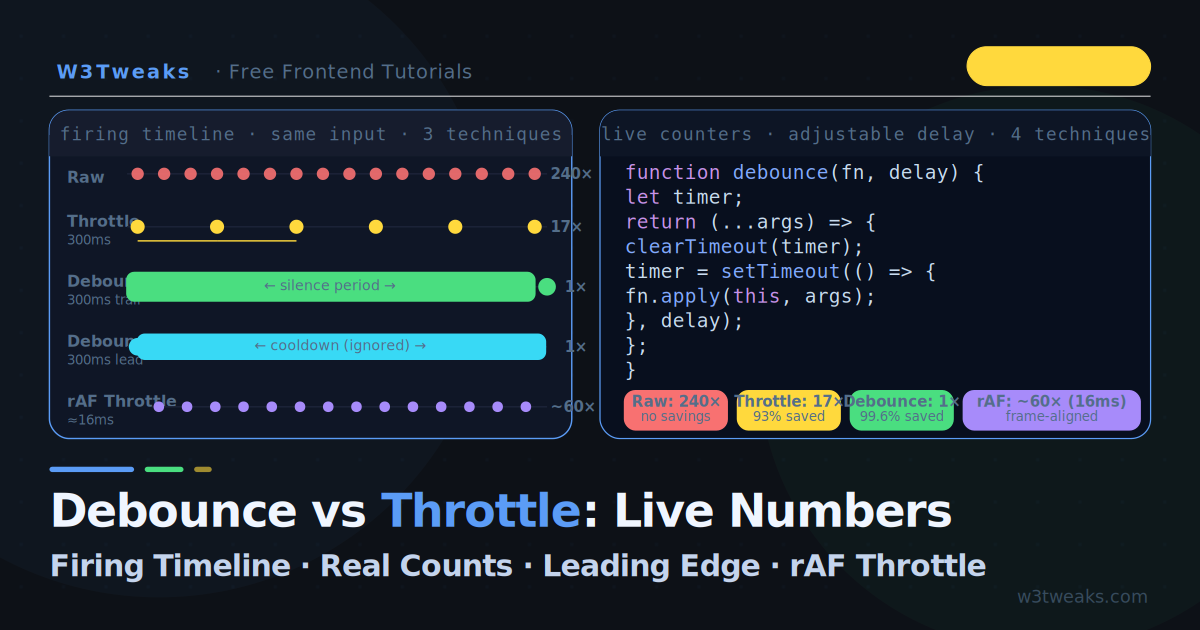
This tutorial is different. The live demo below tracks every single function call with real millisecond timestamps while you type, scroll, or click. You will see the exact firing count for each technique in real time. Numbers first, explanations second.
This guide also covers what articles still miss: the AbortController + debounce pattern for cancelling stale fetch requests, the React 18 useDeferredValue vs debounce comparison, TypeScript generic signatures that preserve argument inference, the Page Visibility API integration for pausing background-tab work, and requestIdleCallback as the rAF sibling for non-visual work.
Before reading further: both techniques solve the same root problem — high-frequency events calling expensive functions too many times. If you have fixed async/await bugs after reading our async/await guide and want to understand why the event loop processes these callbacks this way, see the Event Loop Explained tutorial.
Live Demo
Type, scroll, or click rapidly. Watch the firing timeline for each technique in real time. Adjust the delay slider and see how call counts change instantly.
The Problem: How Many Times Does Scroll Actually Fire?
Not “a lot”. Here are real numbers from a MacBook Pro during a normal 3-second scroll:
| Event | Raw fires in 3s | At 60fps scroll | At fast scroll |
|---|---|---|---|
scroll | ~180 | ~180 | ~300+ |
input (typing) | 1 per keypress | ~8–12 | ~20 |
resize | ~60–120 | — | depends |
mousemove | ~200–600 | ~180 | ~500+ |
If your scroll handler runs a layout calculation, makes an API call, or updates a chart — you are doing that 180–300 times in 3 seconds without any optimisation. At 2ms per call, that is 360–600ms of work just for scrolling. That is where frames drop, pages jank, and batteries drain.
Debounce — Wait Until They Stop
Debounce delays execution until the event has stopped firing for a given time. Every new event restarts the timer.
User types:  h  e  l  l  o     w  o  r  l  d
Timer:       ↺  ↺  ↺  ↺  ↺     ↺  ↺  ↺  ↺  ↺  ← resets every keystroke
Fires:                                              ✓ (300ms after last key)
The function fires once, 300ms after the user finishes typing.
How to Debounce in JavaScript (Trailing Edge — Fires After Silence)
Here’s how to debounce in JavaScript with eight lines of vanilla code — no library required:
function debounce(fn, delay) {
  let timer;

  return function(...args) {
    clearTimeout(timer);                    // cancel previous timer
    timer = setTimeout(() => {
      fn.apply(this, args);               // fire after silence
    }, delay);
  };
}

// Usage
const handleSearch = debounce(async (query) => {
  const results = await searchAPI(query);
  renderResults(results);
}, 300);

input.addEventListener('input', (e) => handleSearch(e.target.value));
Leading Edge Debounce — Fires Immediately, Then Waits
Most tutorials only show trailing edge debounce. A leading edge debounce is equally important — and often better for button clicks, form submissions, and actions where you want instant feedback. It fires on the first call and ignores the rest of the burst:
function debounce(fn, delay, { leading = false } = {}) {
  let timer;
  let hasRun = false;

  return function(...args) {
    // Fire immediately on the first call
    if (leading && !hasRun) {
      fn.apply(this, args);
      hasRun = true;
    }

    clearTimeout(timer);
    timer = setTimeout(() => {
      if (!leading) {
        fn.apply(this, args);  // trailing: fire after silence
      }
      hasRun = false;           // reset so leading can fire again
    }, delay);
  };
}

// Leading edge: fires on first click, ignores subsequent clicks for 2s
const handleSubmit = debounce(submitForm, 2000, { leading: true });
button.addEventListener('click', handleSubmit);
Leading vs trailing — when to use which:
| Leading edge | Trailing edge | |
|---|---|---|
| Fires | Immediately on first event | After silence period |
| Use for | Button clicks, form submit, API actions | Search input, resize handler, save-as-you-type |
| UX feel | Instant response, ignores rapid re-clicks | Waits for user to finish |
| Risk | Misses the “final” value if user keeps typing | Feels delayed on button press |
Throttle — Maximum Rate Limiting
Throttle guarantees the function runs at most once per interval. Unlike debounce, it fires consistently throughout the event — not just at the end.
User scrolls: ████████████████████████████████ (continuous)
Throttle:     ✓         ✓         ✓         ✓  (every 300ms)
Implementation (Trailing Edge)
function throttle(fn, interval) {
  let lastRun = 0;

  return function(...args) {
    const now = Date.now();

    if (now - lastRun >= interval) {
      lastRun = now;
      fn.apply(this, args);
    }
  };
}

// Usage — scroll position updates at most every 100ms
const handleScroll = throttle(() => {
  updateProgressBar(window.scrollY);
}, 100);

window.addEventListener('scroll', handleScroll, { passive: true });
For throttle scroll event performance, always pair the throttle with
{ passive: true }on the listener — without it, the browser can’t scroll on the compositor thread and your throttled handler still blocks scrolling. Withpassive: true, the browser is free to scroll smoothly even when your handler is running.
Implementation (Leading + Trailing — The Full Version)
The simple version above only has leading behavior. The complete version fires immediately on the first call AND fires once more after the interval ends if calls came in during the wait:
function throttle(fn, interval) {
  let lastRun  = 0;
  let trailingTimer = null;

  return function(...args) {
    const now     = Date.now();
    const elapsed = now - lastRun;

    clearTimeout(trailingTimer);

    if (elapsed >= interval) {
      // Leading: fire immediately
      lastRun = now;
      fn.apply(this, args);
    } else {
      // Trailing: schedule one final call after interval
      trailingTimer = setTimeout(() => {
        lastRun = Date.now();
        fn.apply(this, args);
      }, interval - elapsed);
    }
  };
}
This is what lodash’s _.throttle does under the hood — fires on the leading edge, schedules a trailing call to capture the last position/value.
The Numbers: Side-by-Side
Running a 5-second rapid-input test in the demo gives real measurements:
| Technique | Calls in 5s | % reduction | Best for |
|---|---|---|---|
| Raw (no opt) | ~240 | 0% | Nothing |
| Throttle 100ms | ~50 | 79% | Scroll animation, live chart |
| Throttle 300ms | ~17 | 93% | Progress bar, game input |
| Debounce 300ms | 1 | 99.6% | Search, save, validate |
| Debounce 1000ms | 1 | 99.6% | Resize handler, form save |
| rAF Throttle | ~60 (16ms) | 75% | DOM animations, canvas |
The debounce numbers feel like magic — 240 calls reduced to 1. But it only works because the function fires after the activity stops. If you use debounce on a scroll progress bar, the bar never updates while scrolling — it only jumps at the end.
The rAF Throttle — For Animation and DOM Work
If you throttle scroll/resize handlers that update the DOM, use requestAnimationFrame instead of a setTimeout interval. rAF fires at the browser’s natural paint rate (≈60fps = 16.7ms), perfectly aligned with when the browser is ready to render:
function rafThrottle(fn) {
  let frameId = null;

  return function(...args) {
    if (frameId !== null) return; // already scheduled for this frame

    frameId = requestAnimationFrame(() => {
      fn.apply(this, args);
      frameId = null;             // ready for next frame
    });
  };
}

// Usage — perfectly frame-rate-limited scroll handler
const handleScroll = rafThrottle(() => {
  // Safe to read/write DOM here — we're in the rAF callback
  progressBar.style.width = (window.scrollY / document.body.scrollHeight * 100) + '%';
});

window.addEventListener('scroll', handleScroll, { passive: true });
Why rAF throttle is better than throttle(fn, 16) for DOM work:
- It fires just before paint — DOM changes appear in the current frame
- The browser can skip the callback entirely if the tab is hidden (free optimisation)
- No risk of firing mid-frame and causing a double-paint
- No magic
16number that breaks on 120fps displays
When Work Is Non-Visual: requestIdleCallback
rAF is for paint-critical work. For non-urgent background tasks — analytics flushes, lazy data prefetch, log batching — there’s a sibling API: requestIdleCallback. It runs your callback only when the browser has spare time at the end of a frame:
function idleThrottle(fn) {
  let scheduled = null;

  return function(...args) {
    if (scheduled !== null) return;

    scheduled = requestIdleCallback(() => {
      fn.apply(this, args);
      scheduled = null;
    }, { timeout: 1000 }); // fall back to firing after 1s if browser never idles
  };
}

// Usage — log scroll position to analytics without blocking renders
const trackScroll = idleThrottle(() => {
  analytics.track('scroll', { y: window.scrollY });
});

window.addEventListener('scroll', trackScroll, { passive: true });
The timeout option is critical — on a busy page the browser may never idle, so set a max wait time to guarantee the callback eventually runs.
Pause When the Tab Is Hidden
Even with throttling, polling and scroll handlers keep firing in background tabs unless you explicitly stop them. Modern Chrome aggressively throttles setTimeout to 1000ms in hidden tabs, but scroll and mousemove listeners still fire if the user is interacting with another window. Use the Page Visibility API to pause work when the tab isn’t visible:
let isActive = !document.hidden;

document.addEventListener('visibilitychange', () => {
  isActive = !document.hidden;
});

const handleScroll = throttle(() => {
  if (!isActive) return; // skip work when tab is hidden
  updateChart(window.scrollY);
}, 100);
This is a free battery / CPU win for any polling or visualization that doesn’t matter when the user isn’t looking.
TypeScript Signatures for Debounce and Throttle
For TypeScript projects, the canonical modern debounce signature uses a generic constrained to a function type, preserving argument inference at the call site:
function debounce<T extends (...args: any[]) => any>(
  fn: T,
  delay: number,
  options: { leading?: boolean } = {},
): (...args: Parameters<T>) => void {
  let timer: ReturnType<typeof setTimeout> | undefined;
  let hasRun = false;
  const { leading = false } = options;

  return function (this: unknown, ...args: Parameters<T>): void {
    if (leading && !hasRun) {
      fn.apply(this, args);
      hasRun = true;
    }

    if (timer !== undefined) clearTimeout(timer);
    timer = setTimeout(() => {
      if (!leading) fn.apply(this, args);
      hasRun = false;
      timer = undefined;
    }, delay);
  };
}

// Usage — argument types are inferred from the source function
const handleSearch = debounce((query: string, page: number) => {
  // query and page are correctly typed
  return fetchResults(query, page);
}, 300);

handleSearch('react', 1); // ✓ typed correctly
handleSearch(42);         // ✗ TypeScript error
Three details that matter:
ReturnType<typeof setTimeout>— Node’ssetTimeoutreturns aTimeoutobject, the browser’s returns anumber. This type works in both.Parameters<T>— preserves the source function’s argument types in the wrapper.this: unknown— TypeScript needs an explicitthisannotation in standalone function expressions for strict mode.
Same pattern for throttle, swap the body. For a debounced function that returns a promise (covered below), the return type changes to (...args: Parameters<T>) => Promise<ReturnType<T>>.
Wrong-Tool Bugs (The Part Nobody Shows)
Bug 1 — Debounce on scroll = progress bar only jumps at end
// ❌ Wrong: debounce delays ALL updates until scrolling stops
const updateProgress = debounce(() => {
  progressBar.style.width = (window.scrollY / maxScroll * 100) + '%';
}, 200);
window.addEventListener('scroll', updateProgress);
// The bar is stuck at the old position while scrolling, then jumps
// ✅ Right: throttle updates at controlled rate during scroll
const updateProgress = throttle(() => {
progressBar.style.width = (window.scrollY / maxScroll * 100) + '%';
}, 100);
window.addEventListener('scroll', updateProgress, { passive: true });Bug 2 — Throttle on search input = too many API calls + stale results
// ❌ Wrong: throttle keeps firing during typing
const search = throttle(async (query) => {
  const results = await searchAPI(query);
  render(results); // can show stale results if requests arrive out of order
}, 300);
input.addEventListener('input', (e) => search(e.target.value));
// User types "hello" slowly — fires at he, hel, hell, hello = 4 API calls
// ✅ Right: debounce waits for user to finish typing
const search = debounce(async (query) => {
const results = await searchAPI(query);
render(results);
}, 300);
input.addEventListener('input', (e) => search(e.target.value));
// User types "hello" in under 300ms = 1 API callDebounce + AbortController — Cancel Stale Fetch Requests
The debounce-on-search fix above eliminates redundant API calls, but a race condition remains: if the user types fast enough that two debounced calls do fire, the first response can arrive after the second and overwrite fresh results with stale ones. To debounce and abort fetch together, store the latest AbortController and call .abort() before kicking off the next request:
let currentController = null;

const debouncedSearch = debounce(async (query) => {
  // Cancel any in-flight request before starting a new one
  currentController?.abort();
  currentController = new AbortController();

  try {
    const res = await fetch(`/api/search?q=${query}`, {
      signal: currentController.signal,
    });
    const results = await res.json();
    render(results);
  } catch (err) {
    if (err.name === 'AbortError') return; // expected — newer query took over
    showError(err.message);
  }
}, 300);

input.addEventListener('input', (e) => debouncedSearch(e.target.value));
This is the modern pattern. Without it, a typo correction during a slow request gives the user stale results. With it, the in-flight request is killed the moment a new keystroke triggers a new debounce cycle.
Debounce That Returns a Promise
Lodash’s debounced async function returns undefined — a known issue since 2019. If you await debouncedSearch(query), you get undefined back, not the promise. Fix: maintain a pending-resolver queue:
function debounceAsync(fn, delay) {
  let timer;
  let pendingResolvers = [];

  return function(...args) {
    return new Promise((resolve, reject) => {
      pendingResolvers.push({ resolve, reject });

      clearTimeout(timer);
      timer = setTimeout(async () => {
        const resolvers = pendingResolvers;
        pendingResolvers = [];

        try {
          const result = await fn.apply(this, args);
          resolvers.forEach(({ resolve }) => resolve(result));
        } catch (err) {
          resolvers.forEach(({ reject }) => reject(err));
        }
      }, delay);
    });
  };
}

// Now you can actually await it
const debouncedSearch = debounceAsync(searchAPI, 300);
const results = await debouncedSearch('react'); // ✓ resolves correctly
The perfect-debounce library handles this plus edge cases (concurrency, leading edge with async) in 2KB if you don’t want to roll your own.
Bug 3 — Forgetting cleanup in React (memory leak)
// ❌ Creates a new debounced function on every render — also leaks
function SearchInput() {
  const handleInput = debounce(searchAPI, 300); // new fn every render
  return <input onInput={handleInput} />;
}

// ✅ Stable reference + cleanup on unmount
function SearchInput() {
  const handleInput = useCallback(
    debounce(searchAPI, 300),
    [] // created once
  );

  useEffect(() => {
    return () => handleInput.cancel?.(); // cancel pending timer on unmount
  }, [handleInput]);

  return <input onInput={handleInput} />;
}
Debounce vs Throttle in React
In React, you have two options for handling these patterns: build your own hooks, or use React 18’s concurrent features. Both have their place.
Custom Hooks: useDebounce and useThrottle
Build them from scratch — no lodash required:
// useDebounce — returns a debounced value
function useDebounce(value, delay) {
  const [debouncedValue, setDebouncedValue] = useState(value);

  useEffect(() => {
    const timer = setTimeout(() => setDebouncedValue(value), delay);
    return () => clearTimeout(timer); // cleanup on every value change
  }, [value, delay]);

  return debouncedValue;
}

// Usage
function SearchInput() {
  const [query, setQuery]     = useState('');
  const debouncedQuery        = useDebounce(query, 300);

  useEffect(() => {
    if (debouncedQuery) searchAPI(debouncedQuery);
  }, [debouncedQuery]); // only fires when debouncedQuery settles

  return <input value={query} onChange={e => setQuery(e.target.value)} />;
}
// useThrottle — returns a throttled callback
function useThrottle(fn, interval) {
const lastRunRef = useRef(0);
const fnRef = useRef(fn);
fnRef.current = fn; // always have fresh fn without resetting interval
return useCallback((...args) => {
const now = Date.now();
if (now - lastRunRef.current >= interval) {
lastRunRef.current = now;
fnRef.current(...args);
}
}, [interval]);
}
// Usage
function ScrollTracker() {
const handleScroll = useThrottle(() => {
console.log('scroll position:', window.scrollY);
}, 100);
useEffect(() => {
window.addEventListener('scroll', handleScroll);
return () => window.removeEventListener('scroll', handleScroll);
}, [handleScroll]);
}React 18 useDeferredValue and useTransition — Concurrent Alternatives
React 18 introduced two hooks that solve overlapping problems to debounce but with completely different mechanics. These aren’t drop-in replacements — they’re solving different aspects of the same UX problem.
useDeferredValue lets you mark a value as low-priority. React will use the old value during interrupting renders (typing, clicks) and update to the new value when there’s idle time. Unlike debounce, there’s no artificial delay — the update starts immediately but yields to higher-priority work:
function SearchPage() {
  const [query, setQuery] = useState('');
  const deferredQuery = useDeferredValue(query);

  return (
    <>
      <input value={query} onChange={e => setQuery(e.target.value)} />
      <SearchResults query={deferredQuery} />
      {/* While typing, SearchResults renders the OLD query.
          When typing stops, React renders the NEW query. */}
    </>
  );
}
useTransition lets you mark a state update as a transition — React will keep the UI responsive (you can still type) while the heavy state update is processed:
function FilterableList() {
  const [filter, setFilter] = useState('');
  const [isPending, startTransition] = useTransition();

  const handleChange = (e) => {
    startTransition(() => {
      setFilter(e.target.value); // marked as low-priority
    });
  };

  return (
    <>
      <input onChange={handleChange} />
      {isPending && <div>Filtering…</div>}
      <List filter={filter} />
    </>
  );
}
Debounce vs useDeferredValue — Which to Use
| Debounce | useDeferredValue | |
|---|---|---|
| Adds delay? | Yes (artificial — e.g. 300ms) | No (starts immediately, yields to higher priority) |
| Cancellable? | Only if you expose .cancel() | Yes (interrupting renders cancel the work) |
| Controllable timing? | Yes (you pick the delay) | No (React picks based on what’s interrupting) |
| Network call? | Skips intermediate calls | Doesn’t help (still makes every call) |
| Use for | Reducing API calls, expensive backend work | Heavy client-side renders (filtering, sorting big lists) |
The rule: use debounce when you want to reduce work that has a cost per call (API requests, expensive computations). Use useDeferredValue when the work is purely a render that’s slow — you want it to start immediately but not block typing. They’re often complementary: debounce the API call, defer the render of results.
Decision Guide: Debounce vs Throttle — When to Use Which
One question decides it:
Do you need updates DURING the activity, or only AFTER it stops?
During activity → THROTTLE
After activity  → DEBOUNCE
More detailed:
Event fires continuously while user acts?
├─ YES: Need real-time feedback?
│   ├─ YES → Throttle (scroll progress, drag position, live chart)
│   └─ NO  → Debounce trailing (saves tokens, bandwidth)
└─ NO (discrete actions like clicks)
    ├─ Prevent double submit? → Debounce leading (fires first, ignores rest)
    └─ Rate-limit API calls?  → Throttle

Updating the DOM?       → Use rAF Throttle (frame-aligned, skip on hidden tab)
Background analytics?   → Use requestIdleCallback (run only when browser idle)
In React?               → useDebounce for values, useThrottle for callbacks
Heavy render only?      → React 18 useDeferredValue (no artificial delay)
Async with cancellation? → debounce + AbortController
Using lodash?           → _.debounce has .cancel() and .flush() — use them
Lodash vs Custom: What Lodash Adds
If you are already importing lodash, _.debounce and _.throttle add three things your custom version lacks:
import { debounce } from 'lodash-es'; // tree-shakeable in modern bundlers

const debouncedSave = debounce(save, 300);

// .cancel() — discard the pending call (e.g. component unmounts)
debouncedSave.cancel();

// .flush() — run immediately without waiting for the timer
debouncedSave.flush();

// maxWait — throttle fallback: fire at most every N ms even if events keep coming
const debouncedSearch = debounce(search, 300, { maxWait: 1000 });
// Fires after 300ms of silence, but ALSO fires every 1000ms even if typing continues
The maxWait option is particularly useful for search: debounce gives you the “wait for pause” behaviour, but maxWait ensures results still update if the user types continuously for more than 1 second.
Looking for a Lodash Debounce Alternative?
If you don’t want lodash’s 70KB bundle just for debounce, you have three options. The 8-line snippet at the top of this article handles 90% of cases. The perfect-debounce library (2KB) handles async correctly with promise return values. The debounce-promise package is similar but smaller and focused on the async case. For a TypeScript-first project, write your own with the generic signature shown above — total LOC is ~15 with all options.
Key Takeaways
- Scroll fires 180–300 times in 3 seconds — without optimisation, that means 180–300 expensive function calls per scroll
- Debounce fires once after silence — use it when you only care about the final value (search, save, validate)
- Throttle fires at most once per interval during activity — use it when you need real-time updates at a controlled rate (scroll progress, resize, drag)
- Leading edge debounce fires immediately on the first call, then ignores events for the delay period — better than trailing for button clicks and form submissions
- rAF throttle aligns DOM updates with the browser’s paint cycle — always use it instead of
throttle(fn, 16)for scroll/resize DOM work requestIdleCallbackis the sibling for non-visual background work (analytics, prefetch, logging) — set thetimeoutoption so it eventually runs on busy pages- Using debounce on a progress bar makes it freeze during scrolling; using throttle on a search input makes too many API calls — picking the wrong tool is a real bug
- Combine debounce with
AbortControllerfor search inputs to kill stale in-flight requests when the user types again — the modern pattern - Lodash’s debounced async function returns
undefined(issue #4400) — use thependingResolversqueue pattern or theperfect-debouncelibrary - TypeScript signature:
<T extends (...args: any[]) => any>withParameters<T>preserves argument inference; useReturnType<typeof setTimeout>for cross-environment portability - In React, create the debounced/throttled function with
useCallbackand clean it up inuseEffect— recreating it on every render defeats the purpose and leaks memory - React 18
useDeferredValueis NOT a debounce replacement — debounce reduces work-per-call;useDeferredValuereduces render priority. Often complementary: debounce the API call, defer the result render - Always use
{ passive: true }on scroll listeners — even with throttle, non-passive listeners block the compositor - Pause throttled work with the Page Visibility API when
document.hidden— free CPU/battery win - Lodash adds
.cancel(),.flush(), andmaxWait— worth it if you already have lodash in your bundle; otherwise the custom implementations above are complete
FAQ
What is the simplest way to remember the difference?
Debounce = “wait until they stop”. Throttle = “maximum once per interval”. Debounce resets its timer on every call — the function only fires after a gap in activity. Throttle ignores calls that arrive too soon after the last one — the function fires at a steady controlled rate.
Should I use JavaScript debounce on scroll?
No — scroll wants throttle (or rAF throttle). Debounce fires once at the end of activity, so a debounced scroll handler leaves your progress bar frozen during the scroll and only updates when the user stops. Throttle updates at a controlled rate during the scroll. Use requestAnimationFrame-based throttling when the handler updates the DOM — it’s frame-aligned and the browser skips it for hidden tabs automatically.
Which is better for a search input with API calls?
Debounce, always. You want to call the API once when the user has finished typing — not every 300ms while they are still typing. Throttle would still fire multiple times during a long typed query. Use debounce(searchFn, 300) with trailing edge. Add maxWait: 1000 via lodash if you want at least one result per second even if the user types very quickly. For race-condition safety, combine with AbortController to cancel stale requests.
What delay should I use for debounce input search?
250–400ms hits the sweet spot — fast enough to feel live, slow enough to skip the typing burst. 300ms is the standard and what every major search UI ships with. Below 200ms you start firing on every other keystroke. Above 500ms feels noticeably laggy. For an autocomplete dropdown with low API cost, 200ms. For a heavy full-text search, 400ms with AbortController for cancellation.
Why does my debounced function not work inside a React component?
Almost certainly because you are creating a new debounced function on every render. The debounce timer lives inside the closure — if you create a new function each render, the timer resets with every keystroke. Fix: wrap the debounced function in useCallback with an empty dependency array, or use the useDebounce hook pattern (which debounces the value instead of the function and works cleanly with React’s data flow).
How do I cancel a debounced function?
The vanilla 8-line debounce doesn’t expose a cancel method. To cancel a debounced function before it fires, return an object instead of a bare function and add a cancel method that calls clearTimeout(timer). Lodash’s _.debounce does this for you — call .cancel() on the debounced function. Critical for React cleanup: cancel any pending debounced call in your useEffect cleanup so it doesn’t fire after unmount.
What delay value should I use?
For search inputs and API calls: 300ms is the standard. For expensive layout work (resize): 150–200ms. For form auto-save: 1000ms. For throttling scroll animations: 16ms (or use rAF throttle). For debouncing button clicks to prevent double-submit: 500–1000ms with leading edge.
Does throttle guarantee the function fires every interval?
No. Throttle only fires when the event is actually being triggered. If you throttle a scroll handler to 100ms and the user is not scrolling, the function never fires. There is no polling — throttle simply discards calls that arrive too soon after the last one.
Should I use lodash debounce or write my own?
Write your own for simple cases — the trailing-edge debounce is 8 lines and has zero dependencies. Use lodash when you need .cancel() (component unmount cleanup), .flush() (force execution on blur), or maxWait (hybrid debounce/throttle). For async functions, lodash returns undefined from await — use the pending-resolvers pattern or perfect-debounce. If you are only using lodash for debounce, consider lodash-es with tree-shaking to import just that function.
Should I use debounce or useDeferredValue in React 18?
They solve different problems. Debounce reduces the number of times a function runs (good for API calls — fewer requests). useDeferredValue doesn’t reduce work, it just lowers its priority so typing stays responsive (good for heavy renders — same number of renders but they don’t block input). For a typeahead search you often want both: debounce the API call (reduce network traffic), defer the result list render (keep input snappy). They’re complementary, not alternatives.