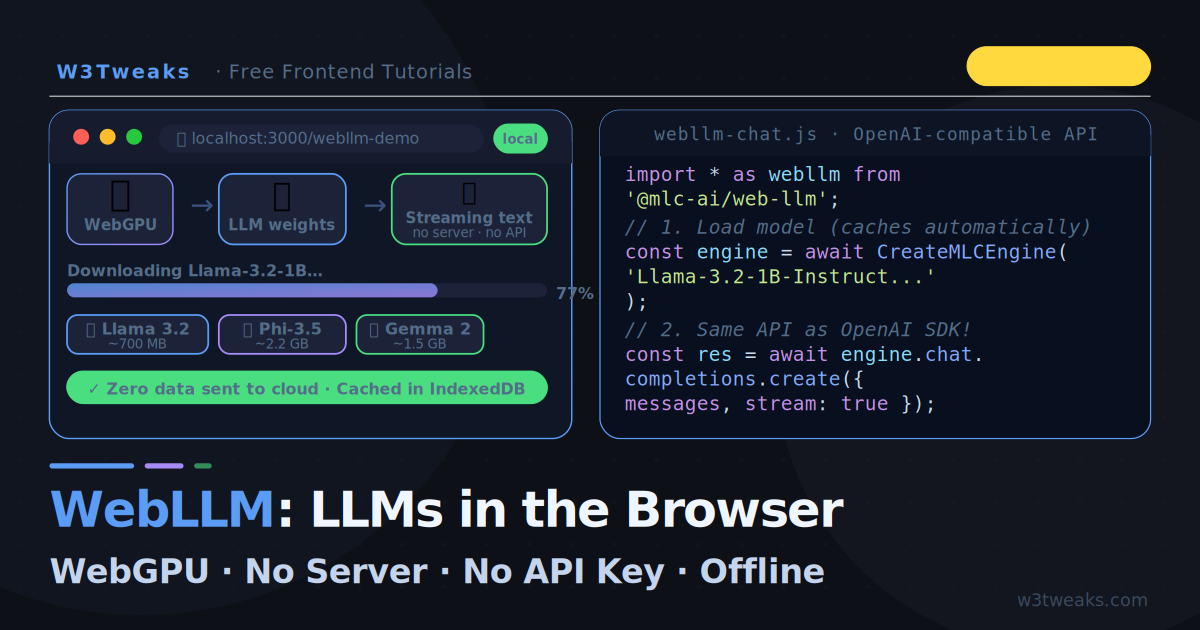
The most private AI possible is one that never leaves your device. Not Ollama on your laptop, not a VPN-secured cloud call — but AI running inside a browser tab, using your GPU through a web standard called WebGPU, with zero network traffic after the model loads.
WebLLM makes this real. Developed by MLC AI, it runs quantized open-source models — Llama 3.2, Phi-3.5, Gemma 2, Mistral — directly in the browser using WebGPU for hardware acceleration. The first visit downloads the model and caches it in the browser’s IndexedDB. Every subsequent visit loads instantly from cache. No server. No API key. No usage costs.
This tutorial covers everything: installing WebLLM, loading models with a progress UI, streaming chat completions, and building a production-ready in-browser AI assistant. The API is OpenAI-compatible, so if you already know how to call the OpenAI API from JavaScript, you already know WebLLM. For the server-side local AI equivalent, see the guide on running Ollama with JavaScript — WebLLM is the browser-native version of the same concept.
Live Demo
Requires Chrome or Edge 113+ with WebGPU. First load downloads the model (~700MB). Subsequent loads are instant from cache.
What Is WebLLM?
WebLLM is an open-source JavaScript library from MLC AI that compiles and runs quantized language models in the browser using WebGPU. It leverages the Machine Learning Compilation (MLC) framework to convert model weights into a format the browser’s GPU can execute efficiently.
How it compares to other local AI approaches:
| Approach | Where it runs | API Key needed | Internet after load | Works offline |
|---|---|---|---|---|
| WebLLM | Browser tab (GPU via WebGPU) | None | No | Yes |
| Ollama | Local machine (desktop app) | None | No | Yes |
| OpenAI API | Cloud (OpenAI servers) | Required | Always | No |
| Cloudflare AI | Cloud (edge servers) | Required | Always | No |
WebLLM’s unique position: it is the only approach that requires nothing beyond a browser. No installation, no terminal, no permissions beyond the initial model download.
Browser Requirements
WebLLM requires WebGPU — a modern browser API for GPU compute. Check support before building:
async function checkWebGPU() {
  if (!navigator.gpu) {
    return { supported: false, reason: 'WebGPU not supported in this browser' };
  }

  const adapter = await navigator.gpu.requestAdapter();
  if (!adapter) {
    return { supported: false, reason: 'No GPU adapter found — hardware may not support WebGPU' };
  }

  const device = await adapter.requestDevice();
  const info   = await adapter.requestAdapterInfo();

  return {
    supported: true,
    gpu:       info.description || 'Unknown GPU',
    vendor:    info.vendor      || 'Unknown',
  };
}

const gpu = await checkWebGPU();
if (!gpu.supported) {
  console.warn('WebGPU not available:', gpu.reason);
} else {
  console.log('WebGPU ready on:', gpu.gpu);
}
Browser support matrix:
| Browser | WebGPU Support | WebLLM Works |
|---|---|---|
| Chrome 113+ | Full | Yes |
| Edge 113+ | Full | Yes |
| Safari 18+ (macOS 15) | Partial | Most models |
| Firefox | Behind flag | Not yet |
For up-to-date browser data, check caniuse.com/webgpu and the MDN WebGPU reference.
Required hardware: a modern GPU with at least 4GB VRAM for small models, 8GB+ for larger ones. All Apple Silicon Macs (M1+), gaming laptops, and recent desktop GPUs work well. Integrated Intel graphics may be too slow for practical use.
Step 1 — Install WebLLM
Via CDN (quickest for demos and prototypes):
<script type="module">
  import * as webllm from 'https://esm.run/@mlc-ai/web-llm';
</script>
Via npm (for projects with a build step):
npm install @mlc-ai/web-llmimport * as webllm from '@mlc-ai/web-llm';For vanilla JavaScript without a bundler, the CDN import with type="module" is the simplest path. All examples in this tutorial use the CDN approach so you can follow along with a plain .html file.
Step 2 — Browse Available Models
WebLLM maintains a curated list of supported models. Fetch it programmatically to always show the latest options:
import * as webllm from 'https://esm.run/@mlc-ai/web-llm';

// Get all available models from the registry
const modelList = webllm.prebuiltAppConfig.model_list;

// Log name, size category, and required VRAM
modelList.forEach(m => {
  console.log(m.model_id, '→', m.vram_required_MB, 'MB VRAM');
});
Recommended starting models by use case:
| Model ID | Size | VRAM | Best for |
|---|---|---|---|
Llama-3.2-1B-Instruct-q4f32_1-MLC | ~700 MB | 2 GB | First test — fastest load |
Llama-3.2-3B-Instruct-q4f32_1-MLC | ~2 GB | 4 GB | Balanced quality and speed |
Phi-3.5-mini-instruct-q4f16_1-MLC | ~2.2 GB | 4 GB | Strong reasoning on small hardware |
Gemma-2-2b-it-q4f16_1-MLC | ~1.5 GB | 3 GB | Google’s efficient model |
Mistral-7B-Instruct-v0.3-q4f16_1-MLC | ~4 GB | 8 GB | Best quality, needs more VRAM |
Start with Llama-3.2-1B-Instruct-q4f32_1-MLC — it downloads quickly, fits in almost any GPU, and is surprisingly capable for everyday chat tasks.
Step 3 — Load a Model with Progress Feedback
Loading a model for the first time downloads its weights over the network and caches them in IndexedDB. Always show a progress UI — users need to know something is happening during a potentially multi-minute download:
import * as webllm from 'https://esm.run/@mlc-ai/web-llm';

const MODEL_ID = 'Llama-3.2-1B-Instruct-q4f32_1-MLC';

async function loadModel(onProgress) {
  const initProgressCallback = (report) => {
    // report.progress: 0–1
    // report.text: human-readable status message
    // report.timeElapsed: seconds since loading started
    onProgress({
      percent: Math.round(report.progress * 100),
      text:    report.text,
    });
  };

  const engine = await webllm.CreateMLCEngine(
    MODEL_ID,
    { initProgressCallback }
  );

  return engine;
}

// Wire to a progress bar in your UI
const engine = await loadModel(({ percent, text }) => {
  document.getElementById('progress-bar').style.width  = percent + '%';
  document.getElementById('progress-label').textContent = text;
});

console.log('Model ready!');
On subsequent visits, the model loads from IndexedDB cache — typically under 2 seconds. The initProgressCallback still fires but completes almost instantly.
Step 4 — Your First Chat Completion
WebLLM’s API is 100% OpenAI-compatible. If you can write an OpenAI chat completion call, you can write a WebLLM call — with the exact same method signatures and response shapes:
// OpenAI (cloud)
const completion = await openai.chat.completions.create({
  model:    'gpt-4o-mini',
  messages: [{ role: 'user', content: 'What is CSS flexbox?' }]
});

// WebLLM (browser — same API!)
const completion = await engine.chat.completions.create({
  model:    MODEL_ID,   // or omit entirely — engine already knows the model
  messages: [{ role: 'user', content: 'What is CSS flexbox?' }]
});

// Response shape is identical
console.log(completion.choices[0].message.content);
The engine object exposes engine.chat.completions.create() — the same interface as the OpenAI Node.js SDK. You can swap between local WebLLM and cloud OpenAI by changing which engine variable you use.
Step 5 — Streaming Responses
Add stream: true to get token-by-token streaming — exactly like the ChatGPT streaming text effect covered previously:
async function streamChat(messages, outputEl) {
  // Add blinking cursor
  const cursor = document.createElement('span');
  cursor.style.cssText = 'display:inline-block;width:2px;height:1em;background:#5b9cf6;vertical-align:text-bottom;animation:blink .7s step-end infinite';
  outputEl.appendChild(cursor);

  const stream = await engine.chat.completions.create({
    messages,
    stream:              true,
    stream_options:      { include_usage: true },
    temperature:         0.7,
    max_tokens:          1024,
  });

  let fullResponse = '';

  for await (const chunk of stream) {
    const token = chunk.choices[0]?.delta?.content ?? '';

    if (token) {
      fullResponse += token;
      cursor.insertAdjacentText('beforebegin', token);
      outputEl.scrollTop = outputEl.scrollHeight;
    }

    // Last chunk includes usage stats when include_usage: true
    if (chunk.usage) {
      console.log('Tokens used:', chunk.usage);
    }
  }

  cursor.remove();
  return fullResponse;
}
WebLLM streaming uses JavaScript’s for await...of syntax with an async iterator — cleaner than the ReadableStream pattern required by the OpenAI REST API. The response shape is identical though.
Step 6 — Multi-Turn Conversation with System Prompt
Maintain conversation history and set a persona with a system message:
class WebLLMChat {
  constructor(engine, systemPrompt) {
    this.engine   = engine;
    this.messages = systemPrompt
      ? [{ role: 'system', content: systemPrompt }]
      : [];
  }

  async send(userMessage, onToken) {
    this.messages.push({ role: 'user', content: userMessage });

    const stream = await this.engine.chat.completions.create({
      messages:    this.messages,
      stream:      true,
      temperature: 0.7,
      max_tokens:  512,
    });

    let reply = '';

    for await (const chunk of stream) {
      const token = chunk.choices[0]?.delta?.content ?? '';
      if (token) {
        reply += token;
        onToken(token);
      }
    }

    this.messages.push({ role: 'assistant', content: reply });
    return reply;
  }

  reset() {
    this.messages = this.messages.slice(0, 1); // keep system prompt
  }
}

// Usage
const chat = new WebLLMChat(engine,
  'You are a concise frontend development tutor for W3Tweaks. Answer CSS and JavaScript questions in plain language with short code examples.'
);

await chat.send('What is CSS flexbox?', token => {
  document.getElementById('output').textContent += token;
});
Step 7 — Model Management and Cache
WebLLM caches models in the browser’s Cache API / IndexedDB. Give users control over what is stored:
// Check if a model is already cached
async function isModelCached(modelId) {
  try {
    const hasCache = await webllm.hasModelInCache(modelId);
    return hasCache;
  } catch {
    return false;
  }
}

// Delete a cached model to free disk space
async function deleteModel(modelId) {
  await webllm.deleteModelAllInfoInCache(modelId);
  console.log(`Deleted ${modelId} from cache`);
}

// Show storage usage
async function getStorageInfo() {
  if (!navigator.storage?.estimate) return null;
  const { usage, quota } = await navigator.storage.estimate();
  return {
    usedGB:  (usage  / 1e9).toFixed(2),
    quotaGB: (quota  / 1e9).toFixed(2),
    percent: Math.round((usage / quota) * 100),
  };
}

// Example: build a model selector that shows cache status
async function buildModelSelector() {
  const models   = webllm.prebuiltAppConfig.model_list.slice(0, 6);
  const statuses = await Promise.all(
    models.map(async m => ({
      id:     m.model_id,
      cached: await isModelCached(m.model_id),
      vram:   m.vram_required_MB,
    }))
  );
  return statuses;
}
Step 8 — Handle WebGPU Not Available
Always write a graceful fallback for browsers without WebGPU:
async function initAI() {
  // Check WebGPU
  if (!navigator.gpu) {
    return showFallback('WebGPU not supported. Use Chrome 113+ or Edge 113+.');
  }

  const adapter = await navigator.gpu.requestAdapter();
  if (!adapter) {
    return showFallback('No compatible GPU found. Try on a device with a dedicated GPU.');
  }

  try {
    const engine = await loadModel(updateProgress);
    return engine;
  } catch (err) {
    // Model load failed — fall back to cloud API
    console.warn('WebLLM failed:', err.message);
    console.log('Falling back to OpenAI API…');
    return null; // caller handles null by using OpenAI instead
  }
}

function showFallback(message) {
  document.getElementById('fallback-notice').textContent = message;
  document.getElementById('fallback-notice').style.display = 'block';
  // Show a cloud API input instead
  document.getElementById('api-key-section').style.display = 'block';
  return null;
}
The most robust pattern: try WebLLM first, fall back to the OpenAI API if WebGPU is unavailable. Users get local inference when hardware supports it and cloud inference otherwise — the interface stays identical.
Step 9 — A Full Working Page
A complete, copy-paste ready single-file implementation:
<!DOCTYPE html>
<html lang="en">
<head>
  <meta charset="UTF-8">
  <title>In-Browser AI — WebLLM</title>
  <style>
    body { font-family:system-ui;background:#0d1117;color:#c4d4ed;max-width:680px;margin:40px auto;padding:0 20px }
    #progress-wrap { margin-bottom:20px }
    #progress-bar-outer { background:#1c2338;border-radius:6px;height:8px;overflow:hidden;margin:8px 0 }
    #progress-bar  { height:100%;background:linear-gradient(90deg,#5b9cf6,#06d6b0);border-radius:6px;width:0;transition:width .3s }
    #progress-label{ font-size:12px;color:#546e8a;font-family:monospace }
    #model-select  { background:#161c2d;border:1px solid rgba(255,255,255,.1);border-radius:8px;padding:8px 12px;font-family:inherit;font-size:13px;color:#f0f6ff;width:100%;margin-bottom:12px }
    #load-btn      { background:linear-gradient(135deg,#5b9cf6,#06d6b0);border:none;border-radius:8px;padding:10px 22px;font-size:13px;font-weight:700;font-family:inherit;color:#000;cursor:pointer;width:100%;margin-bottom:20px }
    #load-btn:disabled{ opacity:.4;cursor:not-allowed }
    #messages      { background:#111827;border:1px solid rgba(255,255,255,.07);border-radius:10px;padding:16px;min-height:280px;max-height:400px;overflow-y:auto;margin-bottom:12px;display:flex;flex-direction:column;gap:10px }
    .msg           { padding:10px 13px;border-radius:9px;line-height:1.7;font-size:13.5px;white-space:pre-wrap }
    .msg.user      { background:rgba(91,156,246,.15);border:1px solid rgba(91,156,246,.25);color:#dce8ff;align-self:flex-end;max-width:80% }
    .msg.ai        { background:#1c2338;border:1px solid rgba(255,255,255,.07);color:#c4d4ed }
    .cursor        { display:inline-block;width:2px;height:1em;background:#5b9cf6;vertical-align:text-bottom;animation:blink .7s step-end infinite }
    @keyframes blink{ 0%,100%{opacity:1}50%{opacity:0} }
    #input-row     { display:flex;gap:10px }
    #prompt        { flex:1;background:#161c2d;border:1px solid rgba(255,255,255,.1);border-radius:9px;padding:10px 13px;font-family:inherit;font-size:13.5px;color:#f0f6ff;resize:none;outline:none }
    #prompt:focus  { border-color:rgba(91,156,246,.5) }
    #send          { background:linear-gradient(135deg,#5b9cf6,#06d6b0);border:none;border-radius:9px;padding:0 18px;font-weight:700;font-family:inherit;font-size:13px;color:#000;cursor:pointer }
    #send:disabled { opacity:.4;cursor:not-allowed }
    #no-gpu        { background:rgba(248,113,113,.1);border:1px solid rgba(248,113,113,.3);border-radius:8px;padding:12px 16px;color:#f87171;font-size:13px;display:none;margin-bottom:16px }
  </style>
</head>
<body>

<h2 style="color:#f0f6ff;margin-bottom:20px">In-Browser AI (WebLLM)</h2>

<div id="no-gpu"></div>

<div id="progress-wrap">
  <select id="model-select">
    <option value="Llama-3.2-1B-Instruct-q4f32_1-MLC">Llama 3.2 1B — Fast (~700 MB)</option>
    <option value="Phi-3.5-mini-instruct-q4f16_1-MLC">Phi-3.5 Mini — Smart (~2.2 GB)</option>
    <option value="Gemma-2-2b-it-q4f16_1-MLC">Gemma 2 2B — Balanced (~1.5 GB)</option>
  </select>
  <button id="load-btn" onclick="loadSelectedModel()">Load Model</button>
  <div id="progress-bar-outer" style="display:none">
    <div id="progress-bar"></div>
  </div>
  <div id="progress-label"></div>
</div>

<div id="messages"></div>
<div id="input-row">
  <textarea id="prompt" rows="2" placeholder="Ask anything… (Enter to send)" disabled></textarea>
  <button id="send" onclick="send()" disabled>Send</button>
</div>

<script type="module">
import * as webllm from 'https://esm.run/@mlc-ai/web-llm';

let engine = null;
const history = [];

// Check WebGPU on load
if (!navigator.gpu) {
  document.getElementById('no-gpu').textContent =
    'WebGPU is not available. Use Chrome or Edge 113+ for in-browser AI.';
  document.getElementById('no-gpu').style.display = 'block';
  document.getElementById('load-btn').disabled = true;
}

window.loadSelectedModel = async function () {
  const model  = document.getElementById('model-select').value;
  const btn    = document.getElementById('load-btn');
  const barOuter = document.getElementById('progress-bar-outer');
  const bar      = document.getElementById('progress-bar');
  const label    = document.getElementById('progress-label');

  btn.disabled = true;
  barOuter.style.display = 'block';
  label.textContent = 'Starting…';

  try {
    engine = await webllm.CreateMLCEngine(model, {
      initProgressCallback: (report) => {
        bar.style.width      = (report.progress * 100) + '%';
        label.textContent    = report.text;
      }
    });

    label.textContent = 'Model ready — start chatting!';
    document.getElementById('prompt').disabled = false;
    document.getElementById('send').disabled   = false;
    document.getElementById('prompt').focus();

    addBubble('Model loaded! Ask me anything about CSS, JavaScript, or web development.', 'ai');

  } catch (err) {
    label.textContent = 'Error: ' + err.message;
  }

  btn.disabled = false;
};

window.send = async function () {
  const prompt = document.getElementById('prompt');
  const text   = prompt.value.trim();
  if (!text || !engine) return;

  prompt.value = '';
  prompt.disabled = true;
  document.getElementById('send').disabled = true;

  addBubble(text, 'user');
  history.push({ role: 'user', content: text });

  const aiBubble = addBubble('', 'ai');
  const cursor   = document.createElement('span');
  cursor.className = 'cursor';
  aiBubble.appendChild(cursor);

  let reply = '';

  const stream = await engine.chat.completions.create({
    messages:    history,
    stream:      true,
    temperature: 0.7,
    max_tokens:  512,
  });

  for await (const chunk of stream) {
    const token = chunk.choices[0]?.delta?.content ?? '';
    if (token) {
      reply += token;
      cursor.insertAdjacentText('beforebegin', token);
      document.getElementById('messages').scrollTop = 9999;
    }
  }

  cursor.remove();
  history.push({ role: 'assistant', content: reply });

  prompt.disabled = false;
  document.getElementById('send').disabled = false;
  prompt.focus();
};

function addBubble(text, role) {
  const msgs = document.getElementById('messages');
  const div  = document.createElement('div');
  div.className = `msg ${role}`;
  div.textContent = text;
  msgs.appendChild(div);
  msgs.scrollTop = 9999;
  return div;
}

document.getElementById('prompt').addEventListener('keydown', e => {
  if (e.key === 'Enter' && !e.shiftKey) { e.preventDefault(); window.send(); }
});
</script>
</body>
</html>
Save as index.html, open in Chrome or Edge — and you have a fully offline AI assistant running in your browser.
Performance Expectations
The speed of WebLLM depends heavily on the GPU:
| Hardware | Model | Tokens/second |
|---|---|---|
| M3 MacBook Pro | Llama 3.2 1B | ~100–150 tok/s |
| M3 MacBook Pro | Phi-3.5 Mini | ~50–80 tok/s |
| RTX 4070 (desktop) | Llama 3.2 3B | ~80–120 tok/s |
| RTX 3060 (laptop) | Llama 3.2 1B | ~60–90 tok/s |
| Integrated Intel GPU | Llama 3.2 1B | ~10–20 tok/s |
Apple Silicon Macs and discrete NVIDIA GPUs give the best results. Integrated graphics work but feel slow. Always test with the smallest model first and only move to larger ones when the hardware comfortably handles it.
When to Use WebLLM vs Ollama vs OpenAI
| Scenario | Best Choice |
|---|---|
| Public-facing app, needs best model quality | OpenAI API |
| Developer tool on your own machine | Ollama |
| Browser-based app, maximum privacy | WebLLM |
| Offline PWA or kiosk | WebLLM |
| Corporate tool with sensitive data, no IT access | WebLLM |
| Users may not have Chrome 113+ | OpenAI or Ollama |
WebLLM shines for privacy-first applications where you cannot ask users to install anything. A doctor’s note analyser, a personal journal assistant, or an offline coding helper — all cases where data must stay on the device and installation is not an option.
Key Takeaways
- WebLLM runs quantized LLMs (Llama, Phi, Gemma, Mistral) directly in the browser using WebGPU — no server, no API key, no data sent anywhere
- Requires Chrome 113+ or Edge 113+ with WebGPU support; fallback gracefully to cloud APIs for unsupported browsers
- The API is 100% OpenAI-compatible —
engine.chat.completions.create()works identically to the OpenAI SDK - Models are downloaded once and cached in IndexedDB — subsequent loads take under 2 seconds
- Use
Llama-3.2-1B-Instruct-q4f32_1-MLCas your starting model — ~700 MB, fast, fits on most hardware - Streaming uses JavaScript’s
for await...ofasync iterator — cleaner than the REST streaming pattern - Always implement WebGPU detection and a meaningful fallback — not all users will have compatible hardware
- Best use cases: privacy-sensitive tools, offline PWAs, applications where data must never leave the device
FAQ
What is WebLLM and how does it run LLMs in the browser?
WebLLM is a JavaScript library by MLC AI that compiles open-source language models into a format executable by WebGPU, the browser’s GPU API. It downloads quantized model weights (compressed to 4-bit or 16-bit precision), caches them in IndexedDB, and uses WebGPU compute shaders to run matrix multiplications on your GPU. The result is near-native inference speed inside a browser tab, with no server involvement after the initial model download.
Which browsers support WebLLM?
Chrome 113+ and Edge 113+ have full WebGPU support and work well with WebLLM. Safari 18+ on macOS 15+ has partial WebGPU support and works with most WebLLM models. Firefox does not yet support WebGPU by default (it is behind a flag). Always check navigator.gpu at runtime and provide a fallback for unsupported browsers.
How big are the model files and where are they stored?
Models range from ~700 MB (Llama 3.2 1B quantized) to ~4 GB (Mistral 7B quantized). They are stored in the browser’s Cache API and IndexedDB, not in a fixed filesystem location. Users can clear them through the browser’s storage settings or programmatically with webllm.deleteModelAllInfoInCache(modelId). On repeat visits, the model loads from cache in under 2 seconds.
Is WebLLM suitable for production apps?
Yes, for the right use cases. WebLLM is production-ready for privacy-first tools (no data leaves the device), offline applications (PWAs, kiosks), and developer tools where the user base is guaranteed to have Chrome or Edge with a capable GPU. It is not suitable for general consumer apps where you need to support all browsers, older hardware, or where model quality must match GPT-4o.
How does WebLLM compare to running Ollama locally?
Both run models locally with zero API cost. The key difference: Ollama requires installing a desktop app, while WebLLM runs inside a browser tab with nothing to install. Ollama gives you more model options, better performance (direct GPU access via native drivers), and models that can be larger. WebLLM is better when installation is not an option — public computers, locked-down corporate machines, or any scenario where you just want to open a URL.
Can I use WebLLM with a system prompt to build a custom AI assistant?
Yes — include a system message at the start of the messages array just like the OpenAI API: { role: 'system', content: 'You are a concise frontend development tutor…' }. The system prompt persists across the conversation as long as you maintain the messages array. The chatbot widget tutorial shows the full UI pattern — swap the OpenAI fetch call for engine.chat.completions.create() and the widget runs entirely offline.