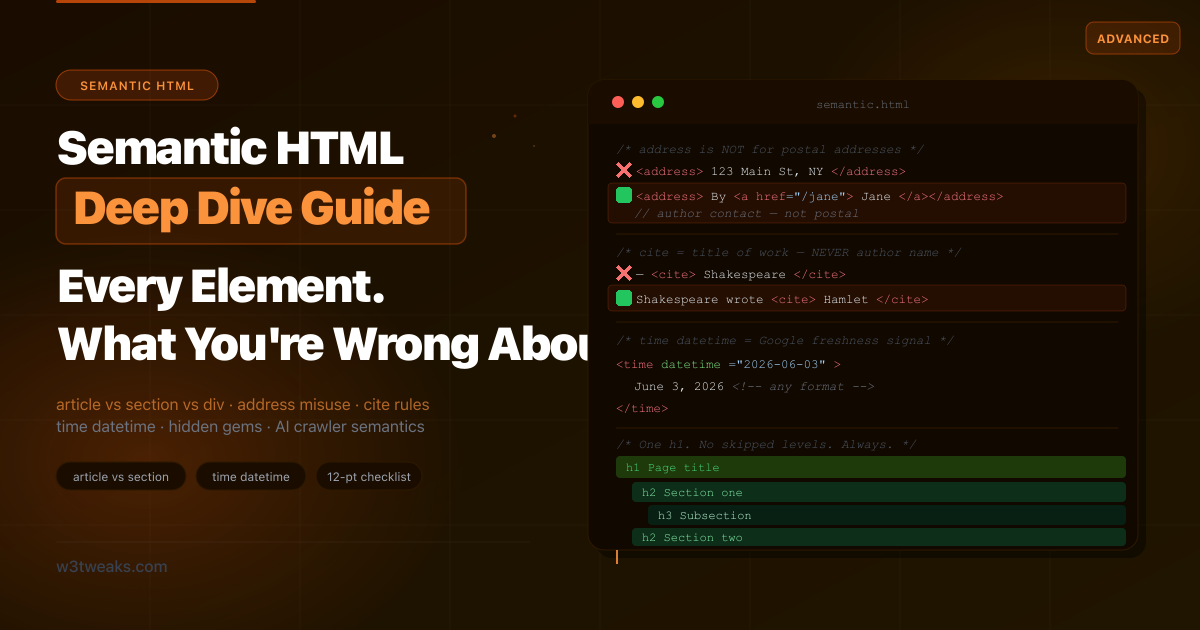
You already know <div> and <span> have no semantic meaning. You’ve read that <article> is for self-contained content and <section> groups related content under a theme. Most semantic HTML tutorials stop there. They don’t tell you that <address> wrapping a postal address is semantically incorrect — and almost every website on the internet has it wrong. They don’t explain that <cite> should never contain an author’s name, only a title. They don’t mention that HTML5 introduced a document outline algorithm — one that allows multiple <h1> elements on a page — that was never implemented by a single browser or screen reader, making the advice in half of all tutorials actively harmful. This guide covers all of it: the decision framework for choosing the right sectioning element, the heading hierarchy rules that actually matter currently, the elements nearly everyone misuses (including the <em> vs <i> / <strong> vs <b> distinction every interview question asks about), the hidden gems most developers don’t know exist, a <details>-based exclusive accordion you can ship today, and a 12-point audit checklist you can run against any page right now.
Related tutorials: ARIA Roles Practical Guide · HTML5 Form Validation Without JavaScript · HTML <details> & <summary> Beyond Basic Accordions
Live Demo
Five interactive demos: an element-choice decision flowchart, the most misused semantic elements with before/after, a heading hierarchy visualizer, semantic hidden gems you haven't used, and real-world page templates with correct markup.
The First Rule of ARIA — and Why It Justifies This Whole Article
Before any element-by-element guide, one principle you need to internalize. It’s quoted verbatim in the WAI-ARIA Authoring Practices and repeated by every accessibility expert who matters:
First Rule of ARIA: If you can use a native HTML element or attribute with the semantics and behaviour you require already built in, instead of re-purposing an element and adding an ARIA role, state or property to make it accessible, then do so.
This is why semantic HTML matters. WebAIM’s 2024 analysis of the top million homepages found pages with ARIA had 41% more accessibility errors than pages without. The reason is simple: ARIA can lie, native HTML can’t. A <button> is announced, focused, activated, and keyboard-accessible without a single attribute. A <div role="button" tabindex="0" onclick="..."> requires you to also handle Enter key, Space key, aria-disabled, aria-pressed, focus styles, and a half-dozen edge cases — and most developers get at least one wrong.
<!-- ❌ Reinventing the button (and almost certainly wrong) -->
<div role="button" tabindex="0" onclick="save()">Save</div>

<!-- ✅ Native button — accessible by default -->
<button type="button" onclick="save()">Save</button>
The rest of this guide is essentially the practical application of this rule. Every “misuse” we cover boils down to: someone reached for ARIA or a <div> when an existing semantic element had the right meaning already.
Before / After — Div Soup vs Semantic HTML
❌ Before — div soup (what most sites look like)
<div class="header">
  <div class="logo">MySite</div>
  <div class="nav">
    <div class="nav-item"><a href="/about">About</a></div>
    <div class="nav-item"><a href="/blog">Blog</a></div>
  </div>
</div>

<div class="main">
  <div class="post">
    <div class="post-header">
      <div class="post-title">How to Learn HTML</div>
      <div class="post-meta">By Jane Doe · March 15, 2026</div>
    </div>
    <div class="post-body">
      <div class="intro">Learning HTML doesn't have to be hard...</div>
      <div class="section">
        <div class="section-title">Start with the basics</div>
        <div class="section-body">...</div>
      </div>
    </div>
  </div>

  <div class="sidebar">
    <div class="widget">
      <div class="widget-title">Related Posts</div>
    </div>
  </div>
</div>

<div class="footer">
  <div class="copyright">© 2026 MySite</div>
</div>
The problems: No landmark navigation for screen readers, no machine-readable content structure for search engines, no meaningful document outline, no time metadata Google can use for freshness signals, nothing for AI crawlers to anchor content extraction to.
✅ After — Semantic HTML
<header>
  <a href="/" aria-label="MySite home"><img src="logo.svg" alt="MySite"></a>
  <nav aria-label="Primary">
    <a href="/about">About</a>
    <a href="/blog">Blog</a>
  </nav>
</header>

<main>
  <article>
    <header>
      <h1>How to Learn HTML</h1>
      <p>By <a href="/authors/jane" rel="author">Jane Doe</a> ·
         Published <time datetime="2026-03-15">March 15, 2026</time></p>
    </header>

    <p>Learning HTML doesn't have to be hard…</p>

    <section aria-labelledby="basics-heading">
      <h2 id="basics-heading">Start with the basics</h2>
      <p>…</p>
    </section>

    <footer>
      <p>Filed under: <a href="/tag/html">HTML</a>, <a href="/tag/beginner">Beginner</a></p>
    </footer>
  </article>

  <aside aria-label="Related posts">
    <h2>Related Posts</h2>
    …
  </aside>
</main>

<footer>
  <p><small>© 2026 MySite. All rights reserved.</small></p>
</footer>
Step 1 — The Decision Framework: article vs section vs div vs aside
This is the most searched semantic HTML question and the most poorly answered. Here is a three-question flowchart to get the right element every time:
Could this content be lifted out of the page and published somewhere
else (a different site, an RSS feed, an email) and still make sense?
│
├── YES → Use <article>
│         Blog posts, news articles, forum posts, product cards,
│         comments, recipes, user reviews, widgets, gadgets.
│
└── NO  → Does this content form a distinct thematic group that
           would appear in a page's table of contents?
           │
           ├── YES → Use <section>
           │         Chapters, tab panels, steps in a how-to,
           │         chapters of a report, thematic subsections.
           │         Rule: every <section> should have a heading.
           │
           └── NO  → Is it secondary content that complements
                      but could be removed without affecting
                      the main content's meaning?
                      │
                      ├── YES → Use <aside>
                      │         Sidebars, pull quotes, related
                      │         links, advertisements, author bios,
                      │         glossary definitions.
                      │
                      └── NO  → Use <div>
                                CSS layout wrappers, flex containers,
                                JS hook containers. div = no meaning.
The nesting rules
<article> can nest inside <article>. A comment thread is a valid example: the parent <article> is the post; each reply is a child <article>.
<section> can nest inside <article>. A blog post (<article>) with chapters (<section>) is the canonical pattern.
<article> can nest inside <section>. A <section> of a page that lists multiple blog posts, each as an <article>, is correct.
<!-- article containing sections — most common pattern -->
<article>
  <h1>Building a REST API</h1>
  <section aria-labelledby="setup-h">
    <h2 id="setup-h">Setup</h2>…
  </section>
  <section aria-labelledby="auth-h">
    <h2 id="auth-h">Authentication</h2>…
  </section>
</article>

<!-- section listing multiple articles — blog index page -->
<section aria-labelledby="recent-h">
  <h2 id="recent-h">Recent Posts</h2>
  <article>…post 1…</article>
  <article>…post 2…</article>
  <article>…post 3…</article>
</section>
The <section> heading requirement
Every <section> should have a visible heading. If you can’t give a section a heading, it’s probably a <div>. This is the simplest test for <section> misuse.
<!-- ❌ section without heading — use div instead -->
<section class="hero-image">
  <img src="hero.jpg" alt="Team at work">
</section>

<!-- ✅ div for layout wrapper, no heading needed -->
<div class="hero-image">
  <img src="hero.jpg" alt="Team at work">
</div>

<!-- ✅ section with its heading -->
<section aria-labelledby="team-h">
  <h2 id="team-h">Meet the team</h2>
  <p>We're a group of…</p>
</section>
Step 2 — The <main> Element: Rules + the Hidden SPA Pattern
<main> is the landmark that holds the page’s primary content — everything that isn’t site-wide header, footer, primary navigation, or sidebar. It’s a separate element with its own rules most developers don’t know.
The three rules
- One visible
<main>per page. Screen readers expose<main>as the “main content” landmark — duplicates confuse navigation. <main>cannot nest inside<article>,<aside>,<header>,<footer>, or<nav>. The spec is explicit. Validators will flag this.<main>should be a direct child of<body>(or, in rare cases, of a wrapper<div>). Don’t bury it inside other sectioning containers.
<!-- ❌ Wrong: <main> nested inside <article> -->
<article>
  <main>…</main>
</article>

<!-- ❌ Wrong: multiple visible <main> elements -->
<main>Page A</main>
<main>Page B</main>

<!-- ✅ Correct: one <main> as direct child of body -->
<body>
  <header>…</header>
  <main>
    <article>…</article>
    <aside>…</aside>
  </main>
  <footer>…</footer>
</body>
The hidden multi-<main> SPA pattern
The HTML spec carves out one exception, which is genuinely obscure but useful for single-page apps. Multiple <main> elements are permitted if all but one are hidden via the hidden attribute. This lets an SPA keep multiple route views in the DOM, swap the visible one, and still expose exactly one <main> landmark to assistive tech at any moment:
<!-- SPA: only the route matching the URL has no hidden attribute -->
<body>
  <header>…</header>

  <main id="route-home">Home content…</main>
  <main id="route-pricing" hidden>Pricing content…</main>
  <main id="route-about" hidden>About content…</main>

  <footer>…</footer>
</body>
// Router toggles hidden on the inactive routes
function showRoute(id) {
document.querySelectorAll('main').forEach(m => {
m.hidden = (m.id !== id);
});
}The hidden attribute removes the element from the accessibility tree and focus order — the exact behavior screen readers need. Don’t use aria-hidden="true" instead; that doesn’t remove from focus order and can trap keyboard users on invisible content.
Step 3 — Heading Hierarchy: The Rules That Actually Matter
One <h1> per page — the rule that never changed
HTML5 introduced a document outline algorithm that would allow multiple <h1> elements on a page — one per sectioning element (<article>, <section>, <nav>, <aside>). Under this algorithm, an <h1> inside an <article> would be scoped to that article, not the page.
No browser ever implemented it. No screen reader ever implemented it. The W3C’s HTML Accessibility Task Force confirmed in 2013 and reaffirmed repeatedly that the outline algorithm has zero support and should not be relied upon.
The practical rule: Use a single <h1> for the page’s main title. Use <h2>–<h6> for subheadings. Never skip heading levels going down (no <h1> then <h3>), but you can jump back up freely.
<!-- ✅ Correct heading hierarchy -->
<h1>Building a Design System</h1>         <!-- page title: only one -->
  <h2>Foundations</h2>
    <h3>Color tokens</h3>
    <h3>Typography scale</h3>
  <h2>Components</h2>
    <h3>Buttons</h3>
      <h4>Button variants</h4>
      <h4>Button states</h4>
    <h3>Form inputs</h3>
  <h2>Patterns</h2>

<!-- ❌ Skipped levels — confuses screen reader table of contents -->
<h1>Page title</h1>
  <h3>Jumped from h1 to h3</h3>  <!-- missing h2 -->
    <h5>Jumped from h3 to h5</h5> <!-- missing h4 -->
aria-labelledby on sections ties headings to landmarks
Connecting a section’s heading to the section itself gives screen reader users a navigable landmark with a meaningful name:
<section aria-labelledby="pricing-heading">
  <h2 id="pricing-heading">Pricing plans</h2>
  …
</section>

<!-- Screen reader announces: "Pricing plans, region" when navigating to it -->
Step 4 — Elements You’re Almost Certainly Using Wrong
1. <address> — the most misused element in HTML
What almost every tutorial says: Use <address> for contact information like a mailing address.
What the spec actually says: <address> represents the contact information for the nearest ancestor <article> element, or for the <body> if there is no ancestor article. It is for author or owner contact details — not physical/postal addresses.
<!-- ❌ Wrong: physical address inside <address> -->
<address>
  123 Main Street<br>
  Springfield, IL 62701<br>
  United States
</address>

<!-- ❌ Also wrong: company address in the footer -->
<footer>
  <address>
    Acme Corp<br>
    456 Oak Ave, San Francisco, CA
  </address>
</footer>

<!-- ✅ Correct: contact info for the article author -->
<article>
  <h1>How I built my first API</h1>
  <address>
    Written by <a href="/about/jane">Jane Doe</a> ·
    <a href="mailto:jane@example.com">jane@example.com</a>
  </address>
  …
</article>

<!-- ✅ Correct: site owner contact info in body footer -->
<footer>
  <address>
    Questions? Contact us at
    <a href="mailto:hello@mysite.com">hello@mysite.com</a>
  </address>
</footer>
If you need to mark up a postal address semantically, use <p> with Schema.org microdata or JSON-LD — not <address>.
2. <cite> — titles only, never author names
What almost every tutorial says: Use <cite> to credit a source, like <cite>Jane Doe</cite>.
What the spec says: <cite> represents the title of a creative work — a book, paper, poem, song, film, TV show, game, painting, sculpture. It must not be used for people’s names.
<!-- ❌ Wrong: author name inside cite -->
<blockquote>
  "Two things are infinite: the universe and human stupidity."
  — <cite>Albert Einstein</cite>
</blockquote>

<!-- ✅ Correct: title of work inside cite -->
<p>The findings were first published in
   <cite>Nature</cite>, Volume 580.</p>

<p>As discussed in
   <cite>The Design of Everyday Things</cite>
   by Don Norman…</p>

<!-- ✅ Correct blockquote with cite attribute (not element) for source URL -->
<blockquote cite="https://www.paulgraham.com/writing44.html">
  <p>The most important thing is to be able to think clearly.</p>
</blockquote>
<p>— Paul Graham, <cite><a href="https://paulgraham.com/writing44.html">Writing, Briefly</a></cite></p>
The cite attribute on <blockquote> and <q> takes a URL pointing to the original source. The <cite> element wraps the title of the work, not the person who created it.
3. <em> vs <i> and <strong> vs <b> — the most-asked interview question
These four elements look identical in default browser styling but have different semantic meanings. Screen readers change their vocal stress for <em> and <strong> but render <i> and <b> as plain text — and search engines use the distinction to understand emphasis vs. simple visual styling.
| Element | Meaning | Screen reader behavior | Use for |
|---|---|---|---|
<em> | Stress emphasis that changes a sentence’s meaning | Vocal stress | ”I told him not to do that” |
<i> | Alternate voice or mood — no extra emphasis | Plain text | Foreign phrases, ship/film names, taxonomic names, thoughts |
<strong> | Strong importance, seriousness, or urgency | Stronger/louder vocal stress | Warnings, deadlines, key terms |
<b> | Stylistically offset text — keywords without importance | Plain text | Product names in a review, lead-in words |
<!-- em: stress changes sentence meaning -->
<p>I <em>did</em> finish the homework — I just forgot to bring it.</p>

<!-- i: foreign phrase, ship name, taxonomic name -->
<p>The French call this <i lang="fr">je ne sais quoi</i>.</p>
<p>The <i>HMS Belfast</i> is moored on the Thames.</p>
<p>The honey bee (<i>Apis mellifera</i>) pollinates…</p>

<!-- strong: serious warning -->
<p><strong>Warning:</strong> this action cannot be undone.</p>

<!-- b: keyword without importance -->
<p>In this review, we tested the <b>RX-500</b>, <b>RX-600</b>, and <b>RX-700</b>.</p>
The two-question test: Does the emphasis change the sentence’s meaning or warn the reader? →
<em>/<strong>. Is it just a typographic offset (foreign word, name, keyword)? →<i>/<b>.
4. <nav> — primary navigation only, not every link list
<nav> is for the primary navigation landmarks of a page — the main menu, breadcrumbs, a table of contents, or secondary navigation. It is not for every group of links.
<!-- ❌ Wrong: social media icons wrapped in nav -->
<nav class="social-links">
  <a href="https://twitter.com/mysite">Twitter</a>
  <a href="https://github.com/mysite">GitHub</a>
</nav>

<!-- ❌ Wrong: tag cloud wrapped in nav -->
<nav class="tag-cloud">
  <a href="/tag/html">HTML</a>
  <a href="/tag/css">CSS</a>
</nav>

<!-- ✅ Correct: primary navigation -->
<nav aria-label="Primary">
  <a href="/">Home</a>
  <a href="/about">About</a>
  <a href="/blog">Blog</a>
  <a href="/contact">Contact</a>
</nav>

<!-- ✅ Correct: breadcrumb navigation -->
<nav aria-label="Breadcrumb">
  <ol>
    <li><a href="/">Home</a></li>
    <li><a href="/tutorials">Tutorials</a></li>
    <li><a aria-current="page">Semantic HTML</a></li>
  </ol>
</nav>

<!-- ✅ Social links: use ul, not nav -->
<ul class="social-links" aria-label="Social media links">
  <li><a href="https://twitter.com/mysite">Twitter</a></li>
  <li><a href="https://github.com/mysite">GitHub</a></li>
</ul>
When there are multiple <nav> elements on a page, always add aria-label to distinguish them (Primary, Breadcrumb, Article contents, Footer navigation).
5. <figure> — for more than images
<figure> represents self-contained content that is referenced from the main content but could be moved to an appendix without disrupting the main flow. Most tutorials only show it with images. It’s equally correct for:
<!-- Images with captions — the obvious use -->
<figure>
  <img src="arch.jpg" alt="Microservices architecture diagram">
  <figcaption>Fig 1. Event-driven microservices with a shared message bus.</figcaption>
</figure>

<!-- Code examples -->
<figure>
  <figcaption>Fetching with AbortController — the correct pattern</figcaption>
  <pre><code>const controller = new AbortController();
const res = await fetch(url, { signal: controller.signal });</code></pre>
</figure>

<!-- Pull quotes / blockquotes referenced from text -->
<figure>
  <blockquote>
    <p>Programs must be written for people to read, and only incidentally for machines to execute.</p>
  </blockquote>
  <figcaption>— Harold Abelson, <cite>Structure and Interpretation of Computer Programs</cite></figcaption>
</figure>

<!-- Data charts / tables with captions -->
<figure>
  <table>…</table>
  <figcaption>Table 1. Monthly active users Q1–Q2 2026</figcaption>
</figure>

<!-- Audio or video with description -->
<figure>
  <audio controls src="podcast-ep42.mp3"></audio>
  <figcaption>Episode 42: The future of native HTML components (42 min)</figcaption>
</figure>
The test: could you move this to a sidebar or appendix without losing the main text’s meaning? If yes, it’s a <figure>.
6. <header> and <footer> — scoped, not always page-level
<header> and <footer> are commonly treated as page-level elements only. Both are valid inside any sectioning element and carry scoped meaning within that context.
<article>
  <!-- Article-scoped header: not the page header -->
  <header>
    <h1>How we scaled to 10 million users</h1>
    <p>Published <time datetime="2026-02-14">February 14, 2026</time> · 12 min read</p>
    <img src="author.jpg" alt=""> <!-- author avatar -->
  </header>

  <p>When we first launched…</p>

  <!-- Article-scoped footer: not the page footer -->
  <footer>
    <p>Tags: <a href="/tag/scaling">Scaling</a>, <a href="/tag/infrastructure">Infrastructure</a></p>
    <p>
      <a href="/share?url=…" rel="noopener">Share this article</a>
    </p>
  </footer>
</article>
This pattern is particularly useful for blog posts, news articles, and card components where each article has its own metadata header and action footer.
7. <small> — fine print, not “small text”
<small> is misused constantly for visual sizing. The spec meaning is “side comments and small print” — copyright lines, disclaimers, legal text, attributions. If you just want smaller text, use CSS. If you’re marking up a footnote, copyright, license note, or fine-print disclaimer, <small> is the right element.
<!-- ❌ Wrong: <small> as a CSS font-size shortcut -->
<p>This sentence has <small>a small word</small> in the middle.</p>

<!-- ✅ Correct: <small> for legal fine print -->
<footer>
  <small>© 2026 MySite. All rights reserved.
         Prices exclude VAT.</small>
</footer>

<!-- ✅ Correct: attribution -->
<figure>
  <blockquote>"…"</blockquote>
  <figcaption>— <cite>Atomic Habits</cite> <small>(James Clear, 2018)</small></figcaption>
</figure>
Step 5 — The <time> Element and datetime Formats
<time> is one of the most valuable semantic elements for SEO, yet its datetime attribute is rarely explained in detail.
The datetime attribute provides a machine-readable version of the date or duration, regardless of how you display it visually:
<!-- Google uses datetime for freshness ranking signals -->
<time datetime="2026-03-15">March 15, 2026</time>
<time datetime="2026-03-15">Last Tuesday</time>        <!-- same machine value -->
<time datetime="2026-03-15">15/03/2026</time>          <!-- any human format works -->

<!-- Date + time (with timezone) — use for live events, timestamps -->
<time datetime="2026-03-15T09:30:00-05:00">9:30 AM Eastern</time>
<time datetime="2026-03-15T14:30:00Z">2:30 PM UTC</time>

<!-- Year + month only -->
<time datetime="2026-03">March 2026</time>

<!-- Week number — useful for scheduling content -->
<time datetime="2026-W11">Week 11, 2026</time>

<!-- Duration — for recipe prep times, estimated reading time -->
<time datetime="PT45M">45 minutes</time>             <!-- 45-minute duration -->
<time datetime="P1DT2H">1 day 2 hours</time>         <!-- duration: 1d 2h -->
<time datetime="PT8M">8 min read</time>              <!-- reading time -->
Why datetime matters for SEO
Google uses the <time> element’s datetime attribute as a strong signal for content freshness. Pages with proper <time datetime="…"> timestamps around publication and update dates tend to get more accurate freshness scores in Google Search than pages that rely on meta tags alone.
<!-- Blog post: mark both published and updated dates -->
<article>
  <h1>HTML Form Validation in 2026</h1>
  <p>
    Published <time datetime="2025-11-02">November 2, 2025</time> ·
    Updated <time datetime="2026-03-15">March 15, 2026</time>
  </p>
</article>
Step 6 — Hidden Gems: Elements You Should Be Using
<details> and <summary> — native, JS-free disclosure
<details> is the most underused element in HTML. It gives you a fully-functional disclosure widget — click to expand, click to collapse, keyboard-accessible, screen-reader-announced — without a single line of JavaScript.
<details>
  <summary>What is the return policy?</summary>
  <p>Items can be returned within 30 days of delivery for a full refund…</p>
</details>
The 2024 update added the name attribute, which lets you build an exclusive accordion (opening one closes the others) with zero JavaScript:
<!-- Exclusive accordion — only one open at a time, no JS required -->
<details name="faq">
  <summary>What is the return policy?</summary>
  <p>30 days, full refund…</p>
</details>

<details name="faq">
  <summary>How long does shipping take?</summary>
  <p>3–5 business days domestic, 7–14 international.</p>
</details>

<details name="faq">
  <summary>Do you ship internationally?</summary>
  <p>Yes, to 47 countries.</p>
</details>
Important:
<details>is a disclosure, not a modal. If you need a true modal (focus trap, backdrop, escape-to-close), use<dialog>— see HTML <dialog> Element Complete Guide. And don’t use<details>as a tab interface — tabs imply mutually-exclusive content visible only via tab clicks, which is a different keyboard model.
For deeper patterns including disclosure-driven dropdown menus, anchor-link expansion, and form section collapsing, see HTML <details> & <summary> Beyond Basic Accordions.
<search> — the 2023 landmark element
The <search> element was added to the HTML living standard in 2023. It provides a landmark role for search forms — previously requiring role="search" on a <div>:
<!-- Before 2023: required role="search" on a div -->
<div role="search">
  <form action="/search" method="get">…</form>
</div>

<!-- ✅ Now: use <search> natively -->
<search>
  <form action="/search" method="get">
    <label for="q">Search</label>
    <input type="search" id="q" name="q" autocomplete="off">
    <button type="submit">Go</button>
  </form>
</search>
Browser support: Chrome 118+, Firefox 118+, Safari 17+. Use <search> with a role="search" fallback for older browsers if needed.
<dfn> — the first-definition element
<dfn> marks the first use of a term in a document that is being formally defined by the surrounding text. It’s the semantic equivalent of a glossary entry inline in your content.
<!-- The surrounding paragraph defines the term -->
<p>
  A <dfn id="def-cls">Cumulative Layout Shift (CLS)</dfn> occurs when
  visible elements on a page move unexpectedly during or after loading,
  causing users to click the wrong thing.
</p>

<!-- Later references can link back to the definition -->
<p>
  Optimising images with explicit width and height attributes
  dramatically reduces <a href="#def-cls">CLS</a>.
</p>

<!-- dfn with abbr for an acronym being defined -->
<p>
  <dfn><abbr title="Application Programming Interface">API</abbr></dfn>
  is a set of protocols for building software applications.
</p>
<mark> — highlighted for relevance
<mark> represents text highlighted for reference or notation — not for visual emphasis. Its canonical use case is search result matches:
<!-- Highlight the search term in results -->
<p>
  Results for "responsive images":
</p>
<article>
  <h2>Using <mark>responsive</mark> <mark>images</mark> with srcset</h2>
  <p>…how to make <mark>images</mark> adapt to screen size…</p>
</article>

<!-- Don't use for general emphasis — use <strong> or <em> instead -->
<!-- ❌ Wrong: mark for visual emphasis -->
<p>This is <mark>really important</mark> to understand.</p>

<!-- ✅ Correct: strong for importance -->
<p>This is <strong>really important</strong> to understand.</p>
<abbr> — abbreviations with full expansions
<!-- First use: include full expansion in title -->
<p>
  The <abbr title="World Wide Web Consortium">W3C</abbr>
  publishes the HTML specification.
</p>

<!-- Screen readers read the title attribute to users -->
<!-- Google uses title to understand abbreviated terms -->
<del> and <ins> — tracked changes
<!-- Price reduction — structured change history -->
<p>Price: <del datetime="2026-03-01">$79/month</del>
          <ins datetime="2026-04-01">$59/month</ins></p>

<!-- Document revision tracking -->
<p>
  The API <del>returns a 200 status code</del>
         <ins>returns a 201 status code</ins> on successful creation.
</p>
<hgroup> — heading with a subtitle
<hgroup> was introduced in HTML5, deprecated, then reinstated in HTML 5.2. It groups a heading with a directly associated subtitle or tagline:
<!-- ✅ hgroup: heading + subtitle pair -->
<hgroup>
  <h1>The Future of Web Components</h1>
  <p>Why 2026 is the year native HTML finally wins</p>
</hgroup>

<!-- Without hgroup, the <p> has no semantic relationship to the h1 -->
<hgroup> tells the document outline that the <p> is a subtitle for the heading, not a content paragraph. Browser support: all modern browsers.
<data> — human-readable with machine-readable value
<!-- Product IDs — display friendly, submit machine value -->
<p>Product: <data value="SKU-4829-BLK">Mechanical Keyboard — Black</data></p>

<!-- Prices — display localised, value canonical -->
<p>Price: <data value="5999">$59.99</data></p>

<!-- Sort keys — display date human-formatted, sort by ISO value -->
<td><data value="2026-03-15">March 15, 2026</data></td>
Step 7 — Technical Content Elements: <kbd>, <samp>, <var> vs <code>
Every dev blog wraps everything technical in <code>. HTML has four distinct elements for technical content, each with different semantics. Use them and AI tools, screen readers, and search engines all understand your tutorials more accurately.
| Element | Meaning | Example |
|---|---|---|
<code> | Source code, file paths, technical strings | Run <code>npm install</code> first. |
<kbd> | Keyboard input — what the user types or presses | Press <kbd>Cmd</kbd>+<kbd>K</kbd> to open search. |
<samp> | Sample output from a program or system | <samp>command not found</samp> |
<var> | A variable in prose or a math expression | Solve for <var>x</var> when <var>y</var> = 5. |
A real example using all four in one paragraph:
<p>
  Run <code>git status</code> by pressing <kbd>Enter</kbd>.
  If the output is <samp>nothing to commit</samp>, your working tree is clean.
  Replace <var>branch-name</var> in <code>git checkout <var>branch-name</var></code>
  with your branch.
</p>
Screen readers can adjust pronunciation for <code> (often spelled out character-by-character for short strings) and treat <kbd> distinctively. Google’s tutorial-extraction pipeline uses <kbd> as a strong signal that content is interactive instruction.
Step 8 — <progress> vs <meter> — The Confusion Pair
These two are the most-confused element pair after <article> vs <section>. They are not interchangeable:
<progress>= how far through a task are we? (uploads, downloads, multi-step forms, loading indicators) — value moving toward completion.<meter>= what is the value on a gauge with known bounds? (disk usage, score, fuel level, password strength) — a scalar reading.
<!-- ✅ progress: task completion -->
<label>Uploading…
  <progress value="42" max="100">42%</progress>
</label>

<!-- ✅ meter: scalar measurement -->
<label>Disk usage:
  <meter value="6" min="0" max="10" low="3" high="7" optimum="2">
    6 of 10 GB used
  </meter>
</label>

<label>Password strength:
  <meter value="0.7" min="0" max="1" low="0.3" high="0.7" optimum="1">
    Strong
  </meter>
</label>
Notice <meter> accepts low, high, and optimum — letting the browser style the gauge green/amber/red automatically. <progress> has no such concept because it’s always moving toward a single goal.
One-line test: is the value moving toward a finish line? →
<progress>. Is it a reading on a gauge? →<meter>.
Step 9 — lang on Subtrees — The International-Content Misuse
Every page has <html lang="en">. Almost nobody marks foreign phrases inline with a lang attribute. WCAG 3.1.2 requires it, screen readers switch voices on it, and Google uses subtree language markers for localization signals.
<html lang="en">
…
<p>The French call this <span lang="fr">je ne sais quoi</span>.</p>

<p>His memoir <i lang="de">Aus meinem Leben</i> was published in 1812.</p>

<blockquote lang="ja">
  <p>蛙の子は蛙。</p>
  <p lang="en">(The child of a frog is a frog — like father, like son.)</p>
</blockquote>
The format is BCP 47: a two-letter language code (fr, de, ja), optionally followed by a region (en-GB, pt-BR). When a screen reader hits <span lang="fr">, it switches to its French voice for that span and back to English afterwards — without the attribute, English users hear French read as if it were broken English.
Step 10 — Semantic HTML and SEO: The Actual Mechanism
Semantic HTML doesn’t directly boost rankings — Google doesn’t give you “semantic bonus points.” What it does is help Google understand your content faster and more accurately, which produces ranking benefits indirectly:
Crawl efficiency: When Google’s bots encounter <main>, they can focus crawl resources on primary content. When they see <article>, they identify independently indexable content units. A page of nested <div> elements requires heuristic guessing.
Featured snippets: Google extracts featured snippets from well-structured content. Content inside <article> with <h2> subheadings is a stronger snippet candidate than content inside anonymous <div> blocks.
Freshness signals: The <time datetime="…"> attribute gives Google a reliable, parseable publication date. Pages without it force Google to infer dates from URL patterns or visible text.
Breadcrumb rich results: The breadcrumb <nav aria-label="Breadcrumb"><ol> pattern, combined with aria-current="page" on the active item, is the semantic signal Google prefers for breadcrumb rich results alongside JSON-LD.
E-E-A-T signals: <address> (correctly used, linking to author contact), <article> with rel="author" links, and <time datetime=""> publication dates all contribute to Google’s author expertise and content freshness evaluation.
Step 11 — Semantic HTML for AI Crawlers in 2026
AI-powered search (Google SGE, Perplexity, Bing Copilot, Arc Search) extracts answers directly from your HTML structure. The better your semantic markup, the more accurately an AI can summarize, cite, and quote from your page.
<!-- ✅ Article with rich semantic metadata — ideal for AI extraction -->
<article itemscope itemtype="https://schema.org/TechArticle">
  <header>
    <h1 itemprop="headline">Semantic HTML Guide</h1>
    <p>By <span itemprop="author">W3Tweaks Team</span> ·
       <time itemprop="datePublished" datetime="2026-06-03">June 3, 2026</time></p>
  </header>

  <section aria-labelledby="step1-h">
    <h2 id="step1-h" itemprop="about">The decision framework</h2>
    <p>…</p>
  </section>

  <section aria-labelledby="step2-h">
    <h2 id="step2-h">Heading hierarchy</h2>
    <p>…</p>
  </section>
</article>
What AI crawlers look for:
<article>boundaries to know where one piece of content ends and another begins<h1>–<h6>hierarchy to understand which answers belong to which question<time datetime>for recency validation before citingaria-labelledbyconnections between sections and their headingsrel="author"links to verify who wrote the contentlang=""attributes on subtree fragments for accurate multi-language quoting
Complete Example — A Semantically Correct Blog Post Page
<!DOCTYPE html>
<html lang="en">
<head>
<meta charset="UTF-8">
<title>How to Use Semantic HTML — MySite</title>
</head>
<body>
<header>
<a href="/" aria-label="MySite home">
<img src="/logo.svg" alt="MySite" width="120" height="40">
</a>
<nav aria-label="Primary">
<ul>
<li><a href="/tutorials">Tutorials</a></li>
<li><a href="/about">About</a></li>
</ul>
</nav>
<search>
<form action="/search" method="get" role="search">
<label for="site-search" class="sr-only">Search tutorials</label>
<input type="search" id="site-search" name="q" placeholder="Search…">
<button type="submit" aria-label="Search">🔍</button>
</form>
</search>
</header>
<nav aria-label="Breadcrumb">
<ol>
<li><a href="/">Home</a></li>
<li><a href="/tutorials">Tutorials</a></li>
<li><a href="/tutorials/html">HTML</a></li>
<li><a aria-current="page">Semantic HTML Guide</a></li>
</ol>
</nav>
<main>
<article>
<header>
<hgroup>
<h1>How to Use Semantic HTML</h1>
<p>A practical guide to every element worth knowing</p>
</hgroup>
<p>
By <a href="/authors/jane" rel="author">Jane Doe</a> ·
Published <time datetime="2026-06-03">June 3, 2026</time> ·
<time datetime="PT10M">10 min read</time>
</p>
</header>
<section aria-labelledby="intro-h">
<h2 id="intro-h">Why semantic HTML matters in 2026</h2>
<p>Semantic HTML is…</p>
<figure>
<img src="dom-comparison.png" alt="Div soup vs semantic HTML in the DOM tree">
<figcaption>Fig 1. The same page built with divs vs semantic elements.</figcaption>
</figure>
</section>
<section aria-labelledby="elements-h">
<h2 id="elements-h">Key elements</h2>
<section aria-labelledby="article-h">
<h3 id="article-h">The article element</h3>
<p>
The term <dfn id="def-article">article element</dfn>
refers to a self-contained composition…
</p>
</section>
<section aria-labelledby="time-h">
<h3 id="time-h">The time element</h3>
<p>Always include the <code>datetime</code> attribute…</p>
<figure>
<figcaption>Correct <code><time></code> usage</figcaption>
<pre><code><time datetime="2026-06-03">June 3, 2026</time></code></pre>
</figure>
</section>
</section>
<footer>
<p>
Tags: <a href="/tag/html">HTML</a>,
<a href="/tag/accessibility">Accessibility</a>,
<a href="/tag/seo">SEO</a>
</p>
<address>
Questions? Contact the author at
<a href="mailto:jane@mysite.com">jane@mysite.com</a>
</address>
</footer>
</article>
<aside aria-labelledby="related-h">
<h2 id="related-h">Related tutorials</h2>
<ul>
<li><a href="/tutorials/aria-roles">ARIA Roles Guide</a></li>
<li><a href="/tutorials/form-validation">Form Validation</a></li>
</ul>
</aside>
</main>
<footer>
<nav aria-label="Footer">
<a href="/privacy">Privacy</a> ·
<a href="/terms">Terms</a> ·
<a href="/sitemap">Sitemap</a>
</nav>
<small>© <time datetime="2026">2026</time> MySite. All rights reserved.</small>
</footer>
</body>
</html>The 12-Point Semantic HTML Audit Checklist
Run this against any page before shipping:
Landmark structure
☐ 01. Exactly one visible <main>, direct child of <body>, not nested in
       <article>/<aside>/<header>/<footer>/<nav>
☐ 02. <header> at top level wraps site identity + primary navigation
☐ 03. Every <nav> has a unique aria-label (Primary, Breadcrumb, Footer)
☐ 04. <aside> contains only supplementary content (could be removed)

Headings
☐ 05. Exactly one <h1> — the page's primary topic
☐ 06. No skipped heading levels going down (h1→h3 without h2)
☐ 07. Every <section> has a visible heading (if it can't, use <div>)
☐ 08. Sections are connected to headings via aria-labelledby

Content elements
☐ 09. <article> wraps only self-contained, independently distributable content
☐ 10. <time> has a machine-readable datetime attribute on all dates
☐ 11. <address> contains author/owner contact info only (not postal addresses)
☐ 12. <cite> wraps titles of creative works only (not author names)
Key Takeaways
- First Rule of ARIA: if a native HTML element exists with the semantics you need, use it instead of
<div role="...">— research shows ARIA usage correlates with more accessibility errors <article>= self-contained content that makes sense republished elsewhere;<section>= thematic group that needs a heading;<div>= layout wrapper with no semantic meaning;<aside>= supplementary content removable without losing main meaning- One visible
<main>per page; in SPAs, additional<main>elements must carry thehiddenattribute - One
<h1>per page — the HTML5 document outline algorithm allowing multiple<h1>was never implemented by any browser - Every
<section>should have a heading — if you can’t give it one, it’s a<div> <address>is for author contact information, not postal addresses<cite>wraps the title of a creative work only — never an author’s name<em>/<strong>carry vocal stress (changes meaning);<i>/<b>are stylistic offset (no extra emphasis)<nav>is for primary/secondary navigation landmarks only — tag clouds, social links →<ul>, not<nav><header>and<footer>can appear inside<article>— they are scoped to the sectioning element<small>is for legal fine print and disclaimers, not as a CSS font-size shortcut<time datetime="">is a Google freshness signal — always include the machine-readable ISO date<details>with thenameattribute gives you an exclusive accordion with zero JavaScript; use<dialog>for modals<figure>works for code snippets, blockquotes, charts, audio, and tables — not just images<search>(HTML 2023) replaces<div role="search">;<dfn>marks first formal definitions;<mark>is for search highlights, not emphasis<kbd>,<samp>,<var>and<code>each mean different things — using them right makes tutorials more parseable for AI and screen readers<progress>= task completion;<meter>= scalar gauge with min/low/high/optimum/max- Mark foreign phrases inline with
lang=""(WCAG 3.1.2) — screen readers switch voices, search engines pick up localization signals - AI crawlers (Perplexity, Google SGE) use
<article>boundaries, heading hierarchy,aria-labelledbylinks, andlangmarkers to extract and cite content accurately
FAQ
What is the difference between article section and div in HTML?
<article> wraps self-contained content that makes sense published independently — blog posts, news articles, product cards, comments, recipes. <section> groups related content under a theme within the page — chapters, steps, tab panels; it always needs a heading. <div> is a layout container with no semantic meaning — use it only when no semantic element fits. The three-question test: could it be published elsewhere? → article. Would it appear in a table of contents? → section. Neither? → div.
When should I use section vs div in HTML?
Use <section> when the content forms a distinct thematic group that would logically appear in the page’s outline or table of contents, and when you can give it a heading. Use <div> for purely visual or JavaScript layout wrappers that don’t represent a meaningful content grouping. A good rule: if you can’t write a heading for it, it’s a <div>.
What is the difference between em and i in HTML?
<em> represents stress emphasis that changes a sentence’s meaning — screen readers vocally stress the word, and removing or moving it changes the sentence. <i> is a stylistic offset for alternate voice or mood — foreign phrases, taxonomic names, ship and film names, internal thoughts — with no extra vocal emphasis. The test: does the emphasis change the sentence’s meaning? Use <em>. Is it just a typographic convention? Use <i>.
What is the difference between strong and b in HTML?
<strong> conveys strong importance, seriousness, or urgency — warnings, deadlines, critical UI text — and screen readers add stronger vocal stress. <b> is a stylistic offset for keywords without importance, like product names in a review or lead-in words. If removing the styling would lose semantic meaning, use <strong>. If it’s just typography, use <b>.
Can I use multiple main elements on a page?
Only one <main> should be visible at a time. The HTML spec carves out a single exception: in single-page applications, you can have multiple <main> elements in the DOM as long as all but one carry the hidden attribute. The router toggles hidden to swap which <main> is exposed. Never have multiple visible <main> elements simultaneously, and never nest <main> inside <article>, <aside>, <header>, <footer>, or <nav>.
What is the correct use of the HTML address element?
The <address> element represents contact information for the nearest ancestor <article>, or for the document body if no article is present. It should contain author email addresses, links to author profile pages, phone numbers, and similar contact details. It should NOT contain physical postal addresses — those are better marked up with <p> and Schema.org microdata.
What formats does the HTML time element datetime attribute accept?
The datetime attribute accepts: date only (YYYY-MM-DD), month only (YYYY-MM), week (YYYY-Wnn), date and time with timezone (YYYY-MM-DDTHH:MM:SSZ or offset), duration (PT45M for 45 minutes, P1DT2H for 1 day 2 hours). Always include datetime even when the visible text is already formatted — the machine-readable value is what Google and screen readers use.
Is it correct to use cite for author names in HTML?
No. The <cite> element is for the title of a creative work — a book, article, film, song, or painting. Author names should not be wrapped in <cite>. Write: <cite>The Design of Everyday Things</cite> by Don Norman — not by <cite>Don Norman</cite>.
Does the details element work as a modal?
No. <details> is a disclosure widget — click to expand inline content. A modal needs a focus trap, a backdrop, escape-to-close, and inert background content; <details> provides none of these. For modal dialogs use <dialog> with showModal(). The 2024 name attribute does turn <details> into a powerful native exclusive-accordion (only one open at a time), but never into a modal.
What is the difference between progress and meter in HTML?
<progress> shows how far through a task you are — uploads, downloads, multi-step forms, loading sequences. The value moves toward completion. <meter> shows a scalar measurement on a gauge with known bounds — disk usage, password strength, score, fuel level. It accepts low, high, and optimum so the browser can style the gauge automatically. One-line test: is the value moving toward a finish line? <progress>. Is it a reading on a gauge? <meter>.
Does semantic HTML improve Google rankings?
Semantic HTML doesn’t produce direct ranking boosts — there are no bonus points for using <article>. What it does is help Google understand your content structure faster and more accurately, which improves crawl efficiency, makes your content eligible for featured snippets, enables breadcrumb rich results, and provides accurate freshness signals via <time datetime>. The ranking benefit is real but indirect.