TL;DR
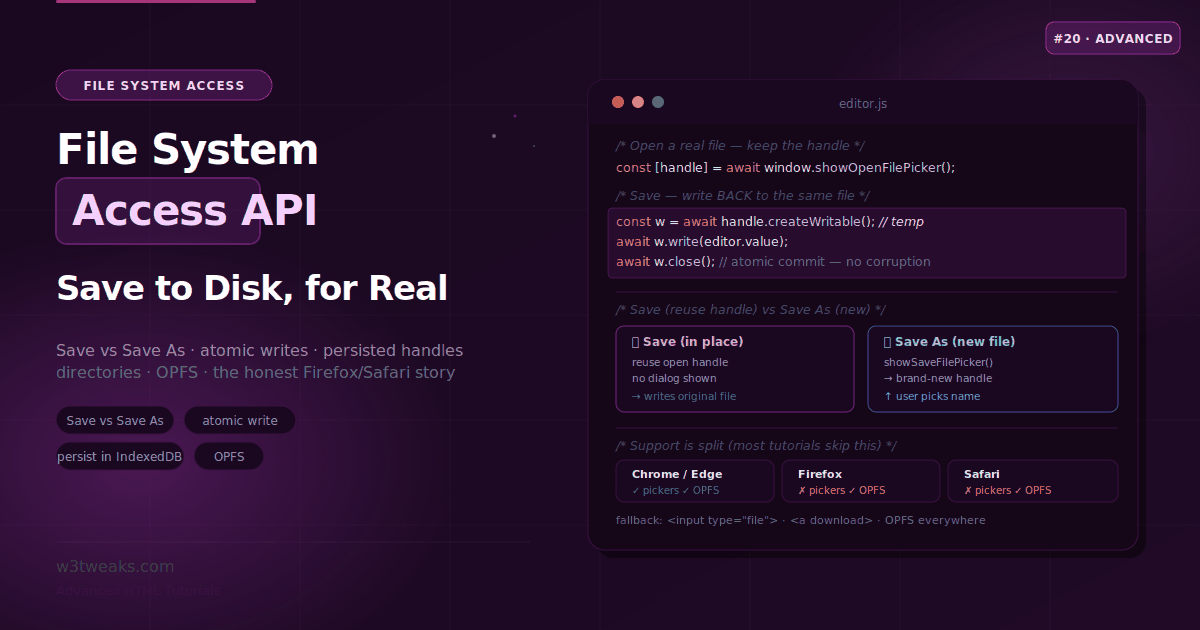
Open a real file, edit it, save it back — the round-trip a <input type="file"> cannot do:
// Open — keep the handle to save back later
const [handle] = await window.showOpenFilePicker();
const contents = await (await handle.getFile()).text();

// Save back to the SAME file — no dialog
const writable = await handle.createWritable();
await writable.write(newContents);
await writable.close(); // atomic commit
Two halves of the spec: the pickers (showOpenFilePicker, showSaveFilePicker, showDirectoryPicker) are Chromium-only (Firefox declared them “harmful”, Safari lacks them). The Origin Private File System (navigator.storage.getDirectory) works everywhere — Chrome, Edge, Firefox, Safari.
Watch out: default createWritable() truncates the file to zero — pass { keepExistingData: true } for patch edits. Permissions do NOT persist across sessions even when the handle does (store handles in IndexedDB, re-request permission on load).
→ Try it in the live demo — open a real file from disk, edit it, and watch Save write back in place. Deep dive below for OPFS + SQLite-WASM, the File System Observer API, drag-drop handles, PWA file_handlers for OS-level “Open with”, and the honest Firefox/Safari fallback.
For most of the web’s history, a page could receive a file (via <input type="file">) and offer a download, but it could never open a file, let the user edit it, and save the changes back to that same file on disk. That round-trip — the thing every native text editor does — was simply impossible. The File System Access API changes that. It gives web apps real, permissioned access to the user’s local files and directories: open a file, read it, edit it, and write it back in place.
This is the API behind in-browser code editors, image editors, and document apps that feel indistinguishable from native software — vscode.dev opens local folders through showDirectoryPicker, Photopea keeps a file handle alive so Ctrl+S writes back to your original PSD, and Cloud IDEs like StackBlitz and CodeSandbox use OPFS to persist a full node_modules tree between sessions. It’s also the most security-sensitive file API on the platform, so it’s gated behind user gestures, permission prompts, and a secure context — and its browser support is genuinely split, in a way most tutorials gloss over. Chromium ships the full picker API; Firefox has formally declared the pickers “harmful” and ships only the Origin Private File System; Safari also ships only OPFS. Getting this right means understanding both halves of the spec and building an honest fallback.
This guide covers the whole thing: opening and saving real files, the crucial “Save” vs “Save As” distinction, reading directories, atomic writes, persisting handles across sessions, the separate OPFS world, and graceful degradation.
Related tutorials: Clipboard API · Native File Upload & Drag-Drop · Web Share API
Live Demo
Five interactive sections: open and edit a real file, the Save vs Save-As distinction, a directory reader, persisting handles in IndexedDB, and the Origin Private File System.
The Three Pickers
The user-facing half of the API is three methods on window, each opening a native picker and returning a handle — a capability-bound object representing a file or directory, not a raw path:
| Method | Opens | Returns |
|---|---|---|
showOpenFilePicker(options) | File open dialog | Array of FileSystemFileHandle |
showSaveFilePicker(options) | File save dialog | A single FileSystemFileHandle |
showDirectoryPicker(options) | Directory picker | A FileSystemDirectoryHandle |
Two hard requirements apply to all three:
- Secure context (HTTPS or
localhost) — on plain HTTP, these methods areundefinedonwindow. - Transient activation — each picker must be called from inside a user gesture (a click). Calling one on page load throws a
SecurityError.
The handle-based design is deliberate: your app never sees the file’s absolute path. It receives a handle that carries the user-granted permission, and everything flows through that handle.
Opening and Reading a File
showOpenFilePicker() returns an array of handles (because multi-select is possible), so destructure the first one:
async function openFile() {
  // Returns an array — destructure the first handle
  const [fileHandle] = await window.showOpenFilePicker({
    types: [
      {
        description: 'Text files',
        accept: { 'text/plain': ['.txt', '.md'] }
      }
    ],
    excludeAcceptAllOption: false,
    multiple: false
  });

  // Get a File object from the handle, then read it
  const file = await fileHandle.getFile();
  const contents = await file.text();

  editor.value = contents;
  return fileHandle; // keep this handle to save back later!
}
The key line for what comes next is return fileHandle. Holding onto that handle is what lets you save changes back to the same file — the difference between a real editor and a glorified downloader.
Picker options worth knowing
types— an array of accepted file types, each with adescriptionand anacceptmap of MIME type → extensionsmultiple: true— allow selecting several files (returns multiple handles)excludeAcceptAllOption: true— remove the “All files” filter optionstartIn— a well-known directory ('documents','pictures','downloads','desktop','music','videos') or an existing handle, to control where the dialog opensid— a string; the browser remembers the last directory used for thatidacross pickers
// A polished image picker that opens in the Pictures folder
const [handle] = await window.showOpenFilePicker({
  types: [{ description: 'Images', accept: { 'image/*': ['.png', '.jpg', '.webp'] } }],
  startIn: 'pictures',
  id: 'image-editor'
});
Detecting the Same File — isSameEntry()
Two handles pointing at the same file compare unequal with === because they are different JavaScript objects. handle.isSameEntry(other) is the only correct way to check identity:
async function openOrFocus(newHandle) {
  for (const open of alreadyOpenHandles) {
    if (await newHandle.isSameEntry(open)) {
      focusTab(open);
      return;
    }
  }
  alreadyOpenHandles.push(newHandle);
  openInNewTab(newHandle);
}
Every editor that supports tabs needs this to avoid opening the same file twice.
Saving — The “Save” vs “Save As” Distinction
This is the concept most tutorials never make explicit, and it’s the whole point of the API. There are two different save operations, and they use two different handle sources. Before FSA, web apps could only trigger downloads to the browser’s Downloads folder — which is why services like Dropbox and OneDrive built native desktop clients. FSA closes that gap for the browser tab itself.
Save As — a brand-new file (showSaveFilePicker)
showSaveFilePicker() opens the save dialog, lets the user choose a name and location, and returns a new handle. Pass suggestedName: 'notes.md' to prefill the OS save dialog:
async function saveAs(contents) {
  const handle = await window.showSaveFilePicker({
    suggestedName: 'untitled.txt',
    types: [
      { description: 'Text files', accept: { 'text/plain': ['.txt'] } }
    ]
  });

  await writeFile(handle, contents);
  return handle; // now you have a handle for future "Save" operations
}
Save — write back to the file already open (reuse the handle)
Plain “Save” doesn’t show a dialog at all. It reuses the FileSystemFileHandle you kept from showOpenFilePicker() (or from a previous Save As) and writes straight back to that same file on disk:
let currentHandle = null; // set when you open or Save-As a file

async function save(contents) {
  if (!currentHandle) {
    // No file open yet — fall back to Save As
    currentHandle = await saveAs(contents);
    return;
  }
  // Write back to the SAME file — no dialog, feels native
  await writeFile(currentHandle, contents);
}
That reuse of the open handle — writing back with no dialog — is exactly what makes an in-browser editor feel like a desktop app. Photopea and Figma keep file handles alive for the length of a session so Ctrl+S writes back to the original PSD or FIG file instead of re-downloading.
Writing Files — The Atomic-Write Pattern
Both save operations funnel through the same write routine. Writing uses a writable stream from createWritable(), and this is where a subtle but important safety property lives.
async function writeFile(fileHandle, contents) {
  // createWritable() returns a stream that writes to a TEMP file
  const writable = await fileHandle.createWritable();

  await writable.write(contents); // can be a string, Blob, BufferSource, or stream
  await writable.close();          // commits atomically on close
}
Why createWritable() matters — atomicity
createWritable() doesn’t write directly to your file. It writes to a temporary file behind the scenes, and only when you call close() does it atomically swap that temp file into place. This means that if the write fails partway — a crash, a power loss, an exception — your original file is not corrupted; it’s left intact until the successful commit.
Writing to a file through any lower-level path that skips this temp-and-commit flow risks leaving a half-written, corrupted file if something goes wrong mid-write. For any file the user cares about, the atomic createWritable() → write() → close() sequence is the safe default.
Random-Access Edits — keepExistingData and Chunked Writes
The default createWritable() truncates the file to zero bytes before you start writing. That is fine for saving a whole document, but wrong for patch-style edits, log appenders, or resumable uploads. Pass keepExistingData: true to preserve the original bytes and edit in place:
| Option | Behavior |
|---|---|
createWritable() (default) | File truncated to 0 bytes; write() appends from position 0 |
createWritable({ keepExistingData: true }) | Original bytes preserved; write({ position }) patches in place |
writable.truncate(n) | Explicit size after your edits |
// Patch 4 bytes at offset 128 without rewriting the file
const writable = await fileHandle.createWritable({ keepExistingData: true });
await writable.write({ type: 'write', position: 128, data: 'PATCH' });
await writable.close();

// Chunked write with explicit positions
const writable = await fileHandle.createWritable();
await writable.write({ type: 'write', position: 0, data: chunk1 });
await writable.write({ type: 'write', position: chunk1.length, data: chunk2 });
await writable.truncate(newLength); // resize the file
await writable.close();
This is the flag every tutorial forgets, and it is what turns FSA from a whole-file API into a real file API.
Reading a Directory
showDirectoryPicker() returns a FileSystemDirectoryHandle you can iterate asynchronously. Each entry is itself a handle, with a kind of 'file' or 'directory':
async function readDirectory() {
  const dirHandle = await window.showDirectoryPicker({ mode: 'read' });

  for await (const [name, handle] of dirHandle.entries()) {
    console.log(name, handle.kind); // e.g. "notes.txt" "file"

    if (handle.kind === 'directory') {
      // Recurse into subdirectories if you like
    }
  }
}
You can also request write access to the whole directory (mode: 'readwrite'), create files and subdirectories within it, and delete entries:
const dirHandle = await window.showDirectoryPicker({ mode: 'readwrite' });

// Create (or get) a file inside the directory
const fileHandle = await dirHandle.getFileHandle('new-note.txt', { create: true });

// Create (or get) a subdirectory
const subDir = await dirHandle.getDirectoryHandle('drafts', { create: true });

// Remove an entry
await dirHandle.removeEntry('old-note.txt');
This is what powers web apps that manage an entire project folder — in-browser IDEs, static-site editors, and asset managers. vscode.dev opens local folders through showDirectoryPicker, then falls back to a virtual GitHub-backed filesystem when the user hits github.dev instead. Batch conversion tools like CloudConvert traditionally upload every file; a directory handle lets a web converter iterate the folder client-side and write results back in place.
Drag-Dropping Folders Into a Handle
You can also get handles from a drag-and-drop event. DataTransferItem.getAsFileSystemHandle() returns a real handle for dropped files and folders — the drop event is a user gesture, so no picker prompt is needed:
dropzone.addEventListener('drop', async (e) => {
  e.preventDefault();
  for (const item of e.dataTransfer.items) {
    const handle = await item.getAsFileSystemHandle();
    if (!handle) continue;

    if (handle.kind === 'directory') {
      await ingestDirectory(handle);   // iterate entries recursively
    } else {
      await openFile(handle);
    }
  }
});
This is how asset importers, image editors, and Obsidian-style vault openers handle drag-drop without opening a picker for every drop.
Renaming and Moving — move()
Chrome 110+ ships move() on FileSystemHandle. It is the only way to rename an OPFS file without copying the bytes, and it is the missing piece for building a file manager:
await fileHandle.move('renamed.txt');            // rename in place
await fileHandle.move(otherDir, 'renamed.txt');  // move across directories
Outside OPFS, move() still needs the same picker-granted permission scope as any write — you cannot silently relocate a user file to a directory you were not given.
Persisting Handles Across Sessions
Here’s a genuinely useful capability that’s easy to miss: FileSystemHandle objects are serializable via the structured clone algorithm, which means you can store them in IndexedDB and get them back after the user reloads or returns days later. That’s how apps build a “recent files” list that reopens the actual files. Note-taking apps like Obsidian and Logseq store notes as plain Markdown files, and an FSA-based web build would reuse showDirectoryPicker for the vault and IndexedDB for the handle.
import { get, set } from 'https://unpkg.com/idb-keyval/dist/index.js';

// After opening a file, stash its handle
async function rememberFile(fileHandle) {
  await set('last-file', fileHandle); // stored in IndexedDB
}

// On next visit, retrieve it
async function reopenLastFile() {
  const fileHandle = await get('last-file');
  if (!fileHandle) return null;
  // ...but permission is NOT remembered — see below
  return fileHandle;
}
The Permission State Machine
A stored handle survives across sessions, but the permission to read or write it does not. When you retrieve a handle from IndexedDB, queryPermission() returns one of three states — each needs a different response:
| State | queryPermission() returns | What to do |
|---|---|---|
| Fresh page load, same session | 'granted' | Use the handle immediately |
| New tab, new session | 'prompt' | Call requestPermission() inside a user gesture |
| User revoked in site settings, or moved the file | 'denied' | Re-show the picker, replace the handle |
async function verifyPermission(fileHandle, readWrite) {
  const options = { mode: readWrite ? 'readwrite' : 'read' };

  if ((await fileHandle.queryPermission(options)) === 'granted') return true;
  if ((await fileHandle.requestPermission(options)) === 'granted') return true;
  return false;
}
queryPermission() checks the current state without prompting; requestPermission() prompts the user and must run inside a user gesture. Chrome persists per-origin-per-directory for installed PWAs but only per-session for regular tabs — installing the app buys you longer-lived grants.
Handling Cancellation and Errors
Two error cases matter, and they need different handling:
async function openFileSafely() {
  try {
    const [handle] = await window.showOpenFilePicker();
    return handle;
  } catch (err) {
    if (err.name === 'AbortError') {
      // User closed the picker without choosing — normal, do nothing
      return null;
    }
    if (err.name === 'NotAllowedError') {
      // Permission denied, or no user gesture / not secure context
      showFallback();
      return null;
    }
    throw err; // something unexpected
  }
}
AbortError means the user simply cancelled the dialog — that’s not a failure, so stay silent. NotAllowedError means permission was denied or the security preconditions weren’t met — that’s when you surface a fallback or an explanation.
Watching Files for External Changes — File System Observer API
Before 2026, an editor that wanted to detect when a file changed on disk (from a git checkout, another app saving over your open file, or a build tool rewriting it) had to re-read the file on window focus and diff the contents. Chrome 129+ ships a real watcher — the File System Observer API — that pushes change notifications directly:
if ('FileSystemObserver' in self) {
  const observer = new FileSystemObserver((records) => {
    for (const record of records) {
      if (record.type === 'modified')  reloadFromDisk(record.changedHandle);
      if (record.type === 'disappeared') markFileMissing(record.changedHandle);
      if (record.type === 'appeared')  addToRecents(record.changedHandle);
    }
  });

  await observer.observe(dirHandle, { recursive: true });
  // observer.unobserve(dirHandle);  // when done
}
observe() accepts either a file handle or a directory handle; recursive: true covers subtrees. Records fire on appeared, disappeared, modified, moved, and errored. This is the same change-detection model that native sync clients like Sync.com, Tresorit, and Proton Drive run — brought to a browser tab. Only Chromium ships it today, so feature-detect and fall back to focus-based polling in Firefox and Safari.
The Origin Private File System (OPFS) — A Separate World
Most tutorials blur two very different things together. The pickers above touch the user’s visible file system with permission prompts. The Origin Private File System is a completely separate, sandboxed storage area — private to your origin, invisible to the user’s file manager, and requiring no picker and no permission prompt.
// No picker, no permission — instant access to a private sandbox
const opfsRoot = await navigator.storage.getDirectory();

const fileHandle = await opfsRoot.getFileHandle('cache.db', { create: true });
const writable = await fileHandle.createWritable();
await writable.write('private, origin-scoped data');
await writable.close();
How OPFS differs from the pickers
- No permission prompts — the first
getDirectory()call returns a handle immediately - Invisible and origin-private — other origins, other browsers, and the user’s file explorer can’t see it; clearing site data wipes it
- Subject to storage quota — check usage with
navigator.storage.estimate(); aQuotaExceededErroris thrown when full - Broadly supported — unlike the pickers, OPFS works in Chrome, Edge, Firefox, and Safari, on desktop and mobile (including iOS)
createSyncAccessHandle() — high-speed, Worker-only
OPFS has a performance superpower: inside a Web Worker, you can get a FileSystemSyncAccessHandle with synchronous read/write methods — the fastest file access the platform offers. This is what lets compiled libraries like SQLite-on-WebAssembly treat OPFS as a real file descriptor.
// Inside a Web Worker only — createSyncAccessHandle is not on the main thread
onmessage = async () => {
  const root = await navigator.storage.getDirectory();
  const handle = await root.getFileHandle('fast.bin', { create: true });
  const access = await handle.createSyncAccessHandle();

  const encoder = new TextEncoder();
  const written = access.write(encoder.encode('blazing fast'), { at: 0 });
  access.flush();          // persist to disk
  const size = access.getSize();
  access.close();          // always close when done
};
Despite “Sync” in the name, createSyncAccessHandle() itself is asynchronous — but the read(), write(), flush(), getSize(), and truncate() methods on the returned handle are synchronous and blocking, which is exactly why they’re confined to Workers so they never freeze the main thread.
OPFS in Production — SQLite-WASM
The single largest real-world deployment of OPFS is not a text editor. It is SQLite compiled to WebAssembly running inside a Worker with OPFS as its virtual file system. Notion-style local-first apps, Linear’s offline mode, and analytical tools all lean on this. DuckDB-WASM and the official SQLite-WASM both target the OPFS SAH pool VFS because createSyncAccessHandle is the only browser API with the synchronous read/write semantics a SQL engine expects.
// worker.js — inside a dedicated Worker
import sqlite3InitModule from '@sqlite.org/sqlite-wasm';

const sqlite3 = await sqlite3InitModule();

// OpfsSAHPoolVfs — pool of pre-opened syncAccessHandles for concurrency
const poolUtil = await sqlite3.installOpfsSAHPoolVfs({ name: 'app-pool' });

const db = new poolUtil.OpfsSAHPoolDb('/app.sqlite');
db.exec("CREATE TABLE IF NOT EXISTS notes (id INTEGER PRIMARY KEY, body TEXT)");
db.exec({ sql: 'INSERT INTO notes (body) VALUES (?)', bind: ['hello'] });

const rows = db.selectValues('SELECT body FROM notes');
Two production notes: the OPFS SAH pool VFS is Worker-only (matches createSyncAccessHandle), and if you use SQLite’s threaded build (sqlite3-worker1-promiser with SharedArrayBuffer) you need COOP/COEP headers on the hosting page. Local-first databases like sql.js, DuckDB-WASM, PouchDB, and RxDB all follow the same model — OPFS is now the standard offline database substrate on the web.
Shipping as a PWA — OS-Level “Open With”
The final gap between a web app and a native app is showing up in the OS “Open with” menu. The file_handlers key in a PWA manifest registers your app for specific MIME types and extensions:
{
  "name": "Notes",
  "start_url": "/",
  "display": "standalone",
  "file_handlers": [
    {
      "action": "/open",
      "accept": {
        "text/markdown": [".md"],
        "text/plain":    [".txt"]
      }
    }
  ]
}
Once the user installs the PWA, right-clicking a .md file in Windows Explorer or Finder offers your app as an opener. When the OS launches you with a file, pick it up on the client with window.launchQueue:
if ('launchQueue' in window) {
  window.launchQueue.setConsumer(async (launchParams) => {
    for (const handle of launchParams.files) {
      const file = await handle.getFile();
      openInEditor(file, handle);   // handle is already permission-granted!
    }
  });
}
A handle delivered via launchQueue arrives with permission already granted — no picker, no prompt, because the OS-level user action counts as the gesture. This is the mechanism that makes an installed PWA feel like a native app. Deploying an FSA-enabled PWA on Vercel, Netlify, Cloudflare Pages, or Firebase Hosting requires only the standard HTTPS default and this manifest.json snippet — no server changes.
Browser Support & The Honest Fallback
This is where accuracy matters, because the two halves of the spec have very different support:
| Feature | Chrome / Edge | Firefox | Safari |
|---|---|---|---|
showOpenFilePicker / showSaveFilePicker / showDirectoryPicker | ✅ (86+) | ❌ (declared “harmful”) | ❌ |
Origin Private File System (navigator.storage.getDirectory) | ✅ | ✅ (111+) | ✅ (15.2+) |
createSyncAccessHandle (in Workers) | ✅ | ✅ | ✅ (17+) |
| File System Observer | ✅ (129+) | ❌ | ❌ |
move() | ✅ (110+) | ❌ (pickers only in OPFS) | ❌ (OPFS only) |
file_handlers manifest | ✅ | ❌ | ❌ |
Because the pickers are Chromium-only, you need a real fallback for Firefox and Safari. Feature-detect each method, and degrade to the classic techniques:
function supportsFilePickers() {
  return 'showOpenFilePicker' in window;
}

async function openWithFallback() {
  if (supportsFilePickers()) {
    const [handle] = await window.showOpenFilePicker();
    return handle.getFile();
  }
  // Fallback: <input type="file"> for reading
  return new Promise((resolve) => {
    const input = document.createElement('input');
    input.type = 'file';
    input.onchange = () => resolve(input.files[0]);
    input.click();
  });
}
The fallback map:
- Open a file →
<input type="file">gives you aFileobject (read-only, no save-back) - Save a file → an
<a download>link triggers a download (but can’t overwrite the original in place) - Pick a directory → the non-standard
<input type="file" webkitdirectory>approximates it - Persistent private storage → OPFS works everywhere, so anything that only needs sandboxed storage can use OPFS across all browsers
The browser-fs-access npm package wraps this whole decision for you, using the real API where available and falling back automatically. The honest takeaway: build the premium experience for Chromium, keep a working <input>/<a download> path for everyone else, and reach for OPFS whenever you only need private storage rather than user-visible files.
Key Takeaways
- The File System Access API gives web apps real, permissioned access to open, edit, and save files back to disk in place — the round-trip that makes an in-browser editor feel native; it requires HTTPS and a user gesture
- The three pickers (
showOpenFilePicker,showSaveFilePicker,showDirectoryPicker) return capability-bound handles, never raw file paths;showOpenFilePickerreturns an array, so destructure the first handle - The “Save” vs “Save As” distinction is the whole point: keep the handle from
showOpenFilePickerand write back to it for silent in-place “Save”; callshowSaveFilePickerfor a new-file “Save As” createWritable()writes atomically — it writes to a temp file and commits only onclose(), so a crash mid-write leaves the original file intact rather than corrupted- Default
createWritable()truncates the file to zero — pass{ keepExistingData: true }for random-access edits, log appenders, and patch-style writes - Read directories by iterating a
FileSystemDirectoryHandlewithfor await...of; each entry’skindis'file'or'directory', and withreadwritemode you can create and remove entries - Drag-drop gives you handles too —
DataTransferItem.getAsFileSystemHandle()on a drop event returns a real file or directory handle without opening a picker move()renames or relocates a handle without copying bytes — the only way to rename inside OPFS efficientlyisSameEntry()is the only correct way to check whether two handles point to the same file —===compares objects, not paths- File and directory handles are structured-cloneable, so you can persist them in IndexedDB for a “recent files” list — but the permission is not persisted, so call
queryPermission()/requestPermission()on any handle you reload; installed PWAs keep permission grants longer than regular tabs - The File System Observer API (Chrome 129+) pushes change notifications when files change externally — no more focus-based polling; feature-detect and fall back where unsupported
AbortErrormeans the user cancelled the picker (stay silent);NotAllowedErrormeans permission was denied or preconditions failed (show a fallback)- The Origin Private File System (
navigator.storage.getDirectory) is a separate, sandboxed, origin-private store that needs no picker and no permission prompt, and is supported in Chrome, Edge, Firefox, and Safari - OPFS offers
createSyncAccessHandle()inside Web Workers for synchronous, high-speed file access — the substrate for SQLite-WASM, DuckDB-WASM, and PouchDB in local-first apps - Ship as an installed PWA with
file_handlersin the manifest to appear in the OS “Open with” menu;launchQueue.setConsumerreceives file handles with permission pre-granted - Browser support is split: the pickers are Chromium-only (Firefox declared them “harmful”, Safari lacks them), so provide
<input type="file">/<a download>fallbacks (or usebrowser-fs-access), while OPFS works nearly everywhere
FAQ
How do I save a file to disk with JavaScript?
Use the File System Access API’s showSaveFilePicker() to open a save dialog and get a FileSystemFileHandle, then create a writable stream with handle.createWritable(), call write() with your content, and close() to commit. For a true “Save” that overwrites the file already open, reuse the handle you kept from showOpenFilePicker() instead of showing a new dialog. This requires HTTPS, a user gesture, and a Chromium browser — in Firefox and Safari, fall back to an <a download> link, which downloads a copy rather than overwriting in place.
What is the difference between Save and Save As in the File System Access API?
“Save As” uses showSaveFilePicker(), which prompts the user for a name and location and returns a brand-new file handle. “Save” reuses the existing FileSystemFileHandle you already have — the one from when you opened the file — and writes changes straight back to that same file on disk with no dialog. Keeping and reusing that open handle is what makes an in-browser editor feel native: the user opens a file once, then presses Ctrl+S repeatedly and each save silently lands in the original file.
Why does the File System Access API not work in Firefox or Safari?
The file and directory pickers (showOpenFilePicker, showSaveFilePicker, showDirectoryPicker) are only implemented in Chromium browsers (Chrome, Edge, Opera). Firefox has formally declared these pickers “harmful” and does not implement them, and Safari does not either. Both browsers do support the Origin Private File System half of the spec (navigator.storage.getDirectory). So for user-visible file access you must fall back to <input type="file"> for reading and <a download> for saving in non-Chromium browsers, while OPFS-only features work everywhere.
How do I keep access to a file after the user reloads the page?
File and directory handles can be serialized with the structured clone algorithm, so store them in IndexedDB (a small library like idb-keyval makes this one line). On the next visit, retrieve the handle from IndexedDB. However, the permission to access it is not persisted across sessions, so before using the reloaded handle you must call handle.queryPermission({ mode }) to check the state and handle.requestPermission({ mode }) to re-prompt if needed — the request must happen inside a user gesture. Installed PWAs keep permission grants longer than regular tabs. This is how apps build a “recent files” list that reopens the actual files.
What is the Origin Private File System (OPFS)?
OPFS is a sandboxed storage area that’s part of the File System spec but separate from the pickers. You access it with navigator.storage.getDirectory() — no file picker and no permission prompt. It’s private to your origin and invisible to the user’s file manager, subject to storage quota, and cleared when site data is cleared. Unlike the pickers, OPFS is supported in Chrome, Edge, Firefox, and Safari including iOS. Inside a Web Worker it offers createSyncAccessHandle() for synchronous, high-speed file access, which is what powers things like SQLite compiled to WebAssembly.
Why should I use createWritable() instead of writing directly?
createWritable() provides atomic writes. Instead of modifying your file directly, it writes to a temporary file behind the scenes and only swaps it into place when you call close(). This means if the write is interrupted — by a crash, an exception, or a power loss — your original file is left intact rather than half-written and corrupted. For any file the user cares about, this temp-and-commit behavior is the safe default, which is why the standard sequence is always createWritable() → write() → close().
How do I do a random-access edit without wiping the file?
Pass { keepExistingData: true } when creating the writable stream, then use the object form of write() with a position field. For example: await handle.createWritable({ keepExistingData: true }) followed by await writable.write({ type: 'write', position: 128, data: 'PATCH' }) patches four bytes at offset 128 without disturbing the rest of the file. The default (no options) truncates the file to zero bytes, which is only correct for whole-document saves.
How do I run SQLite in the browser with OPFS?
Run the official @sqlite.org/sqlite-wasm build inside a dedicated Web Worker and install the OPFS SAH pool VFS: const poolUtil = await sqlite3.installOpfsSAHPoolVfs({ name: 'app-pool' }), then open a database with new poolUtil.OpfsSAHPoolDb('/app.sqlite'). The pool VFS uses createSyncAccessHandle under the hood, which is Worker-only. If you use the threaded SQLite build with SharedArrayBuffer, the hosting page needs COOP/COEP response headers. DuckDB-WASM and PouchDB follow the same OPFS model.
How do I detect when a file changes on disk from outside my app?
Use the File System Observer API in Chromium 129+: new FileSystemObserver(records => ...) then await observer.observe(handle, { recursive: true }). The callback receives change records with a type of 'appeared', 'disappeared', 'modified', 'moved', or 'errored'. In Firefox and Safari, feature-detect with 'FileSystemObserver' in self and fall back to re-reading the file on window focus. This replaces the old pattern of diffing content on every focus event.
How do I make my web app appear in the OS “Open with” menu?
Ship as an installable PWA with a file_handlers entry in manifest.json that lists the MIME types and extensions your app opens. When the user installs the app and then double-clicks or right-clicks a matching file in the OS shell, the browser launches your app and delivers the file handle via window.launchQueue.setConsumer. The handle arrives with permission already granted because the OS-level user action counts as the gesture, so no picker prompt is needed. This is Chromium-only today.