TL;DR
Copy text with one line inside a click handler:
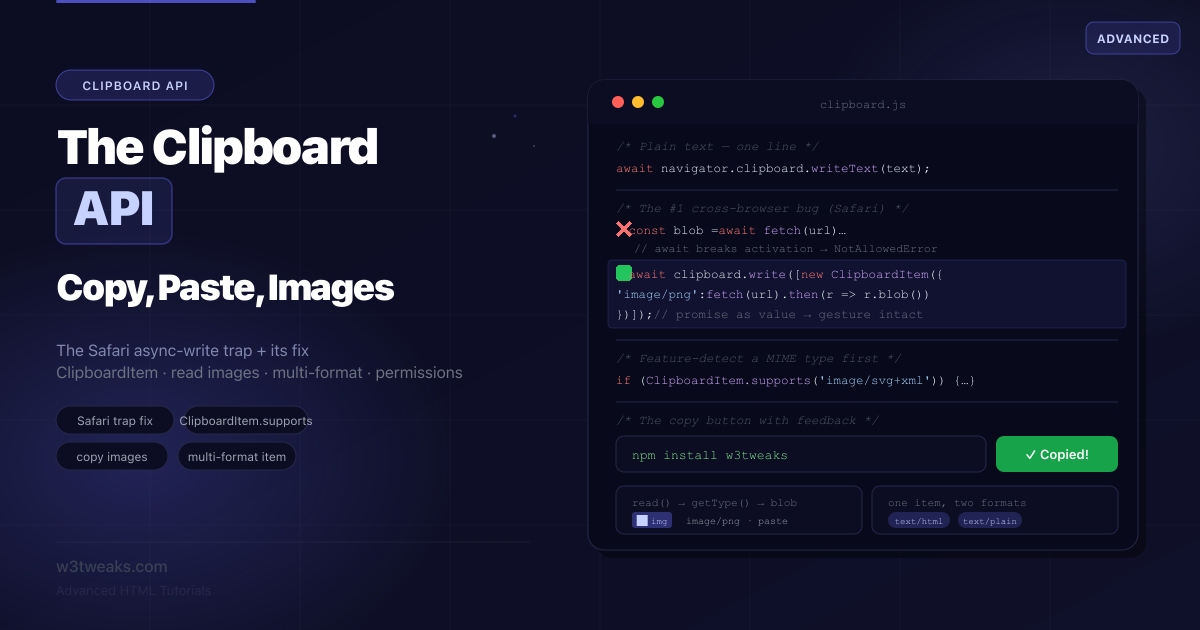
await navigator.clipboard.writeText('hello');For images, HTML, or multi-format, use ClipboardItem. The #1 cross-browser bug — Safari rejects with NotAllowedError if you await fetch() before clipboard.write(). Fix: pass a promise as the ClipboardItem value so write() is called synchronously in the gesture:
await navigator.clipboard.write([
  new ClipboardItem({ 'image/png': fetch('/img.png').then(r => r.blob()) })
]);
Requires: HTTPS/localhost + user gesture + iframe with allow="clipboard-write". Reading is more restricted — permission prompt in Chromium, paste callout in Safari.
→ Try it in the live demo — copy text, copy a canvas image, and see the Safari async-write trap simulator run side by side. Deep dive below for the iframe sandbox trap, Excel/Sheets paste parsing, accessibility, error-name cheat-sheet, and the execCommand fallback.
Copying text used to mean a hidden <textarea>, a manual selection, and document.execCommand('copy') — synchronous, unreliable, and inconsistent across browsers. The Clipboard API replaces all of that with a clean, promise-based interface: navigator.clipboard.writeText('hello') and you are done. It reached Baseline in 2024–2025 and works across every modern browser.
For plain text, it really is that simple. The complexity starts when you copy something other than text — an image, rich HTML, a generated file — or when you try to read the clipboard. That is where the traps live. The biggest one: in Safari, if you await fetch() and then await navigator.clipboard.write(), it rejects with NotAllowedError, because the await broke the chain of user activation that Safari requires. The fix is counterintuitive — you hand the clipboard a promise instead of awaiting it yourself. This guide covers the whole API and every one of those traps.
Related tutorials: View Transitions API · Web Share API · Native File Upload & Drag-Drop
Live Demo
Five interactive sections: the copy-button with feedback, copying a generated image, reading text and images back, multi-format HTML+text items, and the Safari async-write trap with its fix.
The Two Levels of the API
The Clipboard API has a simple level and an advanced level:
| Method | For | Returns |
|---|---|---|
clipboard.writeText(string) | Copy plain text | Promise |
clipboard.readText() | Paste plain text | Promise<string> |
clipboard.write([ClipboardItem]) | Copy any data (images, HTML, multi-format) | Promise |
clipboard.read() | Paste any data (images, HTML) | Promise<ClipboardItem[]> |
writeText/readText are convenience wrappers for the common text case. write/read handle arbitrary data via ClipboardItem objects.
Three hard requirements
- Secure context (HTTPS) —
navigator.clipboardisundefinedon plain HTTP. It works onlocalhostfor development. - User gesture (transient activation) — writing must happen inside a user-initiated event (click, keypress, submit). A write on page load, in a
setTimeout, or after a longawaitchain fails. - Not inside a sandboxed iframe without permission —
<iframe sandbox>strips clipboard access unless you opt back in (covered below).
What counts as a user gesture?
Transient activation is a roughly 5-second window that begins when the user does something deliberate. The browser opens the window for click, pointerup, keydown (non-modifier), and submit. It does not open for focus, blur, mouseover, scroll, page load, timers, or promise chains that exceed the window. This is why a copy button works but a “copy after 3 seconds” timer rejects with NotAllowedError. The Safari trap later in this guide is the same root cause — a long await empties the activation token before write() ever runs.
Copying Text — The Copy Button
The canonical “copy” button with success feedback:
<button id="copy-btn" data-copy="npm install w3tweaks">
  <span class="copy-label">Copy</span>
</button>
const copyBtn = document.getElementById('copy-btn');
copyBtn.addEventListener('click', async () => {
const text = copyBtn.dataset.copy;
try {
await navigator.clipboard.writeText(text);
showCopied(copyBtn); // visual feedback
} catch (err) {
console.error('Copy failed:', err);
// Fall back to execCommand (see the fallback section)
}
});
function showCopied(btn) {
const label = btn.querySelector('.copy-label');
const original = label.textContent;
label.textContent = 'Copied!';
btn.classList.add('copied');
setTimeout(() => {
label.textContent = original;
btn.classList.remove('copied');
}, 2000);
}The success feedback is essential UX — without it, users do not know the copy worked and click repeatedly. A 2-second “Copied!” state is the convention.
Make Your Copy Button Accessible
A surprising number of copy buttons are unusable for screen reader users. The button is icon-only with no label, the success state is a colour change only, and the “Copied!” text swap is not announced. Three fixes:
<button id="copy-btn" aria-label="Copy install command" aria-describedby="copy-status">
  <svg aria-hidden="true">...</svg>
</button>

<!-- Visually hidden, announced by screen readers -->
<span id="copy-status" role="status" aria-live="polite" class="sr-only"></span>
async function copyWithFeedback(text) {
await navigator.clipboard.writeText(text);
// 1. Announce to assistive tech via the live region
const status = document.getElementById('copy-status');
status.textContent = 'Copied to clipboard';
setTimeout(() => { status.textContent = ''; }, 1500);
// 2. Pair the colour change with an icon swap so it does not rely on colour alone
copyBtn.classList.add('copied');
}Three rules: (1) icon-only buttons need aria-label; (2) success feedback goes in a separate aria-live="polite" region — swapping the button’s text often does not get announced; (3) never signal success with colour alone — pair it with an icon, a label change, or both. The 1.5-second delay before clearing the live region gives screen readers time to read it.
Reading Text — And Why It’s More Restricted
Reading the clipboard is far more sensitive than writing — the clipboard might contain passwords, addresses, or other private data the user copied from elsewhere. Browsers gate reads much more tightly.
const pasteBtn = document.getElementById('paste-btn');

pasteBtn.addEventListener('click', async () => {
  try {
    const text = await navigator.clipboard.readText();
    document.getElementById('output').value = text;
  } catch (err) {
    // Rejected: permission denied, no text content, or no user gesture
    console.error('Read failed:', err);
  }
});
Why reading is harder than writing:
- Writing needs a user gesture and a secure context — that is it
- Reading additionally triggers a permission prompt in Chromium, requires the page to be focused, and in Safari shows a paste callout/context-menu the user must explicitly confirm
- Reading
readText()returns an empty string if the clipboard is not text — so the code is safe even when the clipboard holds an image
Always tie a read to a deliberate user action (a “Paste” button), and explain why you need it. Never read the clipboard on page load — it is a privacy violation and browsers block it.
The Permissions API — Checking Clipboard Access
In Chromium, you can query clipboard permission state before acting. Note this is not supported in Firefox or Safari, so always wrap it defensively:
async function checkClipboardPermission(name) {
  // name is 'clipboard-read' or 'clipboard-write'
  if (!navigator.permissions) return 'unknown';
  try {
    const status = await navigator.permissions.query({ name });
    return status.state; // 'granted' | 'denied' | 'prompt'
  } catch (err) {
    // Firefox and Safari don't support clipboard permission queries
    return 'unknown';
  }
}

// Use it to decide UI state, but never to gate the actual copy
const writeState = await checkClipboardPermission('clipboard-write');
if (writeState === 'denied') {
  showManualCopyFallback();
}
The clipboard-read and clipboard-write permissions are not supported (and not planned) by Firefox or Safari, so treat a query failure as “unknown” and proceed with the operation directly — letting the write/read itself succeed or reject.
Why Your Copy Button Works Locally but Breaks in an Iframe
A clipboard call that worked perfectly on localhost returns undefined for navigator.clipboard — or rejects with NotAllowedError — the moment you embed the page in an iframe on CodePen, JSFiddle, Codesandbox, Notion, or any iframe that uses the sandbox attribute. This is one of the most common “works on my machine” failures with the Clipboard API.
The iframe sandbox attribute
By default, <iframe sandbox> strips clipboard access. You must opt back in via the allow attribute:
<!-- ❌ Clipboard API is undefined inside this iframe -->
<iframe src="/demo.html" sandbox></iframe>

<!-- ✅ Write works; read still blocked -->
<iframe src="/demo.html"
        sandbox="allow-scripts"
        allow="clipboard-write"></iframe>

<!-- ✅ Both write and read work -->
<iframe src="/demo.html"
        sandbox="allow-scripts"
        allow="clipboard-write; clipboard-read"></iframe>
The sandbox attribute is a deny-by-default model — every capability has to be re-enabled. The allow attribute is a separate permission policy applied to the iframe document.
The Permissions-Policy response header
If you serve your page with a strict Permissions-Policy header, clipboard writes from embeds will be blocked unless the embed origin is explicitly allowed:
Permissions-Policy: clipboard-write=(self), clipboard-read=(self "https://embed.example.com")This grants clipboard-write only to same-origin frames, and clipboard-read to same-origin plus one trusted third-party embed. If you are debugging a “works in dev, broken in prod” copy button, check this header first.
Embed platform quick reference
If your demo runs in a third-party sandbox, the parent’s allow attribute is what you actually need to influence:
| Platform | clipboard-write in iframe | clipboard-read in iframe |
|---|---|---|
| CodePen (live preview) | Yes | No |
| JSFiddle (Result tab) | Yes | Yes |
| Codesandbox (preview tab) | Yes | Yes |
| Codesandbox (embed widget) | No (varies) | No |
| StackBlitz | Yes | Yes |
| Notion embed | No | No |
Rule of thumb: if navigator.clipboard is undefined, you are either on plain HTTP or inside a sandbox that did not pass clipboard access through. Check the parent page’s iframe attributes, not just your own code.
Copying Images — write() with ClipboardItem
To copy anything other than text, you use clipboard.write() with ClipboardItem objects. A ClipboardItem maps MIME types to data (a string or a Blob).
Copying a generated canvas image
async function copyCanvasImage(canvas) {
  // Convert the canvas to a PNG blob
  const blob = await new Promise((resolve) => canvas.toBlob(resolve, 'image/png'));

  try {
    await navigator.clipboard.write([
      new ClipboardItem({ 'image/png': blob })
    ]);
    showToast('Image copied!');
  } catch (err) {
    console.error('Image copy failed:', err);
  }
}
Feature-detecting a MIME type with ClipboardItem.supports()
Not every MIME type is writable on every platform. ClipboardItem.supports() lets you check before attempting the write — a recent addition that prevents failed writes:
async function copySVG(svgURL) {
  // Check support BEFORE fetching and writing
  if (!ClipboardItem.supports('image/svg+xml')) {
    showToast('SVG copying not supported here.');
    return;
  }

  const blob = await fetch(svgURL).then(r => r.blob());
  await navigator.clipboard.write([
    new ClipboardItem({ [blob.type]: blob })
  ]);
}
Browsers commonly support writing text/plain, text/html, and image/png. Other types vary, which is exactly what supports() is for.
The Safari Async-Write Trap — The #1 Cross-Browser Bug
This is the trap that makes clipboard code work perfectly in Chrome and Firefox and fail in Safari with a useless NotAllowedError.
Safari enforces user activation more strictly than Chromium. If you await an async operation (like fetch()) before calling clipboard.write(), the user gesture has, in Safari’s view, expired by the time write() runs — and it rejects.
// ❌ Works in Chrome/Firefox, FAILS in Safari with NotAllowedError
copyBtn.addEventListener('click', async () => {
  const blob = await fetch('/image.png').then(r => r.blob()); // await breaks activation
  await navigator.clipboard.write([
    new ClipboardItem({ 'image/png': blob })
  ]);
});
The fix — pass a Promise as the ClipboardItem value
The counterintuitive solution: do not await the blob yourself. Instead, call clipboard.write() synchronously within the gesture, and pass a promise as the ClipboardItem value. The clipboard resolves the promise internally, so the gesture is never broken.
// ✅ Works everywhere including Safari — write() is called synchronously
copyBtn.addEventListener('click', async () => {
  try {
    await navigator.clipboard.write([
      new ClipboardItem({
        // The VALUE is a promise — the clipboard awaits it internally
        'image/png': fetch('/image.png').then(r => r.blob())
      })
    ]);
    showToast('Image copied!');
  } catch (err) {
    console.error(err.name, err.message);
  }
});
For maximum Safari compatibility, wrap the whole preparation in a promise assigned to the ClipboardItem:
new ClipboardItem({
  'image/png': new Promise(async (resolve) => {
    const blob = await prepareImageBlob(); // any async work here
    resolve(new Blob([blob], { type: 'image/png' }));
  })
});
The principle: call clipboard.write() from a synchronous context directly triggered by the user, and let the clipboard handle the async work via the promise you hand it. This is the single most important pattern for cross-browser clipboard reliability.
Beyond writeText — Intercepting the Copy Event
navigator.clipboard is the modern asynchronous API. There is also an older synchronous channel: the copy, cut, and paste events on the document. They fire when the user actually presses Ctrl/Cmd+C, V, or X, and they give you a clipboardData object you can read from or write to while the event is still being handled. This is not the same as navigator.clipboard.
The most useful application: rewrite what gets copied. The blog-classic “append source URL when someone copies a paragraph”:
document.addEventListener('copy', (e) => {
  const selection = document.getSelection().toString();

  // Only rewrite for longer selections (probably an article paragraph)
  if (selection.length > 40) {
    const enriched = selection + `\n\nSource: ${location.href}`;
    e.clipboardData.setData('text/plain', enriched);
    e.preventDefault();   // tell the browser not to copy the default selection
  }
});
Two things to know:
clipboardDataonly exists oncopy/cut/pasteevents. It is a different object fromnavigator.clipboard. They are unrelated APIs that solve overlapping problems.- Calling
e.preventDefault()is required — without it, the browser still copies the original selection, ignoring yoursetData()call.
You can also use this pattern to copy both rich HTML and plain text without an explicit copy button:
document.addEventListener('copy', (e) => {
  const sel = document.getSelection();
  if (sel.rangeCount === 0) return;

  const container = document.createElement('div');
  container.appendChild(sel.getRangeAt(0).cloneContents());

  e.clipboardData.setData('text/html', container.innerHTML);
  e.clipboardData.setData('text/plain', sel.toString());
  e.preventDefault();
});
cut works the same way — listen, write to clipboardData, and remove the selection yourself.
Multi-Format Items — HTML + Plain Text Together
A single ClipboardItem can carry multiple representations of the same content. The classic case: copy rich HTML, but also include a plain-text version so it pastes correctly into both rich editors and plain-text fields.
async function copyRichText(html, plainText) {
  const item = new ClipboardItem({
    'text/html':  new Blob([html],      { type: 'text/html' }),
    'text/plain': new Blob([plainText], { type: 'text/plain' })
  });

  await navigator.clipboard.write([item]);
}

// Usage
copyRichText(
  '<strong>W3Tweaks</strong> — <em>advanced HTML</em>',
  'W3Tweaks — advanced HTML'
);
When this is pasted into a rich editor (like an email composer), the text/html part is used with formatting intact. When pasted into a plain-text field (like a terminal or code editor), the text/plain part is used. Providing both means your copy works correctly everywhere.
Reading Images and HTML — read()
clipboard.read() returns the full clipboard contents as ClipboardItem objects, letting you handle images and HTML, not just text.
async function pasteImage() {
  try {
    const items = await navigator.clipboard.read();

    for (const item of items) {
      // Find an image type among this item's representations
      const imageType = item.types.find(t => t.startsWith('image/'));
      if (!imageType) continue;

      const blob = await item.getType(imageType);
      const url = URL.createObjectURL(blob);

      const img = document.getElementById('pasted-image');
      img.src = url;
      // Revoke the object URL when done to free memory
      img.onload = () => URL.revokeObjectURL(url);
      return;
    }
    showToast('No image on the clipboard.');
  } catch (err) {
    console.error('Read failed:', err);
  }
}
Each ClipboardItem exposes a types array (the available MIME types) and a getType(mimeType) method that returns a Blob. Do not assume an image is image/png — inspect item.types and handle image/jpeg, image/webp, etc.
Reading HTML
const items = await navigator.clipboard.read();
for (const item of items) {
  if (item.types.includes('text/html')) {
    const blob = await item.getType('text/html');
    const html = await blob.text();
    // Note: browsers sanitize this — scripts are stripped
    renderSafely(html);
    break;
  }
}
Pasting From Excel and Google Sheets
Building a data grid, admin panel, or spreadsheet importer? Users will paste from Excel and Sheets, and what arrives is not one format but two. Both spreadsheets put a tab-separated text/plain payload and a full HTML <table> on the clipboard. Pick the right one and you can preserve column structure, formatting, even merged cells.
editor.addEventListener('paste', (e) => {
  const html = e.clipboardData.getData('text/html');
  const text = e.clipboardData.getData('text/plain');

  // Prefer HTML — it preserves structure, merged cells, and formatting
  if (html && html.includes('<table')) {
    e.preventDefault();
    const rows = parseTableHTML(html);
    insertRows(rows);
    return;
  }

  // Fall back to TSV — rows split by \n, columns by \t
  if (text && text.includes('\t')) {
    e.preventDefault();
    const rows = text
      .replace(/\r\n/g, '\n')
      .split('\n')
      .filter(Boolean)
      .map(row => row.split('\t'));
    insertRows(rows);
  }
});

function parseTableHTML(html) {
  const doc = new DOMParser().parseFromString(html, 'text/html');
  return [...doc.querySelectorAll('tr')].map(tr =>
    [...tr.querySelectorAll('th, td')].map(td => td.textContent.trim())
  );
}
A few details that catch people:
- Google Sheets marker. Sheets puts a
<google-sheets-html-origin>custom element in its HTML payload. You can detect Sheets specifically withhtml.includes('google-sheets-html-origin')if you want different parsing. - Excel adds a clipboard fragment header. Excel’s HTML payload starts with
<!--StartFragment-->/<!--EndFragment-->markers — strip those before parsing. - TSV is lossy. A cell containing a tab or newline cannot survive a TSV round-trip. Prefer the HTML payload when both are present.
- Newlines in Excel cells. Excel uses
Chr(10)(\n) for line breaks inside a cell and wraps the cell in quotes — your TSV parser needs to understand quoted fields if you need cell-internal newlines.
The paste Event — An Alternative to read()
For paste-into-an-editor scenarios, the paste event is often simpler and has wider support than read(). It gives you the data without a separate permission prompt, because the user explicitly pasted:
const editor = document.getElementById('editor');

editor.addEventListener('paste', (e) => {
  // Access the pasted data directly from the event
  const items = e.clipboardData.items;

  for (const item of items) {
    if (item.type.startsWith('image/')) {
      e.preventDefault();
      const blob = item.getAsFile();
      handlePastedImage(blob);
    }
  }
});
Because the paste event only fires when the user deliberately pastes (Ctrl/Cmd+V or the context menu), it sidesteps the read-permission machinery entirely. Use read() when you need a “Paste” button; use the paste event when you are handling pastes into an editable region.
Sanitization — What Browsers Strip
Browsers sanitize clipboard data for security, and you should expect it:
- HTML written or read through the clipboard has
<script>elements and event handlers stripped — you cannot smuggle executable code through the clipboard - Images typically have metadata like EXIF (which can contain GPS location) stripped when written
- This is a feature, not a limitation — but it means HTML you write may come back slightly different, so do not rely on byte-for-byte fidelity
When rendering HTML read from the clipboard, still sanitize it yourself as defense in depth — browser sanitization is a safety net, not a guarantee for your specific threat model.
Clipboard Error Names — What Each One Means
When the API rejects, the err.name tells you exactly what went wrong. The messages, sadly, often do not. This table is the debugging cheat-sheet:
| Error | Likely Cause | Fix |
|---|---|---|
NotAllowedError | No user gesture, permission denied, or sandbox blocks the API | Trigger from a click/keypress; check iframe allow and Permissions-Policy; in Safari, use the promise-as-value pattern |
NotFoundError | The requested MIME type is not on the clipboard | Check item.types before calling getType() |
DataError | The Blob is empty, malformed, or wrong MIME type | Validate the blob (blob.size > 0, blob.type === expected) before wrapping in ClipboardItem |
AbortError | User dismissed the Safari paste callout, or AbortSignal fired | Re-prompt on the next user gesture; do not auto-retry |
SecurityError | Not in a secure context (plain HTTP) | Serve over HTTPS, or test on localhost |
TypeError: ClipboardItem.supports is not a function | Older browser — feature not yet implemented | Skip the check and rely on the write itself to succeed or reject |
If navigator.clipboard itself is undefined, no error fires — the property just is not there. That points to plain HTTP, an old browser, or a sandboxed iframe that did not pass clipboard access through.
The execCommand Fallback for Older Browsers
For older browsers or restricted contexts where navigator.clipboard is unavailable, fall back to the deprecated document.execCommand('copy'). It is deprecated but still works as a last resort for text:
async function copyTextWithFallback(text) {
  // Try the modern API first
  if (navigator.clipboard && navigator.clipboard.writeText) {
    try {
      await navigator.clipboard.writeText(text);
      return true;
    } catch (err) {
      // fall through to legacy
    }
  }

  // Legacy fallback: hidden textarea + execCommand
  const textarea = document.createElement('textarea');
  textarea.value = text;
  textarea.setAttribute('readonly', '');
  textarea.style.position = 'absolute';
  textarea.style.left = '-9999px';
  document.body.appendChild(textarea);
  textarea.select();

  let ok = false;
  try {
    ok = document.execCommand('copy');
  } catch (err) {
    ok = false;
  }
  document.body.removeChild(textarea);
  return ok;
}
execCommand only handles text and must run inside a user gesture, but it covers the small percentage of contexts where the modern API is blocked or unavailable.
The clipboardchange Event (2025)
A recent addition lets you react when the clipboard contents change — useful for enabling/disabling paste UI based on what is available:
navigator.clipboard.addEventListener('clipboardchange', (e) => {
  // Update UI based on available formats
  const hasText  = e.types.includes('text/plain');
  const hasImage = e.types.includes('image/png');

  document.getElementById('paste-text-btn').disabled = !hasText;
  document.getElementById('paste-image-btn').disabled = !hasImage;
});
This avoids polling the clipboard and lets you show, for example, a “Paste image” button only when an image is actually available. Support is still rolling out, so feature-detect before relying on it.
Key Takeaways
- The Clipboard API replaces
document.execCommand('copy')with a promise-based interface;writeText/readTexthandle plain text, whilewrite/readhandle images, HTML, and multi-format data viaClipboardItem - Three hard requirements: secure context (HTTPS or localhost), a fresh user gesture (transient activation, ~5s window), and not being inside a sandboxed iframe that stripped clipboard access
- Reading is far more restricted than writing — it triggers permission prompts, requires page focus, and shows a paste callout in Safari; never read the clipboard on page load
- The Safari async-write trap: awaiting a
fetch()beforeclipboard.write()breaks user activation and rejects withNotAllowedError; the fix is to callwrite()synchronously and pass a promise as theClipboardItemvalue so the clipboard resolves it internally <iframe sandbox>strips clipboard access — opt back in withallow="clipboard-write"and/orclipboard-read; a strictPermissions-Policyheader on the parent page can also block embedsClipboardItem.supports(mimeType)feature-detects whether a MIME type can be written before you attempt it — browsers reliably supporttext/plain,text/html, andimage/png, but other types vary- A single
ClipboardItemcan carry multiple formats — include bothtext/htmlandtext/plainso content pastes correctly into rich editors and plain-text fields alike - Read images with
clipboard.read()→ inspectitem.types→item.getType(mimeType)→ Blob → object URL; do not assume images areimage/png, they may be JPEG or WebP - The
copy/cut/pasteevents exposee.clipboardData(a different object fromnavigator.clipboard) — use them to intercept the copy and rewrite what gets put on the clipboard, callinge.preventDefault()to suppress the default - Pasting from Excel and Google Sheets gives you both a TSV in
text/plainand a full HTML<table>intext/html— prefer the HTML payload for structure preservation - Accessibility for “Copied!” feedback: icon-only buttons need
aria-label, success state goes in a separatearia-live="polite"region, and never signal success with colour alone - Common errors:
NotAllowedError(no gesture or sandbox),NotFoundError(MIME absent),DataError(bad blob),AbortError(user dismissed),SecurityError(plain HTTP) - Browsers sanitize clipboard data:
<script>and event handlers are stripped from HTML, and EXIF metadata is stripped from images — still sanitize HTML yourself as defense in depth - Always provide feedback (“Copied!”) on successful copies, query permissions defensively (Firefox and Safari do not support clipboard permission queries), and fall back to
execCommand('copy')only where the modern API is unavailable
FAQ
How do I copy text to the clipboard in JavaScript?
Use navigator.clipboard.writeText(text) inside a click handler: await navigator.clipboard.writeText('hello'). It returns a promise that resolves when the copy succeeds and rejects on failure. The call must run inside a user gesture (like a button click) and on a secure context (HTTPS or localhost). Wrap it in try/catch, and show the user a “Copied!” confirmation so they know it worked. For older browsers, fall back to the deprecated document.execCommand('copy').
Why does clipboard.write() fail in Safari with NotAllowedError?
Safari enforces user activation more strictly than Chrome or Firefox. If you await an async operation like fetch() before calling clipboard.write(), Safari considers the user gesture expired by the time write() runs and rejects with NotAllowedError. The fix is to call clipboard.write() synchronously inside the click handler and pass a promise as the ClipboardItem value — for example new ClipboardItem({ 'image/png': fetch(url).then(r => r.blob()) }). The clipboard resolves the promise internally, so the gesture is never broken.
How do I copy an image to the clipboard?
Use navigator.clipboard.write() with a ClipboardItem containing an image blob: new ClipboardItem({ 'image/png': blob }). Get the blob from a canvas via canvas.toBlob() or from a URL via fetch(url).then(r => r.blob()). For Safari compatibility, pass the blob-producing promise directly as the value rather than awaiting it first. You can feature-detect support with ClipboardItem.supports('image/png') before attempting. Browsers commonly support image/png but other image types vary.
How do I read or paste from the clipboard?
For plain text, use await navigator.clipboard.readText(). For images or HTML, use await navigator.clipboard.read(), which returns ClipboardItem objects — inspect each item’s types array and call item.getType(mimeType) to get a Blob. Reading requires a user gesture and triggers a permission prompt; in Safari it shows a paste callout. Alternatively, listen for the paste event on an editable element and read e.clipboardData — this is simpler and avoids the permission prompt because the user explicitly pasted.
Do I need permission to use the Clipboard API?
Writing needs only a secure context and a user gesture — no explicit permission prompt in most browsers. Reading is more restricted: Chromium prompts for permission and requires page focus, while Safari shows a paste callout the user must confirm. You can query permission state in Chromium with navigator.permissions.query({ name: 'clipboard-read' }), but Firefox and Safari do not support clipboard permission queries, so wrap that call in try/catch and treat failures as “unknown.” Never read the clipboard without a deliberate user action.
What is the difference between writeText and write?
writeText(string) is a convenience method for copying plain text — it is the simplest option and the most widely supported. write([ClipboardItem]) is the general method that copies any data type: images, HTML, or multiple formats at once via ClipboardItem objects that map MIME types to blobs or strings. Use writeText for plain text copy buttons; use write when you need to copy an image, rich HTML, or include both an HTML and a plain-text representation of the same content.
Why is my copy button broken inside an iframe (CodePen, Notion, Codesandbox)?
<iframe sandbox> strips clipboard access by default. The iframe needs allow="clipboard-write" (and clipboard-read if reading) for navigator.clipboard to be defined inside it. If the parent page sets a strict Permissions-Policy header without listing your origin, that also blocks the API. CodePen and JSFiddle pass clipboard-write to the preview iframe but not clipboard-read; Codesandbox passes both in the live preview but neither in the embeddable widget. If navigator.clipboard is undefined only in production, this is almost always the cause.
How do I append the source URL when someone copies text from my article?
Listen for the copy event on the document, read the selection, append your URL, write it back to e.clipboardData, and call e.preventDefault(): document.addEventListener('copy', e => { const sel = document.getSelection().toString(); if (sel.length > 40) { e.clipboardData.setData('text/plain', sel + '\\n\\nSource: ' + location.href); e.preventDefault(); } }). The clipboardData object on copy/cut/paste events is a separate API from navigator.clipboard — only available during the event — and preventDefault() is required, otherwise the original selection still gets copied.
How do I paste data from Excel or Google Sheets into my web app?
Listen for the paste event and check both e.clipboardData.getData('text/html') and getData('text/plain'). Spreadsheets put a full HTML <table> in the HTML slot and a tab-separated string in the plain-text slot — prefer the HTML because it preserves structure, merged cells, and formatting. Parse the HTML with DOMParser and walk the <tr> / <td> nodes; fall back to splitting the plain text on \n and \t. Google Sheets includes a <google-sheets-html-origin> marker you can use to detect Sheets specifically; Excel wraps its HTML in <!--StartFragment--> markers you should strip first.