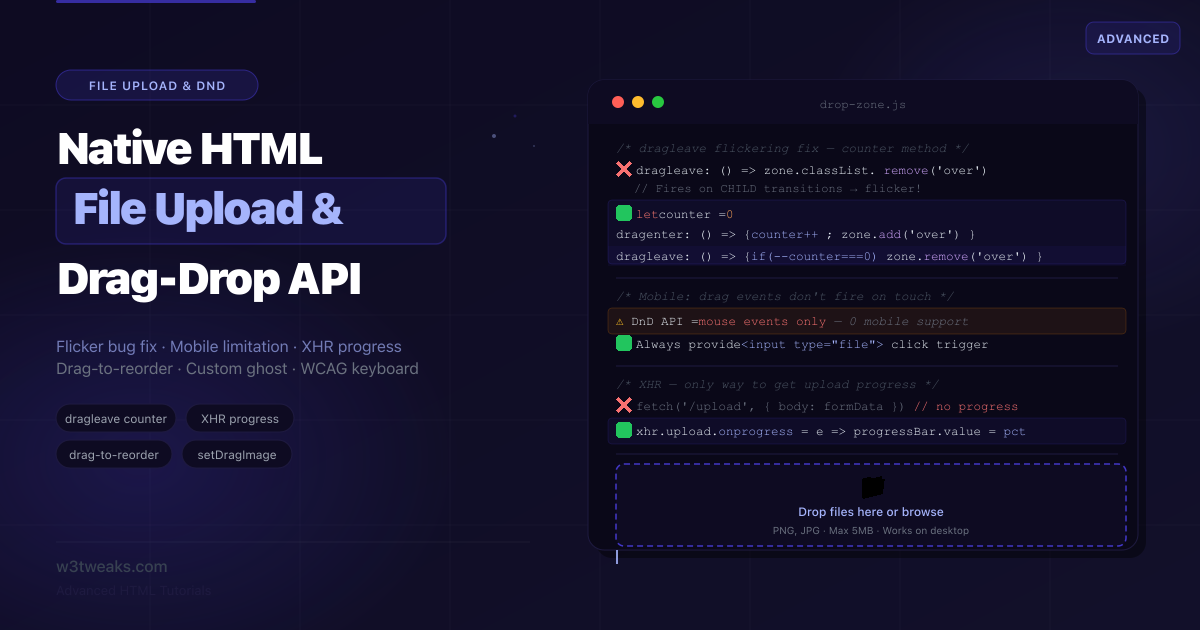
Building an HTML drag and drop file upload looks straightforward until you try to highlight your drop zone when a file is dragged over. The highlight works perfectly until the user’s cursor moves over a child element — an icon, a paragraph, a button — inside the drop zone. At that point dragleave fires on the parent and the highlight disappears. Then dragenter fires on the child and it reappears. Your drop zone flickers. This is the most common drag-drop bug in existence and most tutorials never mention it.
There’s a second thing nobody says clearly: the HTML Drag and Drop API does not work on touchscreen phones. It does work on iPad Safari 13+ with long-press, but on iPhone and Android phones, drag events never fire from touch. The <input type="file"> is not a nice-to-have fallback; it is the primary interface for over 60% of web users.
And a third — half the drag-drop tutorials online still claim Fetch can’t do upload progress. That was true through 2022 but changed with Chrome 105+ — Fetch now supports upload progress via ReadableStream request bodies and duplex: 'half'.
This guide covers all three reality checks, plus the production drop-zone pattern, folder uploads with webkitdirectory, image previews with proper URL.revokeObjectURL cleanup, magic byte detection for security-sensitive uploads, paste-image-from-clipboard, drag-to-reorder with the correct WCAG 2.5.7 keyboard fallback, custom drag ghosts with setDragImage, and the input.value = '' gotcha that breaks “select the same file twice.”
Related tutorials: HTML Input Types · Accessible Forms · HTML contenteditable Rich Text Editor
Live Demo
Five interactive sections: the dragleave flicker counter fix, multi-file drop with validation, XHR upload progress with working cancel button, drag-to-reorder list items (with WCAG 2.5.7 keyboard caveat), and custom drag ghost with copy/move/link dropEffect.
Before / After — Broken vs Correct Drop Zone
❌ Before — flickering drop zone (what most tutorials show)
const zone = document.getElementById('drop-zone');

zone.addEventListener('dragenter', () => zone.classList.add('over'));
zone.addEventListener('dragleave', () => zone.classList.remove('over'));
zone.addEventListener('dragover',  e => e.preventDefault());
zone.addEventListener('drop', e => {
  e.preventDefault();
  zone.classList.remove('over');
  handleFiles(e.dataTransfer.files);
});
The bug: When the cursor moves from the drop zone background to a child element (icon, text), dragleave fires on the zone and dragenter fires on the child. The over class is removed and then immediately re-added — visible as flicker.
If your dragleave fires multiple times when nothing has obviously changed, you’re hitting this exact case — child-element event bubbling.
✅ After — counter method (most reliable fix)
const zone = document.getElementById('drop-zone');
let dragCounter = 0;

zone.addEventListener('dragenter', (e) => {
  e.preventDefault();
  dragCounter++;
  zone.classList.add('over');
});

zone.addEventListener('dragleave', () => {
  dragCounter--;
  if (dragCounter === 0) {
    zone.classList.remove('over');
  }
});

zone.addEventListener('dragover', e => e.preventDefault());

zone.addEventListener('drop', (e) => {
  e.preventDefault();
  dragCounter = 0;
  zone.classList.remove('over');
  handleFiles(e.dataTransfer.files);
});
Why it works: Every dragenter increments the counter; every dragleave decrements it. Crossing a child boundary fires dragenter (counter → 2) followed by dragleave (counter → 1) — never hits zero, so the highlight never flickers. Only when the cursor actually leaves the entire zone does it reach 0 and the highlight is removed.
Alternative fix: CSS pointer-events: none on children
.drop-zone * {
  pointer-events: none;
}
Simpler but blocks mouse events on all child elements — fine for purely decorative children (icons, text), but breaks any interactive content inside the drop zone (links, buttons, focusable inputs).
Step 1: HTML drag and drop file upload — complete drop zone
A production drop zone combines the counter fix, file validation, keyboard accessibility, click-to-browse, and the input.value = '' reset that lets users re-pick the same file:
<div class="drop-zone"
     id="drop-zone"
     role="button"
     tabindex="0"
     aria-label="Drop files here or press Enter to browse"
     aria-describedby="dz-desc">

  <input type="file" id="file-input" class="sr-only"
         multiple
         accept="image/png,image/jpeg,image/webp,application/pdf"
         aria-hidden="true">

  <div class="dz-content">
    <svg class="dz-icon" aria-hidden="true">…</svg>
    <p class="dz-label">Drop files here or <span class="dz-browse">browse</span></p>
    <p class="dz-hint" id="dz-desc">PNG, JPG, WebP, or PDF · Max 10MB per file · Up to 5 files</p>
  </div>
</div>

<ul id="file-list" class="file-list" aria-label="Selected files" aria-live="polite"></ul>
<p id="dz-error" class="error-msg" role="alert" aria-live="assertive"></p>
const zone = document.getElementById('drop-zone');
const input = document.getElementById('file-input');
const fileList = document.getElementById('file-list');
const errorMsg = document.getElementById('dz-error');
const MAX_SIZE = 10 * 1024 * 1024;
const MAX_FILES = 5;
const ALLOWED = ['image/png', 'image/jpeg', 'image/webp', 'application/pdf'];
let dragCounter = 0;
zone.addEventListener('dragenter', (e) => {
e.preventDefault();
dragCounter++;
zone.classList.add('over');
});
zone.addEventListener('dragleave', () => {
if (--dragCounter === 0) zone.classList.remove('over');
});
zone.addEventListener('dragover', e => e.preventDefault());
zone.addEventListener('drop', (e) => {
e.preventDefault();
dragCounter = 0;
zone.classList.remove('over');
handleFiles(e.dataTransfer.files);
});
zone.addEventListener('click', () => input.click());
zone.addEventListener('keydown', (e) => {
if (e.key === 'Enter' || e.key === ' ') {
e.preventDefault();
input.click();
}
});
input.addEventListener('change', () => {
handleFiles(input.files);
// Reset so the same file can be re-selected later (otherwise the
// change event won't fire for the same filename twice).
input.value = '';
});
function handleFiles(fileListOrFiles) {
const files = [...fileListOrFiles];
errorMsg.textContent = '';
if (files.length > MAX_FILES) {
errorMsg.textContent = `Maximum ${MAX_FILES} files. You selected ${files.length}.`;
return;
}
const invalid = files.find(f => !ALLOWED.includes(f.type) || f.size > MAX_SIZE);
if (invalid) {
if (!ALLOWED.includes(invalid.type)) {
errorMsg.textContent = `"${invalid.name}" is not an allowed file type.`;
} else {
errorMsg.textContent = `"${invalid.name}" exceeds 10MB.`;
}
return;
}
renderFileList(files);
}Step 2: Drag and drop not working on mobile? The capture + input fix
The full picture:
| Device | Drag-and-drop works? |
|---|---|
| Desktop browsers (Chrome, Firefox, Safari, Edge) | ✅ Yes |
| iPad Safari 13+ | ✅ Yes (long-press to drag) |
| iPhone Safari | ❌ No — touch events only |
| Android Chrome/Firefox | ❌ No — touch events only |
The HTML Drag and Drop API uses mouse events. Phone touchscreens don’t fire them. The <input type="file"> click trigger is the primary interface for phone users — not a fallback.
The constructive mobile fix — capture attribute opens the camera:
<!-- Open camera directly on mobile (back camera) -->
<input type="file" accept="image/*" capture="environment">

<!-- Open camera directly (front camera, for selfies) -->
<input type="file" accept="image/*" capture="user">

<!-- Video capture -->
<input type="file" accept="video/*" capture="environment">
On iOS Safari and Chrome, capture="environment" skips the photo library picker and launches the camera. On desktop, capture is ignored — the file picker opens normally.
Touch-event reorder libraries — if you genuinely need drag-to-reorder UI on mobile (not files), SortableJS uses Pointer Events and works on every device. For file uploads, the native <input type="file"> is still the answer.
The label-wrapping pattern for universal click activation:
<!-- Clicking anywhere in the zone opens the file picker on every device -->
<label class="drop-zone" for="file-input">
  <input type="file" id="file-input" multiple
         accept="image/*,application/pdf"
         capture="environment"
         class="sr-only">
  <div class="dz-content">
    <span>Drop files here or <strong>choose files</strong></span>
    <span class="dz-hint">Works on all devices including mobile</span>
  </div>
</label>
Using <label for="file-input"> means the entire drop zone is a click target for the file picker — no JavaScript needed for the click behavior.
Step 3 — The Drag Events Reference
Understanding the full event sequence prevents the most common implementation errors:
| Event | Fires on | When |
|---|---|---|
dragstart | The dragged element | User begins dragging |
drag | The dragged element | Every few hundred ms while dragging |
dragenter | Drop target | Dragged item enters the target |
dragover | Drop target | Every few ms while over target |
dragleave | Drop target | Dragged item leaves the target |
drop | Drop target | User releases the drag |
dragend | The dragged element | Drag completes (success or cancel) |
The critical rule: preventDefault on dragover is required or the drop event will never fire. The browser treats elements without dragover preventDefault as non-droppable targets. This trips up 90% of beginners.
// ❌ Without this, drop NEVER fires
zone.addEventListener('dragover', () => {});

// ✅ Required — preventDefault in dragover enables drop
zone.addEventListener('dragover', (e) => {
  e.preventDefault();
  e.dataTransfer.dropEffect = 'copy';
});
dropEffect and effectAllowed
These control the cursor icon during drag:
// On the draggable element (dragstart event):
e.dataTransfer.effectAllowed = 'copy';
// Options: none, copy, copyLink, copyMove, link, linkMove, move, all, uninitialized

// On the drop target (dragover event):
e.dataTransfer.dropEffect = 'copy';
// Options: none, copy, link, move
dataTransfer.files vs dataTransfer.items
zone.addEventListener('drop', (e) => {
  e.preventDefault();

  // Simple: FileList of File objects
  const files = e.dataTransfer.files;

  // Modern: can handle directories, text, URLs as well as files
  const items = e.dataTransfer.items;
  for (const item of items) {
    if (item.kind === 'file') {
      const file = item.getAsFile();
      // Modern: item.getAsFileSystemHandle() — File System Access API
    }
    if (item.kind === 'string') {
      item.getAsString(str => console.log('Dropped text:', str));
    }
  }
});
Use dataTransfer.files for simple file drops. Use dataTransfer.items for mixed drops (files + text + URLs) or directory entries via webkitGetAsEntry().
Uploading Entire Folders (webkitdirectory + webkitGetAsEntry)
Two patterns — one for the file picker, one for drag-drop:
Pattern 1: webkitdirectory upload folder via input
<input type="file" webkitdirectory multiple>Clicking this input opens a directory picker instead of a file picker. The user selects a folder and the input receives every file inside it (recursively). The relative path of each file is exposed via file.webkitRelativePath:
input.addEventListener('change', () => {
  for (const file of input.files) {
    console.log(file.webkitRelativePath); // "my-folder/subfolder/photo.jpg"
  }
});
Browser support: Chrome, Edge, Safari 11.1+, Firefox 50+. The directory standard attribute is coming in a future spec; for now webkitdirectory is the universal name.
Pattern 2: Drag-drop folder support via webkitGetAsEntry()
zone.addEventListener('drop', async (e) => {
  e.preventDefault();
  const items = e.dataTransfer.items;
  const allFiles = [];

  for (const item of items) {
    const entry = item.webkitGetAsEntry();
    if (entry) await collectFiles(entry, allFiles);
  }

  handleFiles(allFiles);
});

async function collectFiles(entry, out) {
  if (entry.isFile) {
    const file = await new Promise(resolve => entry.file(resolve));
    out.push(file);
  } else if (entry.isDirectory) {
    const reader = entry.createReader();
    const entries = await new Promise(resolve => reader.readEntries(resolve));
    for (const child of entries) {
      await collectFiles(child, out);
    }
  }
}
entry.createReader().readEntries() is paginated — it returns up to 100 entries at a time on Chrome. For very large directories, call it in a loop until it returns empty.
Step 4: JavaScript upload progress bar (Fetch + XHR)
For years the only way to show upload progress was XMLHttpRequest. That changed in Chrome 105 (August 2022) and Firefox 117 (August 2023). Both now support Fetch upload progress via streaming request bodies. Safari is the holdout — still XHR-only today.
Modern: Fetch upload progress with ReadableStream
async function uploadWithFetchProgress(file, onProgress) {
  const totalBytes = file.size;
  let uploadedBytes = 0;

  // Wrap the File as a ReadableStream we can monitor
  const stream = new ReadableStream({
    async start(controller) {
      const reader = file.stream().getReader();
      while (true) {
        const { done, value } = await reader.read();
        if (done) { controller.close(); break; }
        uploadedBytes += value.byteLength;
        onProgress(uploadedBytes / totalBytes * 100);
        controller.enqueue(value);
      }
    }
  });

  const res = await fetch('/api/upload', {
    method: 'POST',
    body: stream,
    headers: { 'Content-Type': file.type, 'Content-Length': totalBytes },
    duplex: 'half', // required when body is a stream
  });
  return res.json();
}

// Usage
uploadWithFetchProgress(file, (pct) => {
  document.getElementById('progress').value = pct;
});
Browser support: Chrome 105+, Firefox 117+, Edge 105+. Safari does not yet support duplex: 'half' — feature-detect and fall back to XHR:
function supportsFetchUploadProgress() {
  try {
    const init = { body: new ReadableStream(), method: 'POST', duplex: 'half' };
    new Request('', init);
    return true;
  } catch {
    return false;
  }
}
Universal: XHR upload progress (works everywhere)
async function uploadWithXHR(file, onProgress) {
  return new Promise((resolve, reject) => {
    const xhr = new XMLHttpRequest();
    const formData = new FormData();
    formData.append('file', file);

    xhr.upload.addEventListener('progress', (e) => {
      if (!e.lengthComputable) return;
      onProgress(e.loaded / e.total * 100);
    });

    xhr.addEventListener('load', () => {
      if (xhr.status >= 200 && xhr.status < 300) {
        resolve(JSON.parse(xhr.responseText));
      } else {
        reject(new Error(`Upload failed: ${xhr.status}`));
      }
    });

    xhr.addEventListener('error', () => reject(new Error('Network error')));
    xhr.addEventListener('abort', () => reject(new Error('Upload cancelled')));

    xhr.open('POST', '/api/upload');
    xhr.send(formData);
  });
}
XHR is still the right call for: Safari support, multipart form data with multiple fields, and codebases that already use it consistently.
XHR abort upload — cancelling in progress
Call xhr.abort() to cancel an in-progress upload. The request stops immediately and an abort event fires:
let currentXhr;

function startUpload(file) {
  currentXhr = new XMLHttpRequest();
  // ... setup as above, using currentXhr
}

function cancelUpload() {
  currentXhr?.abort();
  document.getElementById('status').textContent = 'Upload cancelled.';
}
For Fetch with the streaming pattern above, use an AbortController:
const controller = new AbortController();
fetch('/api/upload', { method: 'POST', body: stream, signal: controller.signal, duplex: 'half' });

// Later:
controller.abort();
Use the semantic <progress> element
<progress id="upload-progress" value="0" max="100"
          aria-label="Upload progress" aria-valuenow="0"></progress>
Not a <div> with aria-role="progressbar". The semantic element ships with announcements + styling hooks (::-webkit-progress-bar, ::-moz-progress-bar).
Sequential vs parallel uploads
// Sequential: conserves bandwidth, clear per-file progress
async function uploadAllSequential(files) {
  for (const file of files) await uploadFile(file);
}

// Parallel: faster, progress is aggregate
async function uploadAllParallel(files) {
  await Promise.all(files.map(uploadFile));
}

// Controlled concurrency: up to N at once
async function uploadWithConcurrency(files, maxConcurrent = 3) {
  for (let i = 0; i < files.length; i += maxConcurrent) {
    const chunk = files.slice(i, i + maxConcurrent);
    await Promise.all(chunk.map(uploadFile));
  }
}
JavaScript File Upload Validation — In the Right Order
Client validation is for UX, not security. Server validation is for security. Do both. Validate in this order:
- Count —
files.length > MAX_FILES - Declared MIME type —
acceptattribute filters at the picker;f.typechecks the dropped file.<input type=file accept="image/png,image/jpeg" multiple>filters PNG and JPEG only. - Size —
f.size > MAX_BYTES - Magic bytes (for security-sensitive uploads) —
f.typecan be empty or spoofed. Read the first bytes of the file via FileReader and check the file signature
Magic byte / file signature detection
async function readMagicBytes(file, length = 4) {
  const slice = file.slice(0, length);
  const buffer = await slice.arrayBuffer();
  return new Uint8Array(buffer);
}

const SIGNATURES = {
  png:  [0x89, 0x50, 0x4E, 0x47],          // 89 50 4E 47 ‘‹PNG’
  jpeg: [0xFF, 0xD8, 0xFF],                // FF D8 FF
  pdf:  [0x25, 0x50, 0x44, 0x46],          // 25 50 44 46 '%PDF'
  gif:  [0x47, 0x49, 0x46, 0x38],          // 47 49 46 38 'GIF8'
  webp: [0x52, 0x49, 0x46, 0x46],          // 52 49 46 46 'RIFF' (need to check bytes 8-11 for 'WEBP')
};

async function isActuallyImage(file) {
  const bytes = await readMagicBytes(file, 4);
  for (const [, sig] of Object.entries(SIGNATURES)) {
    if (sig.every((b, i) => bytes[i] === b)) return true;
  }
  return false;
}

// Usage
if (!await isActuallyImage(file)) {
  errorMsg.textContent = `${file.name} is not a real image.`;
}
⚠ Trust nothing client-side. Any user can bypass JavaScript validation by sending a raw HTTP request. Server validation is still required. Magic byte checks on the client are a UX improvement, not a security boundary.
Image Preview Before Upload (with createObjectURL Cleanup)
Show a thumbnail of the selected image before upload:
function showImagePreview(file, imgEl) {
  if (!file.type.startsWith('image/')) return;

  const url = URL.createObjectURL(file);
  imgEl.src = url;

  // Free the object URL once the image has loaded — prevents memory leak.
  // Critical: do NOT call revokeObjectURL before the image loads or you
  // get a blank preview.
  imgEl.onload = () => URL.revokeObjectURL(url);
}
For multiple files:
function renderPreviews(files, container) {
  // Revoke any previous URLs first
  container.querySelectorAll('img').forEach(img => {
    if (img.src.startsWith('blob:')) URL.revokeObjectURL(img.src);
  });
  container.innerHTML = '';

  for (const file of files) {
    if (!file.type.startsWith('image/')) continue;
    const img = document.createElement('img');
    const url = URL.createObjectURL(file);
    img.src = url;
    img.onload = () => URL.revokeObjectURL(url);
    img.alt = file.name;
    container.appendChild(img);
  }
}
The “don’t revoke before load” gotcha is the #1 image preview bug. URL.createObjectURL creates a blob URL that persists until either the document unloads or you explicitly revoke it. Revoking before the <img> has loaded leaves the image src pointing at nothing.
Bonus: Adding paste image upload in JavaScript
Modern upload widgets (Slack, GitHub, Notion) accept Ctrl+V image paste. Ten lines:
document.addEventListener('paste', (e) => {
  const items = e.clipboardData?.items;
  if (!items) return;

  for (const item of items) {
    if (item.kind === 'file' && item.type.startsWith('image/')) {
      const file = item.getAsFile();
      if (file) handleFiles([file]);
    }
  }
});
Pasted images don’t have a real filename — they arrive as image.png regardless of source. Generate a name on the server side if needed.
Step 5: Drag and drop reorder list in JavaScript
The same Drag and Drop API that handles file drops can reorder list items, kanban cards, or any DOM elements. The key difference: you use dataTransfer.setData and dataTransfer.getData to identify which element is being dragged:
<ul id="sortable-list" aria-label="Draggable task list">
  <li class="drag-item" draggable="true" data-id="1">Design mockups</li>
  <li class="drag-item" draggable="true" data-id="2">Write tests</li>
  <li class="drag-item" draggable="true" data-id="3">Review PR</li>
</ul>
const list = document.getElementById('sortable-list');
let draggedItem = null;
list.addEventListener('dragstart', (e) => {
draggedItem = e.target.closest('.drag-item');
e.dataTransfer.setData('text/plain', draggedItem.dataset.id);
e.dataTransfer.effectAllowed = 'move';
requestAnimationFrame(() => draggedItem.classList.add('dragging'));
});
list.addEventListener('dragend', () => {
draggedItem?.classList.remove('dragging');
list.querySelectorAll('.drag-over').forEach(el => el.classList.remove('drag-over'));
draggedItem = null;
});
list.addEventListener('dragover', (e) => {
e.preventDefault();
e.dataTransfer.dropEffect = 'move';
const target = e.target.closest('.drag-item');
if (!target || target === draggedItem) return;
list.querySelectorAll('.drag-over').forEach(el => el.classList.remove('drag-over'));
target.classList.add('drag-over');
});
list.addEventListener('drop', (e) => {
e.preventDefault();
const target = e.target.closest('.drag-item');
if (!target || target === draggedItem) return;
// Insert before or after the target based on cursor vertical midpoint
const rect = target.getBoundingClientRect();
const insertBefore = e.clientY < rect.top + rect.height / 2;
list.insertBefore(draggedItem, insertBefore ? target : target.nextSibling);
target.classList.remove('drag-over');
});⚠ WCAG 2.5.7 Dragging Movements (Level AA)
The 2.2 Web Content Accessibility Guidelines added criterion 2.5.7 Dragging Movements: any functionality operated by a dragging gesture must also be operable with a single pointer (or keyboard) without dragging. A production reorder list needs a keyboard path:
// Minimal keyboard reorder pattern
list.addEventListener('keydown', (e) => {
  const item = e.target.closest('.drag-item');
  if (!item) return;

  if (e.key === 'ArrowUp' && item.previousElementSibling) {
    e.preventDefault();
    list.insertBefore(item, item.previousElementSibling);
    item.focus();
    announce(`Moved ${item.textContent} up`);
  }
  if (e.key === 'ArrowDown' && item.nextElementSibling) {
    e.preventDefault();
    list.insertBefore(item.nextElementSibling, item);
    item.focus();
    announce(`Moved ${item.textContent} down`);
  }
});

function announce(msg) {
  document.getElementById('sr-announce').textContent = msg;
}
Pair with <div id="sr-announce" aria-live="polite" class="sr-only"></div> for screen reader announcements after each move. The drag mechanism stays for sighted mouse users; keyboard users get a parallel arrow-key path.
Step 6 — Custom Drag Ghost with setDragImage
By default the browser shows a semi-transparent screenshot of the dragged element. Replace it with a custom element:
element.addEventListener('dragstart', (e) => {
  const ghost = document.createElement('div');
  ghost.className = 'drag-ghost';
  ghost.textContent = `Moving: ${element.textContent}`;
  ghost.style.cssText = `
    position: fixed; top: -1000px; left: -1000px;
    padding: 8px 16px; background: #4338ca; color: #fff;
    border-radius: 8px; font-size: 13px; font-weight: 500;
    white-space: nowrap; pointer-events: none;
  `;

  document.body.appendChild(ghost); // must be in DOM for setDragImage

  // setDragImage(element, xOffset, yOffset)
  e.dataTransfer.setDragImage(ghost, 0, 0);

  // Remove after rAF — only needed for the screenshot
  requestAnimationFrame(() => document.body.removeChild(ghost));
});
Browser Support
| Feature | Chrome | Firefox | Safari | Edge |
|---|---|---|---|---|
| HTML5 Drag and Drop API | All | All | All (desktop) / iPad 13+ (long-press) | All |
<input webkitdirectory> | All | 50+ | 11.1+ | All |
dataTransfer.items.webkitGetAsEntry() | All | All | All | All |
Fetch upload progress (duplex: 'half') | 105+ | 117+ | Not yet | 105+ |
| XHR upload progress | All | All | All | All |
<input capture="environment"> | Mobile only | Mobile only | Mobile only | Mobile only |
Key Takeaways
dragovermust calle.preventDefault()—dropnever fires otherwise. This is the #1 setup mistake.- The
dragleaveflickering bug occurs when child elements receive drag events. Fix with a counter (increment on enter, decrement on leave, only remove highlight when 0) orpointer-events: noneon children. - Drag-and-drop does NOT work on phone touchscreens. It DOES work on iPad Safari 13+ with long-press. For phones, use
<input type="file">withcapture="environment"to open the camera directly. - Fetch CAN do upload progress as of Chrome 105+ / Firefox 117+ —
ReadableStreamrequest body +duplex: 'half'. Safari still requires XHR. Feature-detect and fall back. - Use
xhr.upload.addEventListener('progress', ...)for the universal upload progress event; the semantic<progress>element, not a<div>. xhr.abort()cancels XHR uploads;AbortController.abort()cancels Fetch uploads.- Upload folders with
<input webkitdirectory>(file picker) orwebkitGetAsEntry()+ recursivereadEntries()(drag-drop). - Image preview via
URL.createObjectURL(file)— callURL.revokeObjectURLonly AFTER the<img>loads, not before. - Magic byte / file signature detection (
FileReader+ first-bytes match) catches spoofed file extensions. Always re-validate on the server. - Paste image upload in 10 lines —
pasteevent +clipboardData.items+getAsFile(). - For drag-to-reorder:
dataTransfer.setData('text/plain', id)ondragstart, comparee.clientYto target midpoint for before/after insertion. - WCAG 2.5.7 Dragging Movements (Level AA) — any drag operation needs a single-pointer or keyboard alternative. Add Arrow-key reorder +
aria-liveannouncements. setDragImage(element, x, y)replaces the default drag ghost — create, append to body, setDragImage, remove viarequestAnimationFrame.input.value = ''after handling — without this, the change event won’t fire when the user selects the same file twice.
FAQ
Why does my drag and drop not work? What event am I missing?
The most common cause is missing event.preventDefault() in the dragover handler. Without it the browser treats the element as a non-droppable target and the drop event never fires. Add dropZone.addEventListener('dragover', e => e.preventDefault()) as the minimum requirement. The second most common cause is the dragleave flickering bug — fix with the counter method.
Why does my drop zone highlight flicker when dragging over it?
When the cursor moves over a child element inside your drop zone, dragleave fires on the parent and dragenter fires on the child — causing rapid remove/add of the highlight class. Fix with a counter: increment on dragenter, decrement on dragleave, only remove the highlight when the counter reaches zero. Alternatively, set pointer-events: none on all child elements inside the zone.
Why doesn’t drag and drop work on my phone or tablet?
The HTML Drag and Drop API uses mouse events. Phone touchscreens (iPhone Safari, Android Chrome) don’t fire them — touch has its own separate event system. iPad Safari 13+ is the exception — it supports drag-and-drop via long-press on the source element. For phones, use <input type="file"> with capture="environment" to open the camera directly, or use a touch-event-based library like SortableJS for non-file drag interactions.
How do I show a JavaScript upload progress bar with Fetch?
As of Chrome 105+ (August 2022) and Firefox 117+, Fetch supports upload progress via a ReadableStream request body and duplex: 'half'. Wrap the File as a stream, monitor each chunk read, and call your progress callback. Safari does not yet support this — feature-detect with new Request('', { body: new ReadableStream(), method: 'POST', duplex: 'half' }) inside a try-catch and fall back to XHR. XHR’s xhr.upload.addEventListener('progress', ...) still works everywhere.
What is the difference between dataTransfer.files and dataTransfer.items?
dataTransfer.files is a legacy FileList — a simple array-like of File objects, accessible immediately on drop. dataTransfer.items is the modern DataTransferItemList which can contain file items, text items, and URL items. Use items when you need to detect content type, handle directory drops via webkitGetAsEntry(), or process mixed drops (files plus dragged URLs).
How do I upload an entire folder in HTML?
Use <input type="file" webkitdirectory multiple> for the file picker — the user selects a folder and the input receives every file recursively. Each file’s relative path is available via file.webkitRelativePath. For drag-drop folder support, iterate dataTransfer.items, call item.webkitGetAsEntry(), and recursively traverse directories via entry.createReader().readEntries(). Browser support: Chrome, Edge, Safari 11.1+, Firefox 50+.
Why doesn’t change event fire when I select the same file again?
Because the input’s value hasn’t changed. The fix is to reset input.value = '' after handling the change event:
input.addEventListener('change', () => {
  handleFiles(input.files);
  input.value = ''; // allow re-selecting the same file
});
This is one of the most common file-input bugs and almost no tutorials mention it.
Should I use the File System Access API instead of input type=file?
For most websites, no. The File System Access API (showOpenFilePicker, showSaveFilePicker, showDirectoryPicker) is Chrome-only today — Firefox and Safari don’t support it. The API gives you persistent read/write file handles (great for desktop-class web apps like text editors and image tools), but for typical file uploads, <input type="file"> works everywhere and is the right default. Use FSA when you’re building a Chrome-targeted desktop-class web app and need to write back to the user’s filesystem.
How do I make a drag and drop list for reordering items?
Set draggable="true" on each list item. Store the dragged item reference in a dragstart handler. In dragover, call preventDefault() to enable the drop. In drop, use insertBefore() to reorder the DOM. Compare e.clientY to the target item’s vertical midpoint to determine whether to insert before or after. For accessibility, add a keyboard path with Arrow keys and aria-live announcements — WCAG 2.5.7 (Dragging Movements, Level AA) requires it.