How to make a div editable in HTML: add contenteditable="true". That’s the whole API — the next 200 lines are about taming it.
Building a rich text editor with contenteditable is one of those tasks that looks trivial for the first 30 minutes and then reveals its true complexity. The attribute is simple — contenteditable="true" on any element and the browser makes it editable. The ecosystem around it is not.
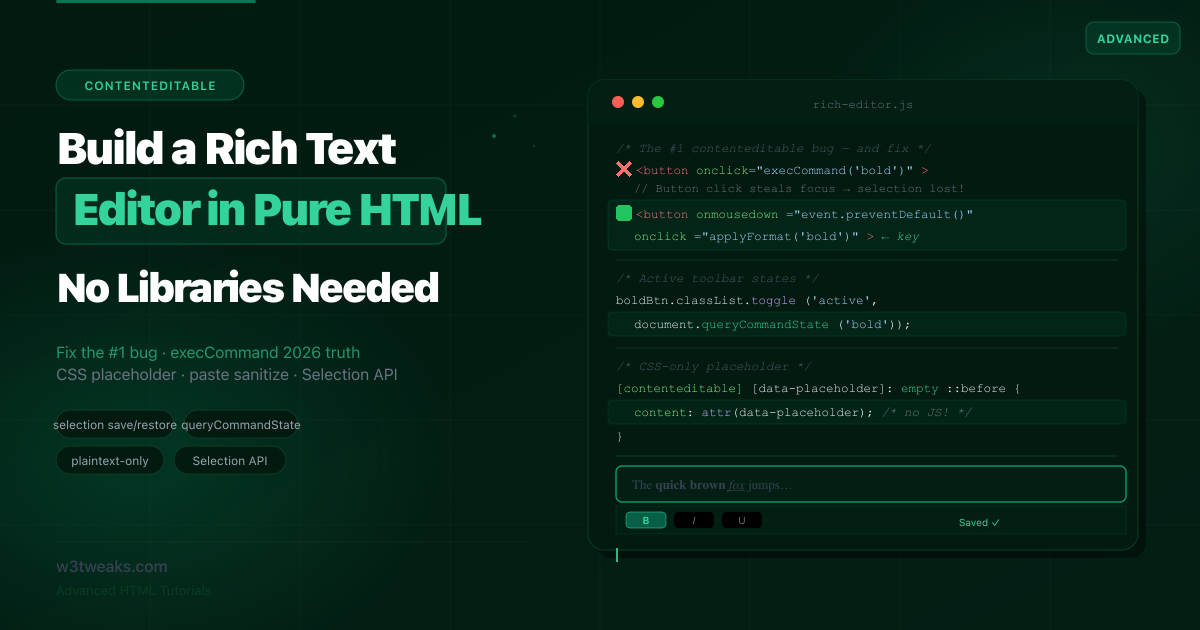
The most commonly encountered first bug: you add Bold/Italic buttons to a toolbar, click Bold, and nothing happens. The text you had selected is now deselected because clicking the toolbar button moved focus away from the editor. You need to save the cursor position before the click and restore it before formatting. Zero tutorials explain this correctly.
The second most common confusion: document.execCommand() is marked deprecated on MDN with a bright red warning. Should you use it? Discussions in the W3C Editing Task Force confirm execCommand is the current pragmatic option for most editors and won’t be removed soon. The modern execCommand alternative is the beforeinput event paired with inputType discrimination — covered in depth below alongside the brand-new EditContext API (Chrome 121+).
By the end you’ll have a JavaScript WYSIWYG editor from scratch — about 200 lines, zero dependencies — that ships in one file with no npm install.
Related tutorials: HTML Input Types · Accessible Forms · Focus Management
Live Demo
Five interactive examples: the selection-lost bug demonstrated and fixed, CSS-only placeholder, a complete rich text editor with toolbar active states, paste sanitization, and the modern Selection API approach.
Before / After — The Selection Bug (Every DIY Editor Has This)
❌ Before — the broken pattern (what every tutorial shows)
<div id="editor" contenteditable="true">Edit this text...</div>

<button onclick="document.execCommand('bold')">Bold</button>
<button onclick="document.execCommand('italic')">Italic</button>
The bug: Click inside the editor, select “Edit this”, then click the Bold button. The button click moves focus from the editor to the button. The browser drops the selection. execCommand('bold') fires with no selection — nothing happens.
✅ After — save and restore the selection
let savedRange = null;

editor.addEventListener('blur', () => {
  const sel = window.getSelection();
  if (sel.rangeCount > 0) {
    savedRange = sel.getRangeAt(0).cloneRange();
  }
});

function applyFormat(command, value = null) {
  editor.focus();

  if (savedRange) {
    const sel = window.getSelection();
    sel.removeAllRanges();
    sel.addRange(savedRange);
  }

  document.execCommand(command, false, value);
  savedRange = null;
}
<!-- mousedown fires BEFORE blur, so we can prevent focus loss -->
<button onmousedown="event.preventDefault()" onclick="applyFormat('bold')">Bold</button>
<button onmousedown="event.preventDefault()" onclick="applyFormat('italic')">Italic</button>The key insight: onmousedown="event.preventDefault()" prevents the button from stealing focus from the editor when clicked. This alone often fixes the selection loss without needing to save/restore the Range — but the save/restore pattern is needed for keyboard-triggered button activation.
Step 1 — The contenteditable Attribute: All Four Values
<!-- ✅ Standard rich text editing -->
<div contenteditable="true">
  Fully editable — rich HTML formatting allowed.
</div>

<!-- ✅ Inherits editability from parent -->
<div contenteditable="true">
  Parent is editable.
  <span contenteditable="inherit">This inherits — also editable.</span>
</div>

<!-- ✅ Read-only island inside editable parent -->
<div contenteditable="true">
  Editable area.
  <span contenteditable="false">Read-only island inside the editable.</span>
</div>

<!-- ✅ Plain text only — no rich text, no paste formatting -->
<div contenteditable="plaintext-only" role="textbox" aria-multiline="true"
     aria-label="Leave a comment">
  Plain text only — no bold, no links, no paste formatting.
</div>
Use contenteditable="plaintext-only" for Comment Boxes
plaintext-only restricts the element to plain text input only. Pasting formatted content strips all HTML. Ideal for comment inputs, chat message boxes, and search bars where you want the multi-line behavior of contenteditable without the rich-text complexity.
Browser support: Chrome 111+, Safari 15+, Firefox 136+ (March 2025 — now fully cross-browser). Earlier Firefox falls back silently to contenteditable="true".
// Feature detection for plaintext-only on legacy Firefox
const testEl = document.createElement('div');
testEl.contentEditable = 'plaintext-only';
const supported = testEl.contentEditable === 'plaintext-only';
Step 2 — contenteditable Placeholder CSS Only
contenteditable has no placeholder attribute. This is the most searched contenteditable question. Here’s a contenteditable placeholder CSS-only pattern using :empty::before and data-placeholder — no JavaScript required:
<div id="editor"
     contenteditable="true"
     data-placeholder="Start writing…"
     role="textbox"
     aria-label="Article body"
     aria-multiline="true">
</div>[contenteditable][data-placeholder]:empty::before {
content: attr(data-placeholder);
color: #9ca3af;
pointer-events: none;
cursor: text;
}
[contenteditable][data-placeholder]:focus:empty::before {
content: '';
}An element is :empty when it has no children, including no text nodes. As soon as the user types anything, the element is no longer empty and the ::before disappears.
Edge case: If the editor contains only <br> (which browsers insert on Enter in empty editors), it is no longer :empty. Handle this in JavaScript:
editor.addEventListener('input', () => {
  if (editor.innerHTML === '<br>') {
    editor.innerHTML = '';
  }
});
Step 3 — execCommand Today: The Pragmatic Truth
document.execCommand() is marked deprecated in the spec. Here is what that actually means in practice:
It still works universally. Every major browser continues to support it fully. It is NOT removed, not broken, not flagged with warnings in DevTools.
It won’t be removed soon. The W3C Editing Task Force’s own discussions confirm it is deeply embedded in the web and removing it would break vast amounts of websites.
The decision framework:
| Use case | Recommendation |
|---|---|
| Personal project, internal tool | execCommand — simple, fast, works |
| Startup product, moderate complexity | execCommand for basic ops, Selection API for custom |
| High-traffic publication, complex editor | ProseMirror, TipTap, or Slate.js |
| Comment box / simple input | contenteditable="plaintext-only" or <textarea> |
The commands you’ll actually use
// Text formatting
document.execCommand('bold');
document.execCommand('italic');
document.execCommand('underline');
document.execCommand('strikeThrough');

// Lists
document.execCommand('insertUnorderedList');
document.execCommand('insertOrderedList');

// Insert
document.execCommand('insertHTML', false, '<hr>');
document.execCommand('createLink', false, 'https://w3tweaks.com');
document.execCommand('unlink');

// Block format
document.execCommand('formatBlock', false, 'h2');
document.execCommand('formatBlock', false, 'blockquote');

// Remove all formatting
document.execCommand('removeFormat');
Normalize the Enter key behavior
// Set before the editor is used
document.execCommand('defaultParagraphSeparator', false, 'p');
The Modern Way: beforeinput + inputType
The modern execCommand alternative is the beforeinput event paired with inputType discrimination. Every modern editor library (TipTap, Lexical, Slate, ProseMirror) has migrated off keydown+execCommand to this approach. It’s the canonical Input Events Level 2 spec pattern:
editor.addEventListener('beforeinput', (event) => {
  // Inspect what the browser is ABOUT to do — and optionally prevent it
  switch (event.inputType) {
    case 'formatBold':
      event.preventDefault();
      // Run your own custom bold implementation
      applyCustomBold(event);
      break;

    case 'insertText':
      // event.data has the text being inserted
      console.log('Inserting text:', event.data);
      break;

    case 'deleteContentBackward':
      // User hit Backspace
      break;

    case 'insertParagraph':
      // User hit Enter
      break;
  }
});
inputType reference — the values you’ll actually use
inputType | Triggered by | Use for |
|---|---|---|
insertText | Regular typing | Validation, formatting on input |
insertReplacementText | Autocorrect, suggestion picker | iOS autocorrect interception |
insertParagraph | Enter key | Custom paragraph break logic |
insertLineBreak | Shift+Enter | Soft line break vs paragraph |
insertFromPaste | Paste | Modern paste interception (instead of paste event) |
insertFromDrop | Drop | Drag-and-drop content |
deleteContentBackward | Backspace | Custom undo, autosave dirty tracking |
deleteContentForward | Delete | Same as above |
deleteByCut | Ctrl+X | Cut interception |
formatBold / formatItalic / formatUnderline | Ctrl+B/I/U or browser shortcut | Custom inline formatting |
historyUndo / historyRedo | Ctrl+Z / Ctrl+Y | Custom undo stack |
The spec has 50+ inputType values — full list at the Input Events Level 2 spec. For most editors, the 11 above cover ~95% of cases.
The Future: EditContext API
Brand new in Chrome 121+/Edge 121+ (January 2024). The EditContext API is the W3C Editing Task Force’s eventual replacement for contenteditable. It lets you build an editor without DOM editing — you handle text rendering yourself (canvas, virtual DOM, CRDT data model) and the browser drives IME, autocorrect, and accessibility independently:
const editContext = new EditContext({ text: 'Initial content' });

// Attach to an element — element is now editable but DOM doesn't auto-update
const editor = document.getElementById('canvas-editor');
editor.editContext = editContext;

editContext.addEventListener('textupdate', (event) => {
  // event.text — new text after the edit
  // event.updateRangeStart / updateRangeEnd — character indices
  // Render the text yourself using your data model
  myCustomRenderer.applyTextUpdate(event.text, event.updateRangeStart, event.updateRangeEnd);
});

editContext.addEventListener('compositionstart', () => {
  // IME composition starting — handle independently
});

editContext.updateText(start, end, newText);
When to use EditContext:
- Building a canvas-based editor (Google Docs-style)
- Virtual DOM editor where DOM doesn’t match document model
- CRDT-based collaborative editor (Yjs, Automerge)
- WebGL/WebGPU-rendered text editor
When to stick with contenteditable: every other case. contenteditable is universally supported and remains the practical default. EditContext is currently Chromium-only.
Step 4 — queryCommandState Example: Toolbar Active States
The missing feature in every tutorial: when the cursor is inside bold text, the Bold button should appear pressed/active. Here’s a queryCommandState example that toggles the Bold button’s aria-pressed state on every selection change:
const editor   = document.getElementById('editor');
const boldBtn  = document.getElementById('btn-bold');
const italBtn  = document.getElementById('btn-italic');
const ulBtn    = document.getElementById('btn-ul');

function updateToolbarState() {
  boldBtn.classList.toggle('active', document.queryCommandState('bold'));
  boldBtn.setAttribute('aria-pressed', document.queryCommandState('bold'));
  italBtn.classList.toggle('active', document.queryCommandState('italic'));
  italBtn.setAttribute('aria-pressed', document.queryCommandState('italic'));
  ulBtn.classList.toggle('active',   document.queryCommandState('insertUnorderedList'));
}

editor.addEventListener('keyup',    updateToolbarState);
editor.addEventListener('mouseup',  updateToolbarState);
editor.addEventListener('input',    updateToolbarState);
document.addEventListener('selectionchange', () => {
  if (editor.contains(document.activeElement) ||
      editor === document.activeElement) {
    updateToolbarState();
  }
});.toolbar-btn.active,
.toolbar-btn[aria-pressed="true"] {
background: #ddd6fe;
color: #5b21b6;
border-color: #a78bfa;
}aria-pressed is critical — screen readers announce “Bold, button, pressed” so blind users know the current state. Visual .active class alone is invisible to assistive tech.
Step 5 — contenteditable Paste Plain Text Only + XSS Sanitization
To force contenteditable paste as plain text only, intercept the paste event and call document.execCommand('insertText', ...) with clipboardData.getData('text/plain'):
editor.addEventListener('paste', (e) => {
  e.preventDefault();
  const text = (e.clipboardData || window.clipboardData).getData('text/plain');
  document.execCommand('insertText', false, text);
});
The XSS Angle — Why Paste Sanitization Matters
Paste sanitization is not just a formatting problem — it’s a security problem. Pasted HTML can carry onerror= attributes, javascript: URLs, embedded SVG with <script> tags, <iframe> elements pointing to malicious sites. A tutorial that says “use DOMParser to strip tags” without naming XSS is dangerously incomplete.
Three layers of defence:
// Layer 1 — DOMPurify (industry standard, ~45KB minified)
import DOMPurify from 'dompurify';

editor.addEventListener('paste', (e) => {
  e.preventDefault();
  const html = e.clipboardData.getData('text/html');
  const plain = e.clipboardData.getData('text/plain');

  if (html) {
    // DOMPurify removes scripts, event handlers, javascript: URLs, etc.
    const clean = DOMPurify.sanitize(html, {
      ALLOWED_TAGS: ['p', 'strong', 'em', 'u', 's', 'a', 'ul', 'ol', 'li', 'br'],
      ALLOWED_ATTR: ['href'],
    });
    document.execCommand('insertHTML', false, clean);
  } else {
    document.execCommand('insertText', false, plain);
  }
});
// Layer 2 — native Sanitizer API (Chrome 124+, Safari 17.4+, Firefox 148+)
if ('Sanitizer' in window) {
const sanitizer = new Sanitizer({
allowElements: ['p', 'strong', 'em', 'u', 's', 'a', 'ul', 'ol', 'li', 'br'],
allowAttributes: { 'href': ['a'] },
});
div.setHTML(html, { sanitizer });
}// Layer 3 — ALWAYS sanitize on the server too
// Never trust client-side sanitization for stored content
// Server-side: DOMPurify in Node, Bleach in Python, sanitize-html in Java, etc.OWASP’s rule: treat all pasted content as potentially malicious. DOMPurify is the de facto standard because it’s been battle-tested against XSS bypass techniques since 2014. The native Sanitizer API is the future but isn’t Baseline yet — feature-detect and fall back to DOMPurify.
Image and File Paste (Paste a Screenshot)
clipboardData.items with kind === 'file' is how Slack, Notion, and GitHub handle “paste a screenshot into the editor”:
editor.addEventListener('paste', async (e) => {
  for (const item of e.clipboardData.items) {
    if (item.kind === 'file') {
      e.preventDefault();
      const file = item.getAsFile();
      if (!file || !file.type.startsWith('image/')) continue;

      // Read as data URL for instant inline preview
      const reader = new FileReader();
      reader.onload = (ev) => {
        const img = document.createElement('img');
        img.src = ev.target.result;
        img.style.maxWidth = '100%';
        insertAtCursor(img);

        // In production: upload to your server, replace src with hosted URL
      };
      reader.readAsDataURL(file);
    }
  }
});
The same dataTransfer.items shape is used by drop events — drag-and-drop file upload reuses the exact same code.
Step 6 — Reading and Saving Content
innerHTML vs innerText vs textContent
// innerHTML: full HTML markup — for saving rich content
console.log(editor.innerHTML);  // "<p><strong>Hello</strong> world</p>"

// innerText: rendered text respecting CSS, includes visual newlines — for char counts
console.log(editor.innerText);  // "Hello world"

// textContent: all text nodes, ignores CSS, fastest — for raw operations
console.log(editor.textContent);  // "Hello world"
Auto-save with debounce — without losing cursor position
The naive approach (editor.innerHTML = saved) destroys the cursor position. Read freely, but never re-assign innerHTML during active editing.
let saveTimer;

editor.addEventListener('input', () => {
  saveIndicator.textContent = 'Unsaved changes…';
  clearTimeout(saveTimer);
  saveTimer = setTimeout(saveContent, 1500);
});

async function saveContent() {
  const html = editor.innerHTML;
  try {
    localStorage.setItem('editor-draft', html);
    saveIndicator.textContent = 'Saved ✓';
  } catch (err) {
    saveIndicator.textContent = 'Save failed';
  }
}
Saving and Restoring contenteditable Cursor Position
The #1 contenteditable question on Stack Overflow: “I save innerHTML and reload it; the caret jumps to the end. How do I restore the cursor?” Saving and restoring the contenteditable cursor position requires walking text nodes with TreeWalker and converting the Selection range to a character offset:
// Save the cursor as a character offset from the editor's start
function saveCaretPosition(editor) {
  const sel = window.getSelection();
  if (!sel.rangeCount) return null;
  const range = sel.getRangeAt(0);

  // Walk text nodes counting chars until we hit the cursor
  let offset = 0;
  const walker = document.createTreeWalker(editor, NodeFilter.SHOW_TEXT);
  let node;
  while ((node = walker.nextNode())) {
    if (node === range.startContainer) {
      return offset + range.startOffset;
    }
    offset += node.textContent.length;
  }
  return null;
}

// Restore the cursor at a character offset
function restoreCaretPosition(editor, savedOffset) {
  if (savedOffset === null) return;

  let remaining = savedOffset;
  const walker = document.createTreeWalker(editor, NodeFilter.SHOW_TEXT);
  let node;
  while ((node = walker.nextNode())) {
    const len = node.textContent.length;
    if (remaining <= len) {
      const range = document.createRange();
      range.setStart(node, remaining);
      range.collapse(true);
      const sel = window.getSelection();
      sel.removeAllRanges();
      sel.addRange(range);
      return;
    }
    remaining -= len;
  }
}

// Usage: rewrite innerHTML safely with cursor preserved
const offset = saveCaretPosition(editor);
editor.innerHTML = formattedContent;
restoreCaretPosition(editor, offset);
This handles the offset save/restore for the simple case of editing in a flat text run. For complex cases (cursor inside nested formatting), augment the walker to also track DOM path. Libraries like rangy handle the full general case.
Step 7 — Keyboard Shortcuts (with IME Guard)
editor.addEventListener('keydown', (e) => {
  // CRITICAL: don't fire shortcuts during IME composition (CJK input)
  // Korean Gboard, Japanese IMEs, Chinese pinyin all use composition events
  // Ctrl+B during composition would interrupt the IME state
  if (e.isComposing) return;

  if (!e.ctrlKey && !e.metaKey) return;

  switch (e.key.toLowerCase()) {
    case 'b': e.preventDefault(); document.execCommand('bold');      break;
    case 'i': e.preventDefault(); document.execCommand('italic');    break;
    case 'u': e.preventDefault(); document.execCommand('underline'); break;
    case 'k':
      e.preventDefault();
      const url = prompt('Enter URL:');
      if (url) document.execCommand('createLink', false, url);
      break;
  }
  updateToolbarState();
});
CJK / IME Composition Events
For Korean, Chinese, Japanese, and other complex input methods, the compositionstart/compositionupdate/compositionend events track the IME state:
let isComposing = false;

editor.addEventListener('compositionstart', () => {
  isComposing = true;
});

editor.addEventListener('compositionend', () => {
  isComposing = false;
  // Run any post-composition logic here (now safe)
});

editor.addEventListener('input', (e) => {
  // Inspect e.isComposing to distinguish IME from normal input
  if (e.isComposing) return;
  // Normal input — safe to update char count, dirty flag, etc.
});
Without this guard, typing in Korean/Chinese/Japanese fires Ctrl+B/I/U shortcuts mid-composition, IME suggestions disappear, and characters get duplicated. This affects ~1.6B users.
Step 8 — The Modern Selection API Approach
For custom formatting not supported by execCommand, use the Selection and Range APIs directly:
function wrapSelection(tagName, className = '') {
  const selection = window.getSelection();
  if (!selection.rangeCount || selection.isCollapsed) return;

  const range   = selection.getRangeAt(0);
  const wrapper = document.createElement(tagName);
  if (className) wrapper.className = className;

  try {
    range.surroundContents(wrapper);
  } catch (e) {
    // Fallback when selection crosses element boundaries
    const fragment = range.extractContents();
    wrapper.appendChild(fragment);
    range.insertNode(wrapper);
  }

  selection.removeAllRanges();
  const newRange = document.createRange();
  newRange.selectNodeContents(wrapper);
  newRange.collapse(false);
  selection.addRange(newRange);
}

// Usage
wrapSelection('mark');                       // <mark> highlight
wrapSelection('span', 'highlight-yellow');   // custom-class span
Inserting content at the cursor
function insertAtCursor(node) {
  const selection = window.getSelection();
  if (!selection.rangeCount) return;

  const range = selection.getRangeAt(0);
  range.deleteContents();
  range.insertNode(node);

  range.setStartAfter(node);
  range.collapse(true);
  selection.removeAllRanges();
  selection.addRange(range);
}

// Insert a non-editable @mention chip
const chip = document.createElement('span');
chip.className = 'mention-chip';
chip.contentEditable = 'false'; // Non-editable island
chip.textContent = '@alice';
insertAtCursor(chip);
Mobile Gotchas No Tutorial Tells You
This is where “build without libraries” gets hardest — the mobile keyboard behavior of contenteditable has gotchas competitors don’t cover.
iOS Safari Autocorrect Destroys Inline Formatting
Slate issue #1176 and WebKit bug #164538: when iOS autocorrects a word, it treats the entire word as one unit and replaces ALL inline formatting. Type “hellp”, select the auto-correct suggestion “hello” — any <strong> or <em> spans inside that word get stripped. There is no way to disable this from the page side.
Workaround: wrap formatted runs in data-mark and restore on beforeinput with inputType === 'insertReplacementText':
editor.addEventListener('beforeinput', (e) => {
  if (e.inputType === 'insertReplacementText') {
    // iOS autocorrect about to clobber formatting — capture marks first
    const marks = capturFormattingMarks(e.getTargetRanges()[0]);
    requestAnimationFrame(() => reapplyMarks(marks));
  }
});
inputmode and enterkeyhint Don’t Work on contenteditable
The inputmode and enterkeyhint attributes are ignored by browsers on contenteditable elements. The virtual keyboard always shows the default text keyboard. This is by design in the spec — these attributes are scoped to <input> and <textarea>. If you need to force a numeric keyboard, use <input> instead.
spellcheck, autocorrect, autocapitalize On contenteditable
These attributes DO work on contenteditable (unlike inputmode):
<div contenteditable="true"
     spellcheck="false"
     autocorrect="off"
     autocapitalize="off">
  No spellcheck, no autocorrect, no auto-capitalize.
</div>
Use this for code blocks, technical IDs, addresses, and any field where mobile “helpfulness” is unhelpful.
Virtual Keyboard Resize on Android
Android’s virtual keyboard pushes the layout up by default, which can hide the toolbar. Detect and reposition using the Visual Viewport API:
visualViewport.addEventListener('resize', () => {
  toolbar.style.bottom = (visualViewport.height - visualViewport.offsetTop) + 'px';
});
When to Use a Library vs Build Your Own
| Requirement | Build with contenteditable | Use a library |
|---|---|---|
| Bold, italic, lists — that’s it | ✅ Simple execCommand or beforeinput | — |
| Internal admin tool, low traffic | ✅ Either approach works | — |
| Custom @mention support | ⚠ Possible with Selection API | TipTap recommended |
| Table editing, drag-and-drop blocks | ❌ Too complex | TipTap, Quill, or CKEditor |
| Collaborative (multi-user) editing | ❌ Requires CRDT engine | ProseMirror + Yjs |
| Canvas-rendered editor | ❌ Use EditContext API | EditContext or custom |
| Content goes into a public DB | ✅ But sanitize server-side too | — |
TipTap vs Quill — which is better? TipTap if you need extensibility and React/Vue integration (built on ProseMirror, the most powerful foundation). Quill if you want a working editor in 5 minutes of script tags (lightweight, plug-in architecture). Both are production-grade.
Popular libraries:
- TipTap — built on ProseMirror, best for extensions, React/Vue/Svelte
- Quill — lightweight, plug-in architecture, drop-in script tag
- Slate.js — React-first, fully customizable data model
- Lexical — Meta’s React-centric editor, fast, AI-friendly
- CKEditor 5 — enterprise-grade, most features out of the box
- ProseMirror — the foundation, maximum control, steep learning curve
Key Takeaways
onmousedown="event.preventDefault()"on toolbar buttons prevents them from stealing focus from the editor — fixes the most common contenteditable bug- Save the Range in the
blurevent and restore it before applying a format command — backup for keyboard-triggered button activation execCommandis deprecated but universally supported and won’t be removed soon — use it pragmatically for simple editors- The modern way:
beforeinputevent +inputTypediscrimination — every editor library has migrated to this - EditContext API (Chrome 121+) is the W3C TF’s eventual replacement for contenteditable — for canvas/virtual-DOM editors
document.execCommand('defaultParagraphSeparator', false, 'p')normalizes Enter key across browsers- Use
queryCommandState()+aria-pressedfor accessible toolbar active states contenteditable="plaintext-only"is now fully cross-browser as of Firefox 136 (March 2025)- CSS placeholder uses
:empty::before { content: attr(data-placeholder) }— no JavaScript - Always sanitize pasted HTML with DOMPurify or the native Sanitizer API — pasted content is an XSS attack surface, never a formatting-only problem
- Sanitize on the SERVER too — never trust client-side sanitization for stored content
- Always guard keyboard shortcuts with
e.isComposing— Korean/Chinese/Japanese IME affects ~1.6B users - Image/file paste:
e.clipboardData.itemswithkind === 'file'— same shape as drag-drop - iOS autocorrect destroys inline formatting — known WebKit bug, workaround via
beforeinput+inputType: 'insertReplacementText' - Save and restore caret position with a TreeWalker-based character offset — answers the #1 contenteditable Stack Overflow question
- Never re-assign
editor.innerHTMLduring active editing — destroys cursor position; useinsertHTMLor Range/insertNode - For custom formatting beyond execCommand:
range.surroundContents(wrapper)to wrap selected text; fall back toextractContents+insertNodewhen selection crosses boundaries spellcheck/autocorrect/autocapitalizeDO work on contenteditable;inputmode/enterkeyhintdo NOT
FAQ
Why is my contenteditable not working?
9 times out of 10, one of these: (1) the parent has user-select: none or pointer-events: none, (2) a JS focus handler is calling blur() on the element, (3) the editor is inside a <button> or <a> which captures all events, (4) you have disabled or readonly attributes that don’t actually apply to contenteditable but indicate a copy-paste pattern from <input>, (5) on iOS Safari, -webkit-user-select: none on an ancestor disables editing. Inspect the element in DevTools and check the computed user-select value.
Why is my contenteditable bold button not working?
The toolbar <button> is stealing focus from the editor. Add onmousedown="event.preventDefault()" (or in React, onMouseDown={e => e.preventDefault()}). The button click moves focus from contenteditable to the button → the browser drops the selection → execCommand('bold') fires with no selection. preventDefault on mousedown blocks the focus transfer.
Is execCommand really deprecated? Should I stop using it?
execCommand is marked deprecated in the spec and MDN, but it continues to work in all modern browsers and is not being removed. For simple editing tools, it is still the pragmatic choice. Use it for basic formatting in internal tools. Use beforeinput + inputType for any new editor you’d ship to production. Use a library (TipTap, ProseMirror, Quill) for complex production editors.
How do I add a placeholder to a contenteditable div?
Use CSS: [contenteditable][data-placeholder]:empty::before { content: attr(data-placeholder); color: #9ca3af; pointer-events: none; }. Add data-placeholder="Your placeholder text" to the element. The :empty selector matches when the element has no content. Handle the edge case of a lone <br> by checking editor.innerHTML === '<br>' and clearing it in an input event listener.
How to disable the Enter key in contenteditable?
Listen for keydown and preventDefault() when e.key === 'Enter' && !e.shiftKey. This blocks new paragraphs but still allows Shift+Enter for soft line breaks. For complete prevention of all newlines, also handle inputType: 'insertParagraph' and inputType: 'insertLineBreak' in a beforeinput listener. The cleanest approach is contenteditable="plaintext-only" if you want plain-text-only with newlines, or use a <input> if you want truly single-line input.
How do I save contenteditable content without losing the cursor?
Reading editor.innerHTML doesn’t affect the cursor — save it freely. The problem occurs when you re-assign innerHTML. Never do editor.innerHTML = newValue during active editing. To restore content on page load (before the user starts editing), set innerHTML once and then use document.createRange() + range.collapse(false) to move the cursor to the end. For mid-edit restoration (e.g., after auto-formatting), use the TreeWalker-based saveCaretPosition/restoreCaretPosition pattern shown above.
What is the difference between innerHTML, innerText, and textContent in a contenteditable?
innerHTML returns the full HTML markup including formatting tags — use it for saving rich content. innerText returns the human-visible text respecting CSS visibility and including visual newlines — use it for character counts and search indexing. textContent returns all text nodes regardless of CSS — fastest, use for raw string operations. For an accessible word/character counter, use innerText.length.
TipTap vs Quill — which is better?
TipTap if you need extensibility, React/Vue/Svelte integration, custom blocks, or collaborative editing — it’s built on ProseMirror which is the most powerful editor foundation. Quill if you want a working editor in 5 minutes of script tags with no build system — lightweight, plug-in architecture, drop-in. Both are production-grade. For React/TypeScript projects: TipTap (or Meta’s Lexical for performance-critical cases). For “I just need a comment editor”: Quill or plain contenteditable="plaintext-only".
What is the EditContext API?
A new API in Chrome 121+/Edge 121+ (January 2024) from the W3C Editing Task Force. It’s the eventual replacement for contenteditable. EditContext lets you build an editor without DOM editing — you handle text rendering yourself (canvas, virtual DOM, CRDT data model) and the browser drives IME composition, autocorrect, and accessibility independently. Use it for canvas-based editors (Google Docs-style), virtual DOM editors where the DOM doesn’t match the document model, or CRDT-based collaborative editors with Yjs/Automerge. For every other case, stick with contenteditable — it’s universally supported and remains the practical default.