TL;DR
A web app manifest is a small JSON file that makes your site installable — its own icon, splash screen, standalone window, no browser chrome. The minimum for Chrome to fire the install prompt is HTTPS, a manifest with name, short_name, start_url, display, and 192×512 icons, and a service worker with a fetch handler. Miss any one and the prompt is silently suppressed.
<link rel="manifest" href="/manifest.json">
<link rel="apple-touch-icon" href="/icons/apple-touch-icon-180.png">
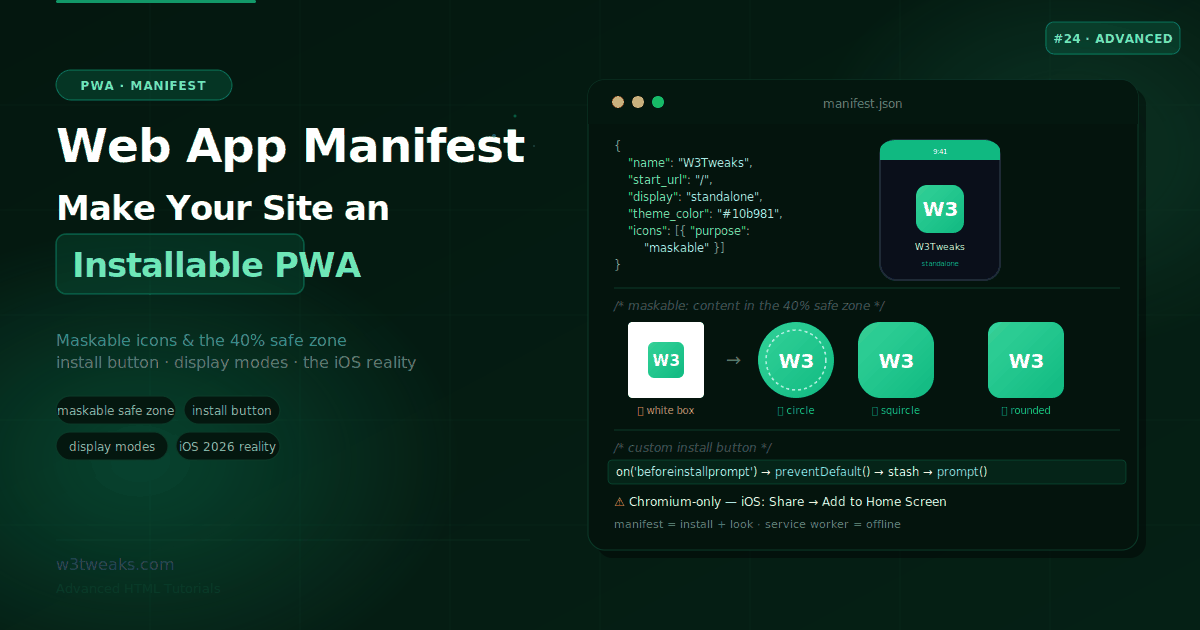
Watch out for the four things that quietly break real PWAs: an icon without purpose: "maskable" (Android frames your logo in an ugly white box), a start_url outside scope (rejected as invalid), no stable id member (an updated start_url later creates a duplicate install), and forgetting apple-touch-icon (iOS shows a blurry screenshot as your app icon).
→ Try it in the live demo — a manifest builder, install-experience preview, maskable safe-zone visualizer, beforeinstallprompt flow, and validator.
A web app manifest is a small JSON file that promotes your website to a first-class citizen of the operating system. With it, users can install your site to their home screen or taskbar, it launches in its own window with no browser chrome, it gets a real icon and a splash screen, and the OS treats it as an app for share targets and shortcuts. Without it, “Add to Home Screen” just makes a glorified bookmark.
The manifest is deceptively simple — a dozen JSON fields — but the details are where PWAs succeed or embarrass themselves. Ship an icon without a maskable variant and Android frames it in an ugly white box. Forget the apple-touch-icon and iOS shows a blurry screenshot as your app icon. Put start_url outside your scope and the whole manifest is rejected. And the iOS story today is genuinely different from Android in ways that will bite you if you build with an Android-only mindset.
This guide covers the manifest properly: the fields that make a site installable, maskable icons and the safe zone, display modes, a custom install button, the four OS-integration members that turn a browser tab into a real app (file_handlers, share_target, protocol_handlers, launch_handler), how to submit your PWA to Google Play via Bubblewrap and the Microsoft Store via PWABuilder, how to actually measure PWA installs in analytics, and the honest, current state of PWAs across Android, desktop, and iOS.
Related tutorials: Resource Hints · Meta Tags for SEO & Social · File System Access API
Live Demo
Five interactive sections: a manifest.json builder, an install-experience preview across display modes, a maskable-icon safe-zone visualizer, a custom install-button flow, and an installability validator.
What the Manifest Does (and Doesn’t)
The single most useful thing to understand up front is the division of labor between the two technologies behind a PWA:
| Technology | Responsible for |
|---|---|
| Web App Manifest | Installability + appearance: name, icon, colors, display mode, launch URL |
| Service Worker | Offline caching, background sync, push notifications |
They’re separate. The manifest makes your app installable and controls how it looks when installed; the service worker makes it work offline and handle push. A manifest alone won’t make your site work without a network, and a service worker alone won’t make it installable. Most “PWA isn’t working” confusion comes from blurring these two. This guide is about the manifest; offline behavior is the service worker’s job.
The manifest is a JSON file (conventionally manifest.json or site.webmanifest) linked from your HTML <head>:
<link rel="manifest" href="/manifest.json">It must be served with the application/manifest+json MIME type (the file extension itself doesn’t matter as long as the MIME type is right). Static hosts like Vercel, Netlify, Cloudflare Pages, and Fly.io serve the correct type automatically for .webmanifest; if you’re behind Nginx or a custom origin, add the MIME mapping yourself or the install prompt silently never fires.
The Required Fields for Installability
Chrome (and Chromium browsers) will only offer to install your PWA if the manifest has a specific minimum set of fields, plus HTTPS and — still, in practice — a service worker with a fetch handler. Miss any required field and the install prompt is silently suppressed.
{
  "name": "W3Tweaks Tutorials",
  "short_name": "W3Tweaks",
  "start_url": "/",
  "display": "standalone",
  "icons": [
    { "src": "/icons/icon-192.png", "sizes": "192x192", "type": "image/png" },
    { "src": "/icons/icon-512.png", "sizes": "512x512", "type": "image/png" }
  ]
}name— the full app name, shown on the install prompt and splash screenshort_name— the home-screen label; keep it near 12 characters so launchers don’t truncate itstart_url— the URL that loads when the app launches (often/or/?source=pwaso you can track PWA launches in analytics)display— the window mode (see below); must bestandalone,fullscreen, orminimal-uito count as app-likeicons— at minimum a 192×192 and a 512×512 PNG; these are the launcher and splash-screen icons
The full installability checklist: HTTPS (or localhost), a manifest with those fields, a service worker with a fetch handler, and enough user engagement for the browser’s heuristic. When all are met, Chrome fires beforeinstallprompt.
Display Modes
The display field controls how much (if any) browser UI shows when the app launches:
| Value | Appearance | Use for |
|---|---|---|
standalone | Own window, no address bar or tabs — but keeps OS chrome (status bar) | The default choice for most apps |
fullscreen | Takes over the entire screen, including the status bar | Games, video players, immersive media |
minimal-ui | Minimal browser UI (back/forward, a URL display) | When users need basic navigation controls |
browser | A normal browser tab — not treated as installed | Rarely; defeats the purpose |
standalone is what most users expect from an installed app and what you should use unless you have a specific reason. fullscreen falls back to standalone on desktop browsers that don’t support it.
display_override — advanced windowing
display accepts a single value with automatic fallback, but display_override lets you specify an ordered list of preferences, unlocking newer modes the basic display field can’t express:
{
  "display": "standalone",
  "display_override": ["window-controls-overlay", "standalone", "minimal-ui"]
}
The standout is window-controls-overlay: on desktop, it lets your app draw content into the title-bar area alongside the window controls, for a genuinely native-feeling desktop app. The browser walks the list in order and uses the first mode it supports, falling back to display if none match.
Icons and the Maskable Safe Zone
Icons are where most PWAs look amateurish, and it comes down to one concept: maskable icons.
Different platforms mask icons into different shapes — Android 12+ might render your icon as a circle, a squircle, or a rounded square depending on the device and launcher. A standard icon isn’t designed for that, so the launcher pads it, and you get your logo floating in an ugly white box. A maskable icon fixes this by keeping its important content inside a safe zone.
The safe zone geometry
The safe zone is a circle centered in the icon with a radius of 40% of the icon’s width — so the important content must fit within the central ~80% of the image, with the outer margin treated as bleed that can be cropped to any shape.
{
  "icons": [
    { "src": "/icons/icon-192.png", "sizes": "192x192", "type": "image/png", "purpose": "any" },
    { "src": "/icons/icon-512.png", "sizes": "512x512", "type": "image/png", "purpose": "any" },
    { "src": "/icons/maskable-512.png", "sizes": "512x512", "type": "image/png", "purpose": "maskable" }
  ]
}
The purpose field is the key:
any(default) — a standard icon, used as-ismaskable— designed with the safe zone, so the platform can crop it to any shape without clipping your logomonochrome— a single-color version for surfaces like notification badges
You can combine them ("purpose": "any maskable") if one image works for both, but a purpose-built maskable icon (with the extra padding) looks best. Verify your maskable icon on maskable.app, which previews it in every platform mask shape before you ship. For generating the whole icon set from a single source, PWA Asset Generator, Figma export plugins, and RealFaviconGenerator all cover the sizes Android, iOS, and Windows require in a single pass.
One more critical distinction: manifest icons are not your favicon. They only appear after the app is installed (home screen, app drawer, splash). Your browser tab, bookmarks, and Google results still use the favicon.ico/favicon.svg linked in your <head> — you need both sets.
Colors — theme_color and background_color
Two fields control the app’s color identity:
{
  "theme_color": "#10b981",
  "background_color": "#ffffff"
}theme_color— the OS accent for the app: the title-bar color on desktop, the status-bar tint on mobile. It can be overridden per-page with<meta name="theme-color">, including with media queries for dark mode.background_color— the placeholder color shown on the splash screen before your CSS loads, so the launch feels instant rather than flashing white. (Safari on iOS and most desktop browsers currently ignore this.)
start_url, scope, and id — Three Different URLs
These three related fields trip people up because they sound similar but do different jobs:
{
  "id": "/?app=w3tweaks",
  "start_url": "/?source=pwa",
  "scope": "/"
}start_url— where the app opens. The page loaded when the user launches the installed app.scope— what belongs to the app. URLs within scope open in the app window; links outside it open in a browser. Critically,start_urlmust be withinscopeor the browser rejects the manifest as invalid.id— the app’s stable identity. This is the newer, under-used one: the browser usesidto know whether an updated manifest is the same app. Without a stableid, changing yourstart_urlin a later release can make the browser think it’s a different app — creating a duplicate install instead of updating the existing one. Set a stableidonce and never change it.
A Custom Install Button with beforeinstallprompt
By default Chromium browsers show their own install UI when criteria are met. But you usually want your own button, shown at the right moment. That’s what the beforeinstallprompt event is for:
let deferredPrompt = null;

// 1. Chrome fires this when the PWA becomes installable
window.addEventListener('beforeinstallprompt', (e) => {
  e.preventDefault();          // stop the automatic mini-infobar
  deferredPrompt = e;          // stash the event for later
  installButton.hidden = false; // reveal your own button
});

// 2. When the user clicks YOUR button, show the prompt
installButton.addEventListener('click', async () => {
  if (!deferredPrompt) return;
  deferredPrompt.prompt();                    // must be in a user gesture
  const { outcome } = await deferredPrompt.userChoice;
  console.log(outcome);                        // 'accepted' or 'dismissed'
  deferredPrompt = null;                       // can only be used once
  installButton.hidden = true;
});

// 3. Confirm success
window.addEventListener('appinstalled', () => {
  console.log('PWA installed');
});
The pattern: preventDefault() to suppress the default mini-infobar, stash the event, and call .prompt() later from inside a user gesture (calling it outside one fails). Each captured event can be used once. You can also detect an already-installed app with the CSS media query matchMedia('(display-mode: standalone)').matches and hide the button then.
Note this event is Chromium-only. Firefox and — importantly — iOS Safari never fire it, so your install button strategy needs the platform awareness covered next.
Tracking PWA Installs in Analytics (The Part Nobody Documents)
Once your install button ships, product asks the obvious question: how many people actually install? The manifest gives you two signals — you have to wire them up yourself.
Signal 1 — Install-source attribution via start_url. Append a query param so every launch of the installed app is distinguishable from a normal Google visit:
{ "start_url": "/?source=pwa&utm_source=pwa" }Any launch of the installed app hits your site with ?source=pwa, which GA4, Mixpanel, Amplitude, PostHog, and Segment all bucket into their own channel automatically. You’ll typically see PWA sessions with 3–5× the session duration and much lower bounce rate than tab visits — good input for GA4 audiences and Google Ads remarketing.
Signal 2 — Install / uninstall / launch-mode as custom events. Instrument the three events the browser gives you:
// The user just accepted the install prompt
window.addEventListener('appinstalled', () => {
  gtag('event', 'pwa_install', { method: 'browser_prompt' });
});

// Detect if the current session IS the installed app
const isStandalone = matchMedia('(display-mode: standalone)').matches
  || navigator.standalone; // iOS Safari
if (isStandalone) {
  gtag('event', 'pwa_launched', { display_mode: 'standalone' });
}

// The user chose to install or dismiss — capture the outcome
deferredPrompt.userChoice.then(({ outcome }) => {
  gtag('event', 'pwa_prompt_' + outcome); // 'accepted' or 'dismissed'
});
Session-replay and RUM tools (Datadog RUM, Sentry Session Replay, LogRocket, FullStory) also expose display-mode as a session tag, which is invaluable when triaging bugs — a broken layout in standalone mode is often something you’d never repro in a browser tab. And for mobile-engagement platforms like Braze, Iterable, or Airship, tag installed-app users as a separate segment: they’re your highest-value cohort and worth a distinct push cadence.
The Four OS-Integration Members Nobody Talks About
The install prompt gets all the attention, but four other manifest members are what turn your PWA from a website that opens in its own window into an app the operating system integrates with. All four require an installed PWA to activate.
share_target — receive shares from other apps
Register your PWA as a destination in the Android and desktop share sheets. When the user shares a link, text, or file from any app, your PWA shows up alongside Twitter and WhatsApp:
{
  "share_target": {
    "action": "/share-handler/",
    "method": "POST",
    "enctype": "multipart/form-data",
    "params": {
      "title": "title",
      "text": "text",
      "url": "url",
      "files": [{ "name": "attachments", "accept": ["image/*", "application/pdf"] }]
    }
  }
}
Your /share-handler/ route receives a POST with a FormData body containing whatever the source app shared. This is a first-class Android integration — the same mechanism used by native apps like Notion, Pocket, or WhatsApp.
file_handlers — register as “Open with” for file types
Turn your PWA into the default handler for .md, .csv, .epub, or any MIME type. After install, users see your app in the OS “Open with” list.
{
  "file_handlers": [
    { "action": "/open", "accept": { "text/markdown": [".md", ".markdown"] } }
  ]
}
Pair it with the JS-side launchQueue to receive the actual file handle:
if ('launchQueue' in window) {
  launchQueue.setConsumer(async (params) => {
    for (const handle of params.files) {
      const file = await handle.getFile();
      const text = await file.text();
      openInEditor(text);
    }
  });
}
This pairs naturally with the File System Access API — the file handle you receive is the same FileSystemFileHandle you’d get from showOpenFilePicker, and you can save back to the same file with a single permission grant.
protocol_handlers — own a custom URI scheme
Register a scheme like web+task:// or a built-in one like mailto: (with prefix restrictions), so links from other apps open your PWA:
{
  "protocol_handlers": [
    { "protocol": "web+task", "url": "/handle?task=%s" }
  ]
}
Custom protocols must start with web+. When someone clicks a web+task://acme/123 link anywhere in the OS, your PWA opens at /handle?task=web%2Btask%3A%2F%2Facme%2F123 and can deep-link into the specific screen.
launch_handler — control what happens when the app is opened again
By default, launching an already-open PWA can either focus the existing window or open a new one, and browsers disagree. launch_handler makes it explicit:
{
  "launch_handler": { "client_mode": "navigate-existing" }
}
The four modes: auto (browser decides), navigate-new (always open a new window), navigate-existing (reuse the current window and navigate it), focus-existing (bring the window to front without changing the URL — the app handles the launch via the LaunchParams targetURL). focus-existing is what document-editor PWAs want: the existing tab keeps the user’s unsaved work, and the app decides whether to open a second document window itself.
shortcuts — long-press jump list
Long-press the installed icon and get a jump list, exactly like a native app:
{
  "shortcuts": [
    { "name": "New Note", "url": "/new", "icons": [{ "src": "/icons/new-96.png", "sizes": "96x96" }] },
    { "name": "Search", "url": "/search" }
  ]
}
Four shortcuts is usually the display cap; anything past that is quietly ignored by most launchers.
Shipping Your PWA to Google Play and the Microsoft Store
A PWA doesn’t have to live only on your domain — you can wrap the same install-ready site as a Trusted Web Activity (TWA) for Google Play or an appx/msix for the Microsoft Store, without rewriting a line of code. It’s the same manifest and the same service worker; the store package is a thin native shell that opens your PWA in a full-screen web view tied to your domain via Digital Asset Links.
Google Play — Bubblewrap. The Chrome team’s CLI generates a signed TWA APK/AAB directly from your manifest URL:
npx @bubblewrap/cli init --manifest="https://example.com/manifest.json"
npx @bubblewrap/cli build
Bubblewrap creates the Android project, writes the Digital Asset Links assetlinks.json you host at /.well-known/assetlinks.json (this is what tells Chrome to trust the TWA and hide the URL bar), signs the bundle, and gives you the .aab to upload to the Play Console.
Microsoft Store — PWABuilder. Paste your URL at pwabuilder.com; it audits the manifest, suggests fixes, and generates a signed .msixbundle you upload to Partner Center. It also generates Play Store packages, so PWABuilder is a decent single stop if you’d rather not touch the Android toolchain.
iOS via Capacitor. iOS has no first-party TWA equivalent, so if you need App Store presence, Capacitor (from the Ionic team) is the practical wrapper — it embeds a WKWebView and exposes native plugins, and works cleanly with any PWA-shaped codebase from Astro, Next.js, Nuxt, SvelteKit, or plain HTML.
Distributing this way earns you three things you can’t get from installability alone: store discoverability (browse/search inside the app stores), a paid-app option (Play and MS Store handle billing), and — critically for teams — MDM/enterprise deployment through Microsoft Intune, Google Workspace, or Jamf.
The Honest iOS Reality
iOS treats PWAs very differently from Android, and building with an Android mindset “will put you in a deep swamp.” Here’s the current, accurate picture:
- No install prompt. iOS never fires
beforeinstallprompt. Installation is manual: the user taps Share → Add to Home Screen. You often need to teach users this with a custom hint. apple-touch-iconis still required and overrides the manifest. WebKit uses the non-standard<link rel="apple-touch-icon" href="/icons/apple-180.png">(180×180) for the home-screen icon, and if present it overrides your manifesticons. Without it, iOS may show a blurry screenshot as the icon.
<link rel="apple-touch-icon" href="/icons/apple-touch-icon-180.png">
<meta name="apple-mobile-web-app-capable" content="yes">
<meta name="apple-mobile-web-app-title" content="W3Tweaks">- The basics do work. Add to Home Screen, standalone launch (no Safari UI),
start_url,scope, icons, and service-worker caching all function. As of iOS 26, home-screen sites open as web apps by default even without a manifest. - Web Push works — but only for installed apps. Since iOS 16.4, a home-screen-installed PWA (with
display: standalone) can receive Web Push; an open Safari tab cannot. Safari 18.4 added Declarative Web Push, a simpler mechanism that doesn’t require a service worker, plus the Badging API for icon counts. Push-as-a-service platforms — OneSignal, PushEngage, Firebase Cloud Messaging, Notix, Airship — all now support this iOS path alongside their existing Android/desktop VAPID flow. - The EU exception. Under the Digital Markets Act, Apple removed standalone PWA support in the EU (iOS 17.4+) — EU PWAs open in Safari tabs without push. This is a real, region-specific gotcha.
The practical takeaway: build the full manifest for Android and desktop, always add the apple-touch-icon and Apple meta tags for iOS, show iOS users a manual “Add to Home Screen” hint instead of an install button, and treat push as installed-only.
Advanced Members Worth Knowing
Once the basics work, a few more optional members meaningfully improve the installed experience:
{
  "description": "Advanced front-end tutorials with live demos.",
  "categories": ["education", "developer"],
  "screenshots": [
    { "src": "/screenshots/wide.png", "sizes": "1280x720", "type": "image/png", "form_factor": "wide" },
    { "src": "/screenshots/narrow.png", "sizes": "720x1280", "type": "image/png", "form_factor": "narrow" }
  ]
}screenshots(withform_factor: "wide"/"narrow") unlock a richer, app-store-like install dialog on Chrome — increasingly expected for the enhanced prompt, and reused as store screenshots by Bubblewrap and PWABuilderdescriptionandcategoriesprovide context for the install UI and for packaging into app storesiarc_rating_idis required for app-store submissions to declare a content rating- WordPress and headless CMS setups have this covered too — Superpwa and RankMath (WordPress), and Sanity or Contentful with a small integration, all generate a valid manifest and register the service worker without hand-writing JSON. Yoast doesn’t ship PWA support itself but plays nicely alongside Superpwa. For Shopify, BigCommerce, and WooCommerce storefronts, PWA themes and headless setups via Hydrogen or Frontity are the common paths to installability, and studies consistently show PWA storefronts convert better on repeat mobile sessions than standard responsive sites — the reason the ecommerce vertical dominates enterprise PWA adoption
Testing Your Manifest
A key recent change: Lighthouse’s dedicated PWA audits are deprecated, so don’t rely on the old “PWA” score. Test the manifest directly:
- Chrome DevTools → Application → Manifest — shows parsed fields, icon previews, and installability errors (missing fields, unreachable icons,
start_urloutside scope) - DevTools → Application → Manifest → “Add to home screen” — trigger the install flow manually to verify it works
- PWABuilder at pwabuilder.com — audits your manifest against store-submission requirements and flags gaps
- maskable.app — preview your maskable icon in every platform mask shape
- The
application/manifest+jsonMIME type — confirm your server sends it (a common silent failure)
Watch for the classic rejections: a missing 192 or 512 icon, an unreachable icon URL, start_url outside scope, or the wrong MIME type — each silently blocks the install prompt with no visible error on the page.
Key Takeaways
- The web app manifest handles installability and appearance (name, icons, colors, display, launch URL); the service worker handles offline caching and push — they’re separate, and a manifest alone won’t make your app work offline
- The manifest is a JSON file linked via
<link rel="manifest">and must be served with theapplication/manifest+jsonMIME type; the file extension itself doesn’t matter - Installability requires HTTPS, a manifest with
name,short_name,start_url,display, and 192+512icons, plus a service worker with a fetch handler and enough user engagement — miss any required field and the prompt is silently suppressed - Use
display: standalonefor most apps (own window, no browser chrome);fullscreenfor immersive media; anddisplay_overridefor advanced modes likewindow-controls-overlaythat draw into the desktop title bar - Provide a maskable icon (
purpose: "maskable") with content inside the safe zone — a circle of radius 40% of the icon width — or adaptive-icon platforms frame your logo in an ugly white box; verify on maskable.app - Manifest icons are not your favicon: they only appear after install (home screen, app drawer, splash), while the tab and search results still use the
faviconin your<head>— you need both start_urlis where the app opens,scopeis which URLs belong to the app (andstart_urlmust be inside it), andidis the app’s stable identity — set a stableidso a laterstart_urlchange doesn’t create a duplicate install- Build a custom install button with
beforeinstallprompt: callpreventDefault(), stash the event, and call.prompt()from a user gesture; it’s Chromium-only, so Firefox and iOS never fire it - Track PWA sessions distinctly: add
?source=pwatostart_url, listen forappinstalled, and detect installed launches withmatchMedia('(display-mode: standalone)')— send all three to GA4, Mixpanel, PostHog, or your RUM of choice - Four members turn a PWA into a real OS citizen:
share_target(receive shares),file_handlers+launchQueue(be an “Open with” target),protocol_handlers(ownweb+task://-style URIs), andlaunch_handler(control focus-vs-new-window on subsequent launches) - Ship the same PWA into stores without a rewrite: Bubblewrap wraps it as a Google Play TWA (with
assetlinks.jsonat/.well-known/), PWABuilder builds the Microsoft Store MSIX, and Capacitor gives you a WKWebView shell for iOS App Store - iOS is genuinely different: no install prompt (manual Add to Home Screen),
apple-touch-iconis still required and overrides manifest icons, Web Push works only for installed apps since iOS 16.4 (with Declarative Web Push in Safari 18.4), and the EU/DMA removed standalone PWA support - Test with Chrome DevTools → Application → Manifest and PWABuilder (not Lighthouse, whose PWA audits are deprecated), and add
screenshots,shortcuts, andshare_targetto enrich the installed experience
FAQ
What fields are required in a web app manifest?
For a PWA to be installable in Chromium browsers, the manifest needs name, short_name, start_url, display (set to standalone, fullscreen, or minimal-ui), and icons including at least a 192×192 and a 512×512 PNG. Beyond the manifest itself, installability also requires the site to be served over HTTPS (or localhost), have a registered service worker with a fetch handler, and meet the browser’s user-engagement heuristic. If any required manifest field is missing or an icon URL is unreachable, the install prompt is silently suppressed with no visible error, so validate in Chrome DevTools under Application → Manifest.
What is a maskable icon and why do I need one?
A maskable icon is an app icon designed so platforms can crop it into different shapes — circle, squircle, rounded square — without clipping your logo. Adaptive-icon platforms like Android 12+ mask icons to match the device’s shape, and a standard icon that isn’t built for this ends up floating in an ugly white box. A maskable icon keeps its important content inside a safe zone: a circle centered in the icon with a radius of 40% of the icon’s width, meaning the logo must fit within the central ~80%. Declare it with "purpose": "maskable" and verify it in every mask shape on maskable.app before shipping.
Why isn’t my PWA install prompt showing?
The most common causes are a failed installability requirement: not served over HTTPS, a missing required manifest field (name, start_url, display, or the 192/512 icons), an unreachable icon URL, a start_url that falls outside your scope, no registered service worker with a fetch handler, or the manifest not served with the application/manifest+json MIME type. Any of these silently blocks Chrome’s beforeinstallprompt event. Check Chrome DevTools → Application → Manifest, which lists the specific installability errors. Also note the event is Chromium-only — Firefox and iOS Safari never fire it, so no custom install button will appear there.
Do PWAs work on iPhone and iOS today?
Yes, with real limitations. On iOS the basics work: users add a site via Share → Add to Home Screen, it launches in standalone mode without Safari UI, and start_url, scope, icons, and service-worker caching function. But iOS never fires an install prompt (installation is manual), the apple-touch-icon link is still required and overrides your manifest icons, and Web Push works only for home-screen-installed apps since iOS 16.4 — with Safari 18.4 adding Declarative Web Push that needs no service worker. As of iOS 26, home-screen sites open as web apps even without a manifest. One region-specific catch: under the EU’s Digital Markets Act, Apple removed standalone PWA support in the EU, so EU PWAs open in Safari tabs.
What is the difference between start_url, scope, and id in a manifest?
They’re three related but distinct URLs. start_url is where the app opens when launched — often / or /?source=pwa to track launches. scope defines which URLs belong to the app: links within scope open in the app window, links outside open in a browser, and start_url must be within scope or the manifest is rejected. id is the app’s stable identity — the browser uses it to recognize whether an updated manifest is the same app. Without a stable id, changing start_url in a later release can make the browser treat it as a new app and create a duplicate install, so set id once and keep it constant.
Do I still need a service worker for a PWA?
For installability in Chromium browsers, yes — in practice you still need a registered service worker with a fetch handler for the install prompt to appear, alongside the manifest and HTTPS. But it’s important to understand the division of labor: the manifest handles installability and appearance, while the service worker handles offline caching, background sync, and push notifications. The manifest alone makes your app installable and controls how it looks, but it won’t make your app work offline — that’s entirely the service worker’s job. On iOS, Safari 18.4’s Declarative Web Push is a notable exception that enables push without a service worker.
How do I publish my PWA to the Google Play Store?
Use Bubblewrap, the Chrome team’s CLI that wraps a PWA as a Trusted Web Activity (TWA) — a signed Android package pointing at your live site. Run npx @bubblewrap/cli init --manifest="https://yoursite.com/manifest.json" and then bubblewrap build to generate the signed .aab you upload to the Play Console. Host the generated assetlinks.json at /.well-known/assetlinks.json so Chrome verifies the domain ownership and hides the URL bar. PWABuilder at pwabuilder.com is an alternative that generates both Play Store and Microsoft Store packages from a single URL — useful if you’d rather not touch the Android toolchain directly.
How do I track PWA installs in analytics?
Two signals combined. First, append ?source=pwa (and a utm_source) to your start_url so every launch of the installed app is distinguishable from tab visits — GA4, Mixpanel, Amplitude, PostHog, and Segment all bucket those into their own channel automatically. Second, instrument three custom events: appinstalled when a user completes install, the outcome of deferredPrompt.userChoice (accepted or dismissed), and a pwa_launched event fired when matchMedia('(display-mode: standalone)').matches is true. Together they answer install-prompt conversion rate, install source, and installed-vs-tab engagement — the metrics product actually asks for.
What does the share_target manifest field do?
share_target registers your installed PWA as a share destination in the OS share sheet, so when a user shares a link, text, or file from another app your PWA appears alongside Twitter or WhatsApp. Declare the endpoint URL, the HTTP method (GET or POST), and the parameters — title, text, url, and optionally files with accepted MIME types. Your handler route receives the shared payload as query params (GET) or FormData (POST) and can process it however it likes. It’s a first-class integration equivalent to what native Android apps register, and it’s the mechanism apps like Pocket, Notion, and to-do PWAs use to become “save-to” targets across the whole OS.