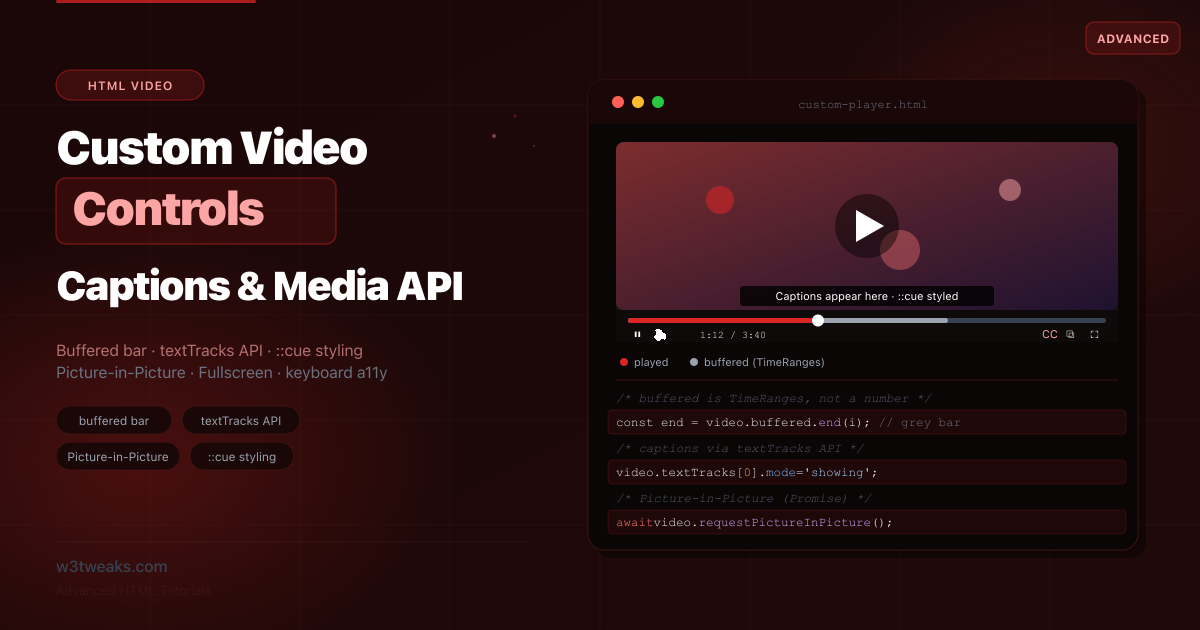
The <video> element gives you a working player with one attribute: controls. The moment you want your own UI — a branded progress bar, a captions button, a playback-speed menu — you drop the controls attribute and rebuild everything with JavaScript and the HTMLMediaElement API.
Most tutorials get you to a play/pause button and a progress bar that tracks currentTime. Then they stop, right before the parts that are actually hard. The buffered-progress bar (the grey “loaded” region) isn’t a number — it’s a TimeRanges object. Captions aren’t just a <track> tag — toggling them means the textTracks API and its three modes. The Media Session API is what makes Bluetooth headphone play/pause actually work. The playsinline attribute is what stops iOS Safari hijacking your custom player into native fullscreen. The autoplay policy API tells you whether .play() will be allowed before you call it. And almost nobody covers MediaCapabilities or requestVideoFrameCallback — the APIs for codec gating and frame-accurate processing.
This guide builds a complete, accessible custom player and covers every one of those pieces.
Related tutorials: Native Lazy Loading · Responsive Images · Accessible Forms
Live Demo
Five interactive sections: Media API event explorer (all 9 events fire live), a complete custom controls player, the buffered-vs-played progress bar, captions textTracks API with ::cue styling, and Picture-in-Picture plus Fullscreen.
The Markup Foundation
<video id="video"
       preload="metadata"
       poster="poster.jpg"
       width="800" height="450"
       playsinline
       crossorigin="anonymous">
  <!-- Multiple sources: browser picks the first it supports -->
  <source src="video.av1.mp4"  type="video/mp4; codecs=av01.0.05M.08">
  <source src="video.webm"     type="video/webm">
  <source src="video.mp4"      type="video/mp4">

  <!-- Captions track -->
  <track kind="captions"  src="captions-en.vtt" srclang="en" label="English" default>
  <track kind="subtitles" src="subs-es.vtt"     srclang="es" label="Español">

  <!-- Fallback for very old browsers -->
  <p>Your browser doesn't support HTML5 video.
     <a href="video.mp4">Download the video</a>.</p>
</video>
Key attribute choices:
preload="metadata"loads only metadata (duration, dimensions) on page load. Usepreload="none"to load nothing until play, orpreload="auto"for instant playback.postershows a placeholder before playback — prevents a blank black box and reserves layout space.crossorigin="anonymous"is required for cross-origin captions or video when reading cues via JavaScript.width/heightreserve layout space and prevent Cumulative Layout Shift.playsinlineis the iOS Safari fix below — without it your custom player breaks on iPhone.
To build custom controls, remove the controls attribute — that hides the browser’s default UI so yours can take over.
playsinline iOS — The Bug That Breaks Every Custom Player
Always set playsinline on iOS — without it Safari yanks your video to its native full-screen player the moment .play() fires, dumping your custom UI. This is the single most-reported “my custom player doesn’t work on iPhone” bug:
<!-- ❌ Without playsinline → iOS Safari opens its own fullscreen player -->
<video src="video.mp4"></video>

<!-- ✅ With playsinline → video stays inline; your custom UI works -->
<video src="video.mp4" playsinline webkit-playsinline></video>
The webkit-playsinline legacy attribute covers iOS Safari before iOS 10. Modern iOS only needs playsinline.
HTML5 Video JavaScript API — HTMLMediaElement Properties, Methods, Events
Every custom control reads or writes the media element. The HTML5 video JavaScript API is the HTMLMediaElement interface:
Properties
const video = document.getElementById('video');

video.currentTime    // Current playback position in seconds (read/write — set it to seek)
video.duration       // Total length in seconds (read-only, NaN until metadata loads)
video.paused         // true if paused (read-only)
video.ended          // true if playback reached the end
video.volume         // 0.0 to 1.0 (read/write)
video.muted          // true/false (read/write)
video.playbackRate   // 1.0 = normal, 0.5 = half, 2.0 = double (read/write)
video.buffered       // TimeRanges object of buffered regions (read-only)
video.readyState     // 0-4, how much is loaded (HAVE_NOTHING … HAVE_ENOUGH_DATA)
video.videoWidth     // Intrinsic pixel width (read-only)
video.error          // MediaError object if playback failed (null otherwise)
Methods
video.play();         // Returns a Promise — handle rejection for autoplay policies
video.pause();
video.load();         // Reload the media (after changing <source>)
video.fastSeek(t);    // Seek to an approximate keyframe (faster than currentTime = t)
video.requestPictureInPicture();    // Enter PiP (returns a Promise)
video.requestFullscreen();          // Enter fullscreen (returns a Promise)
Essential events
video.addEventListener('loadedmetadata', () => {}); // duration & dimensions known
video.addEventListener('timeupdate',     () => {}); // fires ~4x/sec during playback
video.addEventListener('play',           () => {}); // playback started
video.addEventListener('pause',          () => {}); // playback paused
video.addEventListener('ended',          () => {}); // reached the end
video.addEventListener('progress',       () => {}); // more data buffered
video.addEventListener('waiting',        () => {}); // playback stalled (buffering)
video.addEventListener('canplay',        () => {}); // enough buffered to start
video.addEventListener('volumechange',   () => {}); // volume or muted changed
video.addEventListener('ratechange',     () => {}); // playbackRate changed
video.addEventListener('error',          () => {}); // see MediaError section
video.play returns Promise — Autoplay Policy Handling
Since Chrome 50, video.play() returns a Promise — handle the rejection to detect blocked autoplay gracefully. Browser autoplay policies reject unmuted playback before a user gesture:
const playPromise = video.play();
if (playPromise !== undefined) {
  playPromise.catch(error => {
    if (error.name === 'NotAllowedError') {
      // Autoplay blocked — fall back to muted autoplay, then show unmute prompt
      video.muted = true;
      video.play();
      showUnmutePrompt();
    }
  });
}
Querying Autoplay Policy Before Calling play()
The new navigator.getAutoplayPolicy() API (Firefox 110+, Chromium 131+) lets you check policy BEFORE attempting play:
if ('getAutoplayPolicy' in navigator) {
  const policy = navigator.getAutoplayPolicy('mediaelement');
  // 'allowed'        → unmuted autoplay will work
  // 'allowed-muted'  → only muted autoplay will work
  // 'disallowed'     → no autoplay; require user gesture
  if (policy === 'allowed-muted') video.muted = true;
  if (policy === 'disallowed') showPlayButton();
}
MediaError Handling — video.error.code
Production-grade gap: most tutorials skip the error event. When something goes wrong, video.error.code tells you what:
video.addEventListener('error', () => {
  const err = video.error;
  if (!err) return;
  switch (err.code) {
    case 1: showMessage('Playback aborted by the user.'); break;            // MEDIA_ERR_ABORTED
    case 2: showMessage('Network error — check connection.'); break;        // MEDIA_ERR_NETWORK
    case 3: showMessage('Video data is corrupted.'); break;                 // MEDIA_ERR_DECODE
    case 4: showMessage('This format is not supported.'); break;            // MEDIA_ERR_SRC_NOT_SUPPORTED
  }
  console.error('MediaError:', err.code, err.message);
});
The 4 codes are global constants: MediaError.MEDIA_ERR_ABORTED, MEDIA_ERR_NETWORK, MEDIA_ERR_DECODE, MEDIA_ERR_SRC_NOT_SUPPORTED. Code 4 fires when all <source> elements fail — typically a codec the browser can’t decode.
Play / Pause and Time Display
const playBtn = document.getElementById('play-btn');
const timeDisplay = document.getElementById('time-display');

playBtn.addEventListener('click', togglePlay);
video.addEventListener('click', togglePlay);

function togglePlay() {
  if (video.paused) video.play();
  else video.pause();
}

// Sync the button to actual playback state (covers all play/pause sources)
video.addEventListener('play', () => {
  playBtn.textContent = '⏸';
  playBtn.setAttribute('aria-label', 'Pause');
});
video.addEventListener('pause', () => {
  playBtn.textContent = '▶';
  playBtn.setAttribute('aria-label', 'Play');
});

video.addEventListener('timeupdate', () => {
  timeDisplay.textContent = `${formatTime(video.currentTime)} / ${formatTime(video.duration)}`;
});

function formatTime(seconds) {
  if (isNaN(seconds)) return '0:00';
  const m = Math.floor(seconds / 60);
  const s = Math.floor(seconds % 60).toString().padStart(2, '0');
  return `${m}:${s}`;
}
Sync to the events, not the click — playback can start or stop from keyboard, video ending, Picture-in-Picture controls, Media Session API hardware keys.
HTML5 Video Buffered Progress Bar — TimeRanges, Not a Number
The part most tutorials skip. A real progress bar shows three things: the played region, the buffered region (the “you can seek here without waiting” indicator), and the playhead.
video.buffered is not a number — it’s a TimeRanges object describing one or more buffered ranges (there can be gaps if the user seeks around).
video.buffered.length        // number of buffered ranges
video.buffered.start(0)      // start time of first range
video.buffered.end(0)        // end time of first range

function getBufferedEnd() {
  if (video.buffered.length === 0) return 0;
  // Find the range that contains the current time
  for (let i = 0; i < video.buffered.length; i++) {
    if (video.buffered.start(i) <= video.currentTime &&
        video.currentTime <= video.buffered.end(i)) {
      return video.buffered.end(i);
    }
  }
  return video.buffered.end(video.buffered.length - 1);
}<div class="progress" id="progress" role="slider"
aria-label="Seek slider" tabindex="0"
aria-valuemin="0" aria-valuemax="100" aria-valuenow="0">
<div class="progress-buffered" id="progress-buffered"></div>
<div class="progress-played" id="progress-played"></div>
<div class="progress-handle" id="progress-handle"></div>
</div>const progress = document.getElementById('progress');
const progressPlayed = document.getElementById('progress-played');
const progressBuffered = document.getElementById('progress-buffered');
video.addEventListener('timeupdate', () => {
const pct = (video.currentTime / video.duration) * 100 || 0;
progressPlayed.style.width = `${pct}%`;
progress.setAttribute('aria-valuenow', Math.round(pct));
});
video.addEventListener('progress', () => {
if (video.buffered.length === 0 || !video.duration) return;
const bufferedEnd = getBufferedEnd();
progressBuffered.style.width = `${(bufferedEnd / video.duration) * 100}%`;
});
progress.addEventListener('click', (e) => {
const rect = progress.getBoundingClientRect();
video.currentTime = ((e.clientX - rect.left) / rect.width) * video.duration;
});.progress {
position: relative; height: 6px; background: #4b5563;
border-radius: 3px; cursor: pointer;
}
.progress-buffered {
position: absolute; left: 0; top: 0; height: 100%;
background: #9ca3af; border-radius: 3px; width: 0; /* grey: loaded */
}
.progress-played {
position: absolute; left: 0; top: 0; height: 100%;
background: #dc2626; border-radius: 3px; width: 0; /* red: watched */
z-index: 1;
}HTML5 Video textTracks API — Caption Toggle with showing/hidden/disabled
A <track> element adds captions, but default only sets the initial state. To build a captions toggle, control the track through the HTML5 video textTracks API.
The three track modes
const video = document.getElementById('video');
const track = video.textTracks[0];

track.mode = 'showing';   // Visible and active
track.mode = 'hidden';    // Active (cuechange fires) but not displayed
track.mode = 'disabled';  // Inactive — no display, no cue events
The distinction: hidden still fires cuechange events (useful for a custom caption display or transcript), while disabled turns the track off entirely. For a simple show/hide toggle, switch between showing and hidden.
The captions toggle button
const captionsBtn = document.getElementById('captions-btn');

video.addEventListener('loadedmetadata', () => {
  const track = video.textTracks[0];
  if (!track) { captionsBtn.hidden = true; return; }
  track.mode = 'hidden'; // Start hidden — our UI controls it
});

captionsBtn.addEventListener('click', () => {
  const track = video.textTracks[0];
  if (!track) return;
  const showing = track.mode === 'showing';
  track.mode = showing ? 'hidden' : 'showing';
  captionsBtn.setAttribute('aria-label', showing ? 'Captions off' : 'Captions on');
  captionsBtn.setAttribute('aria-pressed', !showing);
});
Building a custom caption display with cuechange
For full styling control beyond ::cue, keep the track hidden and listen for cuechange:
const captionDisplay = document.getElementById('caption-display');
const track = video.textTracks[0];
track.mode = 'hidden';

track.addEventListener('cuechange', () => {
  const cue = track.activeCues[0];
  captionDisplay.textContent = cue ? cue.text : '';
});
WebVTT Captions Example — File Format and Cue Settings
Here’s a complete WebVTT captions example with cue settings for line, position and align:
WEBVTT

1
00:00:00.000 --> 00:00:04.000
Welcome to this tutorial.

2
00:00:04.500 --> 00:00:08.000 line:90% align:center
This caption is positioned near the bottom, centered.

3
00:00:08.500 --> 00:00:12.000 position:20% align:start
This one sits toward the left.| Setting | Effect |
|---|---|
line:90% | Vertical position (0% top, 100% bottom) |
position:20% | Horizontal position |
align:start / center / end | Text alignment within the cue box |
size:50% | Width of the cue box |
vertical:rl | Vertical text (for languages like Japanese) |
kind values on the <track> element
<track kind="captions"     ...>  <!-- Dialogue + sound effects (for deaf/HoH) -->
<track kind="subtitles"    ...>  <!-- Dialogue translation (assumes you can hear) -->
<track kind="descriptions" ...>  <!-- Audio descriptions of visuals (for blind users) -->
<track kind="chapters"     ...>  <!-- Chapter navigation markers -->
<track kind="metadata"     ...>  <!-- Data for scripts, not displayed -->
captions vs subtitles: captions include non-speech audio ([door creaks]) for viewers who can’t hear; subtitles assume you can hear and only translate dialogue.
CSS ::cue Styling — The Limited Property Set
CSS ::cue styling lets you restyle caption text — but only a limited property set (color, background, font, opacity) applies:
/* Style all cues for this video */
#video::cue {
  background: rgba(0, 0, 0, 0.8);
  color: #fff;
  font-size: 1.1em;
  font-family: system-ui, sans-serif;
  line-height: 1.4;
}

/* Style cues containing a specific WebVTT class */
#video::cue(.loud) {
  font-weight: bold;
  color: #fbbf24;
}
::cue accepts: color, background/background-color, font properties, text-shadow, text-decoration, opacity, visibility, white-space, outline. Layout properties (margin, padding, position) are NOT allowed — those come from WebVTT cue settings instead.
Add classes to cue text in the WebVTT file:
WEBVTT

1
00:00:00.000 --> 00:00:04.000
This is normal. <c.loud>THIS IS EMPHASIZED.</c>
Volume, Mute, and Playback Speed
const muteBtn = document.getElementById('mute-btn');
const volume  = document.getElementById('volume');
const speed   = document.getElementById('speed');

volume.addEventListener('input', () => {
  video.volume = volume.value;
  video.muted = volume.value === '0';
});

muteBtn.addEventListener('click', () => {
  video.muted = !video.muted;
});

video.addEventListener('volumechange', () => {
  volume.value = video.muted ? 0 : video.volume;
  muteBtn.textContent = video.muted || video.volume === 0 ? '🔇' : '🔊';
});

speed.addEventListener('change', () => {
  video.playbackRate = parseFloat(speed.value);
});
HTML5 Video Fullscreen API — Safari Quirks
The HTML5 video Fullscreen API differs across browsers — Safari needs webkitRequestFullscreen and iOS uses webkitEnterFullscreen on the video itself:
const container = document.getElementById('video-container');
const fsBtn     = document.getElementById('fullscreen-btn');

fsBtn.addEventListener('click', toggleFullscreen);

function toggleFullscreen() {
  if (document.fullscreenElement || document.webkitFullscreenElement) {
    if (document.exitFullscreen) document.exitFullscreen();
    else if (document.webkitExitFullscreen) document.webkitExitFullscreen();
  } else {
    // Fullscreen the CONTAINER so controls stay visible
    if (container.requestFullscreen) container.requestFullscreen();
    else if (container.webkitRequestFullscreen) container.webkitRequestFullscreen();
    else if (video.webkitEnterFullscreen) video.webkitEnterFullscreen(); // iOS Safari
  }
}

document.addEventListener('fullscreenchange', updateFsButton);
document.addEventListener('webkitfullscreenchange', updateFsButton);
Two key points:
- Fullscreen the container, not the
<video>— if you fullscreen the video element directly, your custom controls disappear. Fullscreen the wrapping container so your controls go with it. - iOS Safari uses
video.webkitEnterFullscreen()— a video-element-only method that triggers the native iOS fullscreen player. It doesn’t support the container approach.
Picture in Picture JavaScript API — requestPictureInPicture()
Add Picture-in-Picture JavaScript support with video.requestPictureInPicture() and the enter/leave PiP events:
const pipBtn = document.getElementById('pip-btn');

if (!document.pictureInPictureEnabled) {
  pipBtn.hidden = true;
}

pipBtn.addEventListener('click', async () => {
  try {
    if (document.pictureInPictureElement) {
      await document.exitPictureInPicture();
    } else {
      await video.requestPictureInPicture();
    }
  } catch (error) {
    console.error('PiP failed:', error);
  }
});

video.addEventListener('enterpictureinpicture', () => pipBtn.classList.add('active'));
video.addEventListener('leavepictureinpicture', () => pipBtn.classList.remove('active'));
PiP is Promise-based — always await and wrap in try/catch.
Media Session API JavaScript — Lock-Screen Controls & Hardware Keys
The biggest gap nobody covers. The Media Session API JavaScript bindings expose lock-screen artwork, Bluetooth headphone controls, Android/iOS notification metadata, and Windows SMTC integration:
if ('mediaSession' in navigator) {
  // Metadata shown on lock screen + notification + SMTC
  navigator.mediaSession.metadata = new MediaMetadata({
    title:  'How HTML5 Video Works',
    artist: 'W3Tweaks',
    album:  'Web Dev Tutorials',
    artwork: [
      { src: '/cover-96.png',  sizes: '96x96',   type: 'image/png' },
      { src: '/cover-256.png', sizes: '256x256', type: 'image/png' },
      { src: '/cover-512.png', sizes: '512x512', type: 'image/png' },
    ],
  });

  // Action handlers — wire up hardware keys, Bluetooth headphones, lock-screen buttons
  navigator.mediaSession.setActionHandler('play',          () => video.play());
  navigator.mediaSession.setActionHandler('pause',         () => video.pause());
  navigator.mediaSession.setActionHandler('seekbackward',  (e) => video.currentTime -= (e.seekOffset || 10));
  navigator.mediaSession.setActionHandler('seekforward',   (e) => video.currentTime += (e.seekOffset || 10));
  navigator.mediaSession.setActionHandler('previoustrack', () => playPrevious());
  navigator.mediaSession.setActionHandler('nexttrack',     () => playNext());

  // Keep playback state synced — affects the OS-level play/pause icon
  video.addEventListener('play',  () => navigator.mediaSession.playbackState = 'playing');
  video.addEventListener('pause', () => navigator.mediaSession.playbackState = 'paused');

  // Position state for scrubbing from the OS UI
  video.addEventListener('timeupdate', () => {
    navigator.mediaSession.setPositionState({
      duration:     video.duration || 0,
      playbackRate: video.playbackRate,
      position:     video.currentTime,
    });
  });
}
Without this, Bluetooth headphone play/pause buttons do nothing on your custom player. Native YouTube/Netflix/Spotify all use this — your player should too.
Beyond MP4 — Adaptive Streaming today (HLS, DASH, MSE)
For real-world video at scale, single-file MP4 doesn’t cut it — you need adaptive bitrate (ABR) streaming that switches quality based on bandwidth. Three options:
import Hls from 'hls.js';

const src = 'https://example.com/master.m3u8';

if (Hls.isSupported()) {
  // Chrome, Firefox, Edge — use hls.js shim over MediaSource Extensions
  const hls = new Hls();
  hls.loadSource(src);
  hls.attachMedia(video);
} else if (video.canPlayType('application/vnd.apple.mpegurl')) {
  // Safari (desktop + iOS) — native HLS support
  video.src = src;
}- HLS (HTTP Live Streaming) — Apple’s standard. Native in Safari. Use
hls.jseverywhere else. - DASH (MPEG-DASH) — the open standard. Needs
dash.js. Better adaptive logic, no native browser support. - MSE (MediaSource Extensions) — the underlying primitive. Both
hls.jsanddash.jsuse it.
The underlying container format is increasingly CMAF (fragmented MP4) — works for both HLS and DASH from the same files.
AV1 vs VP9 vs H.264 — Codec Selection
Use multiple <source> elements with the type attribute (including codec strings) for codec selection, and the media attribute for responsive sources:
| Codec | Container | Browser support | File size vs H.264 | Hardware decode |
|---|---|---|---|---|
| AV1 | .mp4 / .webm | Chrome 90+, Firefox 67+, Safari 17+ | -30% | iPhone 15+, M3 Macs, modern Intel/AMD |
| VP9 | .webm / .mp4 | All evergreens | -20% | Most devices since 2019 |
| H.264 | .mp4 | Everything (universal) | baseline | Universal |
| HEVC/H.265 | .mp4 | Safari, Edge | -25% | Patent-encumbered — avoid for web |
<video controls playsinline>
  <!-- Best codec first — browsers pick the first they can play -->
  <source src="hero.av1.mp4"  type='video/mp4; codecs="av01.0.05M.08"'>
  <source src="hero.vp9.webm" type='video/webm; codecs="vp09.00.50.08"'>
  <source src="hero.h264.mp4" type="video/mp4">
</video>

<!-- Use the `media` attribute for responsive source selection -->
<video controls playsinline>
  <source src="mobile.mp4"  media="(max-width: 600px)" type="video/mp4">
  <source src="desktop.mp4" media="(min-width: 601px)" type="video/mp4">
</video>
There’s no srcset for <video> — use multiple <source> with type and media instead.
MediaCapabilities — Query Codec Support Before Loading
Don’t trust canPlayType() alone — it returns “maybe” for ambiguous cases. MediaCapabilities tells you whether playback will be smooth and power-efficient:
const info = await navigator.mediaCapabilities.decodingInfo({
  type: 'file',
  video: {
    contentType: 'video/mp4; codecs="av01.0.05M.08"',
    width: 1920,
    height: 1080,
    bitrate: 4_000_000,
    framerate: 30,
  },
});

console.log(info);
// { supported: true, smooth: true, powerEfficient: true }
If powerEfficient: false, the codec works but uses the CPU instead of the GPU — battery drain. Fall back to a hardware-decoded option for mobile.
requestVideoFrameCallback — Frame-Accurate Processing
timeupdate fires at ~4 Hz — useless for frame-accurate work. video.requestVideoFrameCallback fires once per painted frame with frame metadata:
function onFrame(now, metadata) {
  // metadata: { presentationTime, expectedDisplayTime, width, height,
  //             mediaTime, presentedFrames, processingDuration }
  drawCanvasOverlay(metadata.mediaTime);
  video.requestVideoFrameCallback(onFrame);
}
video.requestVideoFrameCallback(onFrame);
Use for canvas pipelines, WebGL effects, frame-accurate captions, and anything that needs sync with the video’s actual display rate (24/30/60 fps).
Performance — Preload, Lazy Loading & Bandwidth
The preload attribute controls initial bandwidth use:
| Value | When to use |
|---|---|
preload="none" | Below-fold video; only load when user hits play |
preload="metadata" | Default for most pages — duration + poster only, ~50KB |
preload="auto" | Above-fold hero video where instant play matters more than bandwidth |
loading="lazy" is NOT supported on <video> yet (common misconception). For lazy-loaded autoplay-when-in-view, use IntersectionObserver:
const videos = document.querySelectorAll('video[data-autoplay-on-view]');

const io = new IntersectionObserver((entries) => {
  entries.forEach(entry => {
    if (entry.isIntersecting) entry.target.play();
    else                      entry.target.pause();
  });
}, { threshold: 0.5 });

videos.forEach(v => io.observe(v));
The data-autoplay-on-view attribute keeps the behavior explicit per-video — no surprise autoplay.
HTML5 Video Keyboard Shortcuts (WCAG Accessibility)
Wire up HTML5 video keyboard shortcuts — Space/K to play, arrows to seek, M to mute, F for fullscreen, C for captions — the YouTube convention users already know:
const container = document.getElementById('video-container');
container.setAttribute('tabindex', '0');

container.addEventListener('keydown', (e) => {
  switch (e.key.toLowerCase()) {
    case ' ':
    case 'k':
      e.preventDefault();
      togglePlay();
      break;
    case 'arrowleft':
      e.preventDefault();
      video.currentTime = Math.max(0, video.currentTime - 5);
      break;
    case 'arrowright':
      e.preventDefault();
      video.currentTime = Math.min(video.duration, video.currentTime + 5);
      break;
    case 'arrowup':
      e.preventDefault();
      video.volume = Math.min(1, video.volume + 0.1);
      break;
    case 'arrowdown':
      e.preventDefault();
      video.volume = Math.max(0, video.volume - 0.1);
      break;
    case 'm': video.muted = !video.muted; break;
    case 'f': toggleFullscreen(); break;
    case 'c': captionsBtn.click(); break;
  }
});
A11y essentials: every control is a real <button>/<input> with aria-label; the progress bar uses role="slider" with aria-valuemin/max/now; toggle buttons use aria-pressed; visible focus indicators on every control.
Key Takeaways
- Remove
controlsto build a custom UI; rebuild playback with the HTMLMediaElement API —currentTime,duration,paused,volume,playbackRate,play()/pause() - Always set
playsinlineon iOS — without it Safari hijacks your custom player into native fullscreen video.play()returns a Promise — handle rejection. Usenavigator.getAutoplayPolicy('mediaelement')to detect blocked autoplay before callingvideo.bufferedis aTimeRangesobject, not a number — readbuffered.end(i)to draw the grey “loaded” region behind the played region- Captions are controlled through the
textTracksAPI with three modes:showing(visible),hidden(active,cuechangefires),disabled(off) - Style native captions with
::cue— limited to color/background/font/text-shadow/opacity. Layout comes from WebVTT cue settings (line:,position:,align:) kind="captions"includes non-speech audio for deaf/HoH viewers;kind="subtitles"only translates dialogue- Fullscreen the wrapping container, not the
<video>element. Handle Safari’swebkitRequestFullscreenand iOS’s video-onlywebkitEnterFullscreen - Picture-in-Picture: Promise-based
requestPictureInPicture()withdocument.pictureInPictureEnabledfeature detection - The Media Session API is what makes Bluetooth headphone play/pause actually work on your custom player — set
MediaMetadata+setActionHandlerfor each transport control - Listen to
video.error.code(1=ABORTED, 2=NETWORK, 3=DECODE, 4=SRC_NOT_SUPPORTED) and show user-facing messages - For adaptive streaming use HLS (native Safari +
hls.jseverywhere else) or DASH (dash.js); both ride on MediaSource Extensions - Codec ranking: AV1 (best compression, modern hardware decode) → VP9 (universal modern, -20% vs H.264) → H.264 (universal fallback). Avoid HEVC for web
- No
srcsetfor video — use multiple<source>withtype+mediaattributes for codec and viewport-based selection MediaCapabilities.decodingInfo()tells you{supported, smooth, powerEfficient}— fall back whenpowerEfficient: falsefor mobilerequestVideoFrameCallbackreplacestimeupdate’s ~4 Hz with one callback per painted frame for canvas/WebGL pipelinesloading="lazy"is NOT supported on<video>— useIntersectionObserverfor play-when-in-view- Keyboard shortcuts (Space/K, arrows, M, F, C) match YouTube convention so users already know them
FAQ
How do I build a custom HTML5 video player?
Remove the controls attribute from your <video> to hide the default UI, then build controls wired to the HTMLMediaElement API. Use video.play() and video.pause() for playback, video.currentTime to seek, video.volume/video.muted for sound, video.playbackRate for speed. Listen to timeupdate for the progress bar, play/pause to sync your button, loadedmetadata for the duration. Every control should be a real button with an aria-label. Add playsinline on the <video> so iOS Safari doesn’t yank it to native fullscreen, and wire up the Media Session API so Bluetooth headphone play/pause works.
How do I show a buffered progress bar in a video player?
The buffered amount is in video.buffered, a TimeRanges object (not a single number). It can contain multiple ranges if the user has seeked around. Listen for the progress event, find the range containing the current time, and use its .end() value. Convert that to a percentage of video.duration and set the width of a grey bar positioned behind your played (colored) bar.
How do I toggle captions on and off with JavaScript?
Access the track through video.textTracks[0] and set its mode. mode = 'showing' displays captions, mode = 'hidden' turns off the display but keeps the track active (firing cuechange events), mode = 'disabled' turns it off completely. For a simple toggle button, switch between 'showing' and 'hidden'. The default attribute on <track> only sets the initial state — your JavaScript controls it after that.
How do I style video captions with CSS?
Use the ::cue pseudo-element: video::cue { background: rgba(0,0,0,0.8); color: white; font-size: 1.1em; }. It accepts a limited set — color, background, font, text-shadow, text-decoration, opacity, outline. Layout properties (margin, position) are not allowed; caption positioning comes from WebVTT cue settings (line:, position:, align:) in the .vtt file. Target cue classes with ::cue(.classname) after adding <c.classname> tags in the WebVTT text.
How do I add Picture-in-Picture to a video?
Call video.requestPictureInPicture() — a Promise-based method. Feature-detect with document.pictureInPictureEnabled and hide your PiP button if it’s false. To toggle, check document.pictureInPictureElement: if it exists, call document.exitPictureInPicture(), otherwise call requestPictureInPicture(). Always await and wrap in try/catch. Listen for enterpictureinpicture and leavepictureinpicture events to update your button state.
Why do my custom controls disappear in fullscreen?
You’re calling requestFullscreen() on the <video> element itself, which fullscreens only the video — your controls aren’t part of the video element, so they vanish. The fix: fullscreen the wrapping container instead. container.requestFullscreen() makes the container fullscreen, with your controls inside it. For Safari, also handle webkitRequestFullscreen. iOS Safari uses the video-only webkitEnterFullscreen() and ignores the container approach.
Why don’t my Bluetooth headphones control my custom video player?
Because you haven’t wired up the Media Session API. Browser-native controls (default <video controls>) get this automatically, but custom players don’t. Call navigator.mediaSession.setActionHandler('play', ...), 'pause', 'seekbackward', 'seekforward', etc. Set navigator.mediaSession.metadata = new MediaMetadata({...}) for lock-screen artwork. Once wired, Bluetooth headphone buttons, Android notification controls, iOS lock screen, and Windows SMTC all work.
Is there a srcset for HTML5 video?
No — there is no srcset attribute on <video>. Use multiple <source> elements with the type attribute for codec selection and the media attribute for viewport-based selection: <source src="mobile.mp4" media="(max-width: 600px)" type="video/mp4">. Browsers pick the first <source> that matches both the media query and the codec they can play, so put the smallest/best version first.
Why does my video go fullscreen on iOS when I press play?
You’re missing the playsinline attribute. Without it, iOS Safari is hard-coded to open every video in its native fullscreen player on .play() — which dumps your custom UI entirely. Adding <video playsinline webkit-playsinline> keeps the video inline so your custom controls keep working. This is the single most-reported “my player breaks on iPhone” bug.