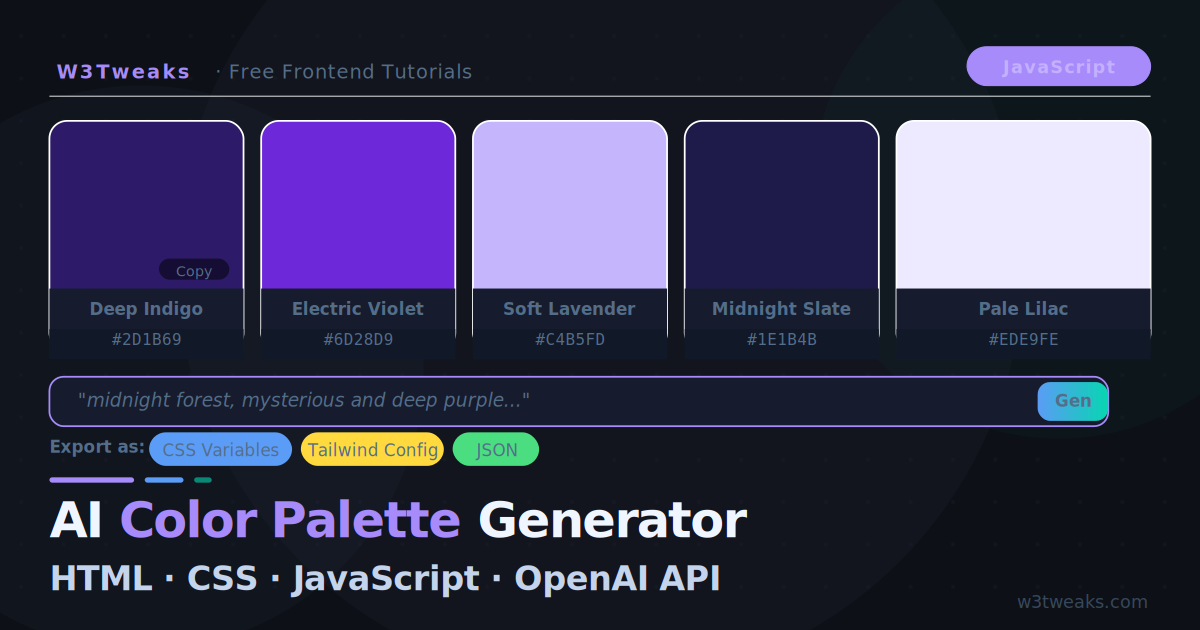
Project tutorials are the fastest way to learn. This one builds something genuinely useful: an AI-powered color palette generator where you type a mood, theme, or brand description and get back a five-color palette with hex values, color names, and recommended use cases.
By the end you will have a single HTML file that calls the OpenAI API, parses a structured JSON response, and renders a beautiful, interactive palette — complete with copy-to-clipboard and CSS variable export. This tutorial assumes you’ve worked through calling the OpenAI API from vanilla JavaScript; if you’re new to the API, start there. For an even more polished AI product built on the same foundation, see build a chatbot widget with HTML, CSS & JavaScript. The colour-suggestion prompts in this article apply the techniques covered in our prompt engineering for frontend developers guide.
What we are building:
- Text input for mood/theme description
- AI generates 5 colors with names + hex values + usage tips
- Color swatches with click-to-copy hex values
- Export as CSS custom properties or Tailwind config
- Palette history (last 5 generated)
- Dark-themed UI, fully responsive
Live Demo
Enter your OpenAI API key and type any mood or theme to generate a real palette.
Project Structure
Everything lives in one file — no dependencies, no build step:
color-palette-generator/
└── index.html   ← HTML + CSS + JS all in one
Step 1 — The HTML Shell
<!DOCTYPE html>
<html lang="en">
<head>
  <meta charset="UTF-8">
  <meta name="viewport" content="width=device-width, initial-scale=1.0">
  <title>AI Color Palette Generator</title>
</head>
<body>

  <div class="app">

    <!-- Header -->
    <header class="app-header">
      <div class="header-inner">
        <div>
          <h1 class="app-title">AI Color Palette</h1>
          <p class="app-sub">Describe a mood or theme — get a curated 5-color palette</p>
        </div>
        <div class="api-key-wrap">
          <input type="password" id="apiKey"
                 placeholder="sk-... OpenAI API key"
                 class="api-key-input">
        </div>
      </div>
    </header>

    <!-- Input area -->
    <section class="input-section">
      <div class="input-wrap">
        <div class="prompt-examples">
          <span class="ex-label">Try:</span>
          <button class="ex-btn" data-prompt="sunset over the ocean, warm and golden">🌅 Sunset ocean</button>
          <button class="ex-btn" data-prompt="dark hacker terminal, neon green on black">💻 Hacker terminal</button>
          <button class="ex-btn" data-prompt="cozy coffee shop in autumn, warm earthy tones">☕ Autumn café</button>
          <button class="ex-btn" data-prompt="modern SaaS startup, clean and trustworthy blues">🚀 SaaS startup</button>
          <button class="ex-btn" data-prompt="japanese cherry blossom garden, soft pastels">🌸 Cherry blossom</button>
        </div>
        <div class="search-row">
          <input type="text" id="promptInput"
                 placeholder="Describe a mood, theme, or brand (e.g. 'midnight forest, mysterious and cool')"
                 class="prompt-input">
          <button id="generateBtn" class="generate-btn">Generate</button>
        </div>
      </div>
    </section>

    <!-- Palette display -->
    <section class="palette-section">
      <div id="paletteWrap" class="palette-wrap">
        <!-- Palette renders here -->
        <div class="empty-state" id="emptyState">
          <div class="empty-icon">🎨</div>
          <p>Your AI-generated palette will appear here</p>
        </div>
      </div>
    </section>

    <!-- Export + history -->
    <section class="bottom-section" id="bottomSection" style="display:none">
      <div class="export-row">
        <span class="export-label">Export as:</span>
        <button class="export-btn" id="exportCSS">CSS Variables</button>
        <button class="export-btn" id="exportTailwind">Tailwind Config</button>
        <button class="export-btn" id="exportJSON">JSON</button>
      </div>
      <div class="export-output" id="exportOutput"></div>
    </section>

    <!-- History -->
    <section class="history-section" id="historySection" style="display:none">
      <h3 class="history-title">Recent Palettes</h3>
      <div class="history-grid" id="historyGrid"></div>
    </section>

  </div>

  <style>/* CSS goes here */</style>
  <script>/* JavaScript goes here */</script>
</body>
</html>
Step 2 — The CSS
/* ── Design tokens ── */
:root {
  --bg:      #0d1117;
  --surf:    #161c2d;
  --surf2:   #1c2338;
  --border:  rgba(255,255,255,.08);
  --text:    #f0f6ff;
  --body:    #c4d4ed;
  --muted:   #546e8a;
  --blue:    #5b9cf6;
  --cyan:    #06d6b0;
  --blue-g:  linear-gradient(135deg,#5b9cf6,#06d6b0);
  --r: 12px;
}

*,*::before,*::after { box-sizing:border-box;margin:0;padding:0 }
body {
  background: var(--bg);
  color: var(--body);
  font-family: 'Plus Jakarta Sans', system-ui, sans-serif;
  min-height: 100vh;
}

/* ── App shell ── */
.app { max-width: 860px; margin: 0 auto; padding: 0 20px 60px; }

/* ── Header ── */
.app-header {
  padding: 36px 0 28px;
  border-bottom: 1px solid var(--border);
  margin-bottom: 28px;
}
.header-inner {
  display: flex;
  align-items: flex-end;
  justify-content: space-between;
  gap: 20px;
  flex-wrap: wrap;
}
.app-title {
  font-size: clamp(24px,4vw,36px);
  font-weight: 800;
  letter-spacing: -.03em;
  color: var(--text);
  background: var(--blue-g);
  -webkit-background-clip: text;
  -webkit-text-fill-color: transparent;
  margin-bottom: 6px;
}
.app-sub { font-size: 14px; color: var(--muted) }

.api-key-input {
  background: var(--surf);
  border: 1px solid var(--border);
  border-radius: 9px;
  padding: 9px 13px;
  font-size: 12.5px;
  font-family: 'JetBrains Mono', monospace;
  color: var(--text);
  outline: none;
  width: 240px;
  transition: border-color .18s;
}
.api-key-input:focus { border-color: rgba(91,156,246,.45) }
.api-key-input::placeholder { color: var(--muted) }

/* ── Input section ── */
.input-section { margin-bottom: 32px }
.prompt-examples {
  display: flex;
  align-items: center;
  gap: 7px;
  flex-wrap: wrap;
  margin-bottom: 14px;
}
.ex-label {
  font-size: 12px;
  color: var(--muted);
  font-weight: 600;
}
.ex-btn {
  padding: 5px 12px;
  border-radius: 20px;
  border: 1px solid var(--border);
  background: rgba(255,255,255,.04);
  color: var(--muted);
  font-size: 12px;
  font-family: inherit;
  cursor: pointer;
  transition: all .16s;
  white-space: nowrap;
}
.ex-btn:hover {
  background: rgba(91,156,246,.1);
  border-color: rgba(91,156,246,.3);
  color: var(--body);
}
.search-row { display: flex; gap: 10px }
.prompt-input {
  flex: 1;
  background: var(--surf);
  border: 1px solid var(--border);
  border-radius: 10px;
  padding: 13px 16px;
  font-size: 14.5px;
  font-family: inherit;
  color: var(--text);
  outline: none;
  transition: border-color .18s, box-shadow .18s;
}
.prompt-input:focus {
  border-color: rgba(91,156,246,.5);
  box-shadow: 0 0 0 3px rgba(91,156,246,.1);
}
.prompt-input::placeholder { color: var(--muted) }

.generate-btn {
  padding: 13px 28px;
  border-radius: 10px;
  border: none;
  background: var(--blue-g);
  color: #fff;
  font-size: 14px;
  font-weight: 700;
  font-family: inherit;
  cursor: pointer;
  transition: opacity .18s, transform .12s;
  white-space: nowrap;
  flex-shrink: 0;
}
.generate-btn:hover { opacity: .88 }
.generate-btn:active { transform: scale(.97) }
.generate-btn:disabled { opacity: .4; cursor: not-allowed }

/* ── Palette section ── */
.palette-wrap { min-height: 200px }
.empty-state {
  display: flex;
  flex-direction: column;
  align-items: center;
  justify-content: center;
  gap: 12px;
  padding: 60px 20px;
  color: var(--muted);
  text-align: center;
}
.empty-icon { font-size: 48px; opacity: .4 }

/* ── Color swatches ── */
.palette-header {
  display: flex;
  align-items: baseline;
  justify-content: space-between;
  margin-bottom: 16px;
}
.palette-prompt-label {
  font-size: 13px;
  color: var(--muted);
}
.palette-prompt-label strong { color: var(--text) }

.swatches {
  display: grid;
  grid-template-columns: repeat(5,1fr);
  gap: 12px;
  margin-bottom: 20px;
}
.swatch {
  border-radius: var(--r);
  overflow: hidden;
  border: 1px solid rgba(255,255,255,.08);
  cursor: pointer;
  transition: transform .2s, box-shadow .2s;
  animation: swatch-in .4s ease both;
}
.swatch:nth-child(1) { animation-delay: .04s }
.swatch:nth-child(2) { animation-delay: .10s }
.swatch:nth-child(3) { animation-delay: .16s }
.swatch:nth-child(4) { animation-delay: .22s }
.swatch:nth-child(5) { animation-delay: .28s }
@keyframes swatch-in {
  from { opacity:0; transform:translateY(12px) }
  to   { opacity:1; transform:none }
}
.swatch:hover {
  transform: translateY(-4px);
  box-shadow: 0 12px 36px rgba(0,0,0,.5);
}
.swatch-color {
  height: 140px;
  display: flex;
  align-items: flex-end;
  justify-content: flex-end;
  padding: 8px;
  position: relative;
}
.copy-badge {
  background: rgba(0,0,0,.4);
  backdrop-filter: blur(8px);
  border: 1px solid rgba(255,255,255,.15);
  color: #fff;
  font-size: 10.5px;
  font-weight: 700;
  padding: 3px 8px;
  border-radius: 6px;
  opacity: 0;
  transition: opacity .15s;
  font-family: 'JetBrains Mono', monospace;
}
.swatch:hover .copy-badge { opacity: 1 }
.swatch-info {
  padding: 10px 12px;
  background: var(--surf);
}
.swatch-name {
  font-size: 12.5px;
  font-weight: 700;
  color: var(--text);
  margin-bottom: 3px;
  white-space: nowrap;
  overflow: hidden;
  text-overflow: ellipsis;
}
.swatch-hex {
  font-size: 11px;
  font-family: 'JetBrains Mono', monospace;
  color: var(--muted);
  margin-bottom: 5px;
}
.swatch-use {
  font-size: 11px;
  color: var(--muted);
  line-height: 1.5;
}

/* ── Copied toast ── */
.toast {
  position: fixed;
  bottom: 24px;
  left: 50%;
  transform: translateX(-50%) translateY(60px);
  background: var(--surf);
  border: 1px solid rgba(91,156,246,.3);
  color: var(--text);
  padding: 10px 20px;
  border-radius: 10px;
  font-size: 13px;
  font-weight: 600;
  transition: transform .25s ease;
  z-index: 99;
  box-shadow: 0 8px 32px rgba(0,0,0,.5);
  pointer-events: none;
}
.toast.show { transform: translateX(-50%) translateY(0) }

/* ── Export ── */
.bottom-section { margin-top: 8px }
.export-row {
  display: flex;
  align-items: center;
  gap: 8px;
  flex-wrap: wrap;
  margin-bottom: 12px;
}
.export-label {
  font-size: 12px;
  font-weight: 600;
  color: var(--muted);
}
.export-btn {
  padding: 6px 14px;
  border-radius: 7px;
  border: 1px solid var(--border);
  background: rgba(255,255,255,.04);
  color: var(--body);
  font-size: 12px;
  font-weight: 600;
  font-family: inherit;
  cursor: pointer;
  transition: all .16s;
}
.export-btn:hover {
  background: rgba(91,156,246,.1);
  border-color: rgba(91,156,246,.3);
  color: var(--blue);
}
.export-output {
  background: #080f1e;
  border: 1px solid rgba(91,156,246,.15);
  border-radius: 10px;
  padding: 16px;
  font-family: 'JetBrains Mono', monospace;
  font-size: 12.5px;
  color: #c8dcf0;
  line-height: 1.8;
  white-space: pre;
  overflow-x: auto;
  display: none;
}
.export-output.show { display: block }

/* ── History ── */
.history-section { margin-top: 40px }
.history-title {
  font-size: 15px;
  font-weight: 700;
  color: var(--text);
  margin-bottom: 14px;
  display: flex;
  align-items: center;
  gap: 8px;
}
.history-title::before {
  content:'';width:3px;height:16px;
  background:var(--blue-g);border-radius:2px;
}
.history-grid { display: flex; flex-direction: column; gap: 10px }
.history-item {
  display: flex;
  align-items: center;
  gap: 12px;
  background: var(--surf);
  border: 1px solid var(--border);
  border-radius: 10px;
  padding: 12px 14px;
  cursor: pointer;
  transition: border-color .16s;
}
.history-item:hover { border-color: rgba(91,156,246,.3) }
.history-swatches { display: flex; gap: 5px }
.history-dot {
  width: 26px;
  height: 26px;
  border-radius: 6px;
  flex-shrink: 0;
}
.history-label {
  font-size: 13px;
  color: var(--body);
  flex: 1;
  white-space: nowrap;
  overflow: hidden;
  text-overflow: ellipsis;
}

/* ── Loading state ── */
.loading-palette {
  display: grid;
  grid-template-columns: repeat(5,1fr);
  gap: 12px;
}
.loading-swatch {
  border-radius: var(--r);
  background: var(--surf);
  background-image: linear-gradient(90deg,var(--surf) 0px,var(--surf2) 40px,var(--surf) 80px);
  background-size: 300px 100%;
  animation: shimmer 1.5s infinite linear;
}
.loading-swatch .swatch-color { height: 140px }
.loading-swatch .swatch-info { height: 72px }
@keyframes shimmer {
  0%   { background-position:-300px 0 }
  100% { background-position:calc(100% + 300px) 0 }
}

/* ── Responsive ── */
@media (max-width:600px) {
  .swatches,.loading-palette { grid-template-columns:repeat(2,1fr) }
  .swatch:nth-child(5) { grid-column:1/-1 }
  .api-key-input { width:100% }
  .header-inner { flex-direction:column;align-items:flex-start }
  .search-row { flex-direction:column }
  .generate-btn { width:100% }
}
Step 3 — The AI Prompt Engineering
The most critical part of this project is prompting the AI to return structured, parseable JSON. Vague prompts return text descriptions. A tightly engineered prompt returns exactly the data structure you need:
function buildPrompt(userInput) {
  return `You are an expert color designer. Generate a 5-color palette for this theme:

"${userInput}"

Rules:
- Choose colors that work together harmoniously
- Include a range from light to dark
- Make sure there is enough contrast for accessibility
- Colors should feel cohesive and match the described mood

Respond with ONLY a valid JSON array. No markdown, no explanation. Exactly this shape:
[
  {
    "name": "Color Name",
    "hex": "#RRGGBB",
    "usage": "Short description of when to use this color (under 10 words)"
  }
]

The "usage" field should be practical: "Primary background", "Call-to-action buttons",
"Body text on dark", "Accent highlights", "Subtle borders".`;
}
The key elements of this prompt:
- Role — “expert color designer” shifts the output quality
- Explicit rules — harmony, range, contrast, mood
- Exact JSON shape — with a concrete example so the model cannot deviate
- Output constraint — “ONLY a valid JSON array. No markdown.”
- Practical usage hints — steers the
usagefield to be developer-useful
Step 4 — Calling the API and Parsing Response
const API_KEY_INPUT = document.getElementById('apiKey');

async function generatePalette(prompt) {
  const apiKey = API_KEY_INPUT.value.trim();
  if (!apiKey) {
    showToast('⚠ Enter your OpenAI API key first');
    return null;
  }

  const res = await fetch('https://api.openai.com/v1/chat/completions', {
    method: 'POST',
    headers: {
      'Content-Type':  'application/json',
      'Authorization': `Bearer ${apiKey}`
    },
    body: JSON.stringify({
      model:       'gpt-4o-mini',
      max_tokens:  500,
      temperature: 0.8,   // slightly creative for color choices
      messages: [
        { role: 'user', content: buildPrompt(prompt) }
      ]
    })
  });

  if (!res.ok) {
    const err = await res.json();
    throw new Error(err.error?.message ?? `API error ${res.status}`);
  }

  const data = await res.json();
  const raw  = data.choices[0].message.content.trim();

  // Strip markdown fences if the model added them despite our instructions
  const clean  = raw.replace(/```json\s*/gi,'').replace(/```\s*/g,'').trim();
  const colors = JSON.parse(clean);

  // Validate the shape
  if (!Array.isArray(colors) || colors.length === 0) {
    throw new Error('Unexpected response format from AI');
  }

  // Normalise each color object
  return colors.map(c => ({
    name:  c.name  ?? 'Unnamed',
    hex:   normaliseHex(c.hex ?? '#888888'),
    usage: c.usage ?? 'General use'
  }));
}

function normaliseHex(hex) {
  // Ensure format is #RRGGBB
  hex = hex.trim();
  if (!hex.startsWith('#')) hex = '#' + hex;
  if (hex.length === 4) {
    // Expand shorthand #RGB → #RRGGBB
    hex = '#' + [...hex.slice(1)].map(c => c+c).join('');
  }
  return hex.toUpperCase();
}
Step 5 — Rendering the Palette
function renderPalette(colors, promptText) {
  const wrap = document.getElementById('paletteWrap');
  wrap.innerHTML = `
    <div class="palette-header">
      <div class="palette-prompt-label">
        Palette for: <strong>"${escHtml(promptText)}"</strong>
      </div>
    </div>
    <div class="swatches">
      ${colors.map(c => swatchHTML(c)).join('')}
    </div>
  `;

  // Attach copy-on-click
  wrap.querySelectorAll('.swatch').forEach((el, i) => {
    el.addEventListener('click', () => copyHex(colors[i].hex));
  });

  document.getElementById('emptyState').style.display   = 'none';
  document.getElementById('bottomSection').style.display = 'block';
}

function swatchHTML({ name, hex, usage }) {
  // Determine if text on this swatch should be light or dark
  const textColor = isLight(hex) ? '#1a1a2e' : '#ffffff';

  return `
    <div class="swatch">
      <div class="swatch-color" style="background:${hex}">
        <div class="copy-badge" style="color:${textColor}">${hex}</div>
      </div>
      <div class="swatch-info">
        <div class="swatch-name">${escHtml(name)}</div>
        <div class="swatch-hex">${hex}</div>
        <div class="swatch-use">${escHtml(usage)}</div>
      </div>
    </div>
  `;
}

// Determine if a hex colour is perceptually light
function isLight(hex) {
  const r = parseInt(hex.slice(1,3),16);
  const g = parseInt(hex.slice(3,5),16);
  const b = parseInt(hex.slice(5,7),16);
  // WCAG relative luminance formula
  const luminance = (0.299*r + 0.587*g + 0.114*b) / 255;
  return luminance > 0.55;
}
Step 6 — Copy to Clipboard and Export
async function copyHex(hex) {
  await navigator.clipboard.writeText(hex);
  showToast(`✓ Copied ${hex}`);
}

function showToast(message) {
  let toast = document.getElementById('toast');
  if (!toast) {
    toast = document.createElement('div');
    toast.id = 'toast';
    toast.className = 'toast';
    document.body.appendChild(toast);
  }
  toast.textContent = message;
  toast.classList.add('show');
  setTimeout(() => toast.classList.remove('show'), 2000);
}

// Export functions
function exportAsCSS(colors) {
  return `:root {\n` +
    colors.map((c,i) =>
      `  --color-${i+1}: ${c.hex}; /* ${c.name} — ${c.usage} */`
    ).join('\n') +
  `\n}`;
}

function exportAsTailwind(colors) {
  const entries = colors
    .map((c,i) => `      'palette-${i+1}': '${c.hex}', // ${c.name}`)
    .join('\n');
  return `// tailwind.config.js\nmodule.exports = {\n  theme: {\n    extend: {\n      colors: {\n${entries}\n      }\n    }\n  }\n}`;
}

function exportAsJSON(colors) {
  return JSON.stringify(
    colors.map(c => ({ name:c.name, hex:c.hex, usage:c.usage })),
    null, 2
  );
}

// Wire export buttons
document.getElementById('exportCSS').addEventListener('click', () => {
  showExport(exportAsCSS(currentColors));
});
document.getElementById('exportTailwind').addEventListener('click', () => {
  showExport(exportAsTailwind(currentColors));
});
document.getElementById('exportJSON').addEventListener('click', () => {
  showExport(exportAsJSON(currentColors));
});

function showExport(content) {
  const box = document.getElementById('exportOutput');
  box.textContent = content;
  box.classList.add('show');
  navigator.clipboard.writeText(content);
  showToast('✓ Copied to clipboard');
}
Step 7 — Skeleton Loading + History
function showLoadingSkeleton() {
  const wrap = document.getElementById('paletteWrap');
  wrap.innerHTML = `
    <div class="loading-palette">
      ${Array(5).fill(`
        <div class="loading-swatch">
          <div class="swatch-color"></div>
          <div class="swatch-info"></div>
        </div>
      `).join('')}
    </div>
  `;
}

// ── History ──
const paletteHistory = [];

function addToHistory(colors, prompt) {
  paletteHistory.unshift({ colors, prompt });
  if (paletteHistory.length > 5) paletteHistory.pop();
  renderHistory();
}

function renderHistory() {
  const section = document.getElementById('historySection');
  const grid    = document.getElementById('historyGrid');

  if (paletteHistory.length === 0) {
    section.style.display = 'none';
    return;
  }

  section.style.display = 'block';
  grid.innerHTML = paletteHistory.map((item, i) => `
    <div class="history-item" onclick="restorePalette(${i})">
      <div class="history-swatches">
        ${item.colors.map(c => `
          <div class="history-dot" style="background:${c.hex}"
               title="${c.name}"></div>
        `).join('')}
      </div>
      <div class="history-label">"${escHtml(item.prompt)}"</div>
    </div>
  `).join('');
}

function restorePalette(index) {
  const { colors, prompt } = paletteHistory[index];
  currentColors = colors;
  renderPalette(colors, prompt);
}
Step 8 — Wiring It All Together
let currentColors = [];
async function handleGenerate() {
const prompt = document.getElementById('promptInput').value.trim();
if (!prompt) {
showToast('⚠ Enter a theme or mood first');
return;
}
const btn = document.getElementById('generateBtn');
btn.disabled = true;
btn.textContent = 'Generating…';
showLoadingSkeleton();
document.getElementById('bottomSection').style.display = 'none';
document.getElementById('exportOutput').classList.remove('show');
try {
const colors = await generatePalette(prompt);
currentColors = colors;
renderPalette(colors, prompt);
addToHistory(colors, prompt);
} catch (err) {
document.getElementById('paletteWrap').innerHTML = `
<div class="empty-state">
<div class="empty-icon">⚠️</div>
<p style="color:#f87171">${escHtml(err.message)}</p>
</div>
`;
} finally {
btn.disabled = false;
btn.textContent = 'Generate';
}
}
// Example prompt buttons
document.querySelectorAll('.ex-btn').forEach(btn => {
btn.addEventListener('click', () => {
document.getElementById('promptInput').value = btn.dataset.prompt;
handleGenerate();
});
});
// Generate on button click or Enter key
document.getElementById('generateBtn').addEventListener('click', handleGenerate);
document.getElementById('promptInput').addEventListener('keydown', e => {
if (e.key === 'Enter') handleGenerate();
});
// API key persistence
const savedKey = sessionStorage.getItem('palette_api_key');
if (savedKey) document.getElementById('apiKey').value = savedKey;
document.getElementById('apiKey').addEventListener('input', e => {
sessionStorage.setItem('palette_api_key', e.target.value);
});
function escHtml(s) {
return String(s)
.replace(/&/g,'&')
.replace(/</g,'<')
.replace(/>/g,'>')
.replace(/"/g,'"');
}How It All Works Together
When a user types “sunset over the ocean” and clicks Generate:
handleGenerate()disables the button and shows the skeleton loadergeneratePalette()builds the structured prompt and calls the OpenAI API- The AI returns a JSON array of 5 colors with names, hex values, and usage notes
normaliseHex()ensures consistent#RRGGBBformatisLight()calculates whether the copy badge text should be dark or lightrenderPalette()builds the swatches and attaches click-to-copy listenersaddToHistory()stores the palette for quick recall- Export buttons format the palette as CSS variables, Tailwind config, or JSON
Ideas to Extend This Project
Once the base is working, here are natural next steps:
Contrast checker — calculate WCAG contrast ratios between all palette pairs and flag any that fail AA
Palette name generator — add a second AI call to generate a poetic name for the whole palette (“Ember & Dusk”)
Image-to-palette — accept an image upload, send it to the GPT Vision API, and extract the dominant colours
Save to localStorage — persist the full history between sessions
Share link — encode the palette colors in the URL hash so users can share a palette with a link
Key Takeaways
- Structured JSON prompts are the key to reliable AI output — specify the exact shape with an example
- Always strip markdown fences from AI responses before parsing — models add them even when told not to
- Use
temperature: 0.8for creative tasks like color selection — higher than the default gives more interesting palettes - The
isLight()luminance check ensures the copy badge text is always readable against any swatch color - Skeleton loading makes the AI latency feel intentional rather than broken
- Export functions (CSS, Tailwind, JSON) make the tool genuinely useful in a developer workflow
FAQ
How does an AI color palette generator work?
The user types a mood or theme description (“calm ocean morning”, “cyberpunk neon”). The app sends that prompt to an AI model with structured instructions: “return 5 hex colors with names and use cases as JSON.” The model returns a JSON object, the app parses it, and renders each color as a clickable swatch. The interesting design choice is the prompt structure — telling the AI exactly what JSON shape to return is what makes the output reliable.
Can I use this without an OpenAI API key?
For learning, the demo runs with your own key entered in the browser — you don’t pay anything if you have free trial credits. For a public app, you’d need a backend proxy that holds the key server-side. Alternatives if you don’t want to use OpenAI: Anthropic’s Claude API, Google Gemini, or local models via Ollama. The fetch logic in this article works against any chat completions endpoint with minor tweaks.
How accurate are AI-generated color palettes?
Surprisingly accurate for vibe-based prompts (“warm sunset”, “minimal Scandinavian”), less so for highly specific brand work. AI models have absorbed a lot of design theory and produce palettes that follow basic harmony rules (complementary, analogous, triadic). What they’re weak at: matching exact brand colors, ensuring AA/AAA accessibility contrast, and culturally specific palettes. For production design work, treat AI output as a starting point, not the final answer.
Why do I need temperature: 0.8 instead of the default?
temperature controls how random the AI’s output is. The default (0.7-1.0 depending on model) is fine, but for creative tasks like color generation, pushing slightly higher (0.8-1.0) produces more interesting palettes — less likely to suggest the same blue/grey combo every time. For deterministic tasks (extracting a date from a string, generating code that must compile), drop temperature to 0.0-0.3. This article covers the full temperature trade-off in the OpenAI API vanilla JavaScript guide.
How do I make the AI return reliable JSON?
Three techniques: (1) describe the exact shape with an example in the system prompt — “respond with JSON like this: [{name: '...', hex: '#...', usage: '...'}]”; (2) use OpenAI’s response_format: { type: "json_object" } parameter, which constrains the output to valid JSON; (3) defensively strip markdown fences before parsing (text.replace(/^```json\n?|\n?```$/g, '')) — models sometimes wrap JSON in code fences even when told not to. Combining all three gives ~99% reliable parsing.
Can I deploy this without a backend?
For personal use or internal tools, yes — the single HTML file is the entire app. Host it on Netlify Drop, GitHub Pages, Cloudflare Pages, or even open it locally with file://. The user enters their own API key, so you’re not exposing anything. For a public-facing tool, you’d need a backend proxy plus rate limiting (otherwise one user could rack up huge bills on your key). A Cloudflare Worker with KV-based rate limiting is the lightest production setup.