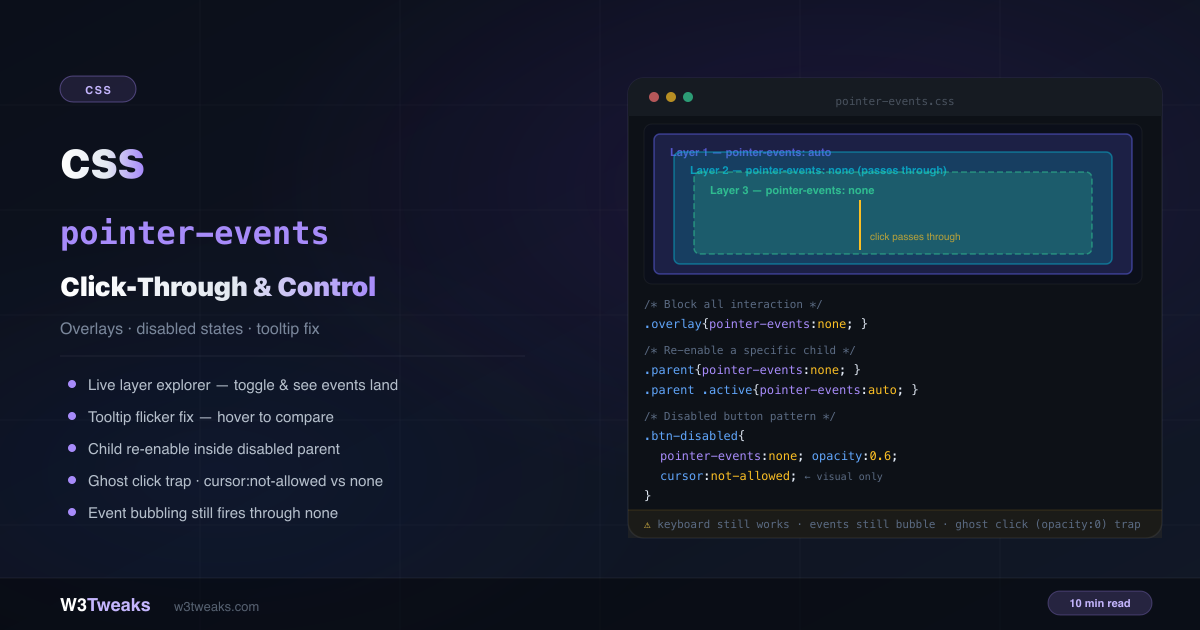
pointer-events controls whether an element can be the target of mouse, touch, and pen interactions — or whether those events pass straight through to whatever is behind it.
/* Let clicks fall through to elements below */
.overlay { pointer-events: none; }

/* Restore interaction on a specific child */
.overlay .button { pointer-events: auto; }

/* Disable a form during submission */
form.loading { pointer-events: none; opacity: 0.7; }
Two things called pointer-events. Don’t confuse the CSS property
pointer-events: none(covered here — controls hit-testing) with the JS Pointer Events API (pointerdown,pointerup,event.pointerType,setPointerCapture()— used to distinguish mouse, touch, and pen at runtime in JavaScript). They share a name but live at different layers. This article is about the CSS property.
This guide covers every practical use case, the four critical gotchas (ghost clicks, keyboard still working, event bubbling, cursor: not-allowed vs pointer-events: none), the inert attribute as the modern alternative for disabled subtrees, transition-behavior: allow-discrete for fade-in menus, SVG hit-area control including bounding-box, <dialog> ::backdrop click-to-close, map/canvas HUD overlays, and the touch-action companion for mobile. For how pointer-events interacts with focus management, see CSS :focus-visible.
Live Demo
Three tabs: ① live layer explorer — toggle pointer-events on/off per layer and click the canvas to see which layer catches events with animated dots, ② six real UI patterns including tooltip flicker fix, click-through decorative overlay, child re-enable inside disabled parent, SVG hit areas, and form loading state, ③ four gotchas — the ghost click trap (try the left vs right half!), keyboard still works (Tab to it), cursor:not-allowed vs pointer-events with all three boxes clickable for comparison, and a live event bubbling counter.
What pointer-events: none Actually Does (and Doesn’t)
The pointer-events property controls hit-testing — the process the browser uses to decide which element a pointer event (mouse move, click, tap, pen) targets. With pointer-events: none, the browser skips the element entirely during hit-testing and passes the event to whatever is next in the stacking order beneath it.
Critically:
- The element still renders visually — it’s not hidden
- The element still occupies layout space — nothing collapses
- The element is still reachable by keyboard Tab — accessibility is not automatically preserved
- Events that bubble through child elements still pass through the parent’s DOM node
.element { pointer-events: none; }
/* Result:
   ✓ Still visible
   ✓ Still in layout flow
   ✓ Still focusable via keyboard
   ✗ Mouse/touch/pen events pass through it
   ✗ :hover styles don't fire
   ✗ click events don't fire on it
*/
For HTML elements, only two values matter in practice: auto (the default) and none. SVG supports several additional values covered below.
Pattern 1: CSS Click-Through Overlay for Decorative Layers
The #1 use case. A visual overlay — gradient, noise texture, vignette — that renders above content but lets interactions reach the content below:
.hero { position: relative; }

.hero-content {
  position: relative;
  z-index: 1;
}

.hero-overlay {
  position: absolute;
  inset: 0;
  background: linear-gradient(to bottom, transparent 60%, rgba(0, 0, 0, 0.7) 100%);
  pointer-events: none; /* clicks pass through to .hero-content */
  z-index: 2;
}
Without pointer-events: none, the overlay would block all clicks on the content behind it. With it, the gradient renders above the content visually but is invisible to the pointer.
Pattern 2: CSS Tooltip Flicker Fix with pointer-events
A classic UI bug: a tooltip appears on hover, but it sits above the trigger element and interferes with the hover chain — causing the tooltip to flicker or immediately disappear.
/* ❌ Tooltip can capture the pointer — hover chain breaks */
.tooltip {
  position: absolute;
  bottom: 100%;
  /* pointer-events: auto (default) — tooltip enters the hover chain */
}

/* ✅ Tooltip is transparent to pointer — hover stays on trigger */
.tooltip {
  position: absolute;
  bottom: 100%;
  pointer-events: none;
}

.trigger:hover .tooltip {
  opacity: 1;
  visibility: visible;
}
With pointer-events: none the tooltip renders above the trigger but the pointer never moves onto it — hover stays on the trigger continuously, the tooltip stays steady.
Pattern 3: The CSS Disabled Button State, Done Right
.btn-disabled {
  pointer-events: none;
  opacity: 0.6;
  cursor: not-allowed; /* visual only — see Gotcha 3 */
}

.form.submitting {
  pointer-events: none;
  opacity: 0.7;
}
Applying pointer-events: none to the whole <form> prevents double-submission without disabling every individual input.
CSS disabled vs pointer-events — Which to Use
For native form controls, the HTML disabled attribute is the right answer — it does everything pointer-events: none does plus excludes the field from form submission, fires the :disabled pseudo-class, and announces “disabled” to screen readers. Reach for pointer-events: none only on custom controls (e.g. <div role="button">) or when you specifically want a visual layer to be non-interactive.
| Technique | Blocks click | Blocks keyboard | Excludes from form submit | A11y tree |
|---|---|---|---|---|
disabled attr | ✅ | ✅ | ✅ | “disabled” |
aria-disabled="true" | ❌ | ❌ | ❌ | “disabled” |
pointer-events: none | ✅ | ❌ | ❌ | unchanged |
inert attribute | ✅ | ✅ | ❌ | hidden |
Rule of thumb: Native <button>/<input> → use disabled. Custom <div role="button"> → use aria-disabled + inert. Decorative visual layers → use pointer-events: none.
Accessibility note:
pointer-events: nonealone is not a fully accessible disabled state — keyboard users can still Tab to and activate the element. See Gotcha 2 and the inert section below.
When to Reach for inert Instead of pointer-events: none
inert is the modern (Baseline 2023) way to disable a whole region of the page. It blocks pointer events AND keyboard focus AND removes the subtree from the accessibility tree — all three with one attribute:
<!-- ❌ 2018 stack: three properties to disable a section -->
<section
  style="pointer-events: none; opacity: 0.5"
  tabindex="-1"
  aria-disabled="true">
  <button>Still keyboard-focusable! Still in a11y tree!</button>
</section>

<!-- ✅ Modern: one attribute does all three -->
<section inert style="opacity: 0.5">
  <button>Truly unreachable — pointer, keyboard, screen reader</button>
</section>
Browser support: inert is Baseline since 2023 — Chrome 102+, Firefox 112+, Safari 15.5+, Edge 102+. Universal modern coverage.
When to use which:
inert— disabling a region (modal backdrop content, loading panel, off-screen drawer, inactive tab content)pointer-events: none— making a visual layer non-interactive (decorative SVG, gradient overlay, blurred backdrop)disabledattribute — a single native form control (button, input, select, fieldset)aria-disabled="true"— a custom control that should be visually disabled but still discoverable to screen readers
// SPA pattern: disable everything except the modal during a route transition
document.querySelector('#app').inert = true;
document.querySelector('#modal').inert = false;
inert was specifically added to the platform to replace the messy pointer-events:none + tabindex=-1 + aria-disabled stack that this property was being abused for.
Pattern 4: Re-enable a Child Inside a Disabled Parent
Setting pointer-events: none on a parent prevents the area from being hit-tested — unless you explicitly re-enable specific children:
.modal-overlay {
  position: fixed;
  inset: 0;
  background: rgba(0, 0, 0, 0.5);
  pointer-events: auto; /* catches clicks to close modal */
}

.modal-dialog {
  pointer-events: auto;
}

/* Disable a panel but keep a button inside it */
.read-only-panel { pointer-events: none; }
.read-only-panel .settings-btn { pointer-events: auto; }
The child’s pointer-events: auto punches a hole through the parent’s none — that specific child (and its own children) receive pointer events normally.
Pattern 5: Form Loading State
<form id="checkout-form">
  <input type="text" name="card" placeholder="Card number">
  <input type="text" name="expiry" placeholder="MM/YY">
  <button type="submit">Pay now</button>
</form>
#checkout-form { transition: opacity 0.2s; }
#checkout-form.loading {
pointer-events: none;
opacity: 0.6;
cursor: wait;
}document.getElementById('checkout-form').addEventListener('submit', async (e) => {
e.preventDefault();
const form = e.currentTarget;
form.classList.add('loading');
try {
await processPayment();
} finally {
form.classList.remove('loading');
}
});For a more accessible version that also blocks keyboard during submit, swap class="loading" for inert:
form.inert = true;
try { await processPayment(); } finally { form.inert = false; }
Pattern 6: SVG Hit Areas — fill, stroke, bounding-box
SVG elements support several pointer-events values that control exactly which part of the shape is interactive — including bounding-box (Chrome 116+, Safari 17+) which makes the entire bounding rectangle clickable without an invisible <rect> hack:
| Value | Hit area |
|---|---|
visiblePainted | Default for SVG — fill and stroke when painted, only where visible |
fill | Only the filled area (regardless of visibility) |
stroke | Only the stroke line |
painted | Fill + stroke regardless of visibility (transparent fill still hits) |
all | Entire shape including transparent fill — useful for small touch targets |
bounding-box | Entire bounding rectangle — Chrome 116+ / Safari 17+ |
none | Element is transparent to pointer events |
<svg viewBox="0 0 100 100">
  <!-- Click only fires on the stroke ring, not the empty center -->
  <circle cx="50" cy="50" r="40" fill="none" stroke="blue" stroke-width="8"
    style="pointer-events: stroke; cursor: pointer"
    onclick="alert('Ring clicked!')" />
</svg>

<!-- Thin icon — expand hit target to the entire bounding box -->
<svg width="24" height="24" viewBox="0 0 24 24"
  style="pointer-events: bounding-box; cursor: pointer">
  <path d="M2 12 L22 12" stroke="currentColor" stroke-width="2" />
</svg>
bounding-box is the answer to the “thin icon needs a bigger tap target” problem without padding hacks or invisible <rect> overlays.
Pattern 7: Click-Through HUD Over a Map or Canvas
Massive niche use case for Leaflet, Mapbox GL, OpenLayers, and <canvas> games. You want a HUD layered above the map (zoom controls, attribution, info panel) but the map underneath needs to receive pan and zoom gestures everywhere else:
.map { position: relative; }
.map-canvas { position: absolute; inset: 0; }

.map-hud {
  position: absolute;
  inset: 0;
  pointer-events: none; /* whole HUD is click-through by default */
  z-index: 10;
}

/* Interactive HUD elements punch through */
.map-hud .zoom-controls,
.map-hud .legend,
.map-hud .info-panel {
  pointer-events: auto;
}
The map below receives pan, zoom, and pinch-zoom gestures untouched, while clearly-marked interactive HUD elements stay clickable. Same pattern works for <canvas> games (HUD score + pause button) and SVG charts (tooltip layer over chart bars).
<dialog> + Popover API + ::backdrop
Modern modal stack (Baseline 2024). dialog::backdrop is a pseudo-element that styles the dim layer behind the modal. Its pointer-events value controls click-to-close behavior:
dialog::backdrop {
  background: rgba(0, 0, 0, 0.5);
  pointer-events: auto; /* DEFAULT — clicking backdrop fires click on dialog */
}

/* Setting backdrop to none breaks click-outside-to-close */
dialog.no-light-dismiss::backdrop {
  pointer-events: none;
}<dialog id="confirm">
<p>Save your changes?</p>
<form method="dialog">
<button value="cancel">Cancel</button>
<button value="save">Save</button>
</form>
</dialog>
<script>
const dlg = document.getElementById('confirm');
dlg.showModal(); // opens with backdrop, auto focus trap, ESC-to-close
// Click-outside-to-close via the backdrop
dlg.addEventListener('click', (e) => {
if (e.target === dlg) dlg.close('cancel');
});
</script>For non-modal popovers, the Popover API (popover="auto") gives you light-dismiss for free — clicking outside the popover closes it automatically. No JavaScript backdrop handling needed.
Gotcha 1: The Ghost Click Trap (opacity:0)
If you visually hide an element with opacity: 0 but don’t add pointer-events: none, the element is invisible but still fully clickable. Users can accidentally activate it.
/* ❌ Invisible but still captures clicks */
.hidden-menu { opacity: 0; }

/* ✅ Invisible AND non-interactive */
.hidden-menu { opacity: 0; pointer-events: none; }
Other properties that visually hide but do NOT remove pointer events:
opacity: 0— invisible, still interactivevisibility: hidden— invisible, NOT interactive (exception — auto-disables pointer-events)transform: translateX(-9999px)— off-screen, still interactive at its original positionclip-path: inset(0 0 100% 0)— clipped, still interactive
Animating with css pointer-events transition and allow-discrete
pointer-events is a discrete property — it flips instantly at the 50% mark of a transition unless you explicitly tell the browser to delay it. The classic trick was a 0-second transition with a delay:
/* Classic — works since 2013 */
.menu {
  opacity: 0;
  pointer-events: none;
  transition: opacity 0.3s, pointer-events 0s 0.3s;
}
.menu.open {
  opacity: 1;
  pointer-events: auto;
  transition: opacity 0.3s, pointer-events 0s;
}
The modern (Baseline 2024) answer is transition-behavior: allow-discrete, which works correctly with @starting-style and the Popover API:
[popover] {
  opacity: 0;
  transition: opacity 0.3s, display 0.3s allow-discrete;
}

[popover]:popover-open {
  opacity: 1;
}

@starting-style {
  [popover]:popover-open { opacity: 0; }
}
allow-discrete makes display and pointer-events transition cleanly without the manual 0s-delay trick.
Gotcha 2: Keyboard Still Works
pointer-events: none blocks mouse, touch, and pen interactions. It does not block keyboard Tab navigation or Enter/Space activation:
<!-- This button is still focusable and activatable by keyboard -->
<button style="pointer-events: none">I look disabled</button>
// Tab to this element and press Enter — it still fires
document.querySelector('button').addEventListener('click', () => {
console.log('Fired! pointer-events: none does not block keyboard');
});For a fully inaccessible (intentionally blocked) element:
<!-- Truly disabled — native button -->
<button disabled aria-disabled="true">Disabled</button>

<!-- Truly disabled — region of custom content -->
<section inert>...</section>
For custom non-native elements (<div>, <span> as buttons), inert is the cleanest single answer.
Gotcha 3: cursor: not-allowed vs pointer-events: none (Use Both)
These are frequently confused because they both appear to “disable” an element. They do completely different things:
cursor: not-allowed | pointer-events: none | |
|---|---|---|
| Changes cursor appearance | ✅ Shows ⊘ cursor | ❌ No change |
| Blocks mouse clicks | ❌ Still clickable | ✅ Passes through |
Blocks hover (:hover CSS) | ❌ :hover still fires | ✅ :hover never fires |
| Blocks touch events | ❌ Still fires | ✅ Passes through |
/* ❌ Only visual change — element still clickable */
.btn { cursor: not-allowed; }

/* ❌ Blocks clicks but no visual cue about why */
.btn { pointer-events: none; }

/* ✅ Best disabled pattern — visual + functional */
.btn-disabled {
  cursor: not-allowed;
  pointer-events: none;
  opacity: 0.6;
}
Subtle interaction: because pointer-events: none blocks :hover, the cursor never actually swaps to not-allowed on the disabled element itself — the browser uses the cursor of whatever’s behind it. To make the not-allowed cursor reliably show, leave pointer-events: auto on the element and intercept the click in JavaScript with e.preventDefault() and e.stopPropagation(). Or just use disabled / inert, which solve this for you.
Gotcha 4: Events Still Bubble Through none
Setting pointer-events: none on a parent prevents the parent from being directly targeted. But if a child has pointer-events: auto, that child can still fire events — and those events bubble up through the parent’s DOM node, triggering any event listeners on the parent:
<div id="parent" style="pointer-events: none">
  <button id="child" style="pointer-events: auto">Click me</button>
</div>
// ⚠️ This listener fires when the child button is clicked
document.getElementById('parent').addEventListener('click', (e) => {
console.log('Parent listener fired! e.target:', e.target);
// e.target = the child button
// The listener still fires because click bubbles up
});If you expect pointer-events: none to prevent a parent from receiving any click events, it doesn’t — child events still bubble through. To prevent bubbling in the child:
document.getElementById('child').addEventListener('click', (e) => {
  e.stopPropagation(); // prevents bubbling to parent
});
touch-action: manipulation — The Mobile Complement
pointer-events: none blocks click, hover, and tap events. But on mobile devices, scroll and pinch-zoom are touch gestures, not pointer events. Setting pointer-events: none does not prevent these:
.element {
  pointer-events: none;
  touch-action: none; /* also blocks scroll/pinch starting here */
}
The most-used touch-action value is manipulation — it allows pan + zoom but removes the 300ms tap delay browsers used to add to detect double-tap-to-zoom:
button, a, [role="button"] {
  touch-action: manipulation;
}
This makes every button feel instant on mobile, with no functional cost.
Other common values:
touch-action: auto;       /* default — all gestures allowed */
touch-action: none;       /* no touch gestures at all */
touch-action: pan-x;      /* only horizontal pan (carousels) */
touch-action: pan-y;      /* only vertical pan (sliders) */
touch-action: pinch-zoom; /* only zoom gestures */
touch-action: manipulation; /* pan + zoom, NO 300ms tap delay */
Warning: Setting
touch-action: noneon large areas can make the page feel broken on mobile — users expect to scroll. Limit it to specific interactive widgets (range sliders, canvas elements, game areas) where default touch behavior would interfere.
Performance: pointer-events on Animated Elements
Removing pointer event tracking from elements that are animating but don’t need to be interactive can improve compositor performance:
.card.animating {
  pointer-events: none;
  will-change: transform;
}

.card.animating.done {
  pointer-events: auto;
  will-change: auto;
}
This is particularly useful for elements that animate on scroll (parallax layers, decorative backgrounds) and never need to receive clicks.
Browser Support
pointer-events for HTML — Baseline since 2013. Chrome 4+, Firefox 3.6+, Safari 4+, Edge 12+. 99.9%+ global coverage.
pointer-events: bounding-box for SVG — Chrome 116+ (2023), Safari 17+, Firefox 121+.
inert attribute — Baseline 2023. Chrome 102+, Firefox 112+, Safari 15.5+.
transition-behavior: allow-discrete — Baseline 2024. Chrome 117+, Safari 17.4+, Firefox 129+.
<dialog> + ::backdrop — Baseline 2022. All evergreens.
popover attribute — Baseline 2024. Chrome 114+, Safari 17+, Firefox 125+.
touch-action — Universal modern support.
Key Takeaways
pointer-events: nonemakes an element transparent to mouse, touch, and pen hit-testing — clicks pass through to layers below- The element still renders, still takes up layout space, and is still reachable by keyboard — it’s not truly “disabled”
- Use
inertto disable a whole region (Baseline 2023) — one attribute blocks pointer + keyboard + screen reader, replacing the old 3-property stack - Native form controls: use the
disabledattribute, notpointer-events: none.disabledexcludes the field from form submission and fires:disabled - Tooltip flicker: set
pointer-events: noneon the tooltip so it never enters the hover chain - Child with
pointer-events: autoinside anoneparent overrides the parent — that child is interactive - Ghost click trap:
opacity: 0withoutpointer-events: noneis an invisible clickable element — always pair them. For modern animations usetransition-behavior: allow-discrete(Baseline 2024) cursor: not-allowedonly changes the cursor visual; the element is still clickable. Use both together for a complete disabled state- Events triggered by
pointer-events: autochildren still bubble through apointer-events: noneparent’s DOM node — parent listeners still fire - For mobile, use
touch-action: manipulationto remove the 300ms tap delay; usetouch-action: noneonly on specific interactive widgets - SVG values (
fill,stroke,all,visiblePainted,bounding-box) give precise control over which part of an SVG shape is interactive - Click-through HUDs over maps/canvases:
.hud { pointer-events: none } .hud button { pointer-events: auto }is the pattern for Leaflet, Mapbox, OpenLayers, and<canvas>games <dialog>::backdropacceptspointer-events: auto(default) for click-outside-to-close; setting it tononebreaks light-dismiss- The CSS property
pointer-events: noneis different from the JS Pointer Events API (pointerdown,event.pointerType,setPointerCapture()) — same name, different layers
FAQ
What does pointer-events: none do in CSS?
pointer-events: none makes an element transparent to pointer interactions — mouse clicks, hover events, touch taps, and pen input all pass through it to whatever is behind it in the stacking order. The element remains visible and occupies layout space; it simply cannot be targeted by pointer hit-testing.
Does pointer-events: none work on mobile?
For tap events (equivalent to mouse clicks), yes — pointer-events: none prevents tap events from targeting the element. However, scroll and pinch-zoom on mobile are touch gestures handled separately from pointer events. To also block those, add touch-action: none alongside pointer-events: none. For a snappier feel on interactive buttons, add touch-action: manipulation to remove the 300ms tap delay.
What is the difference between cursor: not-allowed and pointer-events: none?
cursor: not-allowed only changes the visual cursor when hovering over an element — it shows the ⊘ symbol, but the element remains fully clickable and hoverable. pointer-events: none actually prevents the element from being the target of any pointer events — clicks and hover don’t fire. For a complete disabled state, use both: cursor: not-allowed for the visual cue and pointer-events: none to block the interaction. Note that because pointer-events: none also blocks :hover, the not-allowed cursor may not actually appear on the disabled element — for guaranteed cursor swap, use the disabled attribute or inert instead.
Does pointer-events: none prevent keyboard access?
No. pointer-events: none only blocks pointer (mouse/touch/pen) events. Keyboard users can still Tab to the element and activate it with Enter or Space. Screen readers can also interact with it. For a fully inaccessible element, use the inert attribute (Baseline 2023) — one attribute blocks pointer, keyboard focus, and screen reader access. For native form elements, the disabled attribute does the same thing.
Why is my tooltip flickering on hover?
The tooltip is interfering with the hover chain. When the tooltip appears above the trigger with pointer-events: auto, moving the pointer between the trigger and tooltip can cause hover to drop and the tooltip to hide — a flicker loop. Fix: add pointer-events: none to the tooltip element so it never enters the hover chain at all, and the hover stays on the trigger permanently.
Do events still fire when pointer-events is none?
Events on the element itself don’t fire. But if a child element has pointer-events: auto and is clicked, the child fires its click event, which then bubbles up through the parent’s DOM node. Any event listeners on the parent still receive the bubbling event, even though the parent has pointer-events: none. To prevent this, call e.stopPropagation() in the child’s event listener.
When should I use inert instead of pointer-events: none?
Use inert whenever you want to disable a whole region of the page — a loading panel, modal backdrop content, off-screen drawer, or inactive tab. inert (Baseline 2023) blocks pointer events, removes the subtree from keyboard Tab order, AND hides it from the accessibility tree — replacing the 2018 stack of pointer-events: none + tabindex="-1" + aria-disabled="true". Use pointer-events: none only when you want a visual layer (decorative SVG, gradient overlay, blurred backdrop) to be non-interactive while keeping its children focusable.
My JavaScript click handler stopped firing — what should I check?
The senior-dev debugging anti-pattern. Three things to check, in order: (1) Walk up the ancestor chain in DevTools looking for any element with pointer-events: none — a leftover from a prior animation or loading state is the usual culprit. (2) Check for transparent overlays at a higher z-index sitting on top of your element. Use DevTools’ element inspector at the click coordinate. (3) Check the Event Listeners panel in DevTools for the actual click target — sometimes you’ll see the listener is attached to the wrong element, or another handler is calling e.stopPropagation() first.