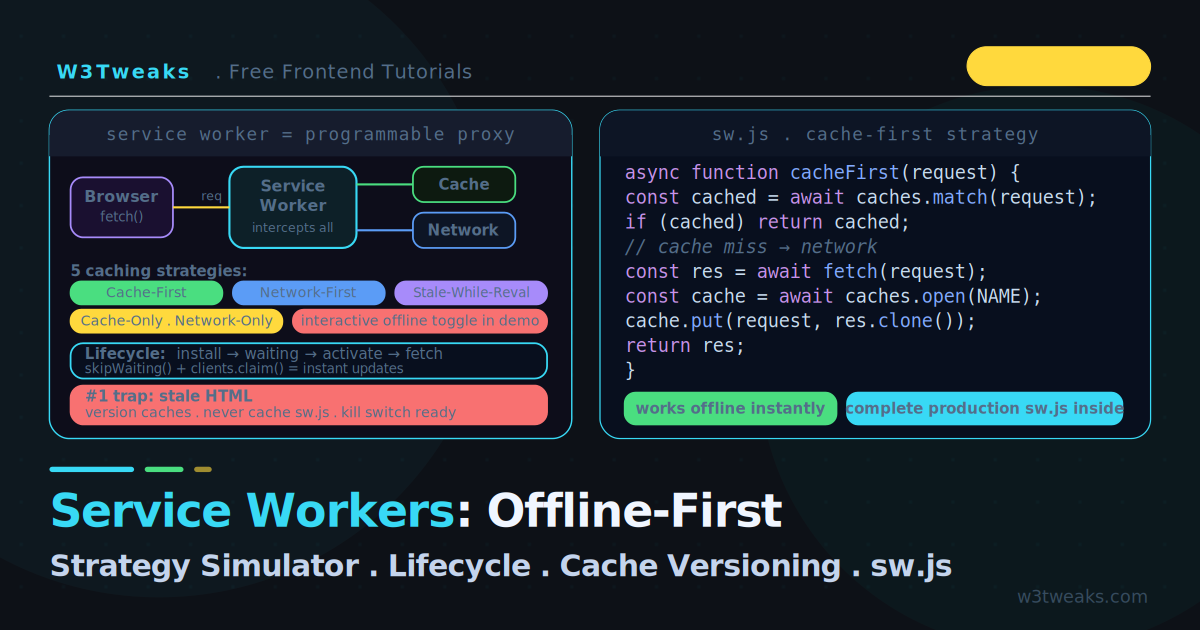
A Service Worker is a JavaScript file that sits between your web app and the network as a programmable proxy. Every request your page makes passes through it first, and your code decides what happens: serve from cache, fetch from network, return a synthetic response, or any combination. This is what makes offline-first apps, instant repeat loads, and reliable performance on flaky networks possible.
The problem with learning Service Workers is that they are invisible. You write caching strategies as code, deploy, and hope they behave correctly. This guide fixes that with an interactive simulator: toggle offline, click Clear Cache, click Make Request, and watch the request travel through cache-first, network-first, or stale-while-revalidate in real time.
Service Workers are a specialised type of Web Worker, so the threading model from the Web Workers tutorial applies — they run off the main thread and communicate via events. The difference: their lifecycle and their ability to intercept network requests.
Live Demo
Tab 1: pick a strategy, toggle offline, click Clear Cache to demonstrate MISS paths, then Make Request to watch the flow. Tab 2: walk the lifecycle and see the waiting trap. Tab 3: inspect the cache and watch version cleanup on activate.
What a Service Worker Does
Without a Service Worker:
  Browser ──── request ────► Network ────► Response
  (offline = the request fails, page breaks)

With a Service Worker:
  Browser ──► Service Worker ──┬──► Cache ──► Response (instant, works offline)
                              └──► Network ──► Response (+ optionally cache it)
The Service Worker intercepts every fetch within its scope. It can answer from a local cache (instant, works offline), pass through to the network, or do both. You write the decision logic.
Three things make Service Workers different from regular JavaScript:
- They run on a separate thread with no DOM access (like Web Workers)
- They persist after the page closes and can wake up for background events
- They require HTTPS (except on
localhostfor development)
Service Worker Register — Step 1
Registration happens from your main page. The browser downloads sw.js and begins the lifecycle.
// main.js — runs on the page
if ('serviceWorker' in navigator) {
  window.addEventListener('load', () => {
    navigator.serviceWorker.register('/sw.js')
      .then(registration => {
        console.log('SW registered, scope:', registration.scope);
      })
      .catch(error => {
        console.error('SW registration failed:', error);
      });
  });
}
Service worker scope matters. A Service Worker at /sw.js controls the entire origin (/). A Service Worker at /app/sw.js only controls /app/ and below. Place sw.js at the root to control the whole site.
ES module Service Workers
navigator.serviceWorker.register('/sw.js', { type: 'module' });Pass { type: 'module' } to use import statements inside sw.js. Chrome 91+, Firefox 121+, Safari 16+.
Step 2 — The Install Event: Precache the App Shell
The install event fires once when the Service Worker is first registered (or updated). This is where you cache the app shell — the minimal HTML, CSS, and JS needed to render your UI.
// sw.js
const CACHE_VERSION = 'v1';
const CACHE_NAME    = `app-shell-${CACHE_VERSION}`;

const APP_SHELL = [
  '/',
  '/index.html',
  '/styles.css',
  '/app.js',
  '/offline.html',
  '/logo.svg',
];

self.addEventListener('install', (event) => {
  event.waitUntil(
    caches.open(CACHE_NAME).then((cache) => cache.addAll(APP_SHELL))
  );
});
⚠ cache.addAll() Is All-or-Nothing — The Hidden Install Failure
The most common “my install fails silently” cause: cache.addAll() is atomic — if ANY URL in the array fails (a typo, a 404, a CORS error, a 500), the entire precache rejects and the Service Worker never activates. Users get the broken state from before you tried to update.
The resilient pattern: catch failures individually with cache.put() per URL:
async function resilientPrecache(cacheName, urls) {
  const cache = await caches.open(cacheName);
  const results = await Promise.allSettled(
    urls.map(async (url) => {
      try {
        const response = await fetch(url);
        if (!response.ok) throw new Error(`${response.status} for ${url}`);
        return cache.put(url, response);
      } catch (err) {
        console.warn(`Skipping ${url}:`, err.message);
        // Continue precaching the others
      }
    })
  );
  const failed = results.filter(r => r.status === 'rejected').length;
  if (failed) console.warn(`${failed} URLs failed to precache (continuing anyway)`);
}

self.addEventListener('install', (event) => {
  event.waitUntil(resilientPrecache(CACHE_NAME, APP_SHELL));
});
Now a typo in one icon URL doesn’t kill the whole deployment. Use cache.addAll() for the small, critical shell list where ANY failure should block the deploy. Use the resilient pattern for the longer “nice-to-have” list of assets.
Step 3 — The Activate Event: Clean Up Old Caches + Navigation Preload
The activate event fires when the new Service Worker takes control. Two jobs: clean up old caches AND enable Navigation Preload.
const CURRENT_CACHES = new Set([CACHE_NAME]);

self.addEventListener('activate', (event) => {
  event.waitUntil((async () => {
    // 1. Clean up old caches
    const cacheNames = await caches.keys();
    await Promise.all(
      cacheNames
        .filter((name) => !CURRENT_CACHES.has(name))
        .map((name) => caches.delete(name))
    );

    // 2. Enable Navigation Preload (saves ~100-300ms on cold start)
    if (self.registration.navigationPreload) {
      await self.registration.navigationPreload.enable();
    }
  })());
});
Navigation Preload — The Cold Start Fix
The single biggest performance regression of adopting a Service Worker is the SW boot time on the first navigation. The browser has to start your SW, parse it, and only THEN does your fetch handler get to run. That can add 100-300ms to cold loads.
navigationPreload.enable() tells the browser to start fetching the navigation request in parallel with booting the SW. Your fetch handler then races them:
self.addEventListener('fetch', (event) => {
  if (event.request.mode !== 'navigate') return;

  event.respondWith((async () => {
    // Use the preloaded response if it arrived first
    const preload = await event.preloadResponse;
    if (preload) return preload;

    // Otherwise fall through to your normal strategy
    return staleWhileRevalidate(event.request);
  })());
});
Browser support: Chrome 59+, Firefox 99+, Safari 16.4+. Worth turning on for almost every Service Worker.
Service Worker Caching Strategies — 5 Patterns
The fetch event fires for every network request in scope. Your respondWith decides how to answer. The simulator above lets you pick each strategy and watch it run.
Cache-First Strategy — For Hashed Static Assets
Check the cache first; only hit the network on a miss. Best for assets that rarely change — CSS, JS with fingerprinted filenames, fonts, logos.
async function cacheFirst(request) {
  const cached = await caches.match(request);
  if (cached) return cached;

  const response = await fetch(request);
  const cache = await caches.open(CACHE_NAME);
  cache.put(request, response.clone());
  return response;
}
Network-First Strategy — For API Data
Try the network first; fall back to cache if offline. Best for dynamic content — API responses, user data, anything that should be fresh when possible.
async function networkFirst(request) {
  try {
    const response = await fetch(request);
    const cache = await caches.open('api-cache');
    cache.put(request, response.clone());
    return response;
  } catch {
    const cached = await caches.match(request);
    return cached || new Response(
      JSON.stringify({ error: 'offline' }),
      { status: 503, headers: { 'Content-Type': 'application/json' } }
    );
  }
}
Stale-While-Revalidate Service Worker Pattern — For App Shell HTML
Serve from cache immediately, fetch a fresh copy in the background for next time. The default I reach for on HTML — instant paint, fresh next visit.
async function staleWhileRevalidate(request) {
  const cache  = await caches.open(CACHE_NAME);
  const cached = await cache.match(request);

  const networkFetch = fetch(request).then((response) => {
    cache.put(request, response.clone());
    return response;
  });

  return cached || networkFetch;
}
Cache-Only and Network-Only
async function cacheOnly(request) {
  return caches.match(request);
}

async function networkOnly(request) {
  return fetch(request);
}
Route Requests by Type
A production Service Worker routes each request to the right strategy based on what it is:
self.addEventListener('fetch', (event) => {
  const { request } = event;
  const url = new URL(request.url);

  // Never cache POST/PUT/DELETE — only GET requests
  if (request.method !== 'GET') return;

  // Skip cross-origin requests unless you have a good reason
  if (url.origin !== self.location.origin) return;

  // Navigation requests (HTML pages) → SWR + Navigation Preload race
  if (request.mode === 'navigate') {
    event.respondWith((async () => {
      const preload = await event.preloadResponse;
      if (preload) return preload;
      return staleWhileRevalidate(request);
    })());
    return;
  }

  // API calls → network-first
  if (url.pathname.startsWith('/api/')) {
    event.respondWith(networkFirst(request));
    return;
  }

  // Static assets → cache-first
  if (/\.(css|js|woff2?|png|jpg|svg|webp)$/.test(url.pathname)) {
    event.respondWith(cacheFirst(request));
    return;
  }

  // Everything else → network-first
  event.respondWith(networkFirst(request));
});
The Strategy Decision Matrix
| Resource type | Strategy | Why |
|---|---|---|
| CSS, JS, fonts | Cache-first | Versioned filenames, change rarely, must be instant |
| Logos, icons, images | Cache-first | Rarely change, large, worth caching |
| App shell HTML | Stale-while-revalidate | Instant load + silent updates |
| API GET requests | Network-first | Fresh data preferred, cache as offline fallback |
| User-specific data | Network-first | Must be current, fallback acceptable |
| Real-time data (prices, chat) | Network-only | Caching would show stale info |
| Analytics, POST requests | Network-only | Never appropriate to cache |
| Precached shell assets | Cache-only | Already in cache, no network needed |
Service Worker Waiting — The Lifecycle Trap
This is the single most confusing Service Worker behaviour, and the simulator’s second tab demonstrates it visually.
When you deploy a new sw.js, the browser:
- Downloads the new Service Worker
- Runs its
installevent - Puts it in a waiting state — it does NOT activate
The new Service Worker waits until every tab controlled by the old version is closed. A simple page refresh is not enough — the old Service Worker is still controlling the page during a refresh. Users can be stuck on an old version for days.
skipWaiting clients claim — The Aggressive Fix
self.addEventListener('install', (event) => {
  event.waitUntil(precache());
  self.skipWaiting();
});

self.addEventListener('activate', (event) => {
  event.waitUntil(
    cleanupOldCaches().then(() => self.clients.claim())
  );
});
skipWaiting() makes the new Service Worker activate immediately instead of waiting. clients.claim() makes it take control of all open pages without requiring a reload. Together they create instant updates.
The catch: skipWaiting() can break a running session if the old page expects old assets that the new version deleted. For most apps it is fine. For apps with long sessions, prefer the “New Version Available” banner pattern below.
Service Worker Update — “New Version Available” Banner
Handling a service worker update without a double refresh is the canonical follow-up to the waiting trap. Show the user a banner when an update is ready, and let them choose when to apply it:
// main.js — on the page
async function registerWithUpdateUI() {
  const registration = await navigator.serviceWorker.register('/sw.js');

  // 1. Watch for new SW installing
  registration.addEventListener('updatefound', () => {
    const installing = registration.installing;
    if (!installing) return;

    installing.addEventListener('statechange', () => {
      // 2. When the new SW is installed (but old still controls page)
      if (installing.state === 'installed' && navigator.serviceWorker.controller) {
        showUpdateBanner(registration);
      }
    });
  });

  // 3. Kill the double-refresh bug
  let refreshing = false;
  navigator.serviceWorker.addEventListener('controllerchange', () => {
    if (refreshing) return;
    refreshing = true;
    window.location.reload();
  });
}

function showUpdateBanner(registration) {
  // Build your UI however you want — this is the data flow
  const banner = document.querySelector('#update-banner');
  banner.hidden = false;

  banner.querySelector('button.update').onclick = () => {
    // 4. Tell the waiting SW to take over
    registration.waiting?.postMessage({ type: 'SKIP_WAITING' });
  };
}
And in sw.js, listen for that message:
self.addEventListener('message', (event) => {
  if (event.data?.type === 'SKIP_WAITING') self.skipWaiting();
});

// Note: NO self.skipWaiting() in install — we wait for the user
self.addEventListener('install', (event) => {
  event.waitUntil(precache());
});
Four key events: updatefound, installing.statechange, controllerchange (with the refreshing flag), and the message from the page. The refreshing flag is what kills the double-refresh bug — without it, controllerchange fires twice and the page reloads twice in a row.
The Stale HTML Failure Mode (The #1 First-Deploy Bug)
The most common offline-first disaster: you deploy a new version, but the Service Worker keeps serving the old HTML shell from cache. The old HTML loads the new API, which returns a new response shape, which breaks the old client code.
Prevent it with three rules:
// Rule 1: Version your cache names — bump on every deploy that changes shapes
const CACHE_VERSION = 'v2';
const CACHE_NAME    = `app-shell-${CACHE_VERSION}`;

// Rule 2: Use stale-while-revalidate for HTML — never plain cache-first

// Rule 3: NEVER cache the sw.js file itself — set this header on your server:
//   Cache-Control: no-cache
//   Otherwise the browser caches the old SW and users are stuck forever
The third rule is critical and almost never mentioned: if your server caches sw.js, the browser never sees your new Service Worker, and users are locked on the old version permanently with no recovery path.
Queuing Failed Writes with the Background Sync API
The Cache API only supports GET requests — cache.put() throws if you pass a POST request. For offline POST/PUT/DELETE support, queue the failed requests in IndexedDB and replay them when connectivity returns using the Background Sync API:
// On the page — try the fetch; if it fails, queue it and register a sync
async function submitForm(data) {
  try {
    await fetch('/api/submit', { method: 'POST', body: JSON.stringify(data) });
  } catch {
    await queueWriteForLater('/api/submit', data);
    const registration = await navigator.serviceWorker.ready;
    await registration.sync.register('flush-write-queue');
    alert('You are offline. Your submission will be sent when you reconnect.');
  }
}
// sw.js — listen for sync events and flush the queue
self.addEventListener('sync', (event) => {
if (event.tag === 'flush-write-queue') {
event.waitUntil(flushQueue());
}
});
async function flushQueue() {
const queue = await readQueueFromIndexedDB();
for (const item of queue) {
try {
await fetch(item.url, { method: 'POST', body: JSON.stringify(item.data) });
await removeFromQueue(item.id);
} catch {
// Sync will retry automatically with exponential backoff
throw new Error('Network still flaky');
}
}
}The browser invokes the sync event the next time connectivity is detected — even if the page is closed. If the fetch still fails, the browser retries with exponential backoff (up to ~24 hours).
Browser support: Chrome 49+, Edge 79+, Opera. Safari and Firefox do not support Background Sync. Fall back to a one-shot replay on the online event:
// Fallback for Safari and Firefox
window.addEventListener('online', flushQueue);
window.addEventListener('visibilitychange', () => {
  if (!document.hidden && navigator.onLine) flushQueue();
});
Web Push Notifications in 30 Lines
Service Workers enable web push notifications via the push event. The full pattern:
// Page — ask permission and subscribe
async function subscribeToPush() {
  const permission = await Notification.requestPermission();
  if (permission !== 'granted') return;

  const registration = await navigator.serviceWorker.ready;
  const subscription = await registration.pushManager.subscribe({
    userVisibleOnly: true,
    applicationServerKey: 'YOUR_VAPID_PUBLIC_KEY',
  });

  // Send subscription endpoint to your server
  await fetch('/api/push/subscribe', {
    method: 'POST',
    body: JSON.stringify(subscription),
  });
}
// sw.js — show notification on push
self.addEventListener('push', (event) => {
const data = event.data?.json() || { title: 'Update', body: 'Tap to view' };
event.waitUntil(
self.registration.showNotification(data.title, {
body: data.body,
icon: '/icons/icon-192.png',
badge: '/icons/badge-72.png',
data: { url: data.url || '/' },
})
);
});
self.addEventListener('notificationclick', (event) => {
event.notification.close();
event.waitUntil(self.clients.openWindow(event.notification.data.url));
});The subscription gives your server a unique URL (provided by the browser’s push service: Mozilla Autopush, FCM, Apple Push). Your server POSTs to that URL to deliver notifications. Safari 16.4+ finally supports web push, but only when the PWA is installed to the home screen (standalone display mode).
From Service Worker to Installable PWA
A Service Worker with a fetch handler + a manifest = an installable PWA. The minimum manifest:
// public/manifest.webmanifest
{
  "name": "My App",
  "short_name": "App",
  "start_url": "/",
  "display": "standalone",
  "background_color": "#ffffff",
  "theme_color": "#4338ca",
  "icons": [
    { "src": "/icons/icon-192.png", "sizes": "192x192", "type": "image/png" },
    { "src": "/icons/icon-512.png", "sizes": "512x512", "type": "image/png" }
  ]
}<link rel="manifest" href="/manifest.webmanifest">Then capture beforeinstallprompt to show a custom install button:
let deferredPrompt;

window.addEventListener('beforeinstallprompt', (e) => {
  e.preventDefault(); // stop browser's default mini-infobar
  deferredPrompt = e;
  document.querySelector('#install-button').hidden = false;
});

document.querySelector('#install-button').addEventListener('click', async () => {
  if (!deferredPrompt) return;
  deferredPrompt.prompt();
  const { outcome } = await deferredPrompt.userChoice;
  console.log(outcome === 'accepted' ? 'Installed' : 'Dismissed');
  deferredPrompt = null;
});
iOS Safari never fires beforeinstallprompt — users must add to home screen via the share sheet. Detect iOS and show platform-specific instructions instead.
Storage Quota and navigator.storage.persist()
Browsers can evict Service Worker caches under memory pressure. Two defenses:
// Check current usage and quota
const estimate = await navigator.storage.estimate();
console.log(`Using ${estimate.usage} of ${estimate.quota} bytes`);
console.log(`(${(estimate.usage / estimate.quota * 100).toFixed(1)}% used)`);

// Request persistent storage — not evicted under memory pressure
if (navigator.storage.persist) {
  const isPersistent = await navigator.storage.persist();
  console.log('Persistent storage granted:', isPersistent);
}
navigator.storage.persist() requires user permission in Firefox/Safari; Chrome auto-grants for installed PWAs and engaged sites.
Opaque response gotcha: Cross-origin responses fetched with no-cors mode (CDN images, ads) are stored as “opaque” — Chrome counts each one as ~7MB regardless of actual size. A page with 50 opaque images counts as 350MB against your quota even if the images total 5MB. Either fetch with CORS enabled or accept the budget hit.
The Kill Switch (Your Deployment Safety Net)
Always have a way to disable a broken Service Worker remotely. Prepare a “kill switch” version that unregisters itself and clears all caches:
// kill-switch sw.js — deploy this if your real SW breaks production
self.addEventListener('install', () => self.skipWaiting());

self.addEventListener('activate', (event) => {
  event.waitUntil((async () => {
    const names = await caches.keys();
    await Promise.all(names.map((n) => caches.delete(n)));
    await self.registration.unregister();
    const clients = await self.clients.matchAll();
    clients.forEach((client) => client.navigate(client.url));
  })());
});
If your real Service Worker ships a bug, deploy this file as sw.js. It cleans up and removes itself. Test this path before you ship your real Service Worker.
iOS Safari Service Worker Quirks
Safari shipped Service Workers in 2018 (11.1), but it has more rough edges than Chrome/Firefox. Current status:
| Quirk | Workaround |
|---|---|
| ~50MB storage cap per origin (vs ~6% of disk on Chrome) | Test cache size with navigator.storage.estimate(); aggressive cleanup in activate |
| Push notifications require home-screen install (PWA standalone mode) | Detect standalone via navigator.standalone === true, show install instructions to non-installed users |
| Service Worker terminated within ~30s of last fetch | Don’t rely on in-memory state; use IndexedDB for anything you need across requests |
| EU DMA changes mean iOS browsers can use their own engines but PWA install via non-Safari browsers loses native install experience | Detect engine + show appropriate install guidance |
beforeinstallprompt does not fire on iOS | Custom “add to home screen” UI with share-sheet instructions |
| Background Sync API not supported | Fall back to online + visibilitychange event replay |
Notification permission requires user gesture | Wire permission request to a button click, never auto-prompt |
For production iOS PWAs, ship a feature detection layer at startup that reports what’s available and degrade gracefully.
Service Worker Not Working? Debug Checklist
| Symptom | Likely cause | Fix |
|---|---|---|
| Registration silently fails | Not HTTPS (production) | Service Workers require HTTPS except on localhost |
| SW only controls part of site | Scope too narrow | Move sw.js to root, or set Service-Worker-Allowed header |
| Fetch handler doesn’t fire | respondWith called asynchronously | Must call respondWith synchronously in the event handler |
| Updates don’t apply | Waiting trap | See “Service Worker Update” section above |
| Updates STILL don’t apply | Server caching sw.js | Set Cache-Control: no-cache on sw.js |
| Install fails silently | cache.addAll() atomicity | Use resilient Promise.allSettled pattern |
addAll() 404s on / | Trailing slash quirk | Match exactly what your server returns |
| Cache works but eviction wipes it | No persistent storage | Call navigator.storage.persist() |
| Double-refresh bug after update | Missing refreshing flag | Add the flag inside controllerchange handler |
| Logs disappear on refresh | DevTools default | Check “Preserve log” in Console settings |
How to Clear a Service Worker
Three ways to clear a stuck Service Worker, ordered by user severity:
- DevTools — Application → Service Workers → Unregister + Application → Storage → Clear site data
- Kill switch deploy — ship the kill-switch SW from above as
sw.js; users get it on next visit - Programmatic unregister from the page:
async function unregisterAllServiceWorkers() {
  const registrations = await navigator.serviceWorker.getRegistrations();
  for (const registration of registrations) {
    await registration.unregister();
  }
  // Optional: also nuke caches
  const cacheNames = await caches.keys();
  for (const name of cacheNames) await caches.delete(name);
  window.location.reload();
}
Step 6 — Test Offline in DevTools
- Open Chrome DevTools → Application tab
- Click Service Workers in the left sidebar
- Confirm your worker shows “activated and is running”
- Check the Offline checkbox (or use Network tab → Offline)
- Reload the page — it should still work, served entirely from cache
- Click Cache Storage in the sidebar to inspect what is cached
To force an update during development, check Update on reload — this bypasses the waiting trap so every refresh runs your latest code.
Key Takeaways
- A Service Worker is a programmable proxy that intercepts every request in its scope — you decide cache, network, or both
- The lifecycle is install → waiting → activate → fetch — use
event.waitUntil()to extend install (precache) and activate (cleanup) - The 5 strategies: cache-first (static assets), network-first (API data), stale-while-revalidate (app shell HTML), cache-only, network-only — route each request to the right one
cache.addAll()is all-or-nothing — one 404 tanks the entire install. UsePromise.allSettled+cache.put()for resilient precaching- Enable Navigation Preload in
activate— saves 100-300ms on cold-start navigations by running fetch in parallel with SW boot - A new SW stays in waiting until all old tabs close — use
skipWaiting()+clients.claim()for aggressive instant updates, OR the New Version Available banner withupdatefound+statechange+controllerchange(withrefreshingflag to kill the double-refresh bug) for user-controlled updates - Version your cache names and bump on every deploy — delete old caches in the
activateevent - Never let your server cache
sw.js— setCache-Control: no-cacheor users get stuck on the old version forever - Use stale-while-revalidate for HTML, never plain cache-first, to avoid serving stale shells
- Background Sync API queues failed offline writes and replays them when connectivity returns (Chrome/Edge only; fall back to
onlineevent for Safari/Firefox) - Web Push notifications via the
pushevent +pushManager.subscribe— Safari 16.4+ requires home-screen install - Service Workers + manifest = installable PWA — capture
beforeinstallprompt, build a custom install button - Opaque responses count as ~7MB each in Chrome’s storage quota — fetch with CORS where possible
- Call
navigator.storage.persist()to protect caches from eviction under memory pressure - Always prepare a kill-switch Service Worker that unregisters and clears caches before shipping your first one
- iOS Safari has a ~50MB cap, no
beforeinstallprompt, no Background Sync, and push requires standalone install — feature-detect and degrade
FAQ
Why does my Service Worker update not take effect after I deploy?
The new Service Worker stays in the “waiting” state until every tab controlled by the old version closes. A refresh is not enough because the old worker still controls the page during reload. The aggressive fix is self.skipWaiting() in install + self.clients.claim() in activate. The user-friendly fix is the “New Version Available” banner pattern with updatefound + controllerchange + a SKIP_WAITING message. Also confirm your server is not caching sw.js itself — set Cache-Control: no-cache on that file.
How do I update a service worker without forcing a refresh?
Use the New Version Available banner pattern. Listen for registration.addEventListener('updatefound') on the page. When the new worker reaches state === 'installed' AND navigator.serviceWorker.controller exists (meaning an old SW is still in charge), show a UI banner. When the user clicks “Update”, post a { type: 'SKIP_WAITING' } message to registration.waiting. In the SW, listen for that message and call self.skipWaiting(). On the page, add a controllerchange listener with a refreshing flag to reload once — that flag prevents the double-refresh bug.
What is the difference between a Service Worker and a Web Worker?
A Web Worker runs CPU-heavy code off the main thread and is tied to the page that created it — it dies when the page closes. A Service Worker is a specialised worker that intercepts network requests, persists after the page closes, can wake for background events (push notifications, background sync), and requires HTTPS. Web Workers are for computation; Service Workers are for network control and offline support.
Can a Service Worker cache POST requests?
The Cache API only supports GET requests — cache.put() throws if you pass a POST request. For offline POST/PUT/DELETE support, use the Background Sync API: queue failed requests in IndexedDB, register a sync tag, then handle the sync event in the SW to replay the queue. On Safari and Firefox (no Background Sync), fall back to flushing the queue on online and visibilitychange events.
Why does my app work offline in development but not production?
The most common cause is HTTPS — Service Workers only run over HTTPS (localhost is exempt for development). If your production site is not fully HTTPS, the Service Worker silently fails to register. The second most common cause is service worker scope — a Service Worker at /js/sw.js only controls /js/, not your whole site. Place sw.js at the root. Third cause: your server is caching sw.js itself with strong Cache-Control headers.
How do I clear a service worker stuck with bad cached content?
Three options. For developers: DevTools → Application → Service Workers → Unregister, then Application → Storage → Clear site data. For users in the field: deploy a kill-switch Service Worker that calls self.registration.unregister() and deletes all caches in its activate event. Programmatically from the page: navigator.serviceWorker.getRegistrations() + registration.unregister() + caches.delete() + reload. Prepare and test the kill switch before shipping your first SW.
Why is my service worker not working on iOS Safari?
iOS Safari supports Service Workers since 11.1 (2018), but has quirks. The most common gotchas: ~50MB storage cap (vs Chrome’s percentage of disk); push notifications require standalone PWA install (Safari 16.4+); the SW is killed within ~30s of last fetch; beforeinstallprompt does not fire — users must use the share sheet’s “Add to Home Screen”. Background Sync is not supported. Feature-detect each capability via 'sync' in registration, 'PushManager' in window, etc., and fall back gracefully.
Should I use Workbox instead of writing this by hand?
Workbox (Google’s Service Worker library) makes the common patterns declarative — precaching, route-based strategies, cache expiration — and handles edge cases you might miss (atomic install via Promise.allSettled, navigation preload, broadcast updates). For production apps it is the recommended choice. But writing a Service Worker by hand once, as in this guide, is the best way to understand what Workbox does under the hood, so you can debug it when something goes wrong.
Do Service Workers work in all browsers?
Service Workers themselves are supported in all modern browsers (Chrome, Firefox, Safari, Edge). However, advanced features have gaps: Background Sync is Chromium-only today (not Safari or Firefox); Periodic Background Sync is Chromium-only; navigationPreload is supported in Chrome 59+, Firefox 99+, Safari 16.4+. Core offline caching with the 5 strategies in this guide works everywhere. Always feature-detect ('serviceWorker' in navigator) and treat the Service Worker as a progressive enhancement.