Make your HTML lists more visually appealing and easily navigable with this comprehensive guide to styling them with CSS. Get started now!
Bring life to your HTML lists by customizing their design and adding visual cues with CSS. This guide provides you with detailed steps on how to create a stylish list, from choosing the styling options to set specific styles for each item in the list. Start customizing your HTML lists today!
Understand the Basics of List Design
Before you start styling your HTML lists with CSS, it’s important to understand the basics of list design. You’ll need to decide on the type of list structure you need and define a hierarchy of information that will be included in each item. To do this, consider using ordered or unordered lists as well as different types of bullet points. Additionally, look into setting margins and padding to help create visual space and make your lists easier to navigate.
Customize HTML List Styles
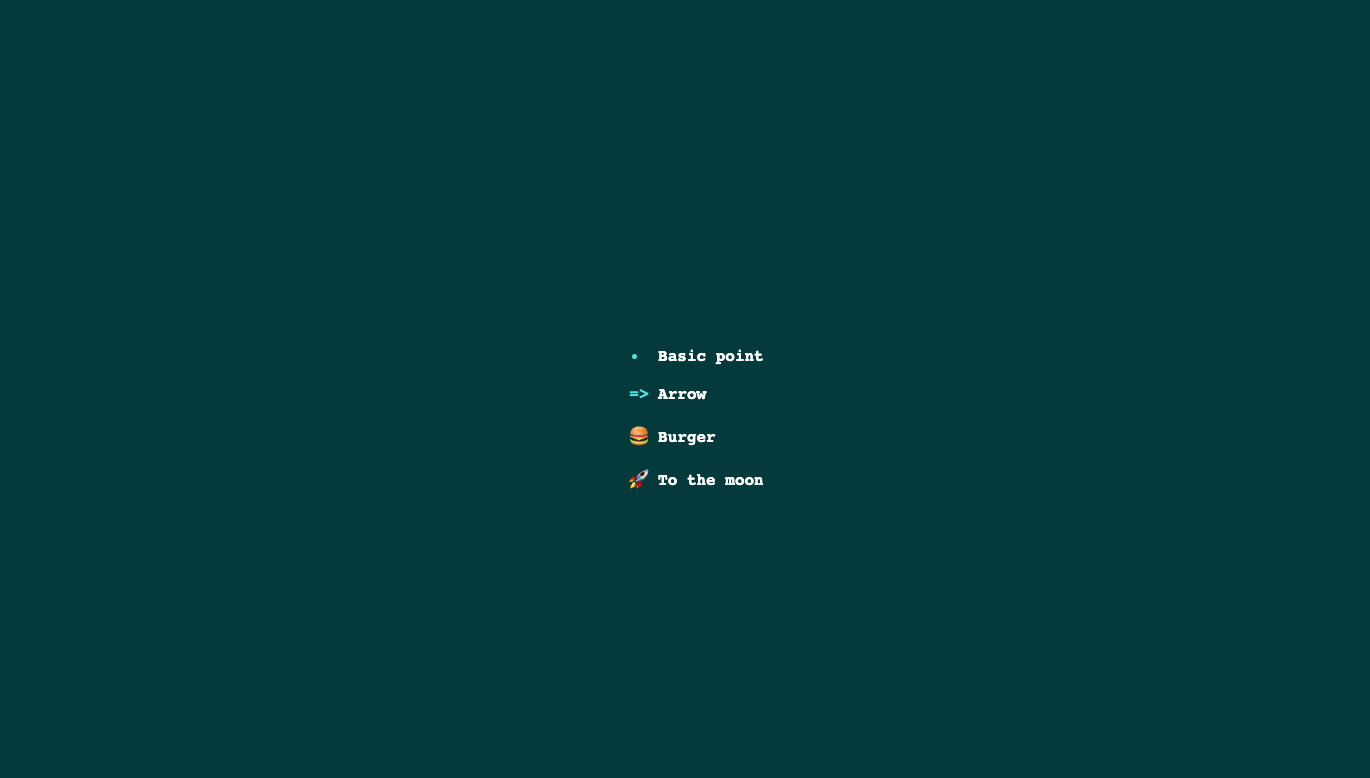
To style, an unordered list, start by selecting the parent “ul” element and then determine its starting point (or value) with the start attribute. From there, assign a number of styling rules such as border size, list item margin and padding, font size, line height, and other types of spacing. Finally, change the type of bullet for each level with list-style-type.
`<ul>
    <li>Basic point</li>
    <li>Arrow</li>
    <li>Burger</li>
    <li>To the moon</li>
</ul>``body {
background-color: #053A3D;
font-family: 'Montserrat', monospace;
font-weight: bold;
}
li {
color: white;
padding: 1ch;
}
li:nth-child(1)::marker {
color: #52E1E2;
}
li:nth-child(2)::marker {
content: "=>";
color: #52E1E2;
}
li:nth-child(3)::marker {
content: "\1F354"
}
li:nth-child(4)::marker {
content:"\1F680";
}
li:nth-child(4):hover::marker {
content: "\1F319"
}
`